When you open an exported .pdf that contains 3D content, Adobe Acrobat Reader displays a yellow bar in the top of the viewing area by default. The bar contains this message: 3D content has been disabled. Enable this features if you trust this document. The procedures below show you how to enable Acrobat Reader to display 3D content.
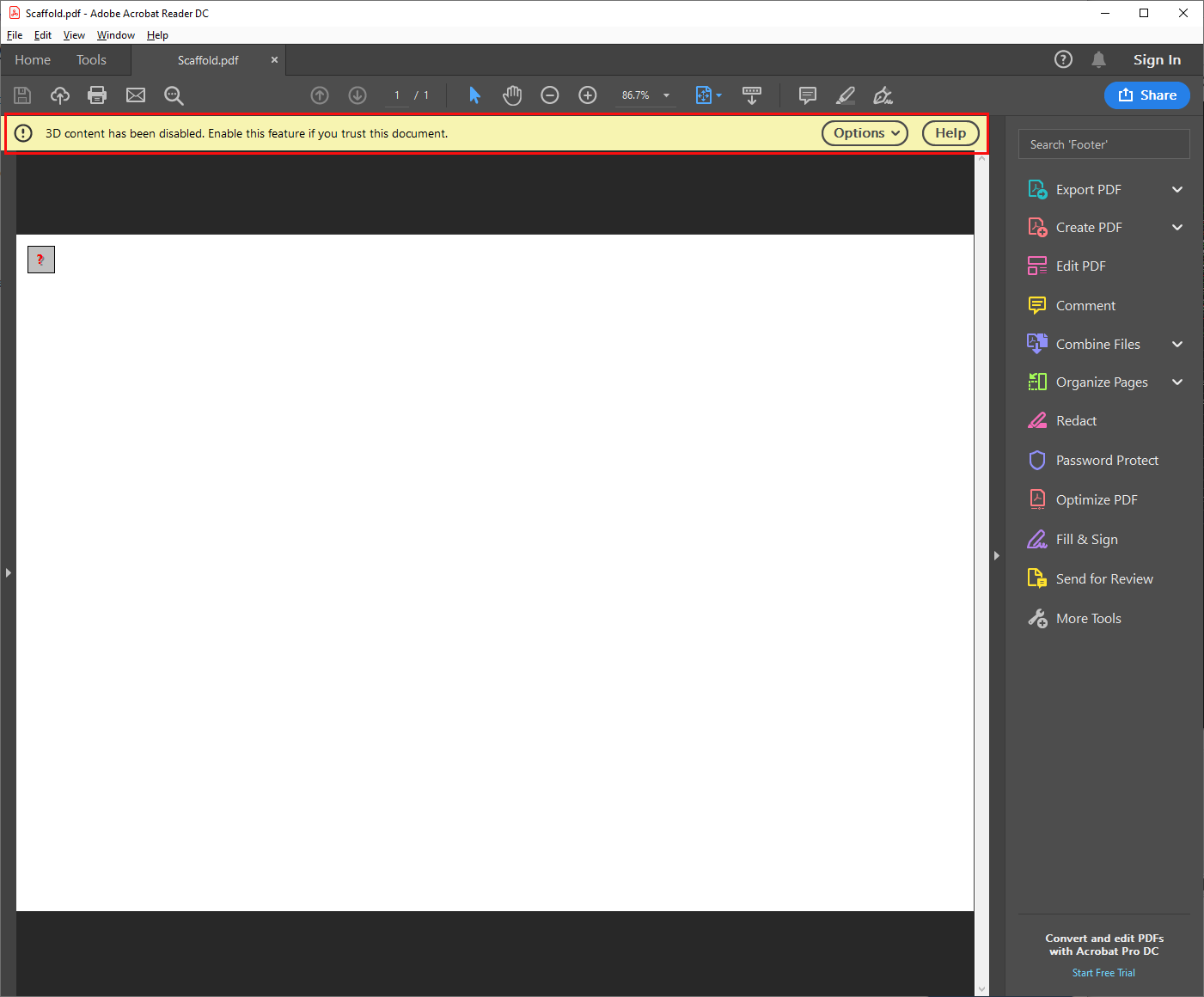
To view the 3D content:
1. Click Options and select the appropriate option:
Trust this document one time only
Trust this document always
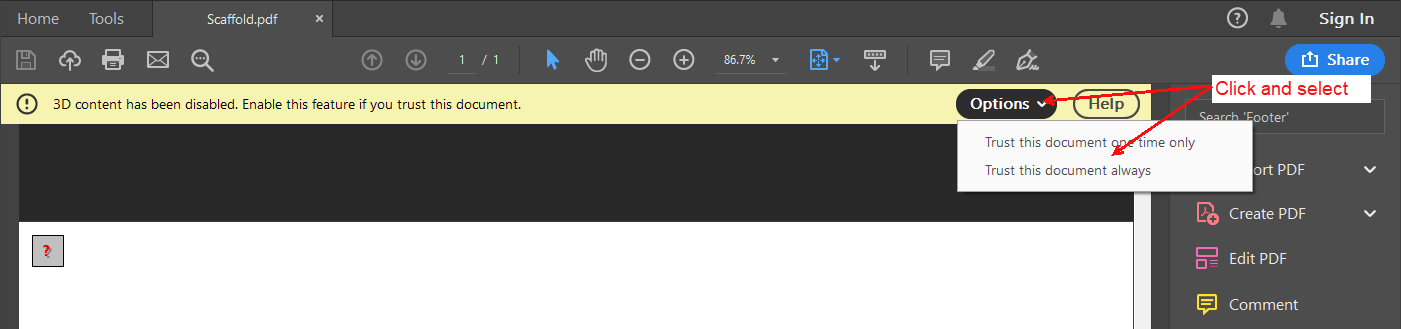
2. To enable viewing 3D content permanently:
a. Click the Edit menu in Acrobat Reader and select Preferences.
The Preferences dialog appears.
b. Click 3D & Multimedia, then click the Enable playing 3D content checkbox (to put a check in it).
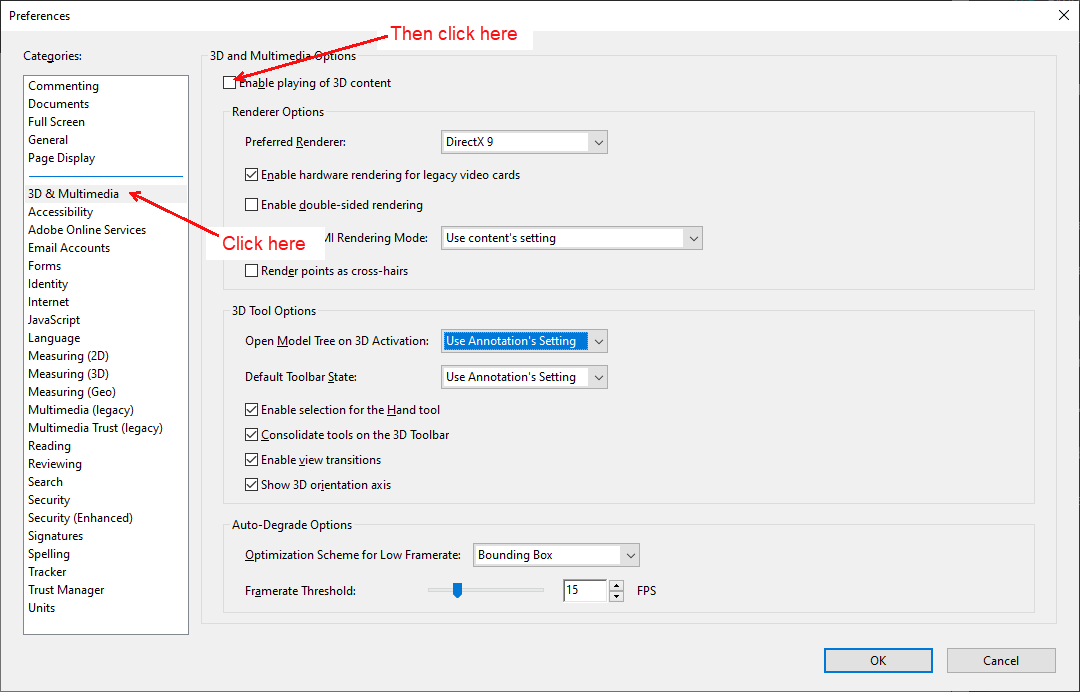
c. Click OK.