Avontus Designer enables you to create, manage and import/export part modifications. You can set up Mod Profiles that can contain multiple Design Features
To learn about part modifications, refer to the Part Mods Button section of The Scaffold Ribbon.
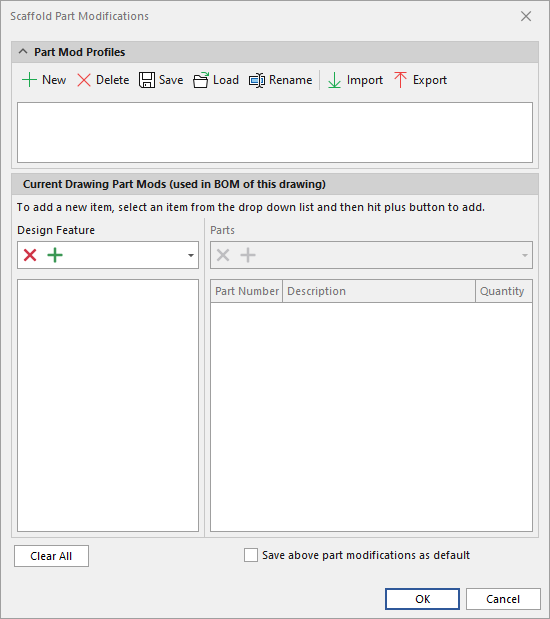
Creating a Part Mod Profile
A Part Mod Profile is a collection of modifications that you use over and over. They are used when specific scaffold features need to be added to some drawings but not all.
You can create more than one profile.
To add a Part Mod Profile:
Click the Scaffold tab and click Part Mods.
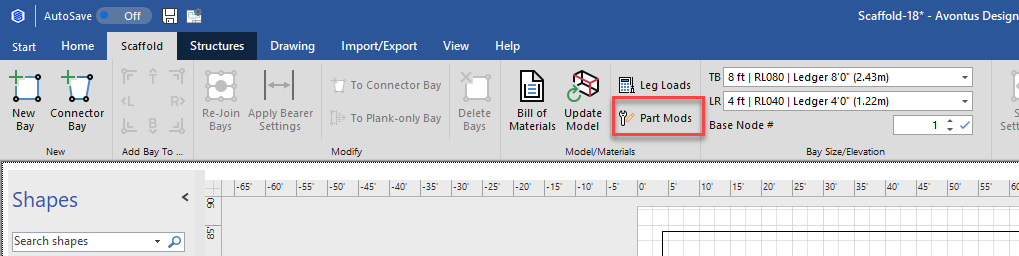
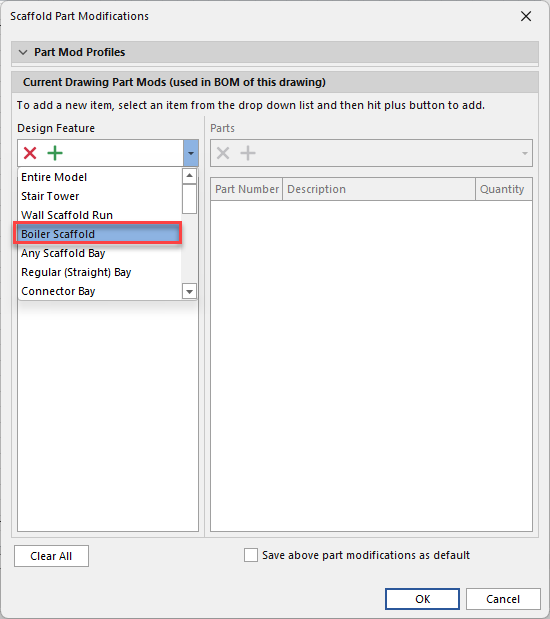
The Scaffold Part Modification dialog appears.Select the Design Feature drop-down and then select an option. You can also type your option and the result will be displayed.
Note: You will need to select a Design Feature before you can add a Part Mod.
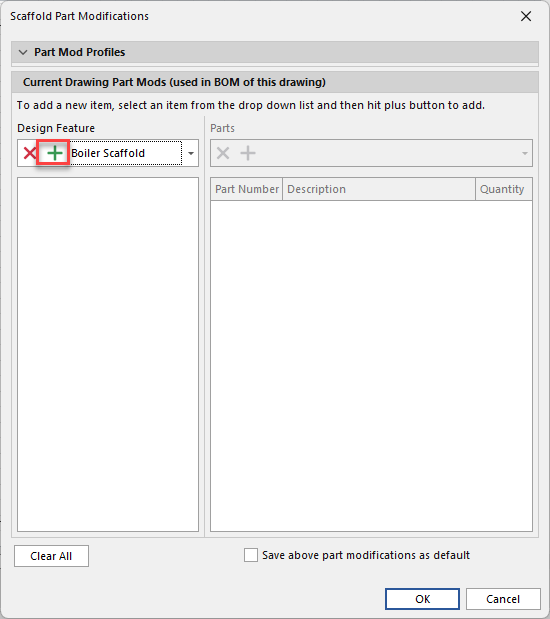
Click the green + icon
If required, click the drop-down and add any parts
Click the green + icon
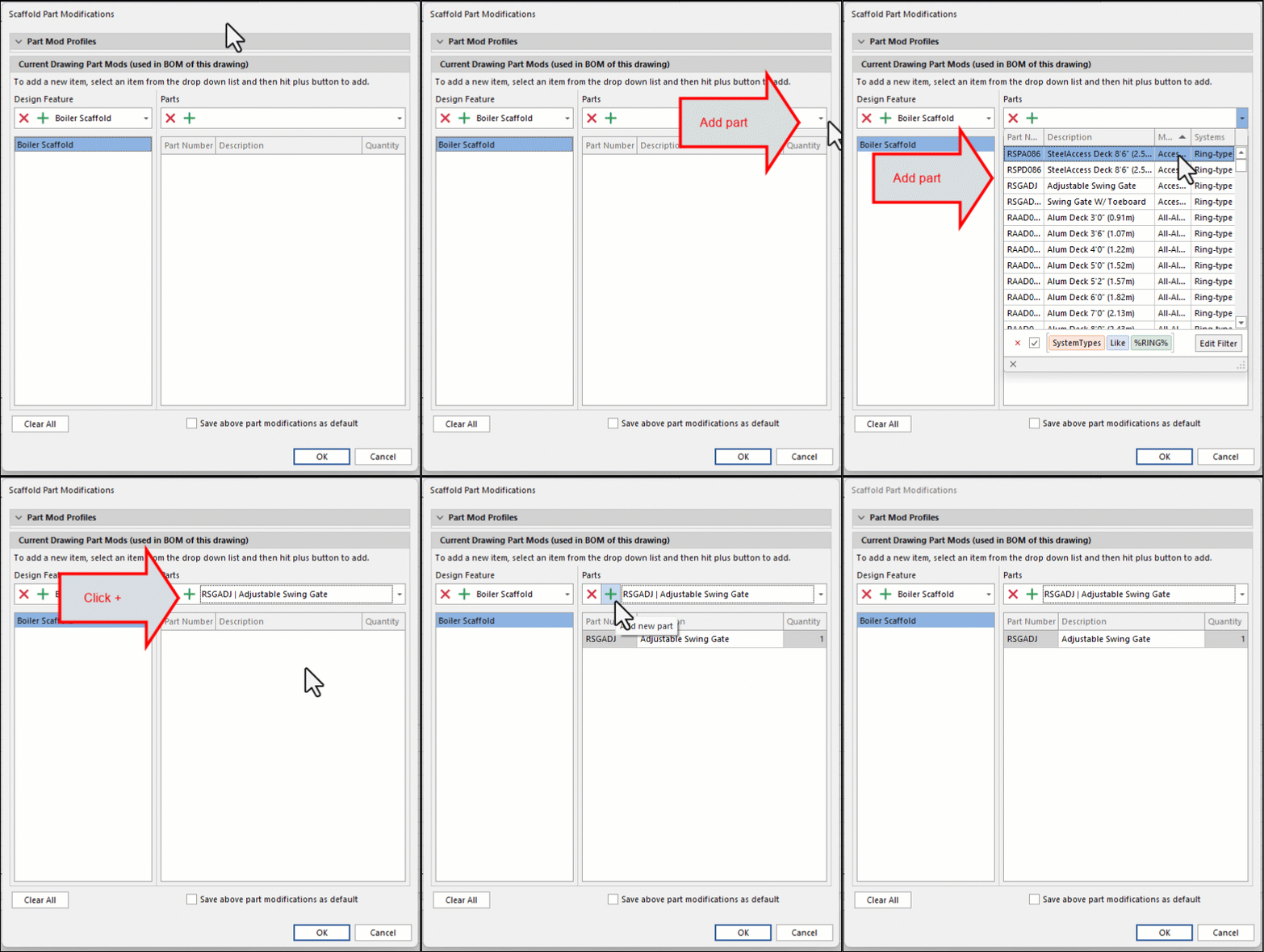
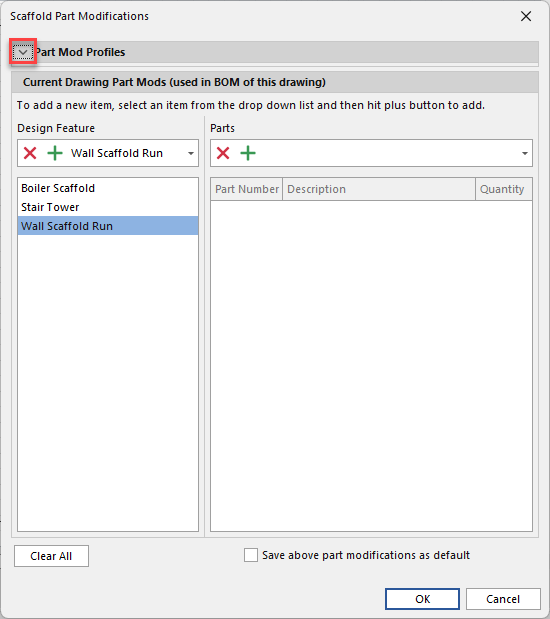
If required expand the Part Mod Profiles section
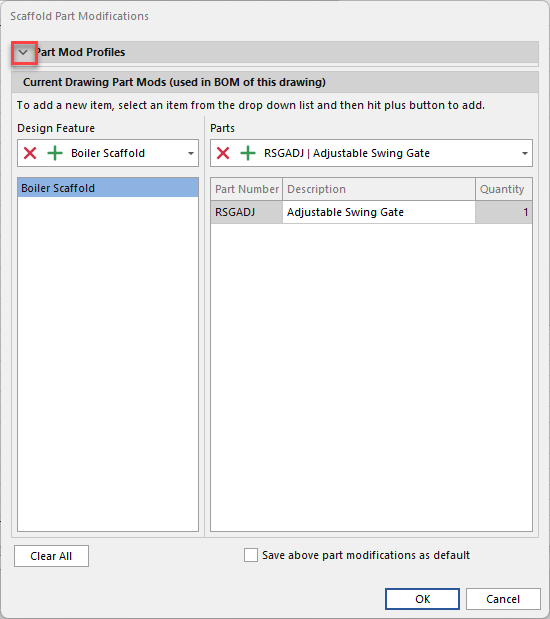
Adjust the Quantities
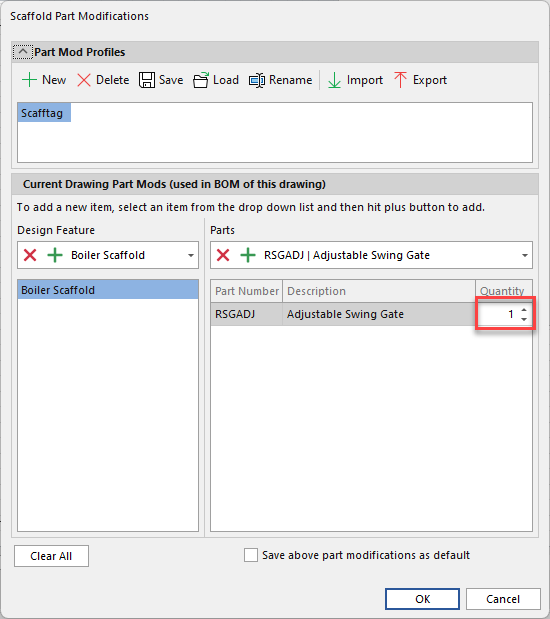
Click New
Enter the name of the new mod profile and click OK
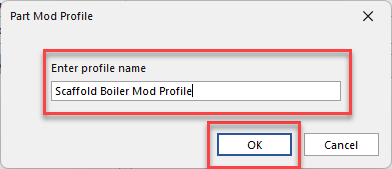
The profile is added
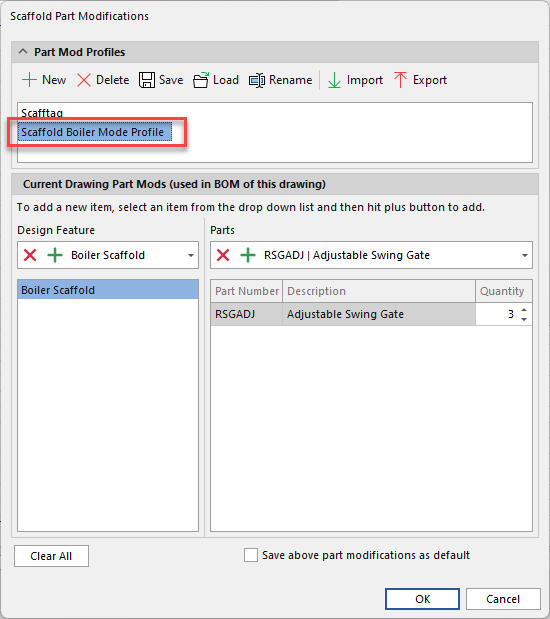
Create as many Mod profiles as necessary.
Saving a Part Mod Profile
Once a Part Mod Profile has been created, it is straightforward to edit and save.
To load a Part Mod Profile:
Click the Scaffold tab and click Part Mods.
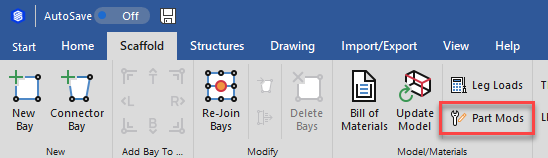
The Scaffold Part Modification dialog appears.Expand the Part Mode Profiles dropdown,
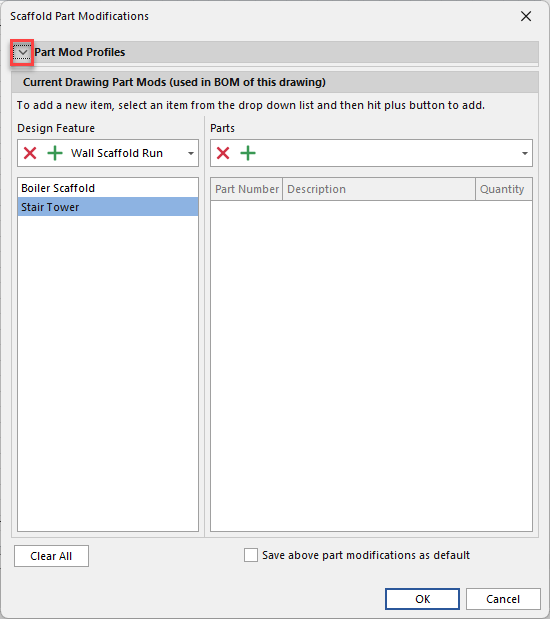
Select the appropriate Profile
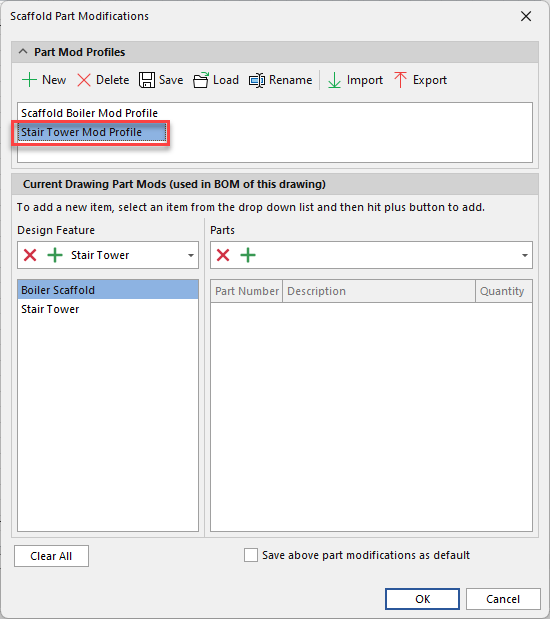
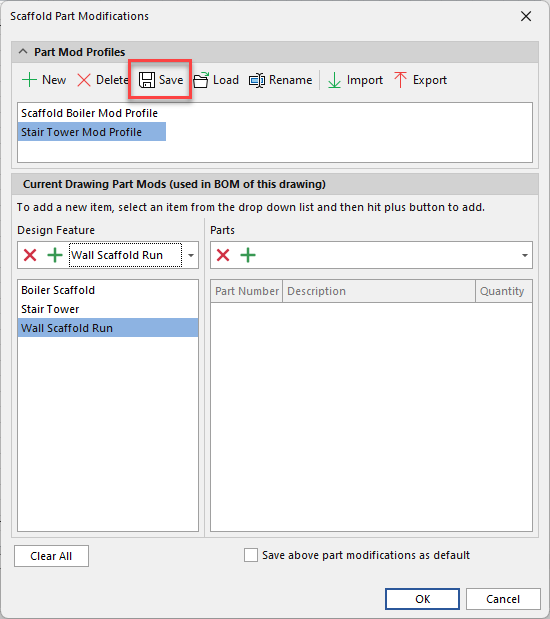
Make any changes and click the Save button.
Click Yes
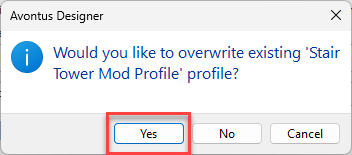
The mod will be saved
Accessing a Part Mod Profile
Once a Part Mod Profile has been created, it is very easy to access.
To load a Part Mod Profile:
Click the Scaffold tab and click Part Mods.
The Scaffold Part Modification dialog appears.Expand the Part Mode Profiles dropdown, select the appropriate Profile, then click the Load button
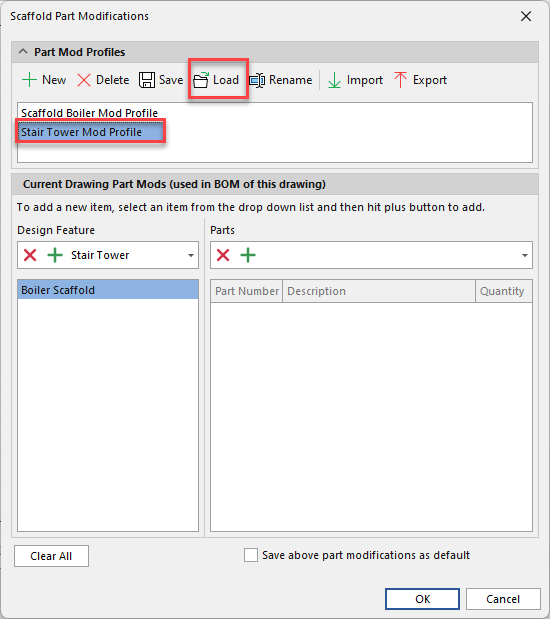
Click Yes to load the profile

Avontus Designer loads the Profile.
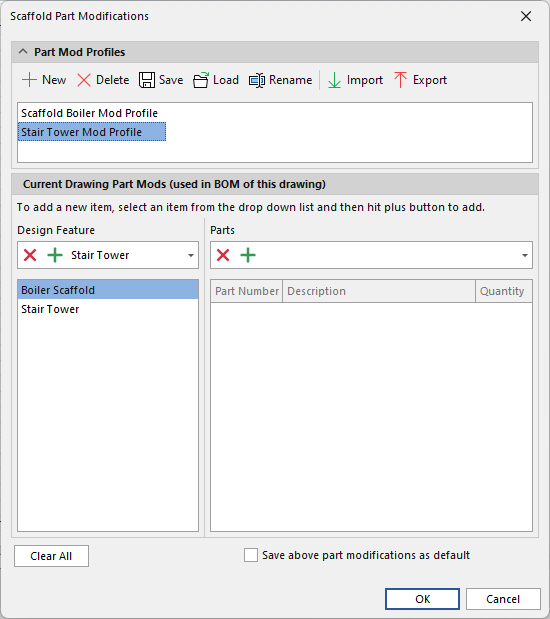
Deleting a Part Mod Profile
Once a Part Mod Profile has been created, it is very easy to delete.
To delete a Part Mod Profile:
Open the Parts mods dialog
Expand the Part Mod Profiles
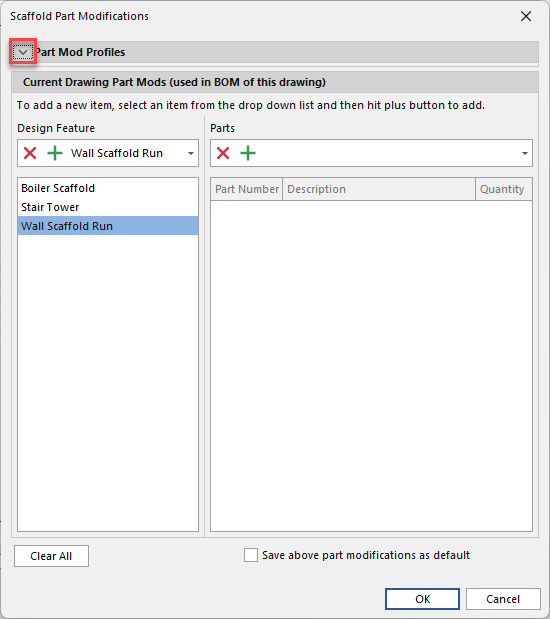
Access the Profile, then click the Delete button.
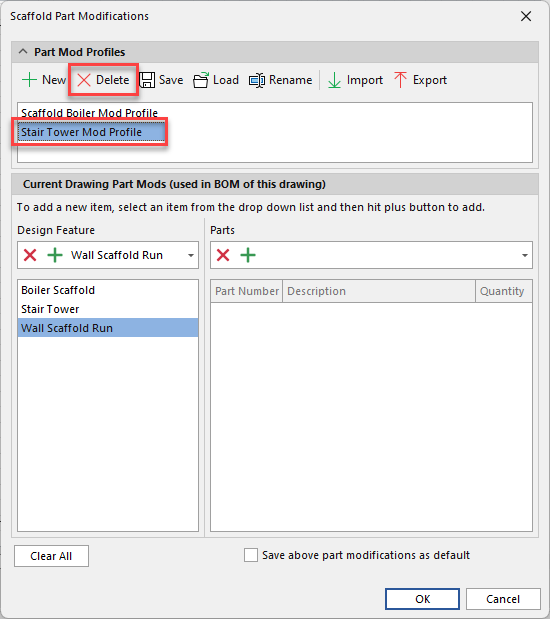
A confirmation dialog appears.
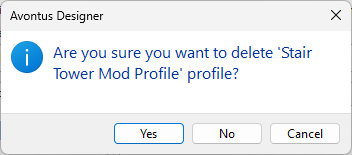
Click Yes.
Renaming a Part Mod Profile
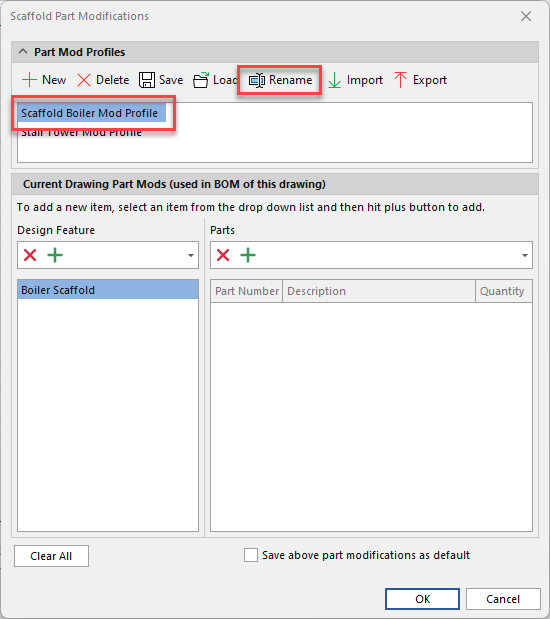
To rename a Part Mod Profile
Open the Parts mods dialog
Expand the Part Mod Profiles
Select the profile and click Rename
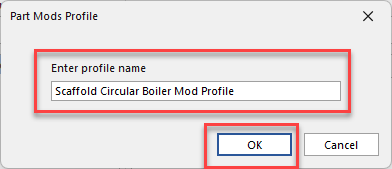
Enter the new name and click OK
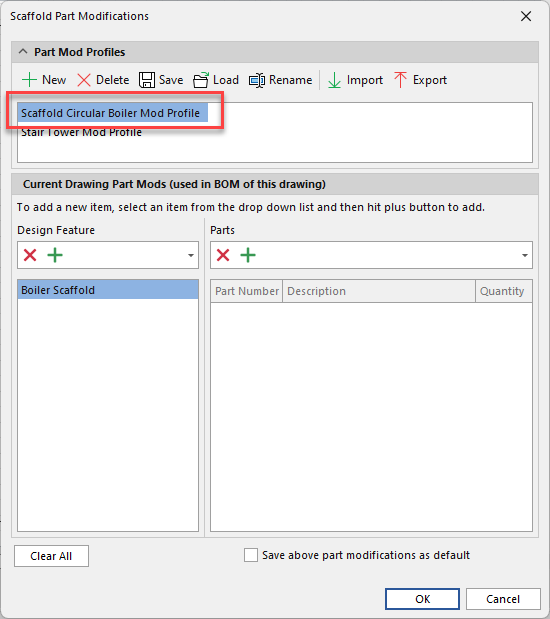
The Mod Profile name will be updated
Importing Current Part Mod Profiles
Once a Part Mod Profile has been exported, it is very easy to import.
To import current Part Mod Profiles:
Open the Parts mods dialog
Expand the Part Mod Profiles
Select Import
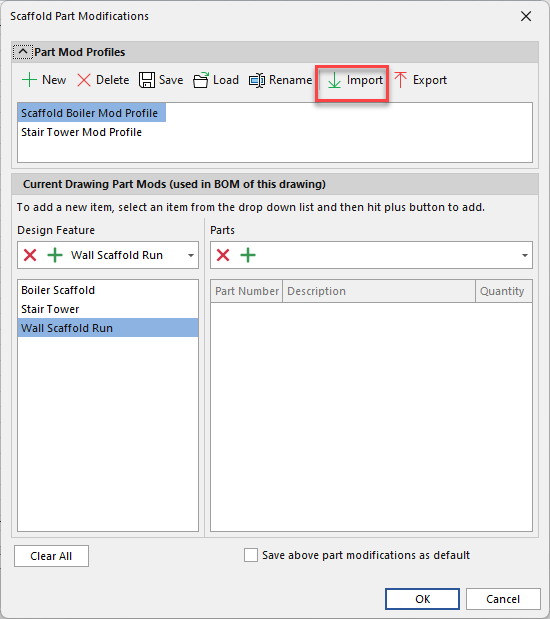
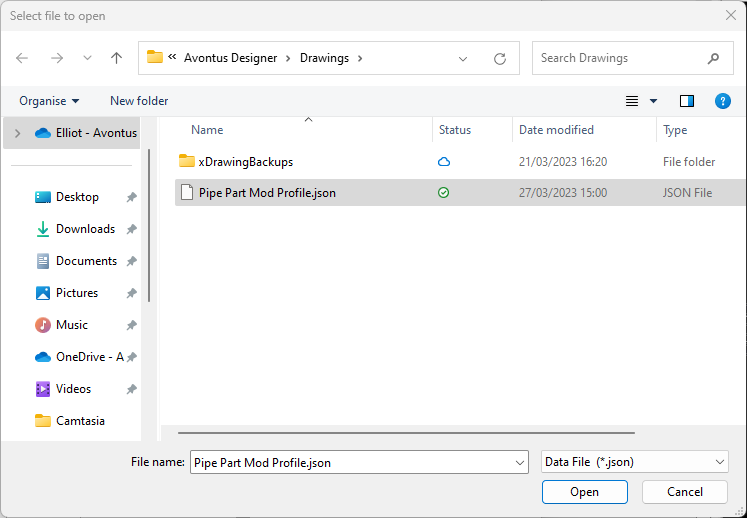
The Select File to Open dialog appears.Navigate to the appropriate folder, click the file you want to upload and click Open.
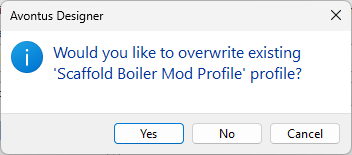
Avontus Designer imports the Profiles.Select to overwrite each mod profile
Exporting Current Part Mod Profiles
Once a Part Mod Profile has been created, it is very easy to export.
To export current Part Mod Profiles:
Open the Parts mods dialog
Expand the Part Mod Profiles
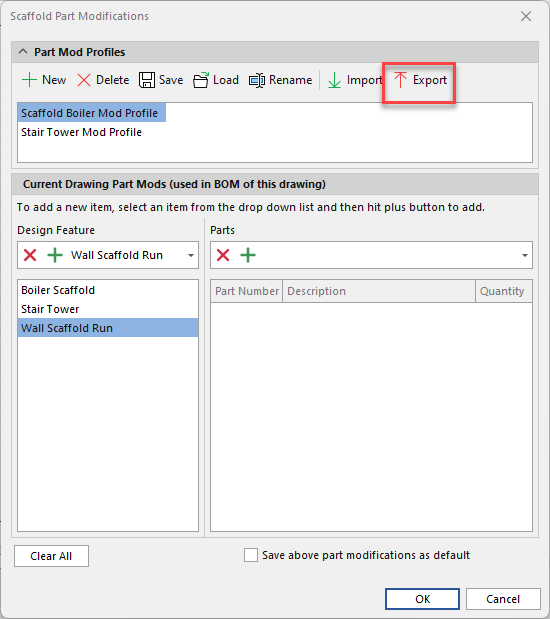
Click the Export button.
The Select File Name for Export dialog appears.Navigate to the appropriate folder, click in the File Name text field and enter a name for the export file, then click Save.
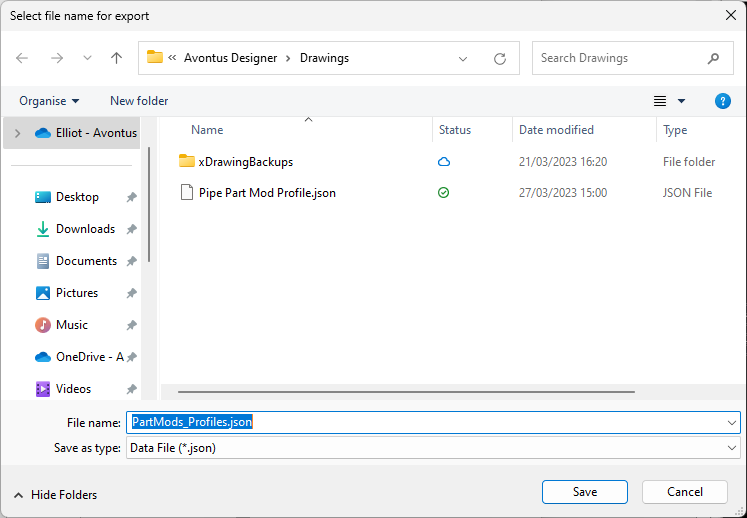
Avontus Designer exports the Profiles.