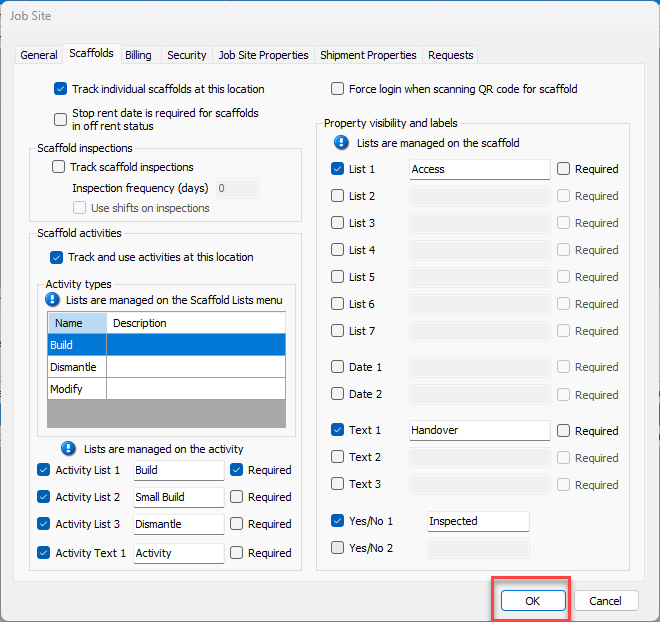
The Activities feature must be enabled on the Scaffold Tracking Job Site before Activities can be added and tracked for individual Scaffolds. If this feature is not enabled, you will receive the following message when trying to add Activities.
NOTE: The features mentioned in this article are only available in the Industrial Edition of Quantify.
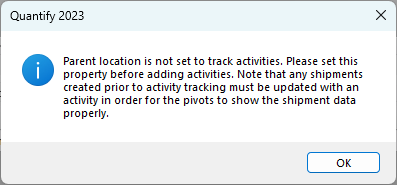
NOTE: Activities will be required on all related Scaffold Shipments when this feature is enabled on a Job Site.
To enable Activities for a Job Site:
Locate and select the appropriate Job Site, then click the Edit Selected Item button.
You can also double-click the job site.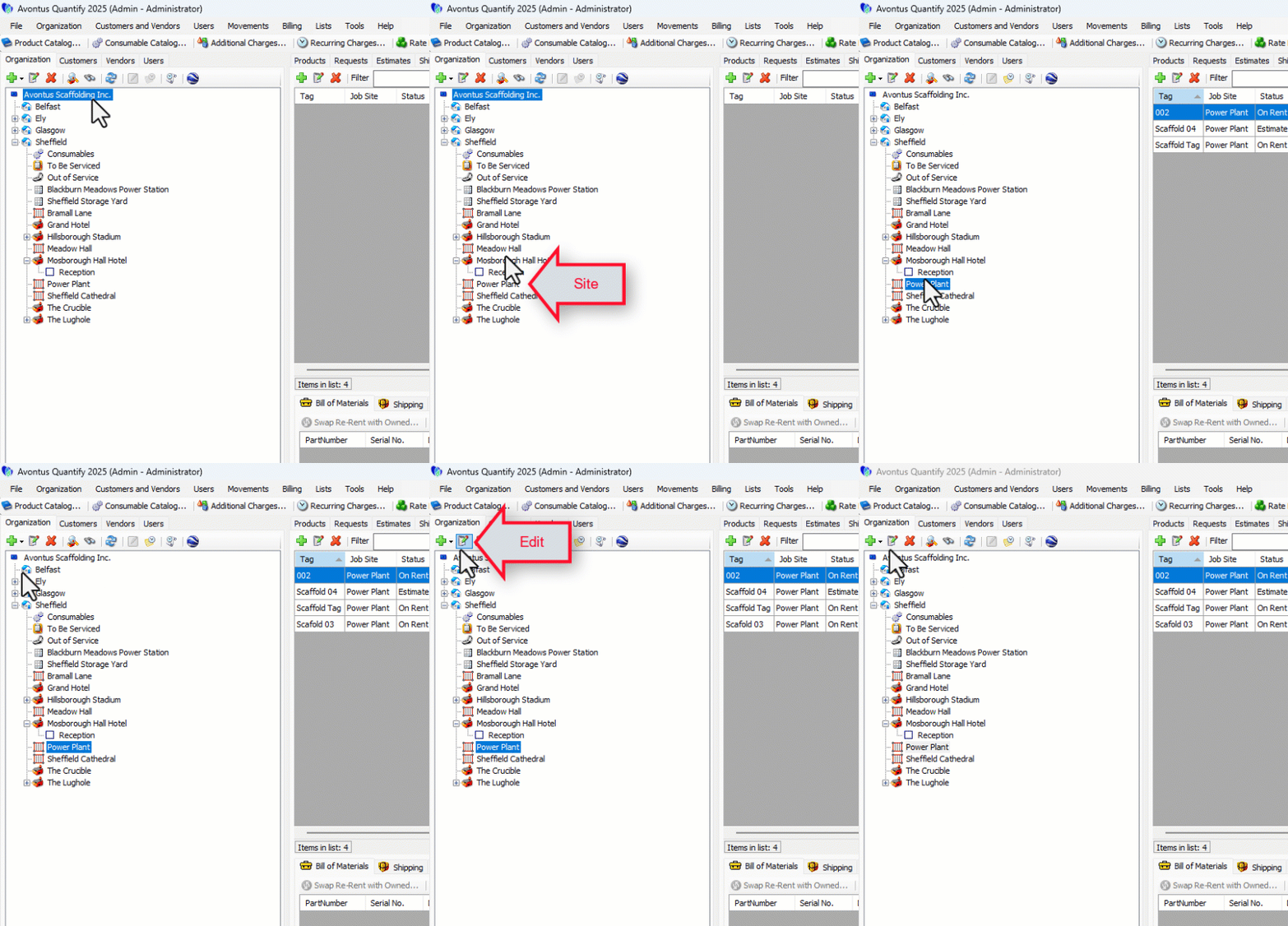
The Job Site dialog appears.Click the Scaffolds tab.
Click the Track and Use Activities at this Location checkbox, to put a check in it.
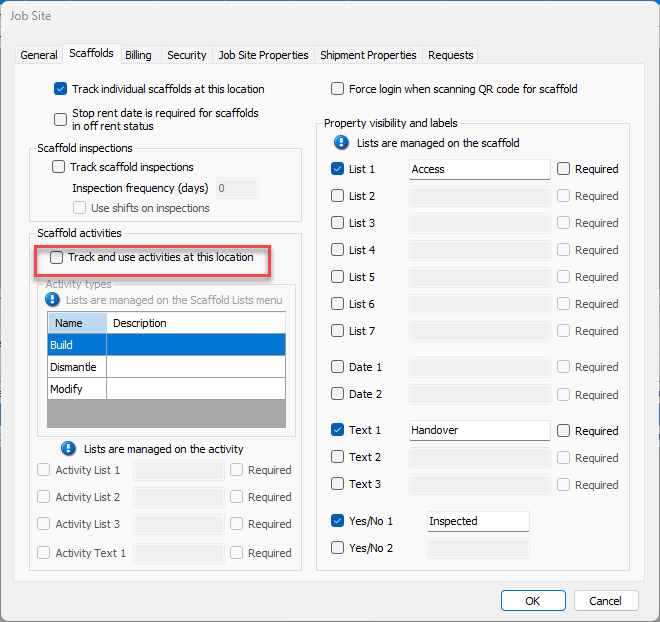
Click the Activity List 1 checkbox, to put a check in it.
Click in the Activity List 1 text field and enter the appropriate name for this list entry.
As necessary, click the Activity List 1 Required checkbox.
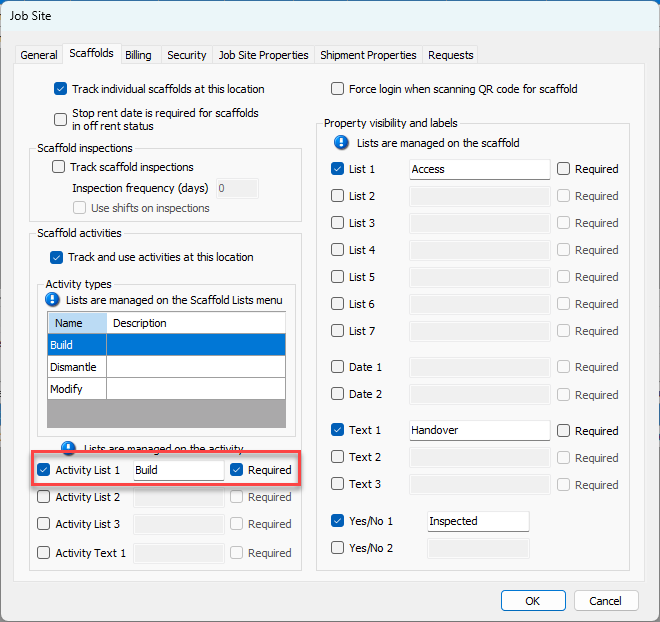
As necessary, repeat the above three steps for Activity List 2 and Activity List 3.
Click the Activity Text 1 checkbox, to put a check in it.
Click in the Activity Text 1 text field and enter the appropriate name for this list entry.
Note: What you enter here, Quantify will display in dropdown lists within the Activity dialog.
As necessary, click the Activity Text 1 Required checkbox.
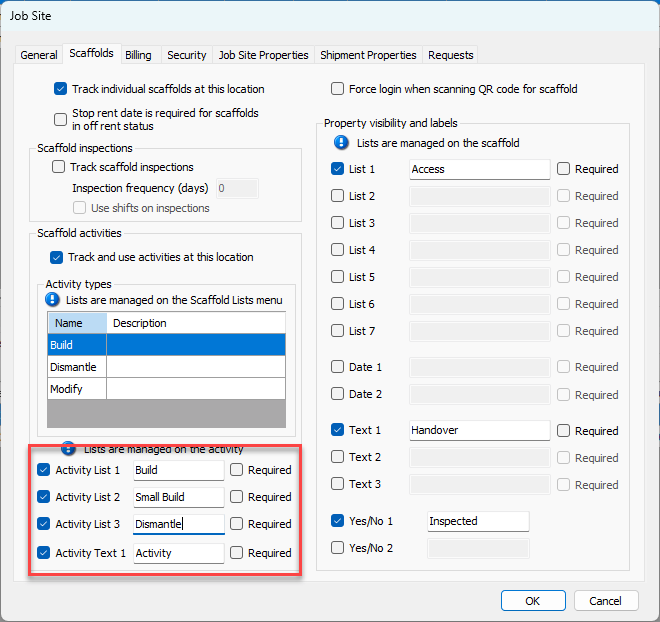
Click OK.