Requests are enabled both globally and on a Job Site-by-Job Site basis. So, once you use the Requests tab of the Global Options dialog to globally enable requests, you must enable Requests for the appropriate Job Sites.
Important: Before you can perform these procedures, the Requests feature must be enabled in Global Options, requests can be enabled for each Job Site as appropriate.
To enable Requests for a Job Site:
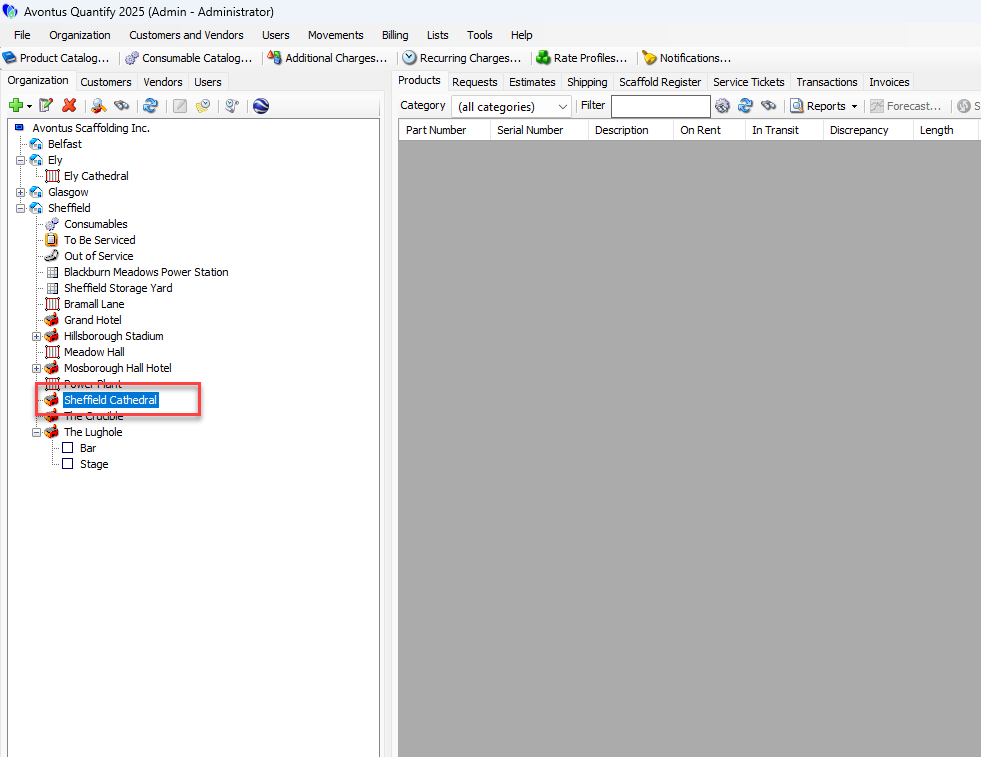
Locate and click the appropriate Job Site, then click the Edit Selected Item button.
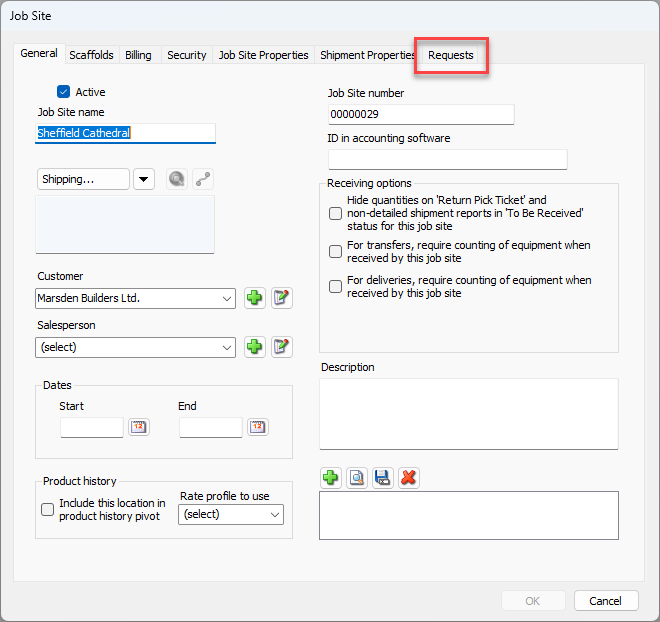
The Job Site dialog appears.Click the Requests tab
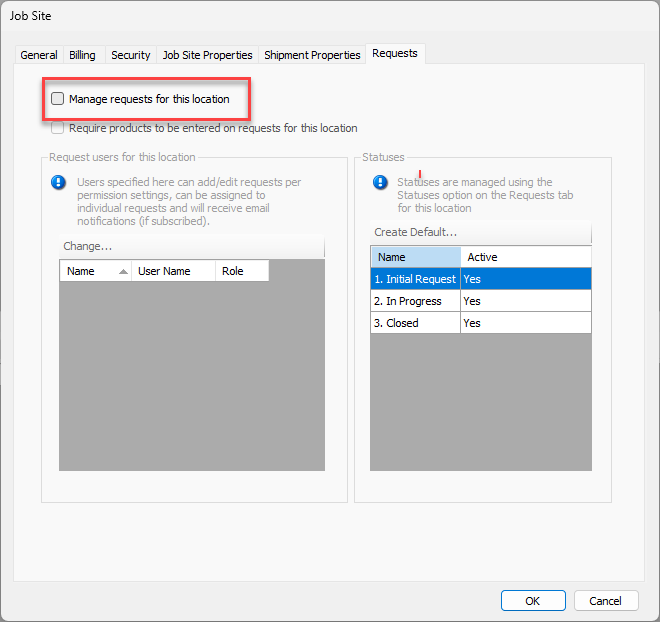
Click the Manage requests for this location checkbox, to put a check in it.
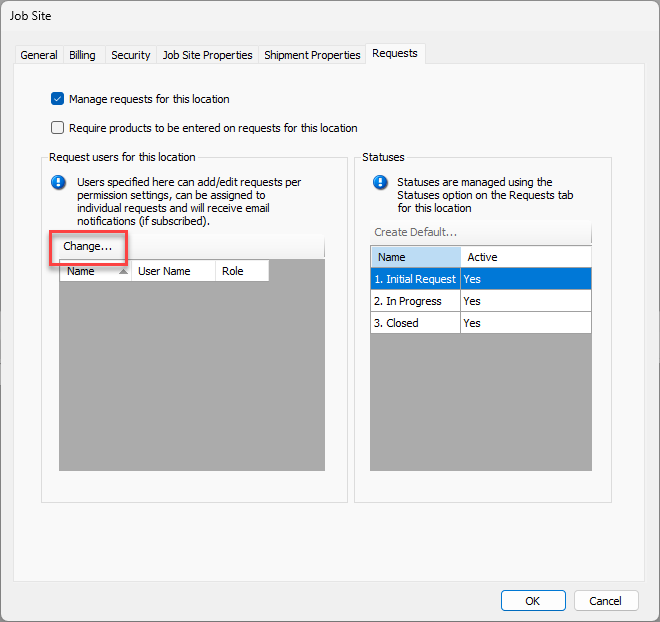
Click Change.
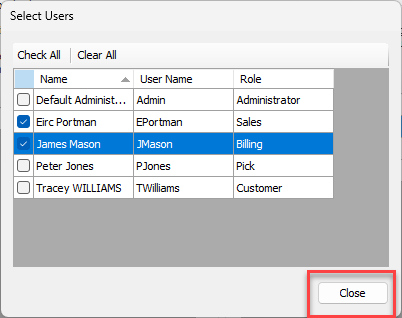
The Select Users dialog appears. This dialog enables you to add specific users to request materials or services for this location.Click the checkbox beside each user or customer who will be allowed to request materials for this location. Note that administrators must be added here as well before they can create or edit Requests.
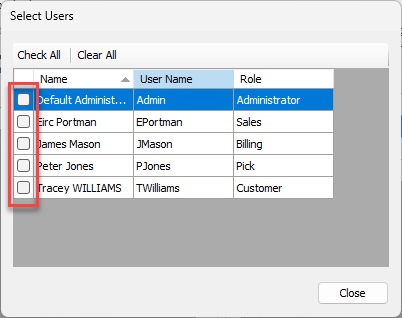
Click Close.
The Job Site dialog returns, displaying the added users/customers.Click OK.
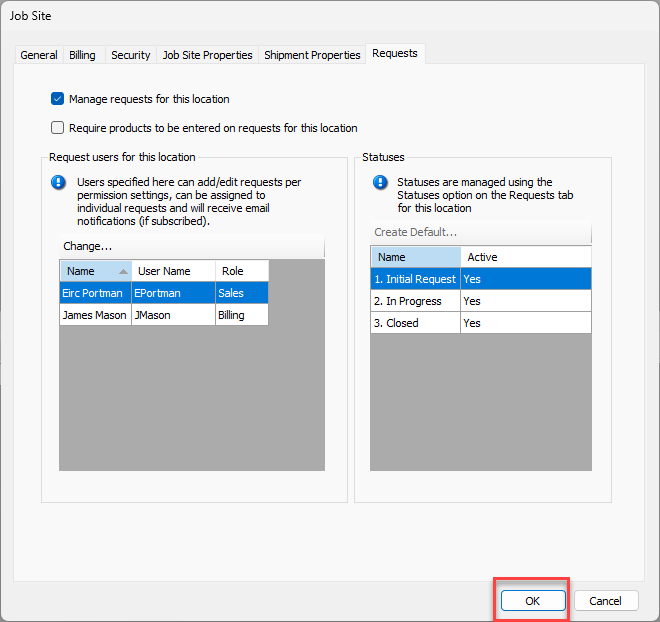
Requests are now activated for this location.
Note: User security permissions must include the ability to add and edit Requests. Refer to Working with Quantify Security.
Note: Users must be assigned to at least one Job Site Request Users for this Location list in order to use the Request Portal. When users log into the Request Portal, they will ONLY see and have access to jobs for which they are on the Request Users list.
Disabling Requests
To disable the requests, remove the tick from the checkbox