Requests can be used to order equipment or request services. This feature is available in both the Enterprise and Industrial editions of Quantify.
Users can submit requests through the desktop version of Quantify or via the Quantify Request Portal in Quantify Web.
The Request Portal allows field users to request materials or services for job sites using any web browser or mobile device (iOS or Android). This functionality is available to users with a valid Quantify Web license.
Before users can use the Request Portal, you must enable that access in the Requests tab of the Global Options dialog.
About the Requests Tab
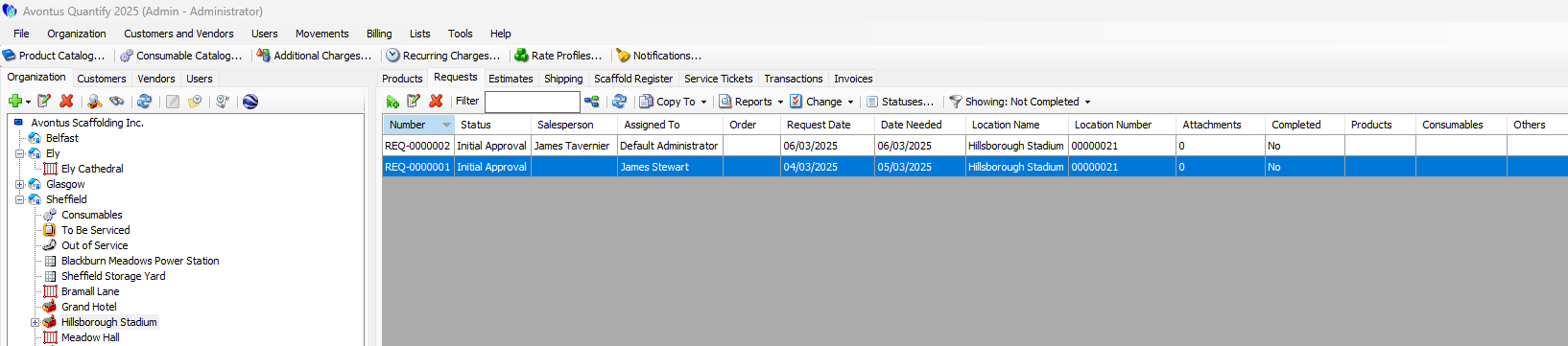
You assign Requests to Job Sites. If you click a Job Site and then click the Requests tab, you will see the Requests assigned to that Job Site. The areas in the Requests tab provide details of each Request. The top table shows information about all the Requests in the tab and provides features for viewing and working with Requests, including:
| Copy To dropdown | The Copy To dropdown enables you to use a selected Request to make: - A new Request - An Estimate - A Reservation - A Delivery - A Shipment to a scaffold |
| Reports dropdown | The Reports dropdown provides access to: - A preview of the selected Request - Request pivot - Request Products pivot |
| Statuses button | The Statuses button provides access to the Request Statuses dialog, which enables you manage the Request statuses for the Job Site of the selected Request. |
| Filter dropdown | The Filter dropdown enables you to filter the Requests tab by Request status: - Show All - Completed - Not Completed |
The bottom area shows details about the selected Request, including:
| Products tab | The Products tab displays a list of materials in the Request. |
| Attachments tab | The Attachments tab displays any items attached to the Request and enables you to attach new items. |
| History Tab | The History tab displays edit history for the selected Request. |