NOTE: The features mentioned in these articles are only available in the Industrial Edition of Quantify.
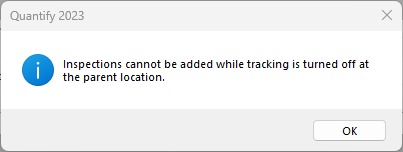
You must enable the Inspections feature on a Scaffold before you can add and track Inspections for the Scaffold. If this feature is not enabled, you will receive a message like the one below:
Configuring Inspections for a Single Scaffold
NOTE: The features mentioned in this article are only available in the Industrial Edition of Quantify.
Quantify enables you to easily configure Inspections for a single Scaffold.
To configure Inspections for a single Scaffold:
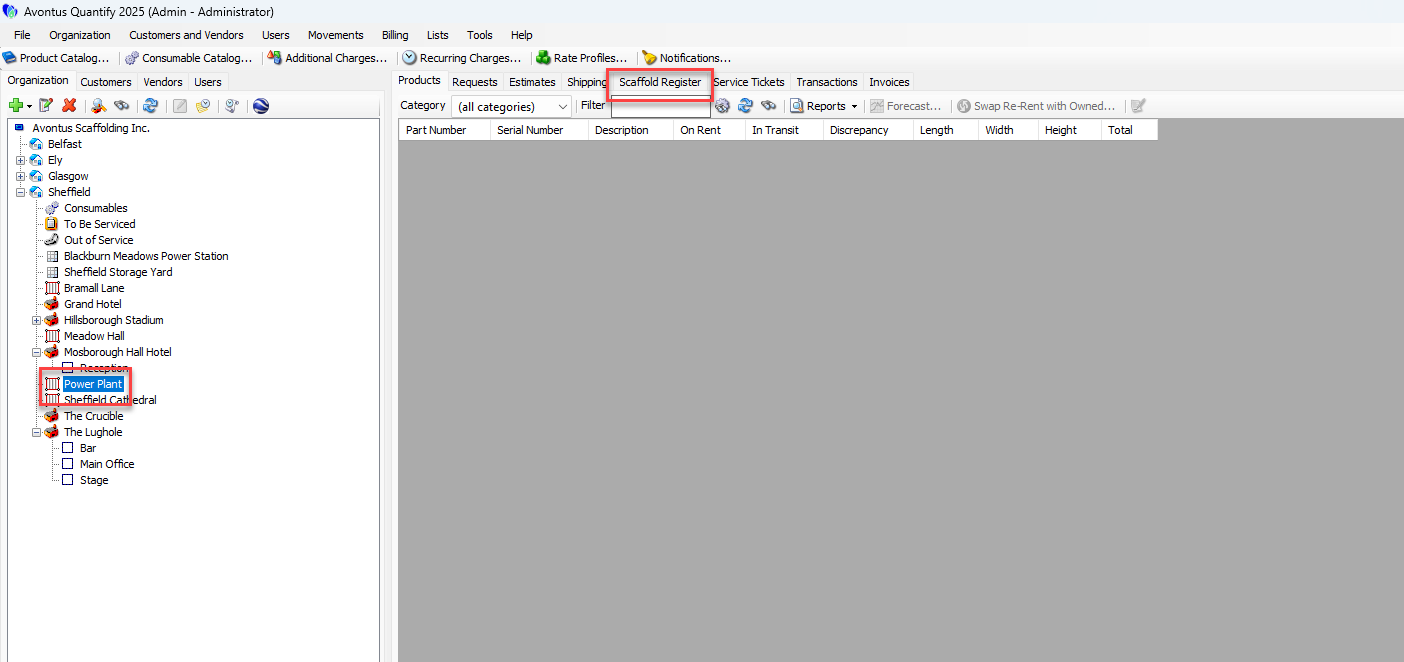
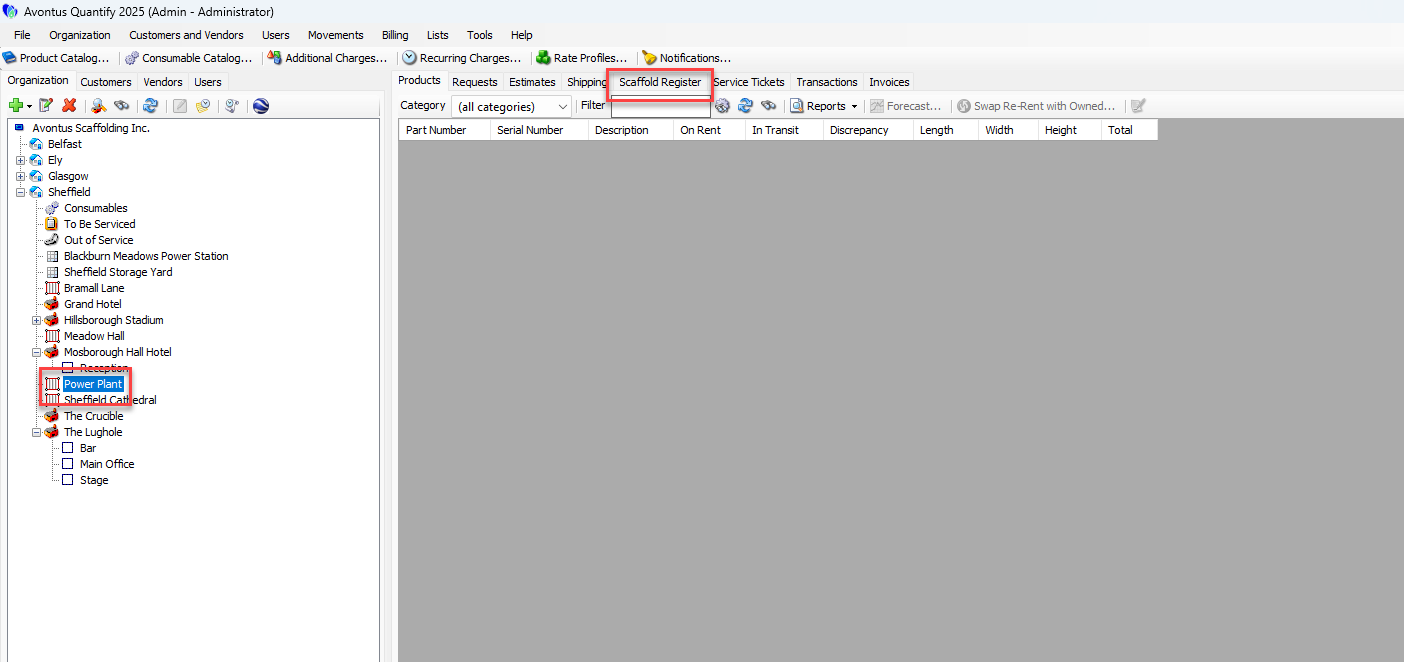
Locate and click the appropriate location, then click the Scaffold Register tab.
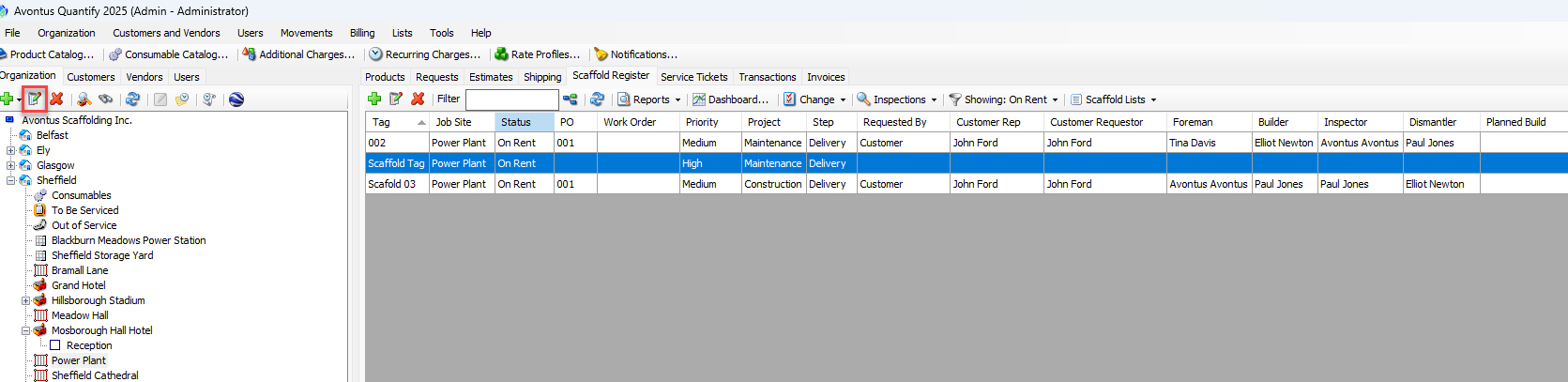
Click the appropriate Scaffold and click the Edit Scaffold button (
 ).
).
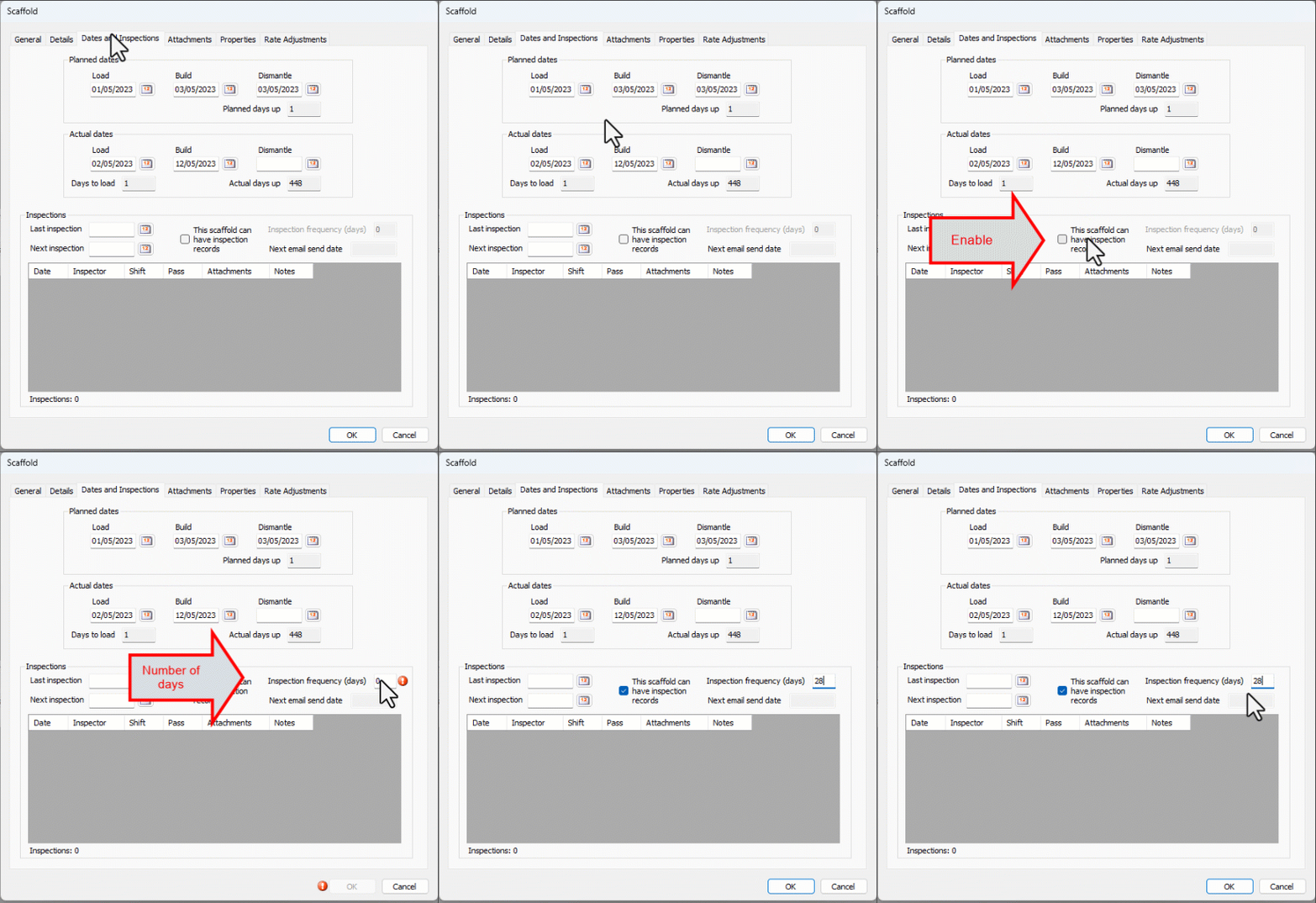
The Scaffold dialog appears.Click the Dates and Inspections tab.
Click the This Scaffold can have Inspection records checkbox (to put a check in it).
Enter the Inspection frequency (days).
Quantify uses this information to automatically increment the next inspection date as inspection records are added.
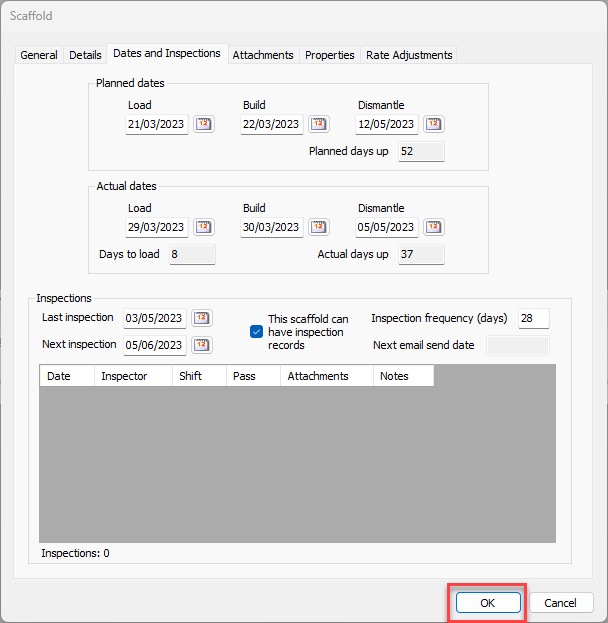
Click OK.
Enabling Inspections for Multiple Scaffolds
NOTE: The features mentioned in this article are only available in the Industrial Edition of Quantify.
The procedures below enable Inspections for multiple Scaffolds. Quantify sets the inspection frequency (days) for each Scaffold to the inspection frequency (days) configured for the parent Job Site.
To enable Inspections for multiple Scaffolds at once:
Locate and click the appropriate Scaffold Tracking Job Site, then click the Scaffold Register tab.
Click the appropriate Scaffolds and click the Inspections dropdown and select Enable Inspections for Selected Scaffolds.
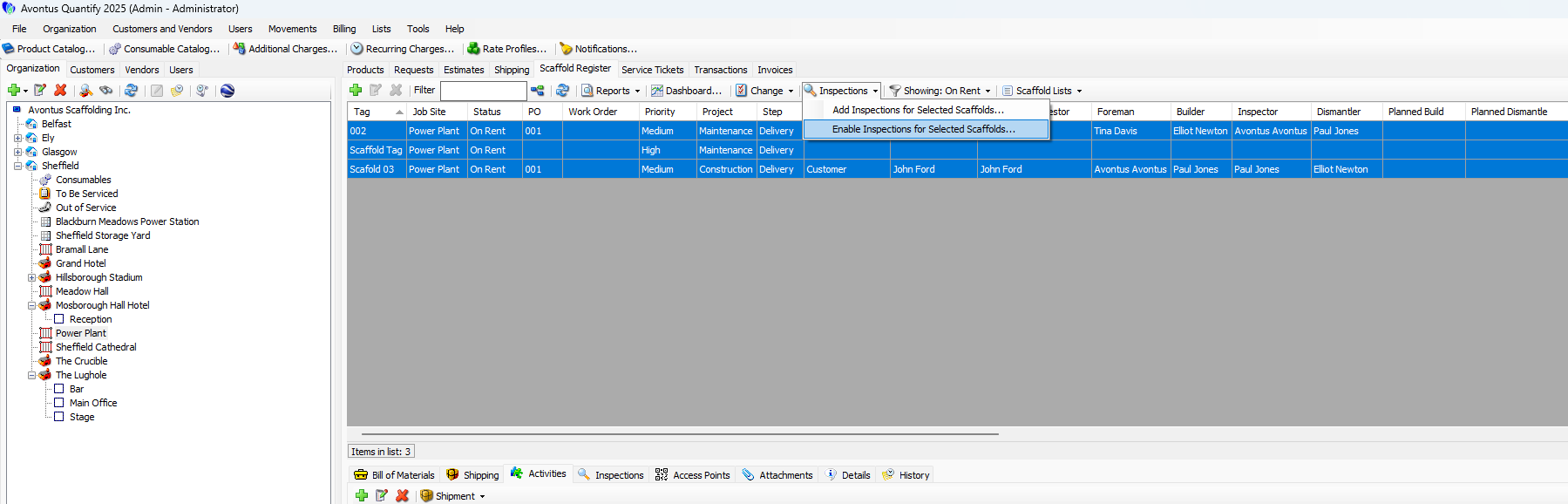
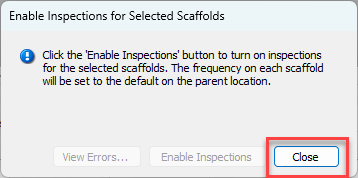
The Enable Inspections for Selected Scaffolds dialog appears.
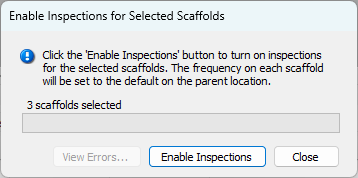
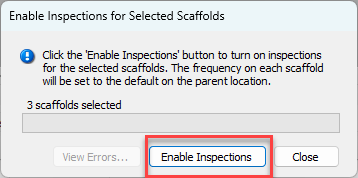
Click Enable Inspections.
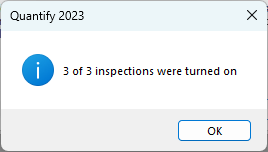
A conformation dialog appears.
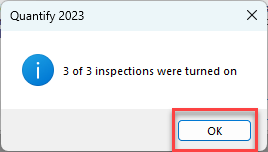
Click OK.
The Enable Inspections for Selected Scaffolds dialog returnsClick Close.