NOTE: The features mentioned in this article are only available in the Industrial Edition of Quantify.
Quantify enables you to add inspection records individually, for multiple Scaffolds at once and/or through Activities.
Adding an Inspection Record
To add an inspection record:
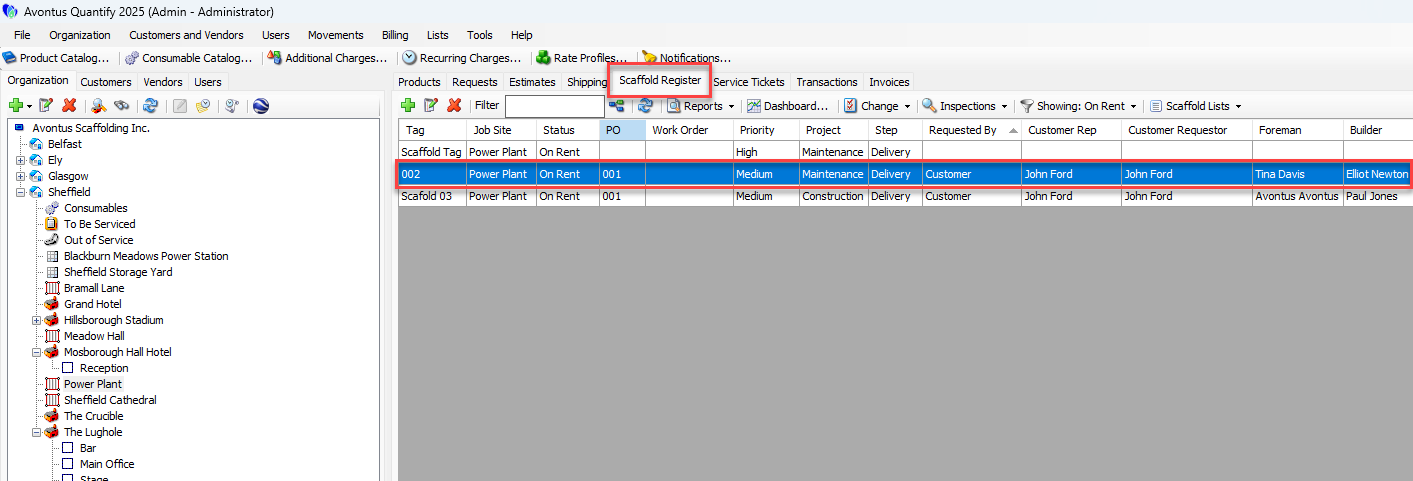
Click the Scaffold Register tab, then click the appropriate scaffold.
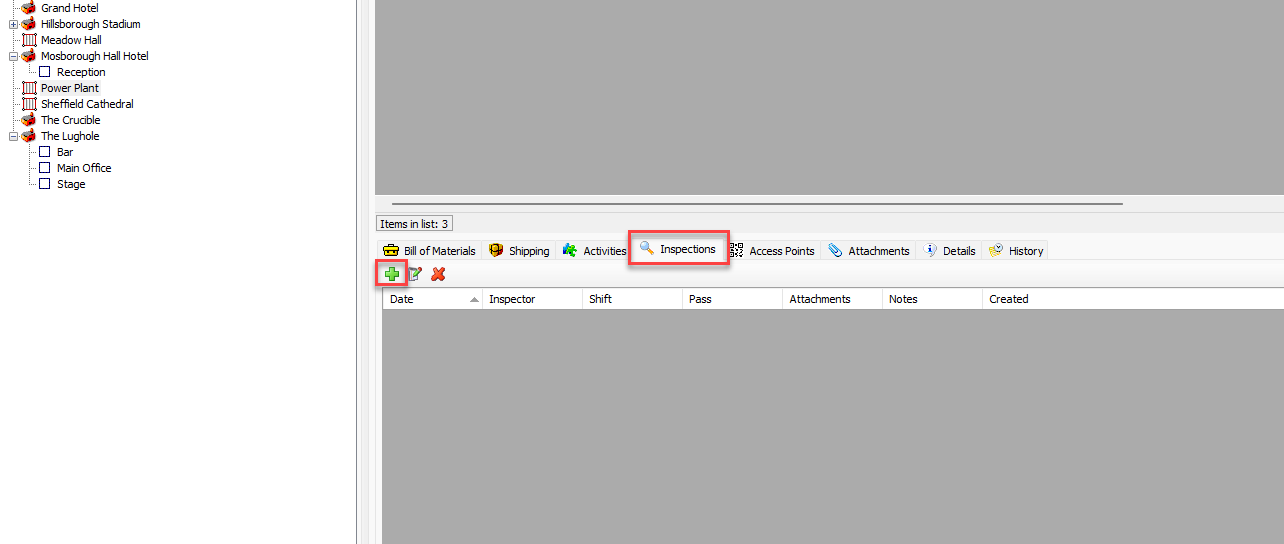
Click the Inspections sub-tab, then click Add.
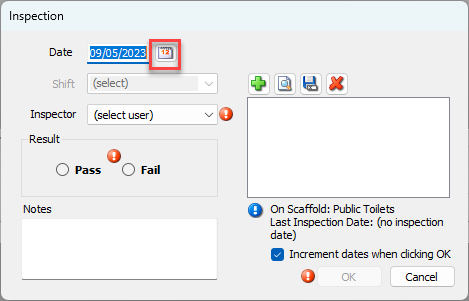
The Inspection dialog appears.Click the Date calendar icon (
 ).
).Note: The date you select here becomes the last Inspection date for the Scaffold.
A calendar appears.
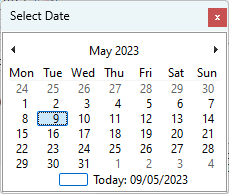
Locate and click the appropriate date.
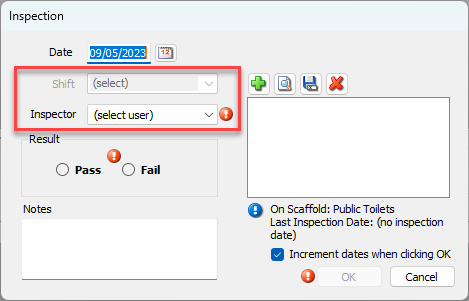
If enabled at the Job Site, click the Shift dropdown and select the appropriate shift.
Note: This step is optional.
Select the Inspector dropdown and select the appropriate inspector.
Note: The list of available inspectors comes from the current Users.
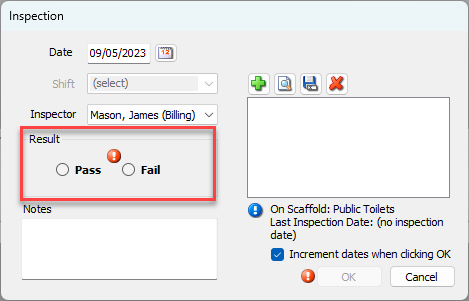
Click the appropriate Result radio button: Pass or Fail
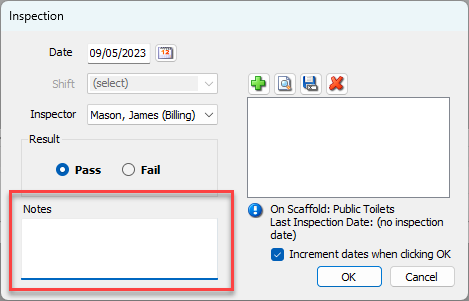
As necessary, click in the Notes text field and enter appropriate notes.
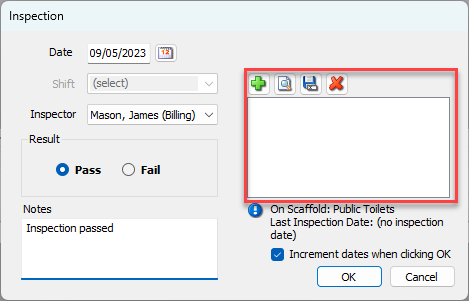
As necessary, click and drag any attachments onto the drag-and-drop Attachments field.
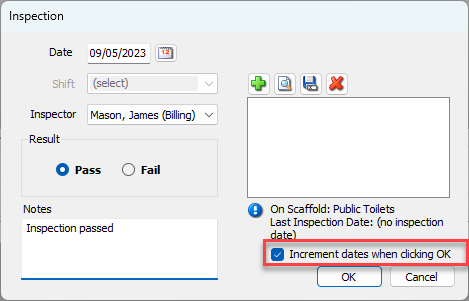
As necessary, click the Increment Dates When Clicking OK checkbox, to put a check in it.
If enabled, this option increments the next Inspection date based upon the inspection record date and the inspection frequency (days) set on the Scaffold.
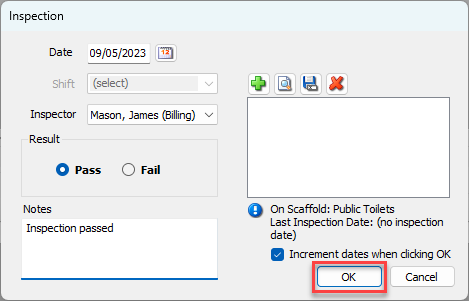
Click OK.
Adding Multiple Inspection Records
Note: The features mentioned in this article are only available in the Industrial Edition of Quantify.
Note: Quantify increments the next inspection date for the selected Scaffolds based upon the inspection record date and the inspection frequency (days) configured for each Scaffold.
To add multiple Inspection records:
Locate and click the appropriate location, then click the Scaffold Register tab.
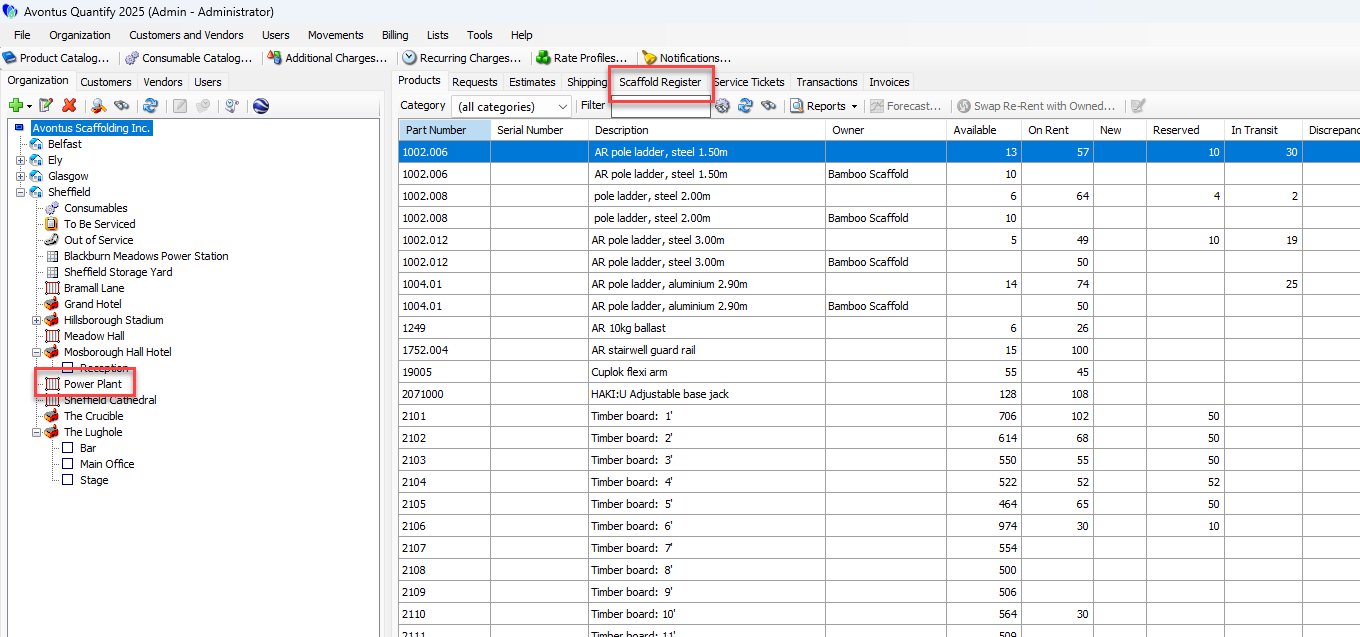
Click the appropriate Scaffold, click the Inspections dropdown and select Add Inspections for Selected Scaffolds.
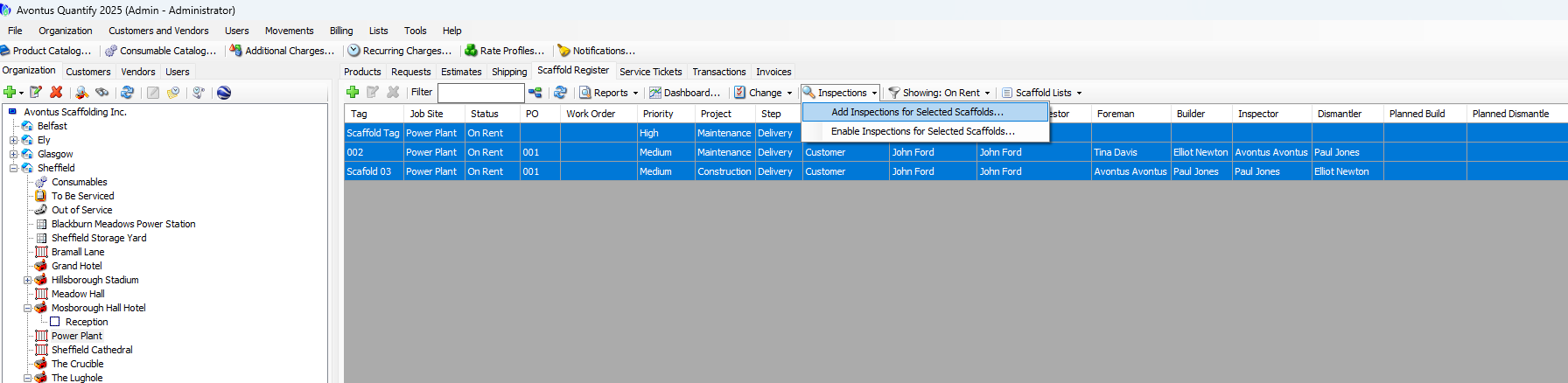
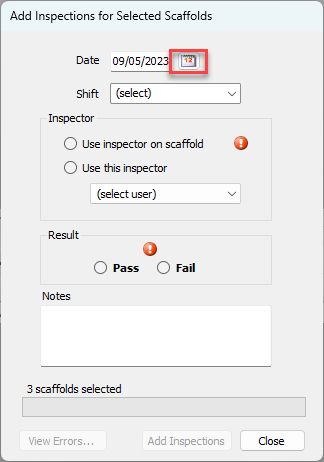
The Add Inspections for Selected Scaffolds dialog appears.Click the Date calendar icon (
 ).
).Note: The date you select here becomes the last inspection date for the Scaffolds.
A calendar appears.
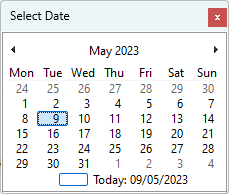
Locate and click the appropriate date.
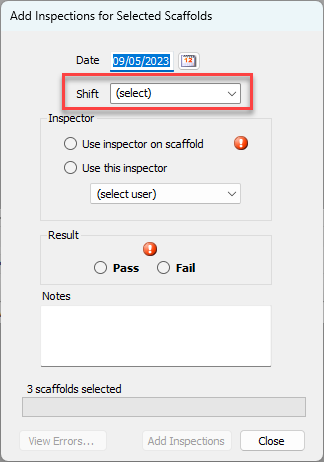
Click the Shift dropdown (if enabled on the Job Site) and select the appropriate shift.
This step is optional.
Click the appropriate Inspector radio button.
If you click Use this inspector, click the dropdown and select the appropriate user.
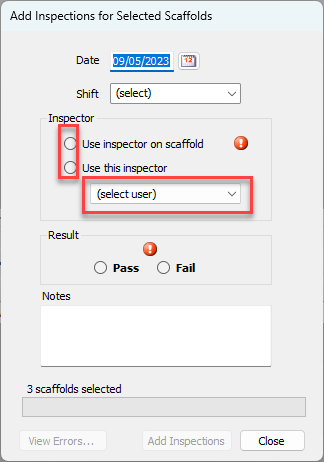
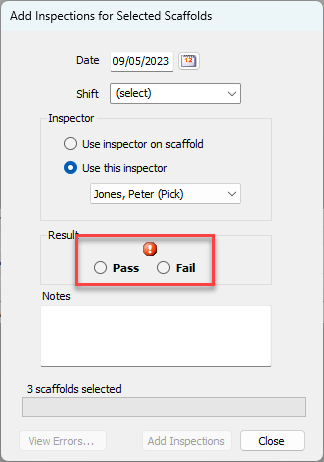
Click the appropriate Result radio button: Pass or Fail.
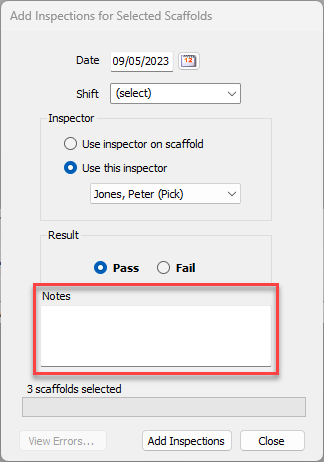
As necessary, click in the Notes text field and enter any desired notes.
Click Add Inspections.
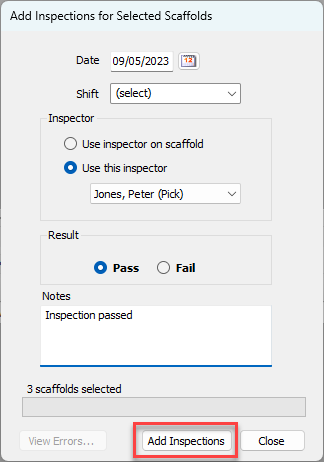
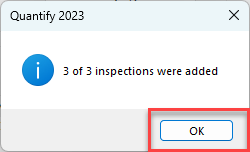
Click OK