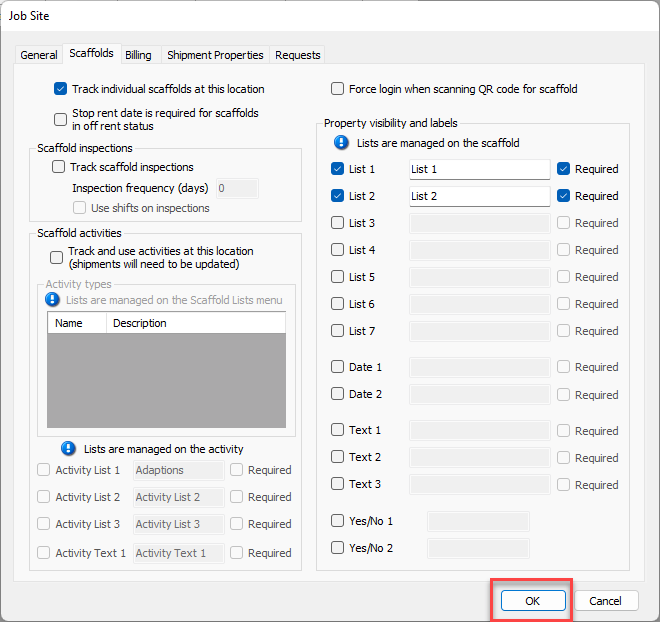
The Scaffolds tab in the Job Site dialog provides the features necessary to configure the following types of custom properties for Scaffolds associated with a selected Job Site:
List | List fields enable you to select from an existing list of items. List items are unique to each list and are added using the field level Edit option located on the Scaffold. |
Date | Date fields enable you to enter a date and includes the calendar feature for date selection |
Text | Text fields enable you to enter up to 50 characters |
Yes/No | Yes/No fields enable you to enable or disable a custom labeled checkbox |
To configure Scaffold custom properties for a Job Site:
NOTE: The features mentioned in this article are only available in the Industrial Edition of Quantify.
To enable scaffold Job Site custom properties:
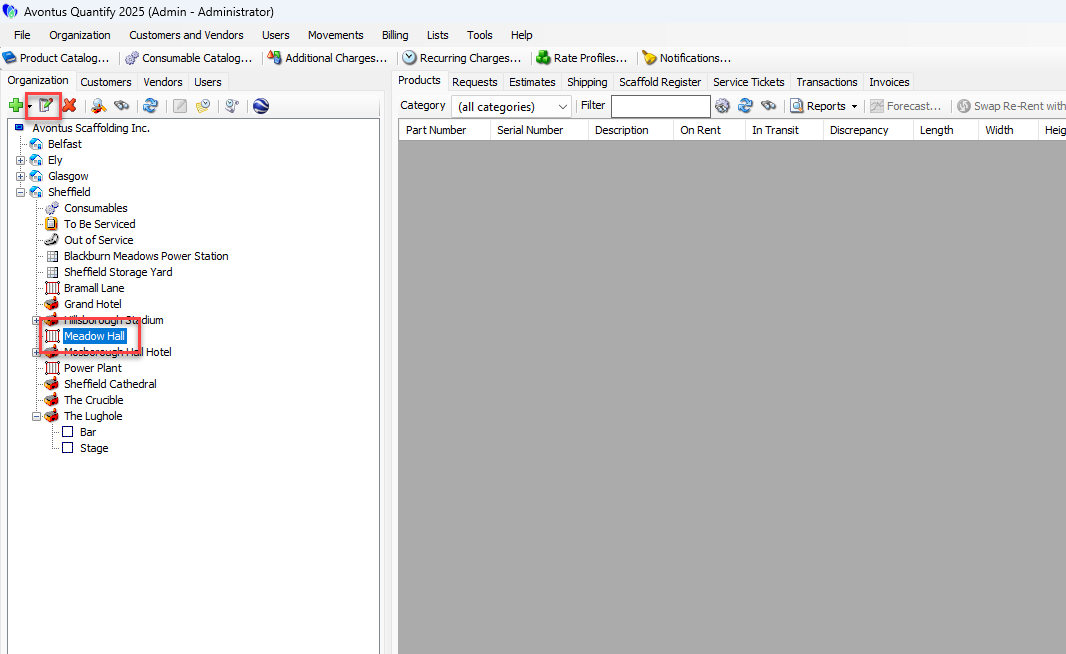
Locate and click the appropriate Scaffold Job Site, then click the Edit Selected Item button (
 ).
).Note: You can also double-click on the Scaffold Job Site
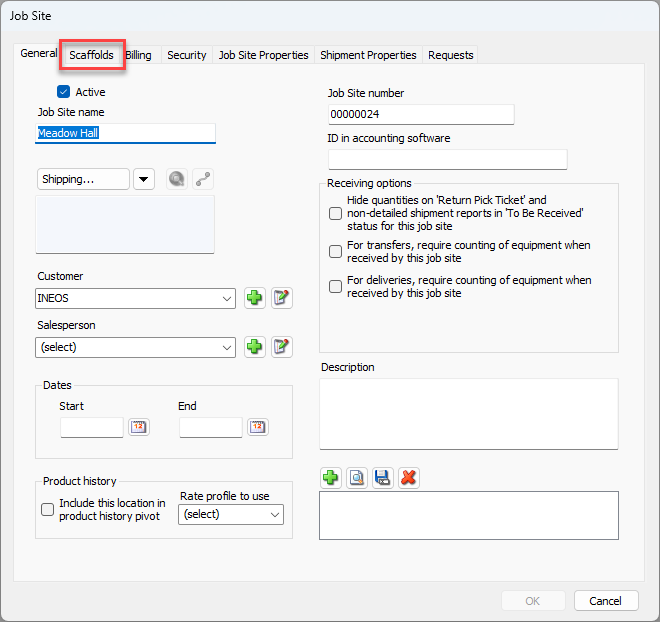
The Job Site dialog appears.Click the Scaffolds tab.
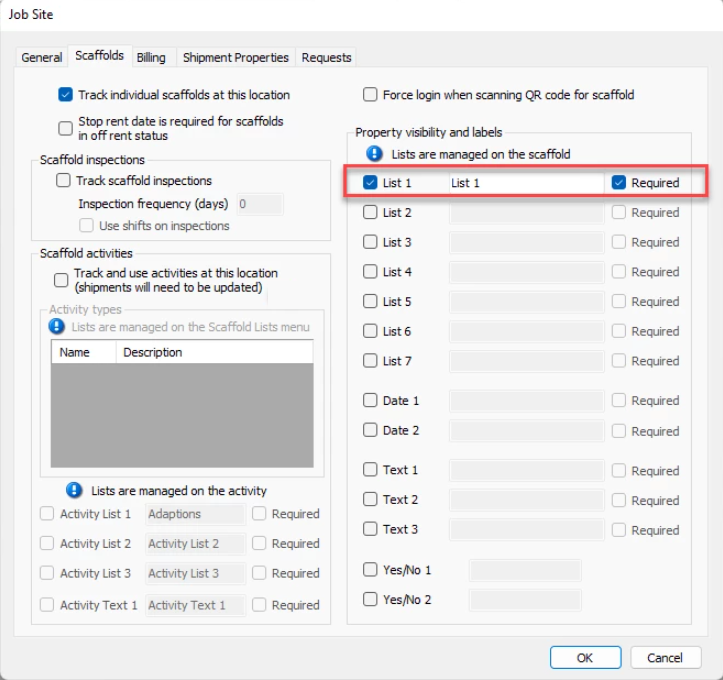
Click the appropriate Property Visibility and Labels List checkbox.
Click in the text field beside the checkbox and enter a label for the for the field.
If you would like to make this field required on all scaffolds assigned under this Job Site, click the Required checkbox.
As necessary, repeat the above steps for any other properties.
Note: If Scaffolds are already assigned under a Job Site at the time a custom property is enabled as a required field, the field will remain blank for existing Scaffolds until they are edited, at which time the field will be required in order to save changes.
Click OK.