Use the Scaffolds tab to enable/disable scaffold and inspection tracking and scaffold activities for this Job Site. You can also enable custom features for the Scaffolds and Scaffold Activities created for the Job site.
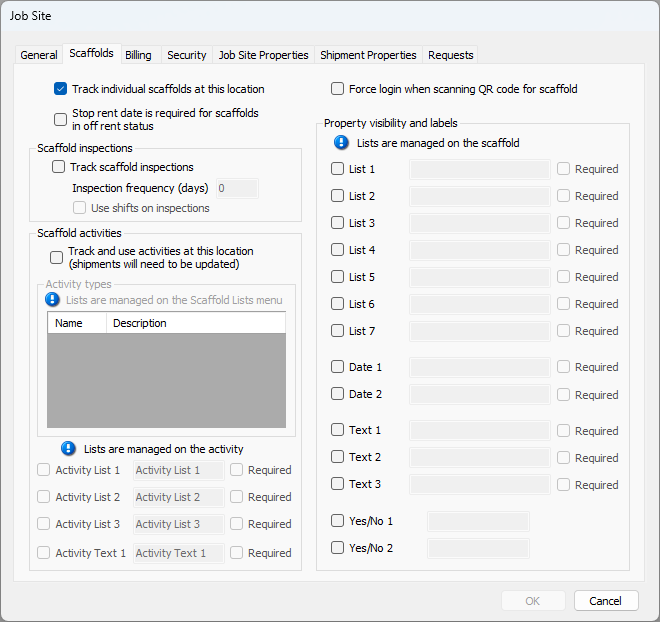
Use the information below to help you configure the Scaffolds tab, then continue with the rest of the tabs, as necessary.
Top Section
Use the top section of this dialog to enable/disable scaffold tracking and to require a date that rent will stop when a scaffold goes into off rent status.
Track Individual Scaffolds at this location | To enable scaffold tracking, click the Track individual scaffolds at this location checkbox, to put a check in it. Note: This unlocks additional features, options and custom fields (based on your license). |
Stop rent date is required for scaffolds in off rent status | When this checkbox is checked, Quantify will stop charging rent on the entered date. Products will remain at the Job Site until a Return Shipment has been completed. |
Scaffold Inspections Section
Use the Scaffold Inspections section to enable/disable scaffold inspection tracking and to configure inspection frequency. For more information about Scaffold Inspections, refer to Working with Scaffold Inspections.
Track scaffold inspections | When this checkbox is checked, Quantify will track and keep records of each inspection on this Scaffold. |
Inspection frequency(days) | Enter the interval (in days) that will occur between inspections into this text field. Quantify uses this information to automatically increment the next inspection date as inspection records are added. |
Use shifts on inspections | When this checkbox is checked, Quantify includes the shift during which the inspection should be performed. TIP: You can customize shifts from the Scaffold Register tab. Click the Scaffold Lists dropdown and select Shifts to add, edit or remove shifts from the list. |
Scaffold Activities Section
Use the Scaffold Activities section to enable/disable scaffold activity tracking and use, to view available activity types and enable custom lists that can be used with Scaffold Activities.
For more information about Scaffold Activities, refer to Working with Scaffold Activities.
Track and use activities at this location (shipments will need to be updated) | When this checkbox is checked, this Job Site will be able to use and track Scaffold Activities, including erection, dismantle or other tasks. |
Name | This column displays the names of any Activities associated with this Job Site. |
Description | This column displays the descriptions of any Activities associated with this Job Site. |
Activity List | When one or more of these checkboxes are checked, Quantify enables users to create lists of custom activities that can be assigned when creating or editing Scaffold Activities assigned to this Scaffold. |
Required | When this checkbox is checked, Quantify requires users to select an item from the list of activities before a Scaffold can be created. |
Force log in in when scanning QR Code for Scaffold | Enable this to force users to log in when scanning the QR code of the Scaffold |
Property Visibility and Labels Section
Use the Property Visibility and Labels section to enable custom features that can be used with Scaffolds created for this Job Site. Custom fields configured in this section of the tab appear in the Properties tab of the Scaffold dialog (in the Job Site Properties section).
List | When one or more of these checkboxes are checked, Quantify enables users to create custom lists that can be assigned when creating or editing Scaffold Activities assigned to this Scaffold. |
Date | When one or more of these checkboxes are checked, Quantify enables users to create custom Date fields for significant dates that are not in the Scaffold dialog by default. Users creating or editing Scaffolds can enter these dates in the dd/mm/yyyy format. Use the text field beside the Date checkbox to configure the appropriate label for the custom Date field that appears in the Scaffold dialog. |
Text | When one or more of these checkboxes are checked, Quantify enables users to create custom Text fields for significant notes that are not in the Scaffold dialog by default. Use the text field beside the Text checkbox to configure the appropriate label for the custom Text fields that appears in the Scaffold dialog. This field has a 50 character limit. |
| Yes/No | When one or more of these checkboxes are checked, Quantify enables users to create custom Yes/No question/answer checkboxes. A check in the checkbox means the answer is Yes. For example, the Scaffold dialog can ask a user if safety equipment is required on a particular scaffold. A check in the checkbox means that, yes, safety equipment is required. Use the text field beside the Yes/No checkbox to configure the appropriate label/question for the custom Yes/No checkboxes that appears in the Scaffold dialog. |
| Required | When this checkbox is checked, Quantify requires users to perform one or more of the above actions before a Scaffold can be created/edited. |