You can export sell Transactions for new or available equipment to a file. The export file can be sent to the purchaser, where they can import the file into a purchase Transaction for used equipment into their Quantify database. Part numbers must match between the two Quantify databases.
Importing a Sell Transaction
Quantify enables you to easily import a sell Transaction from a Quantify Export File (.qef).
To import a sell Transaction:
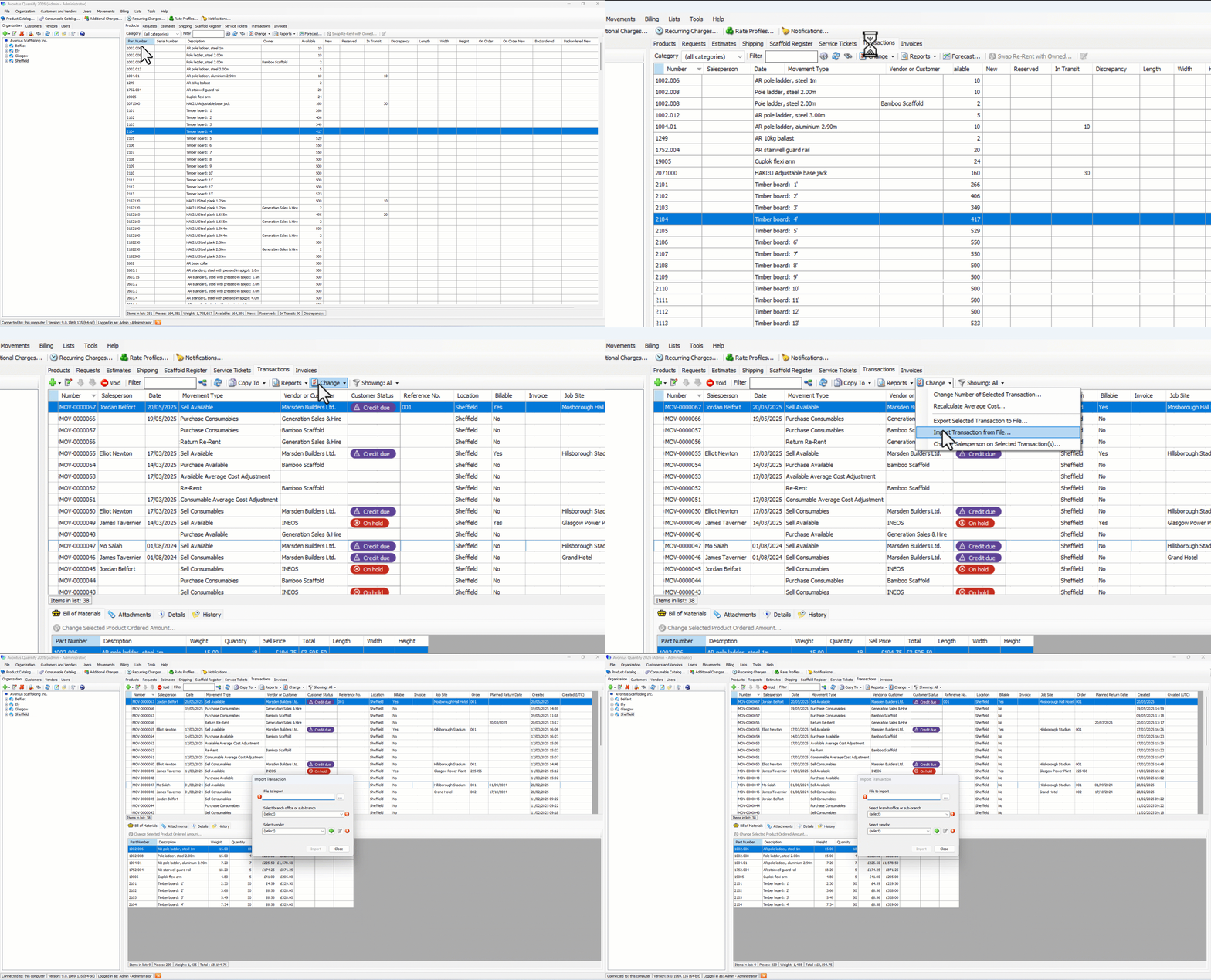
Click the Transactions tab.
Click the Change dropdown and select Import Transaction from File.
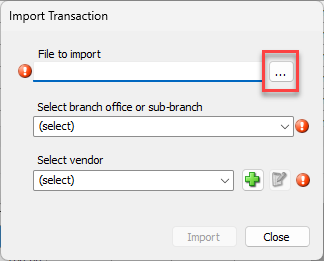
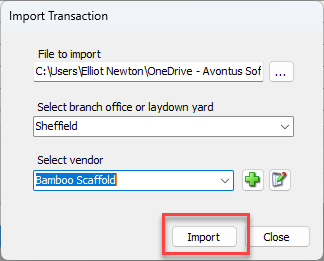
The Import Transaction dialog appears.Click the Browse button.
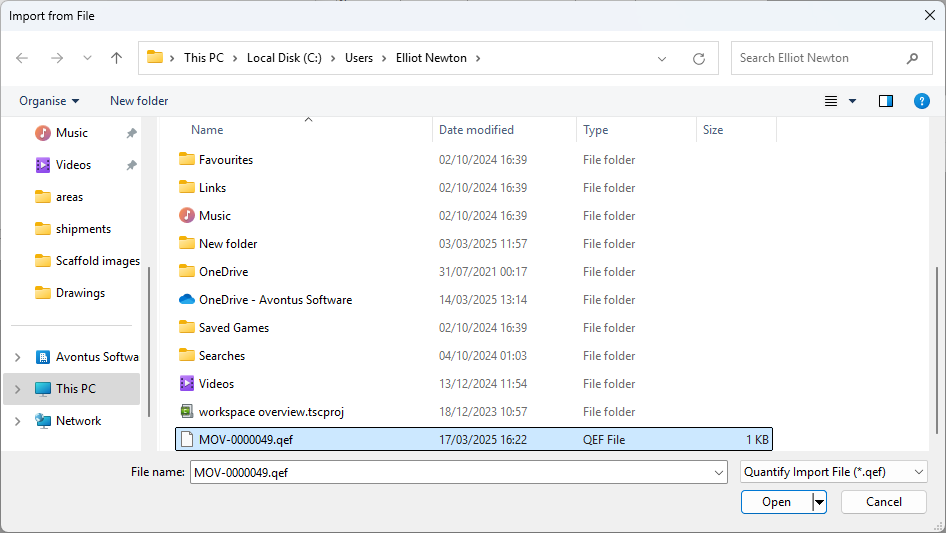
The Import from File dialog appears.Navigate to the folder containing QEF document to import, click the document and click Open.
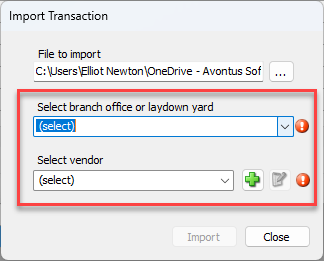
Click the Select the Branch Office or Sub-Branch dropdown and select the Branch Office or Sub-Branch that will receive the purchased equipment.
Click the Select Vendor dropdown and select company from which the equipment was purchased.
Click Import .
The Purchase Available dialog appears, populated from the imported QEF file. Quantify assigns the next sequential MOV number in the current database, adds the .QEF file as an attachment, and added notes.
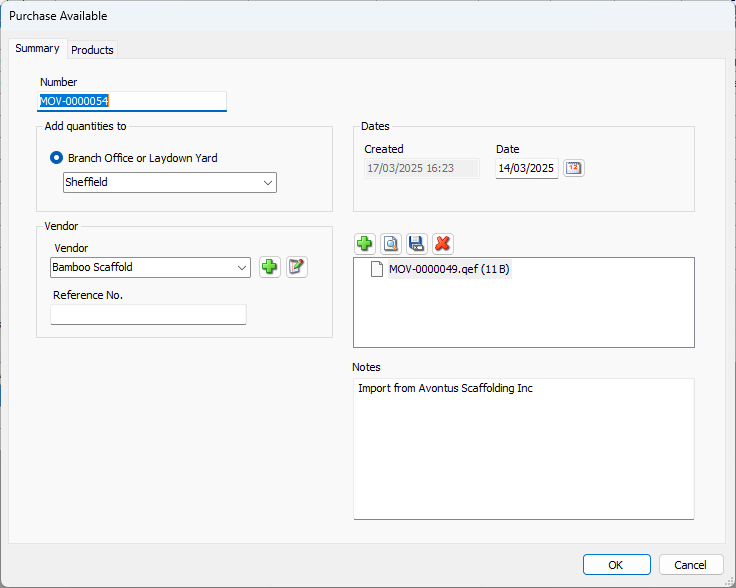
Click OK.
Exporting a Sell Transaction
Quantify enables you to easily export a sell Transaction to a Quantify Export File (.qef).
To export a sell Transaction:
Click the Transactions tab.
Select a Sell Transaction Click the Change dropdown and select Export Selected Transaction to File.
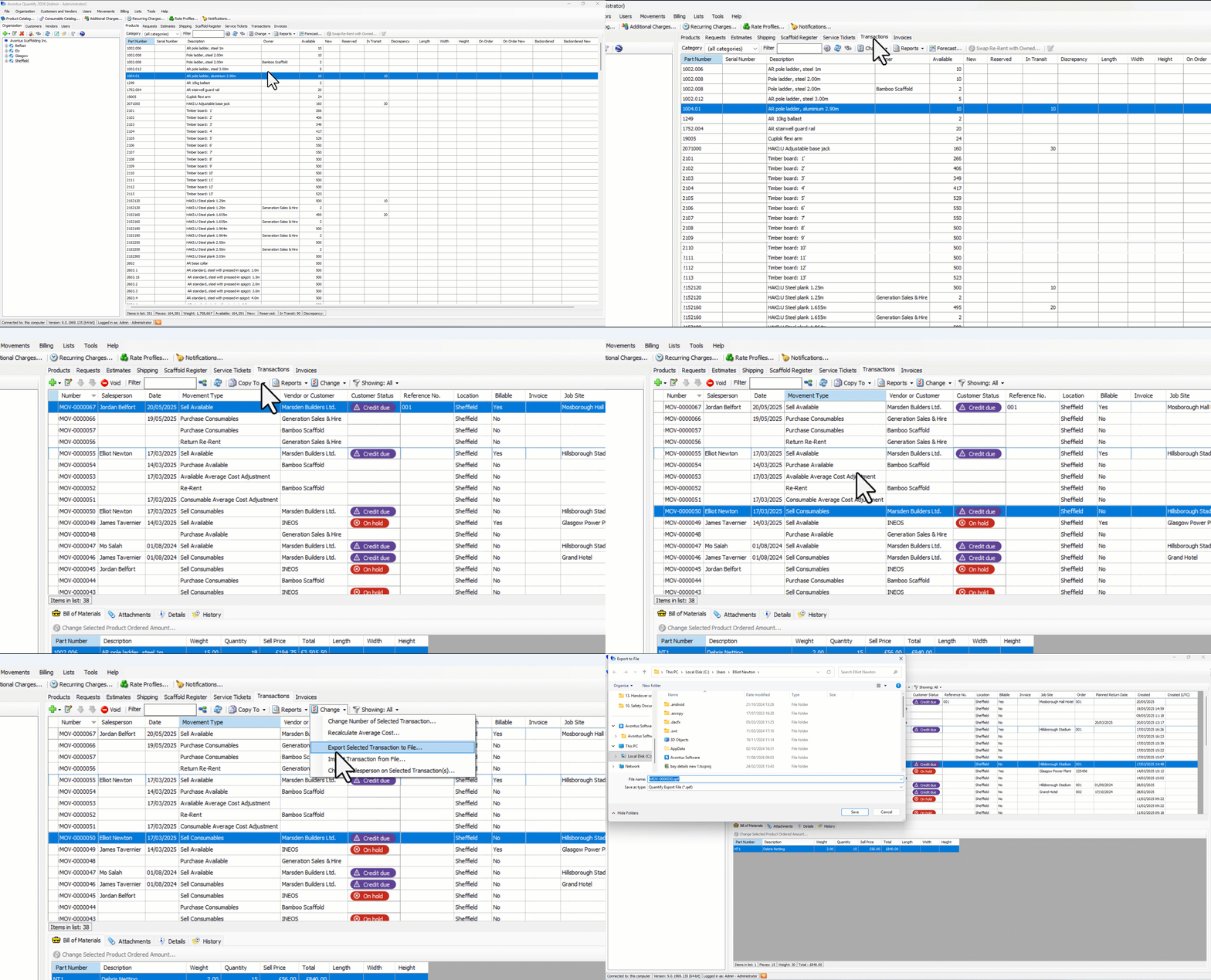
The Export to File dialog appears.Navigate to the folder into which you want to export the QEF document and click Save.
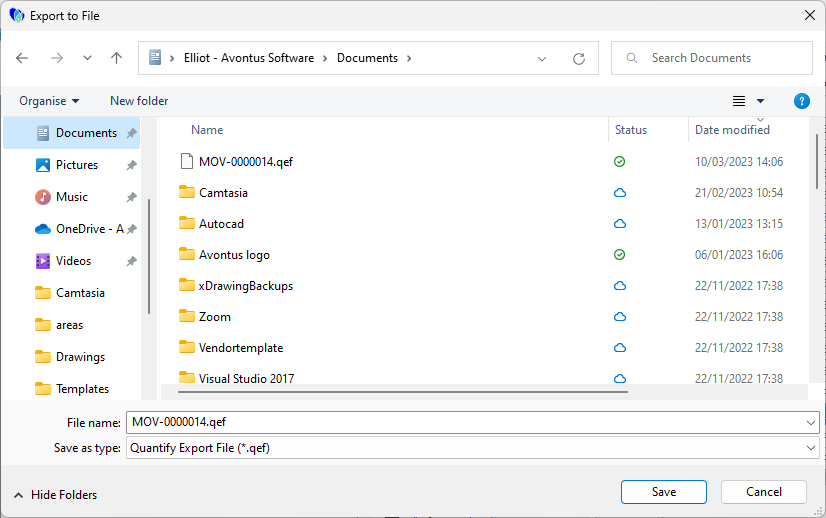
The QEF document can now be attached to email to send to the purchaser of the equipment.