Handset Designer uses several proprietary algorithms to fit Formwork lengths and sizes under various conditions. Although the details of how this happens is beyond the scope of this document, there are several items to keep in mind.
Largest First
Handset Designer fits the largest parts and pieces of Formwork first. For example, if you have selected a 12-inch wide Filler, a 10-inch Filler and a 5-inch Filler, Handset Designer will first check the 12-inch Filler to see if it will fit, then it will check the 10-inch Filler, and finally it will check the 5-inch Filler. For more information on selecting the sizes that Handset Designer will use to layout your projects, refer to Formwork Sizes Tab in About the Formwork Options Dialog.
Something Fits
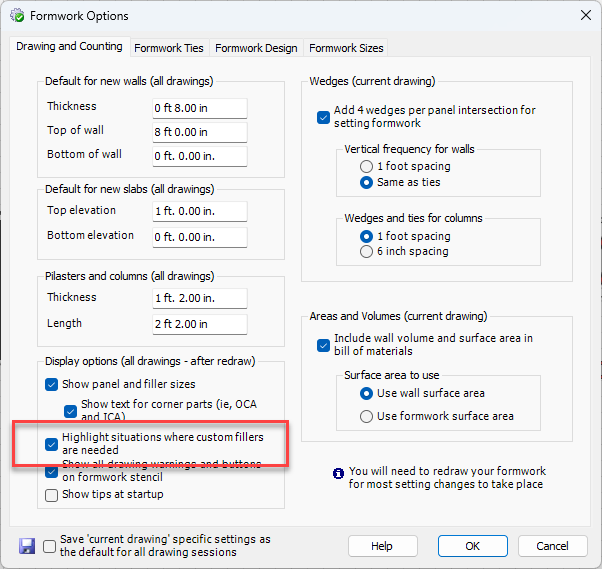
Handset Designer will always attempt to fit Formwork for a layout and will always use 24-inch Panels. Where Handset Designer cannot find a match, it will use a custom built Filler, as long as the Highlight situations where custom fillers are needed checkbox is selected in the Formwork Options dialog. This option is turned on by default.
When the above option is selected Handset Designer will display yellow circles over the area of your drawing where you need custom Fillers or where Formwork is missing:
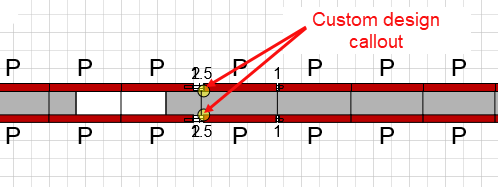
For more detailed instructions on creating custom Formwork, refer to Editing Formwork and About the Formwork Options Dialog.
In the rare case that a layout cannot be determined, you will see a red circle displayed over the problem area:
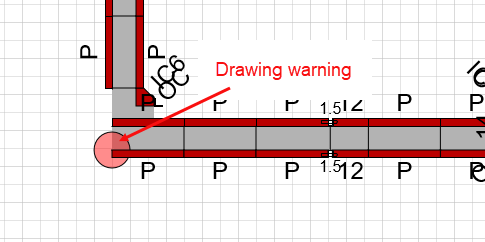
These marks indicate where you might have potential problems. To see details about the areas indicated by red warning circles, click the Drawing Warnings button (located on Handset Designer ribbon). The Drawing Warnings popup reveals the location and explanation of these design problems. (For more detail about drawing warnings, refer to Correcting Formwork Drawing Warnings.)