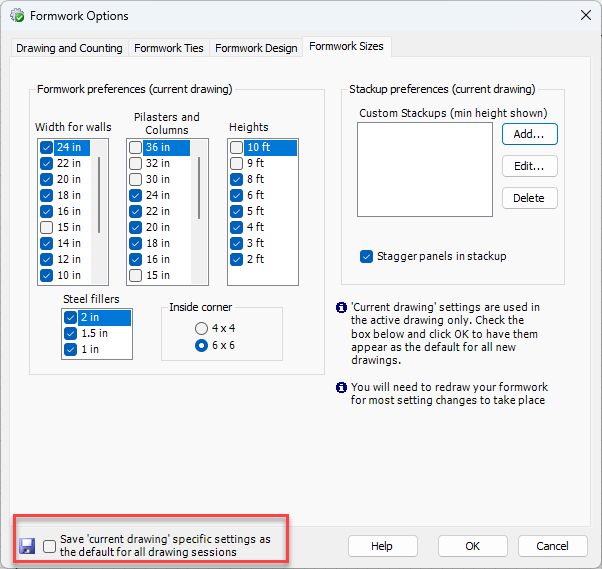
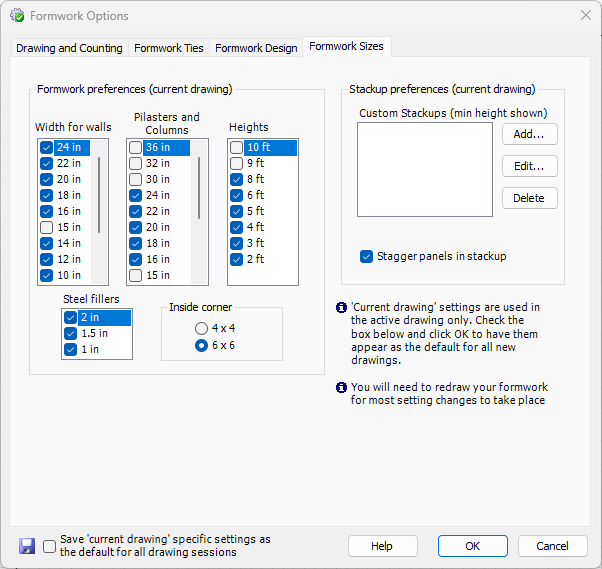
The Formwork Sizes tab enables you to control the widths and heights of the parts and pieces that Handset Designer uses. You can specify the heights and widths available to you, ensuring that the design and material list only contains these parts.
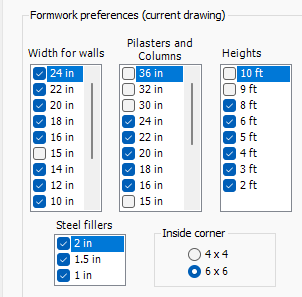
Size Preferences
| Widths for Walls Separate from the Walls, Handset Designer will use the widths in this box for pilaster and Column designs Heights Steel Fillers Specify available Steel Filler lengths by checking the box next to these parts. You'll need to have one or more of these checked for efficient designs with Curved Walls. Inside Corner Here you select the length for the inside corners that you want Handset Designer to use. |
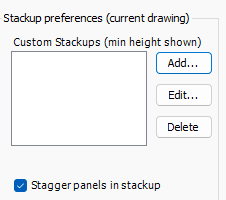
Stackup Preferences
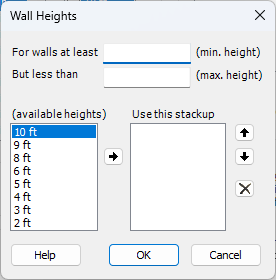
| Custom stackups enable you to override Handset Designer's logic and specify a formwork Panel stackup for various Wall heights. You can use stackup preferences to tell Handset Designer how you want to combine part heights to fit vertically on a Wall. For example, there is no single component that can be used on a Wall with a height of 12 feet. To do this, several parts must be combined. Although Handset Designer does this automatically, you can override this by specifying a Wall height and a stackup that you want for this height. The stackups specified are given highest design and layout priority, overriding any available heights you have specified in the Heights list. The Stagger Panels in stackup checkbox controls whether the Panels are stacked in reverse order on the elevation drawings. The Add, Edit and Delete buttons to the right of the stackup list are used to manage the stackups. Clicking Add or Edit displays a dialog that enables you to edit your custom stackups. Here you enter the minimum and maximum heights for the Wall, then create your stackup using the lists shown. The Use this stackup list includes the heights that Handset Designer will use to fill the Wall height in the range of the minimum and maximum Wall height text boxes above. The combination of these parts must equal a height greater than or equal to the maximum height text box; that is, the stackup is always equal to or higher than the Wall height. Additionally, you can specify what parts you want on the top and bottom of the stackup by using the arrows to re-sort the list. In the example shown, the 3-foot height will be used at the top, the 6-foot height at the bottom, and the 4-foot height in the middle. There is also the option to set custom stackups on each formwork component. Refer to Editing the formwork Stackup for more information. |
After making changes in the Formwork Options dialog you most likely will need to redraw your formwork. Refer to Drawing formwork for more information.
By default, Handset Designer uses these settings for the current drawing only. If you want to use your list for use with all drawings, check the Save 'current drawing' specific settings as the default for all drawing sessions checkbox, located at the bottom of the Formwork Options dialog: