To establish the communication link between Quantify and QuickBooks, first enable Accounting Integration in Quantify.
To integrate Quantify with QuickBooks:
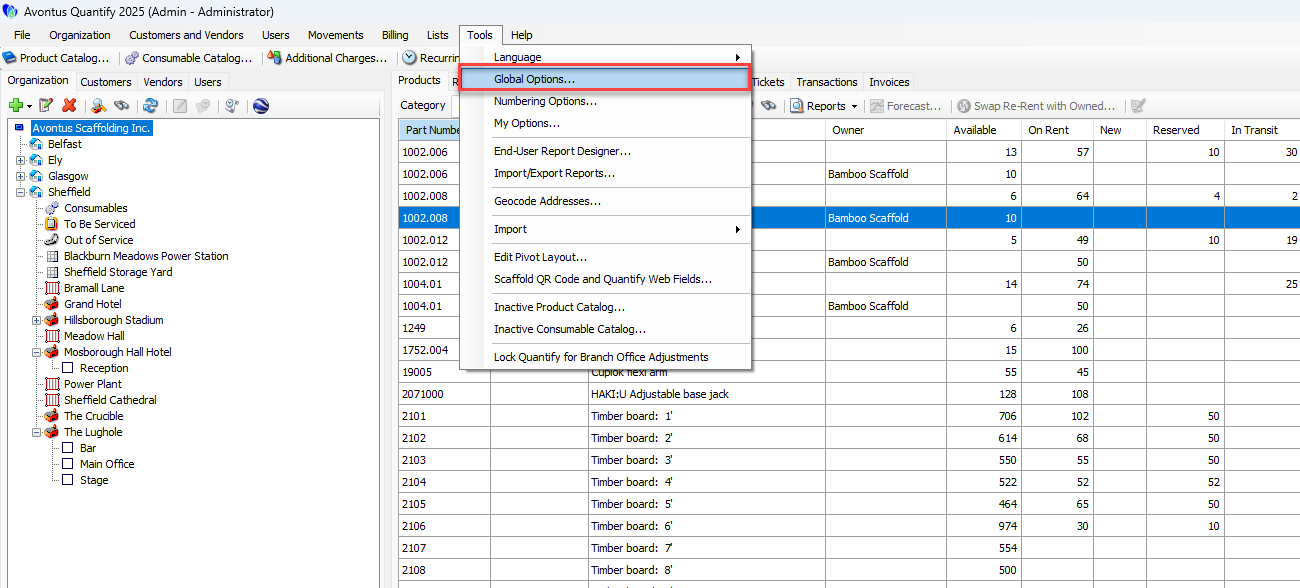
Click the Tools menu and select Global Options.
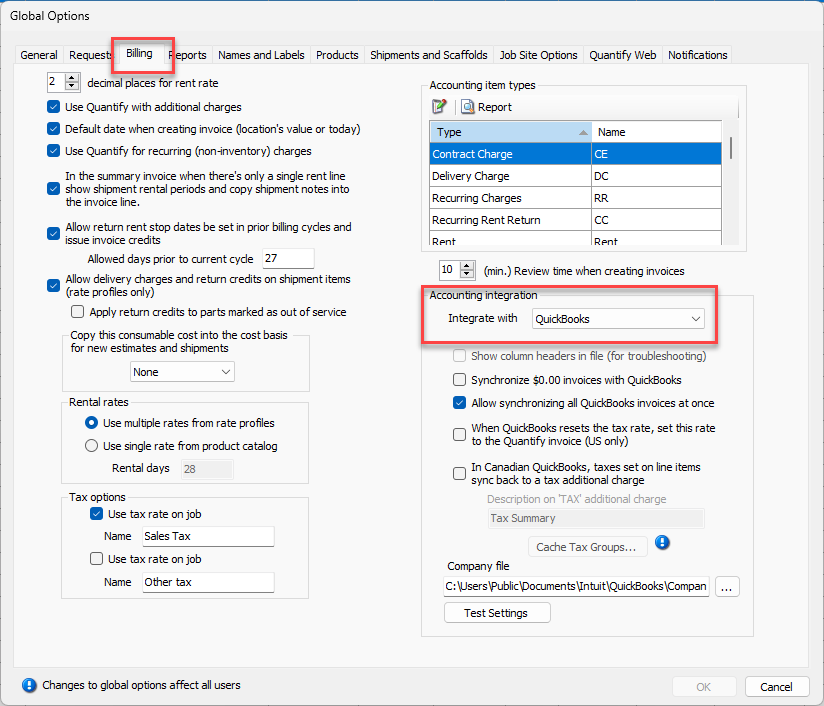
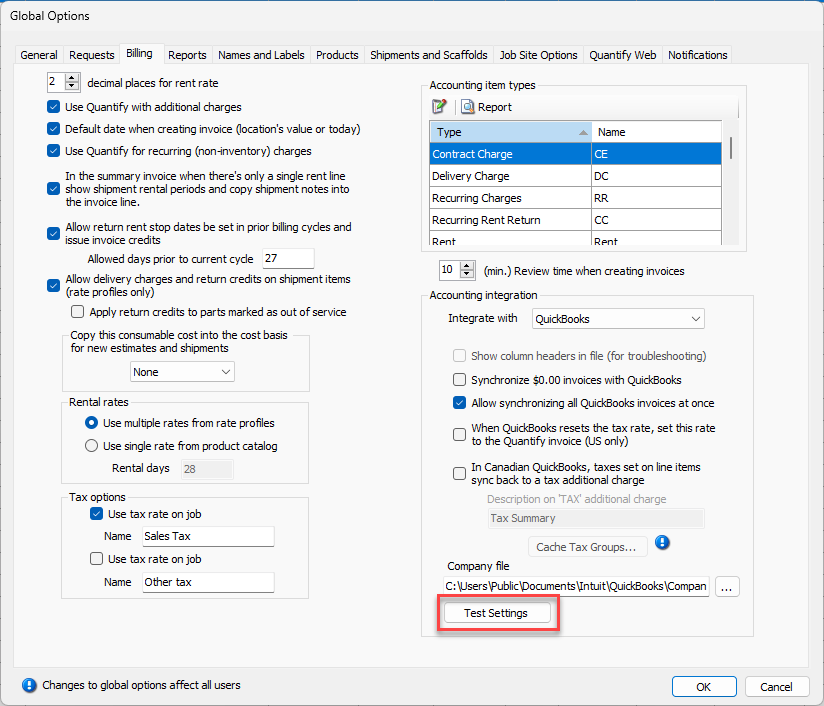
The Global Options dialog appears.
Click the Billing tab.
Click the Integrate With dropdown and select QuickBooks.
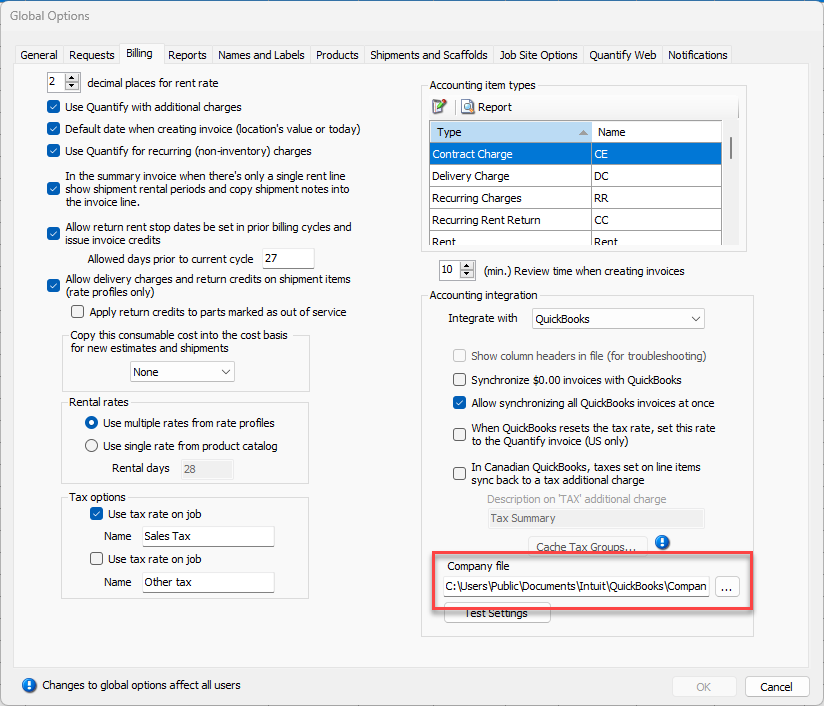
Click the Company File browse button.
The QuickBooks Company File dialog appears.
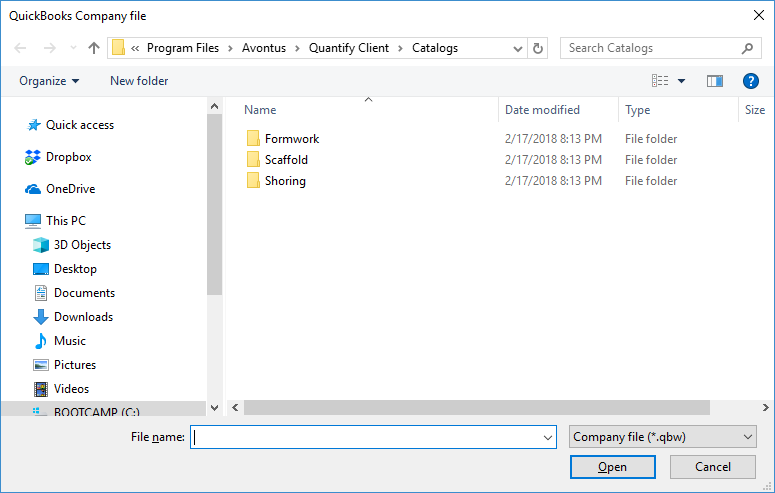
Navigate to and select your QuickBooks Company file, then click Open.
This establishes the communication link between Quantify and the company file QuickBooks uses. The path to the file will appear in the Company file text field.Click Test Setting to test the communication link.
A Test Accounting Software Settings dialog appears.
Quantify reports testing the connection to QuickBooks. When successful this report appears:

Click OK.
The Global Options dialog returns.Click OK.
A communication link between Quantify and QuickBooks is now established.