Merge Fields allows you to insert data, such as dates, automatically into the text section of a document. For example, you can insert a field called Activity Created Date which will automatically insert the date the activity was created into the PDF version of the document.
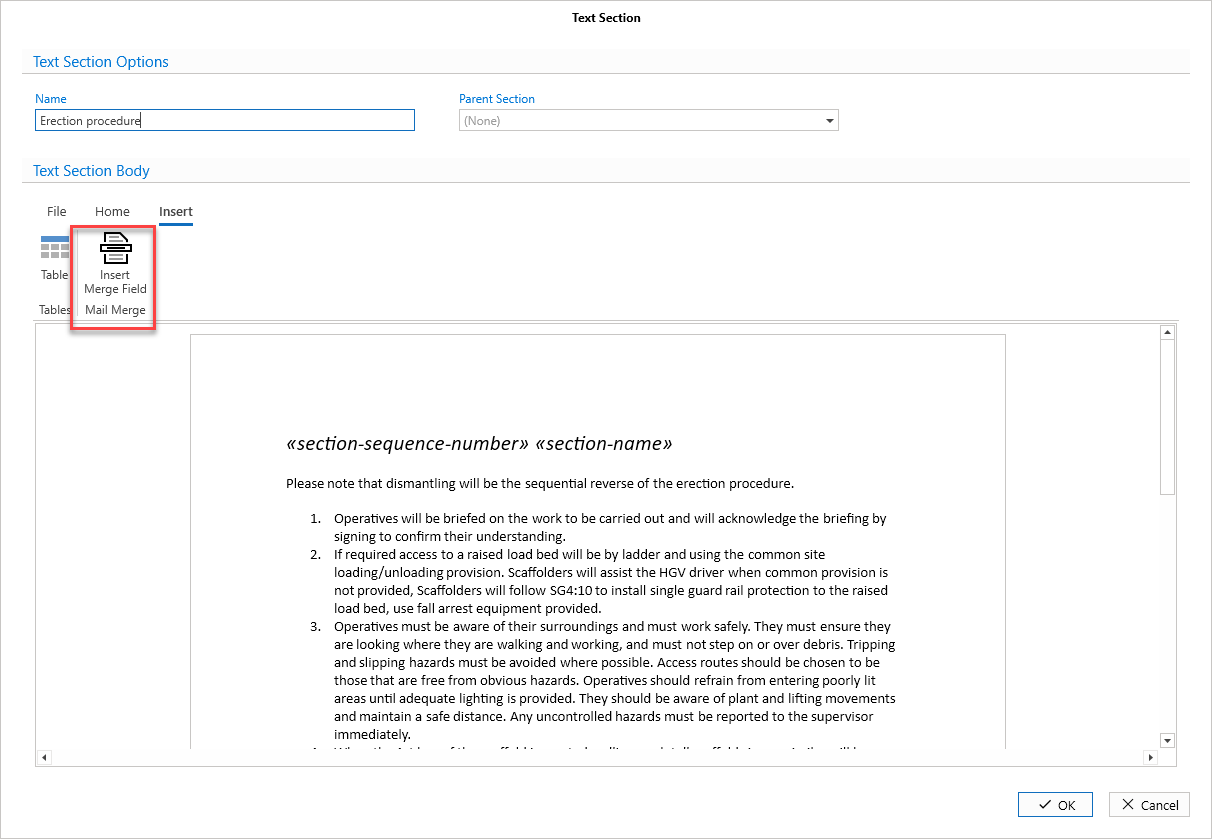
In the Insert tab, select Insert Merge Field.
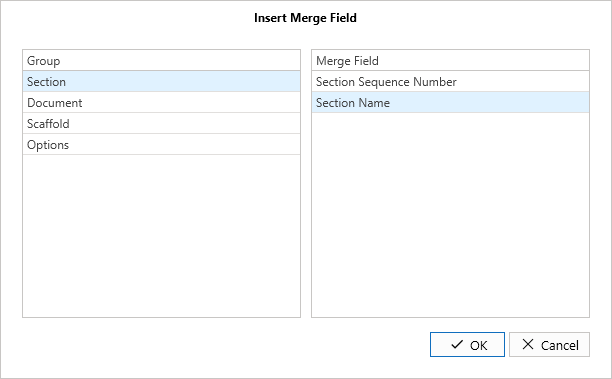
Navigate to the fields you wish to add, in this example, we will add the Activity Created Date field.
Click OK to add the field.
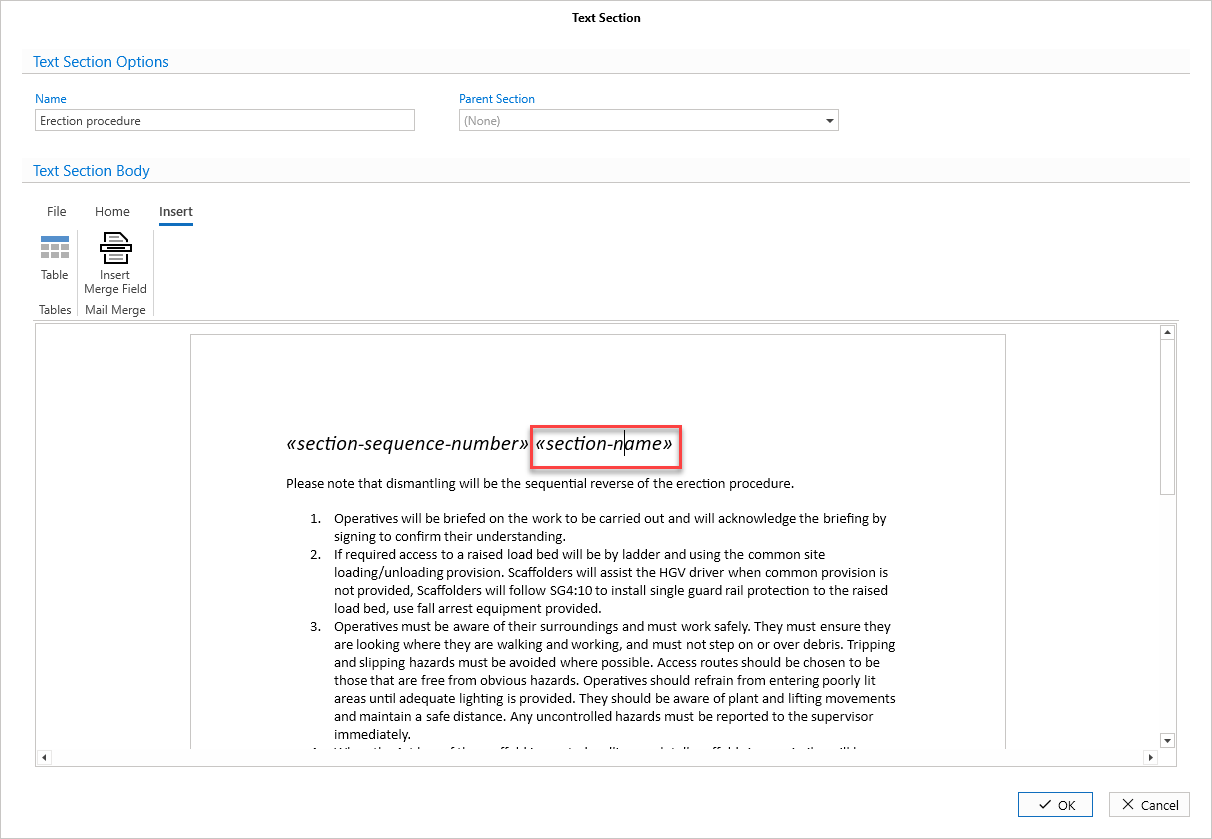
This will appear on the document text section editor as shown below.
When you select to view the PDF of the document template, the date that the activity was created will appear at the place the field was inserted in the document.