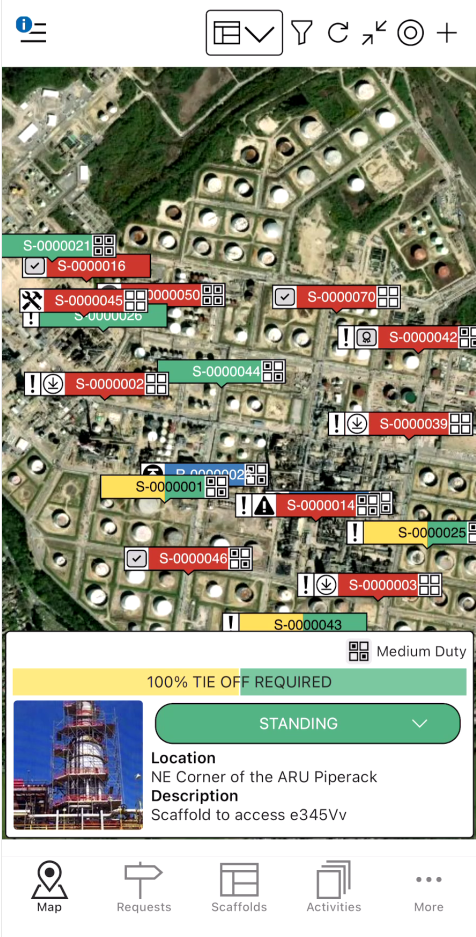
As well as modifying a Scaffold from the Scaffolds screen, but you can also do this from the Map screen
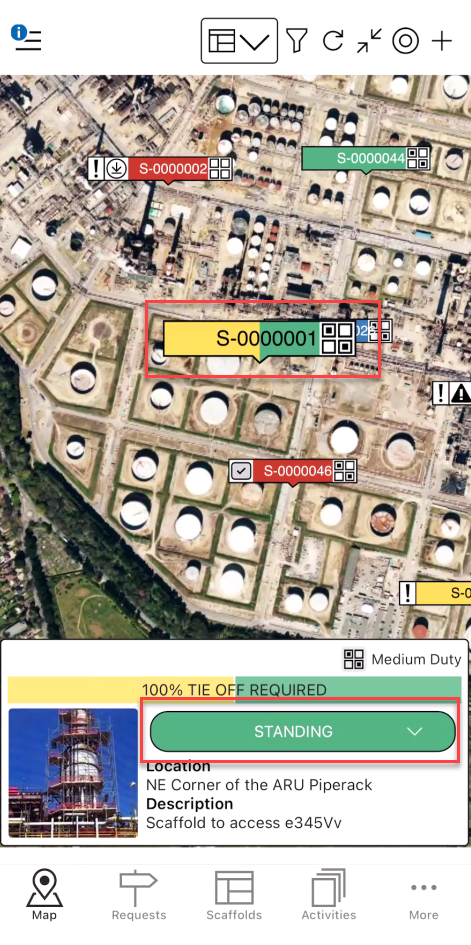
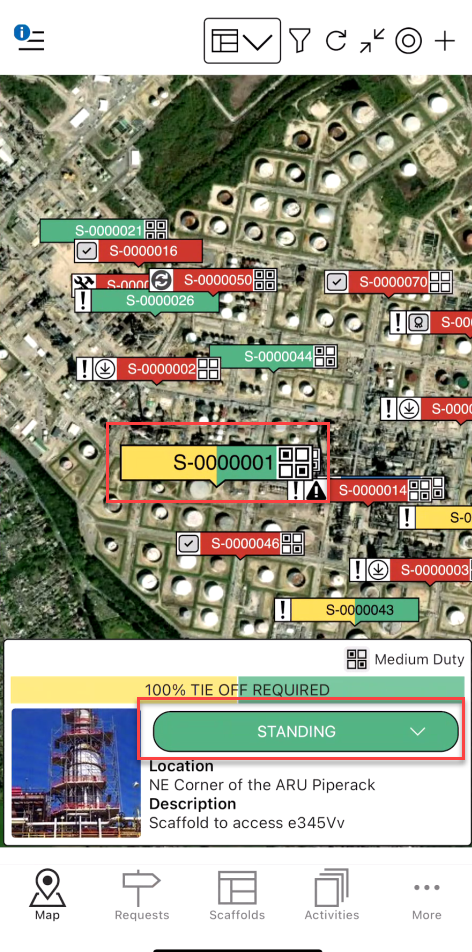
Locate the Scaffold to be modified
Tap Standing
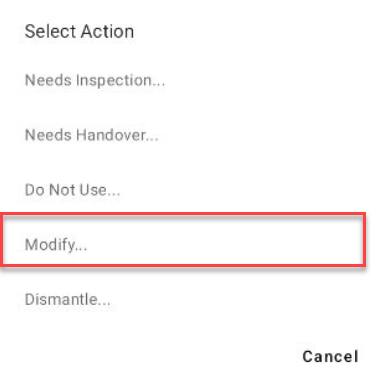
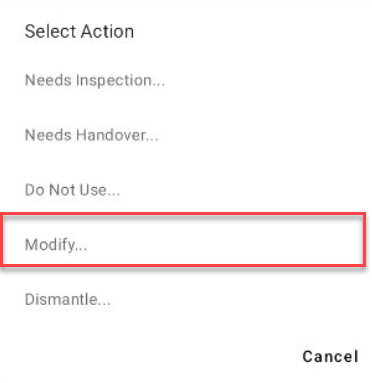
Tap Modify
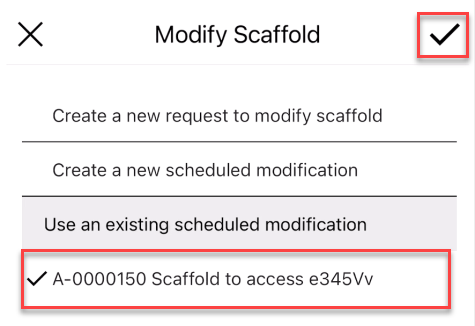
Select the desired options, in this example, we will create a new request to modify the scaffold.
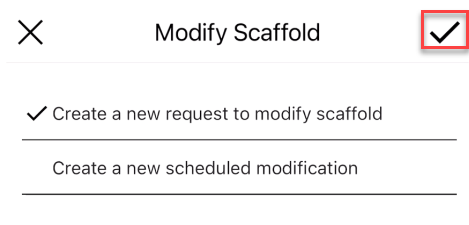
If you selected Create a New scheduled Modification, Complete the Activity form and tap the tick icon and skip to step 9
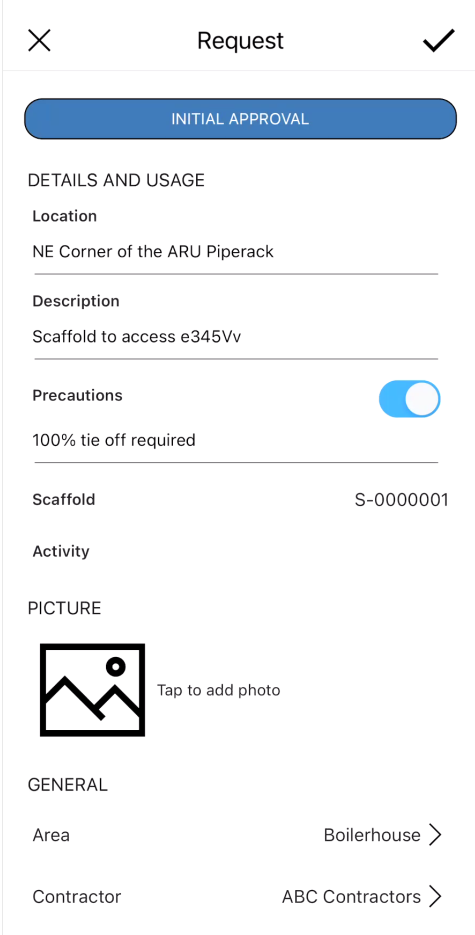
Enter the Request details and tap the tick icon
On the Map screen, change the view to Requests by Tapping the View icon
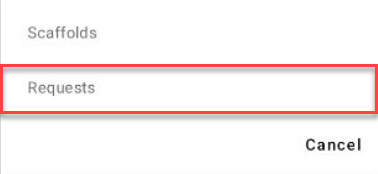
Tap Requests
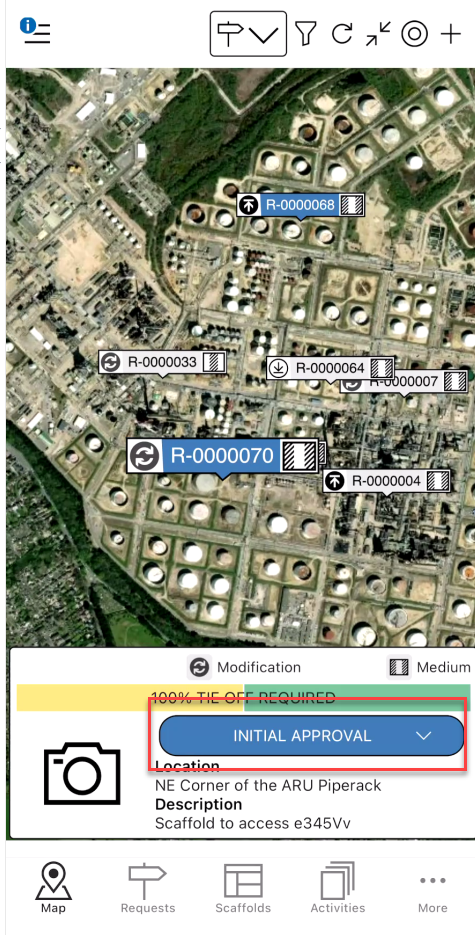
Tap the newly created request and approve the Request
When the Request is approved, change back to the Scaffold view by tapping the view icon
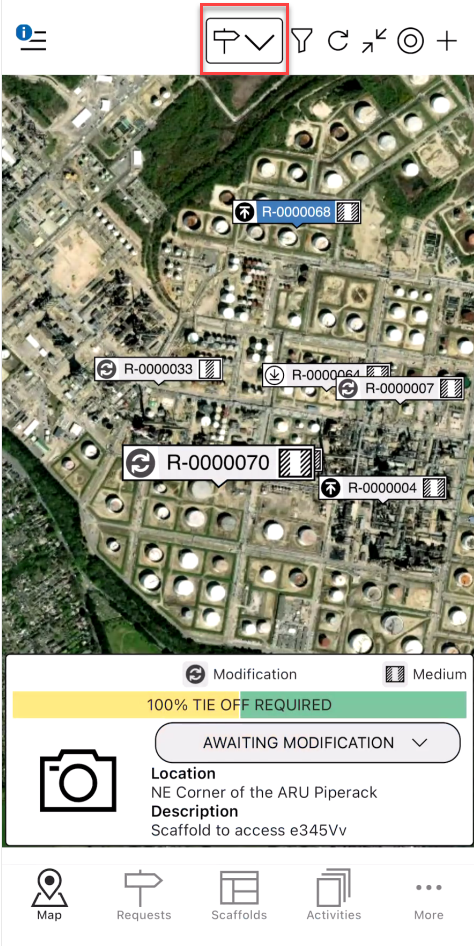
Then select Scaffolds
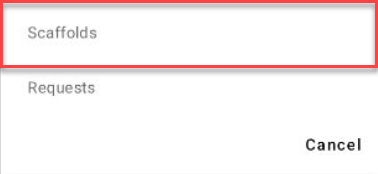
Tap the Scaffold and select Standing
Tap Modify
Select the existing scheduled Modification and tap the tick icon
In the Activity, Tap the tick icon
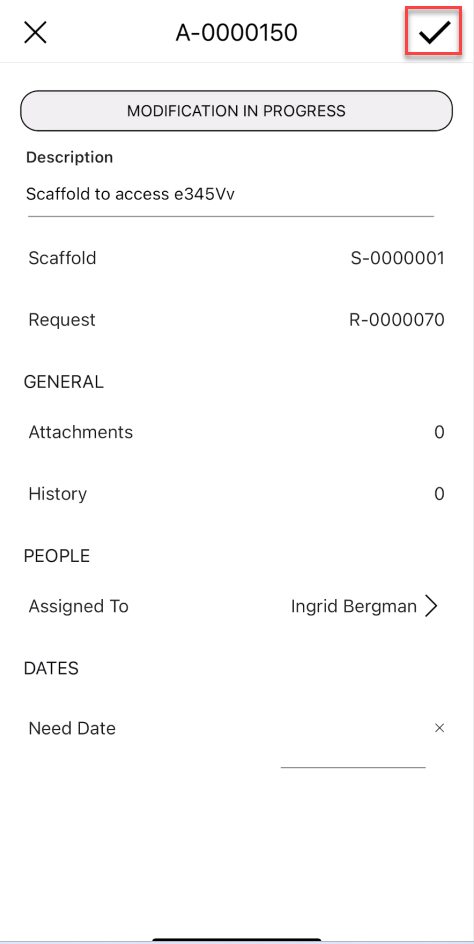
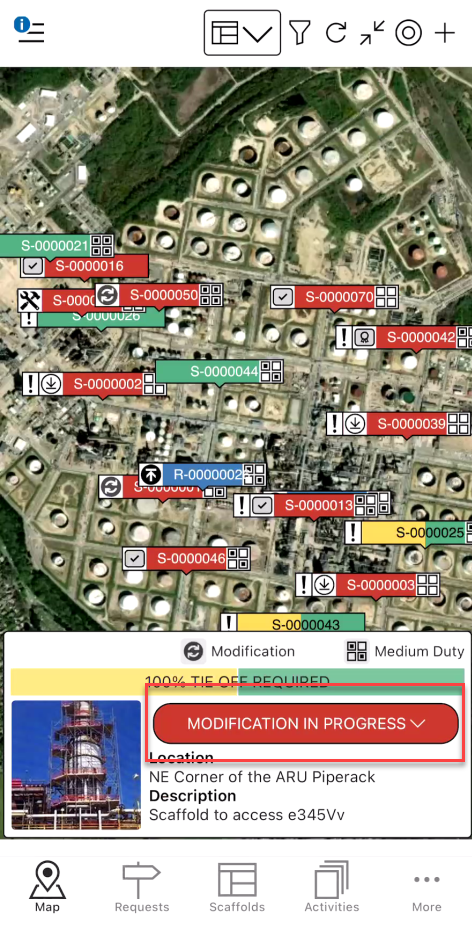
Tap the Scaffold and select Modification in Progress
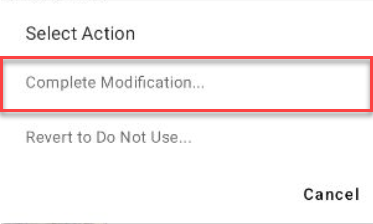
Select Complete Modification
Tap the tick icon
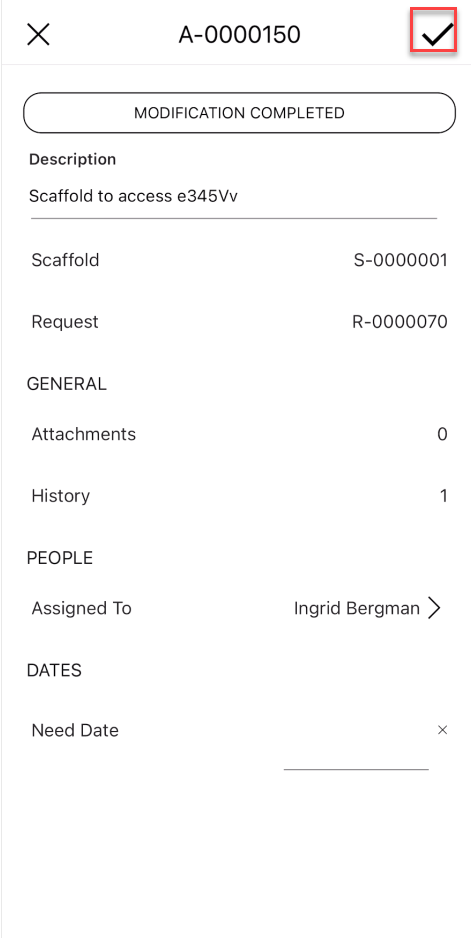
The Scaffold will be in the Handover status. For more information on Handovers, please visit Performing a Handover.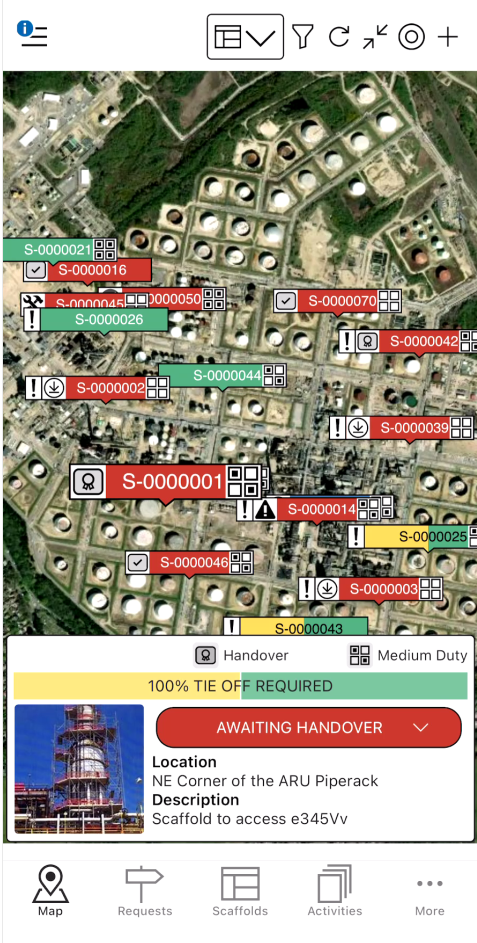
However, if the Handover stage is bypassed, the scaffold will be in the Standing status.