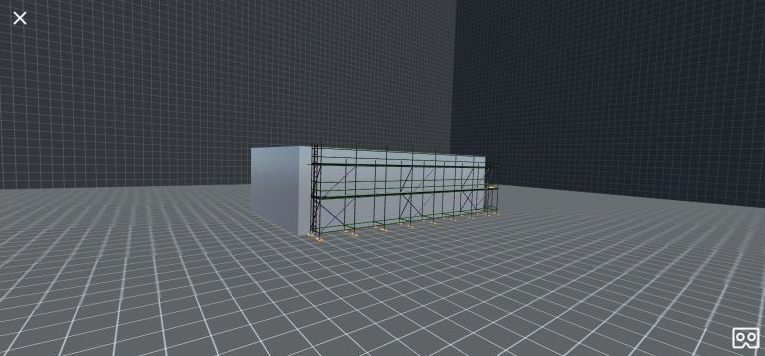
Avontus Viewer enables you to use your mobile device to move through your models in virtual reality (VR). To do this, you must first have an Avontus Viewer Lens.
To navigate through an Avontus Viewer model in VR:
Log in to Avontus Viewer.
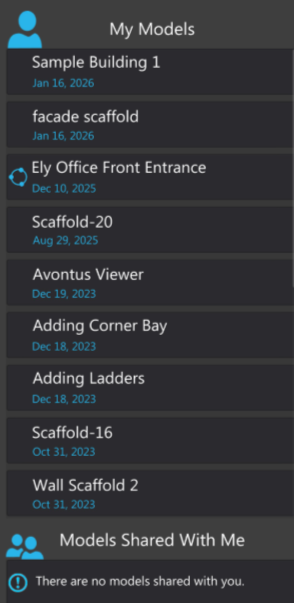
Avontus Viewer displays the list of models available to you.Locate and tap the drawing you want to view.
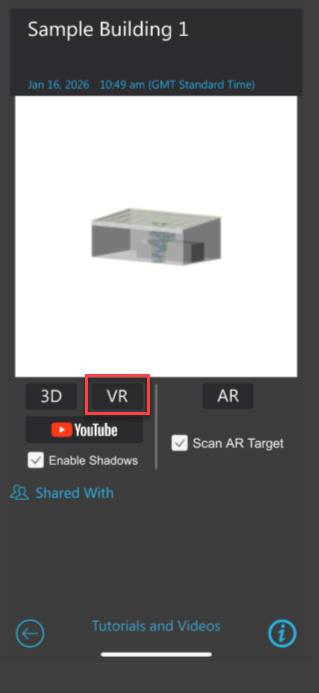
Avontus Viewer displays the 3D View screen.Tap VR.
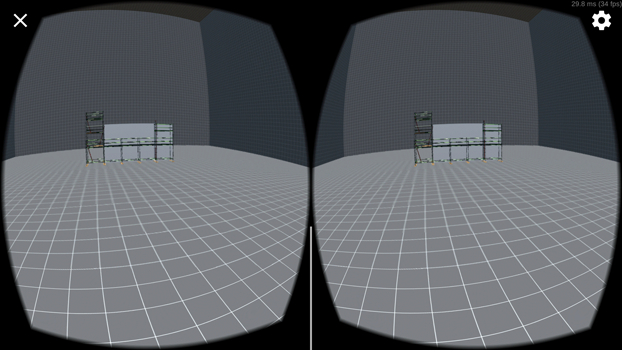
Avontus Viewer displays the model in virtual reality.
Place your device into the Avontus Viewer Lens, so that the screen faces the lenses in the cardboard.
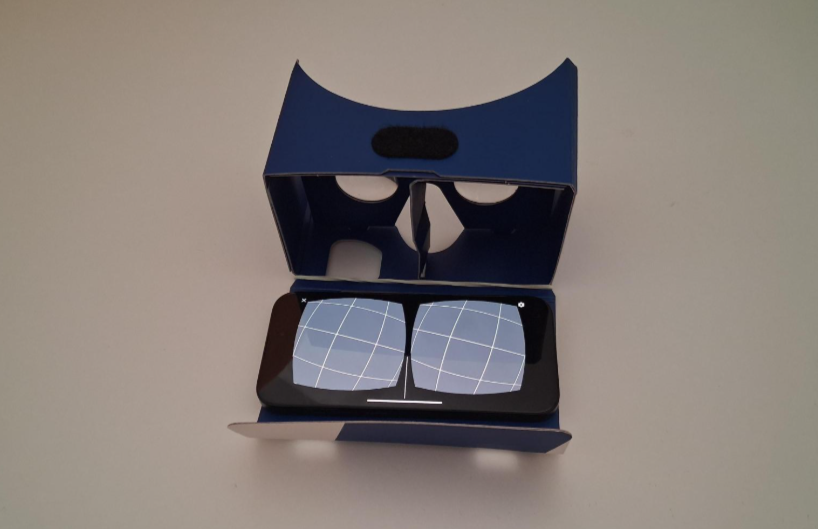
Close the cover over the back of your device.
Secure the device by pressing the Velcro closure.
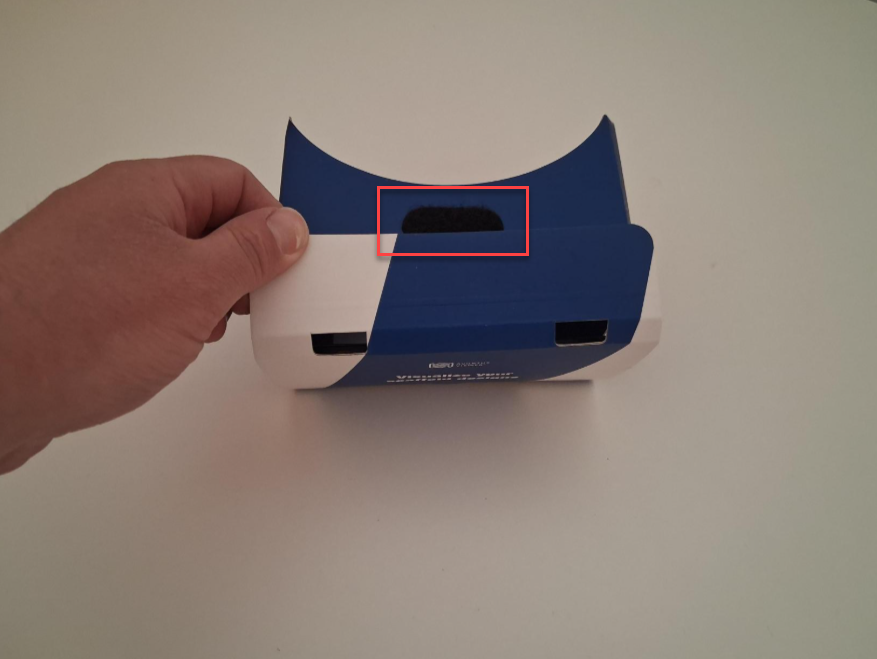
Hold the Viewer Lens up to your eyes, so that the cutout tab is on top.
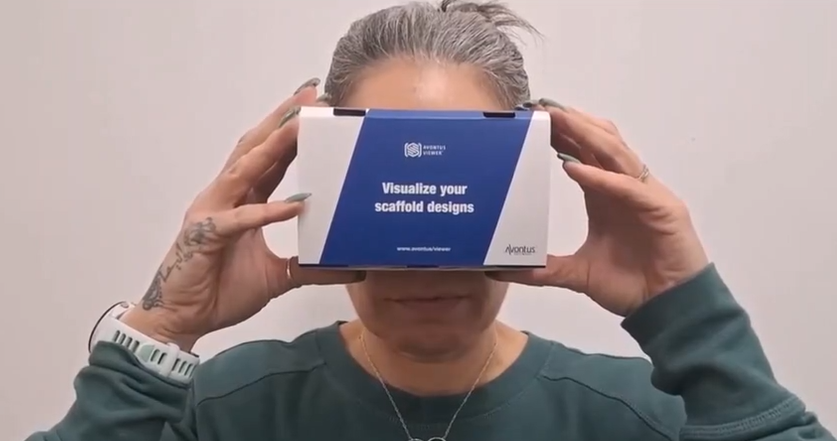
Look around the virtual reality in the same way you would actual reality: move your head to the right and left, up and down.
To move out, tilt your head 45 degrees
You can then hold your finger on the screen to move forwards or backwards depending on which movement setting you are on.
To change direction, you tilt the phone in the direction that will set the phone to portrait mode.
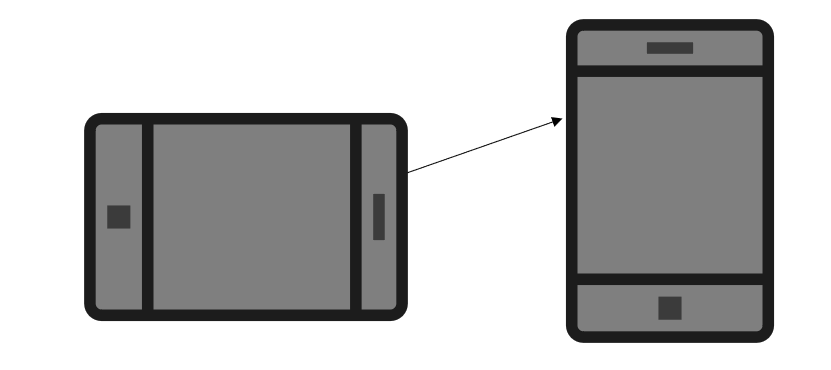
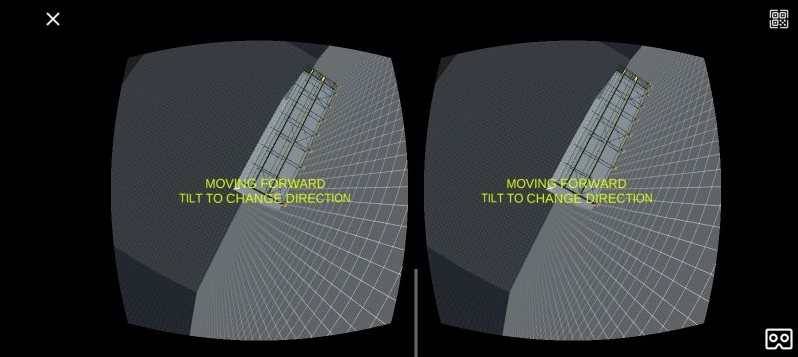
When you tilt the phone far enough (approx. 70 degrees) a message will pop up alerting the user to the change in direction. The two directions are forwards and backwards.
Tap the icon in the bottom right to switch between the VR and 3D view.
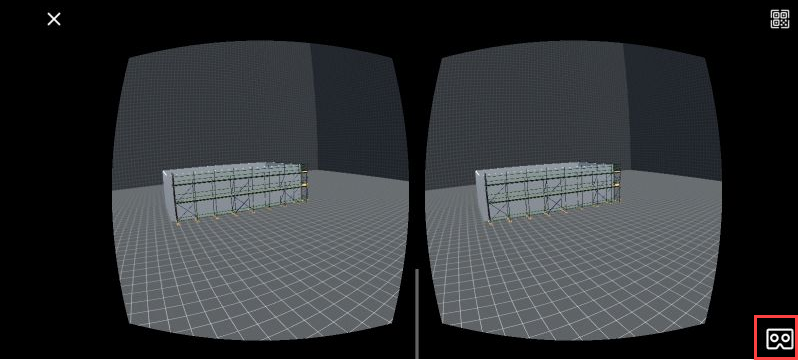
The screen will look like this: