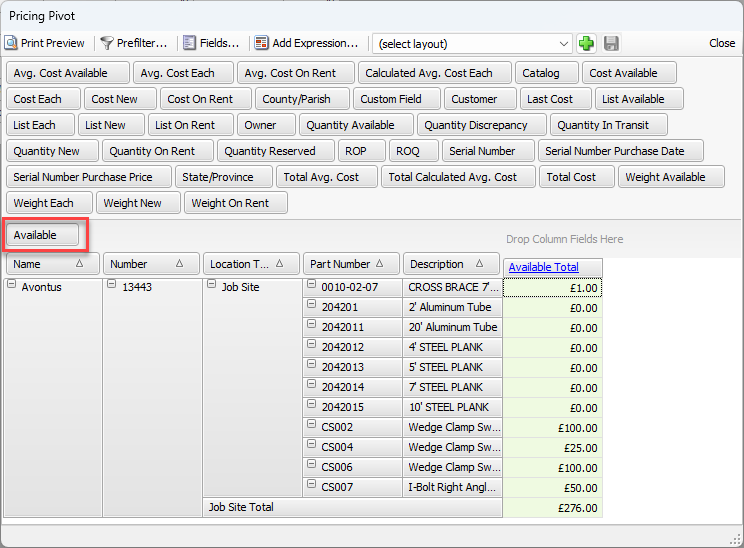
The procedures below introduce you to the Expression Editor by showing you how to create a simple expression. For this, we use the Product Pricing Pivot and add a Total Quantity expression to it. The basic procedures in this article apply to any expression you create, no matter how complex.
To add a simple expression to a pivot report:
Launch the appropriate pivot report.
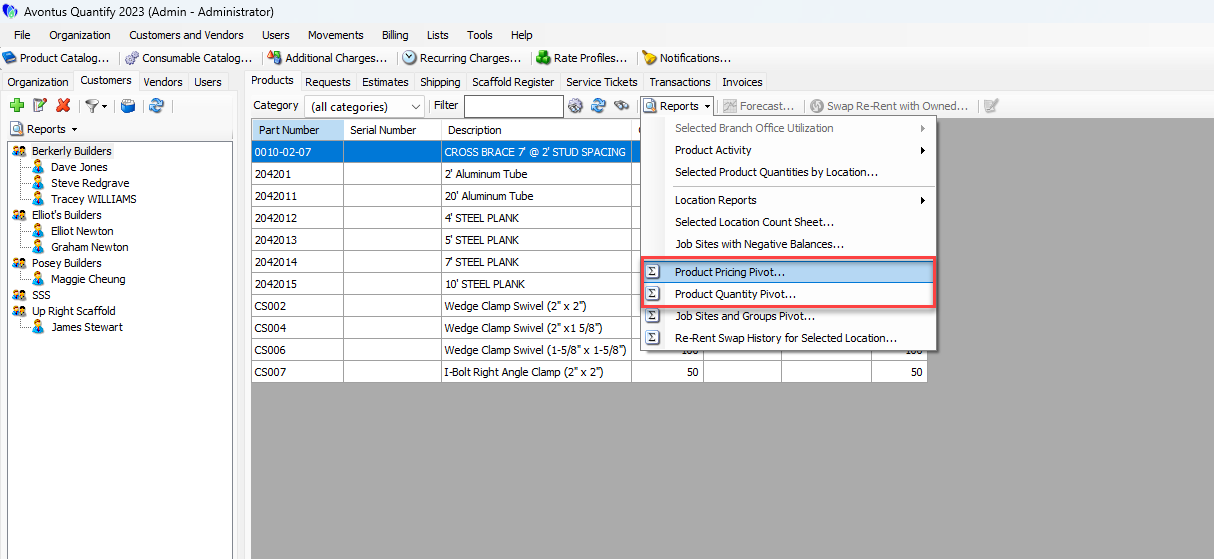
As necessary, edit the pivot report.
Click Add Expression.
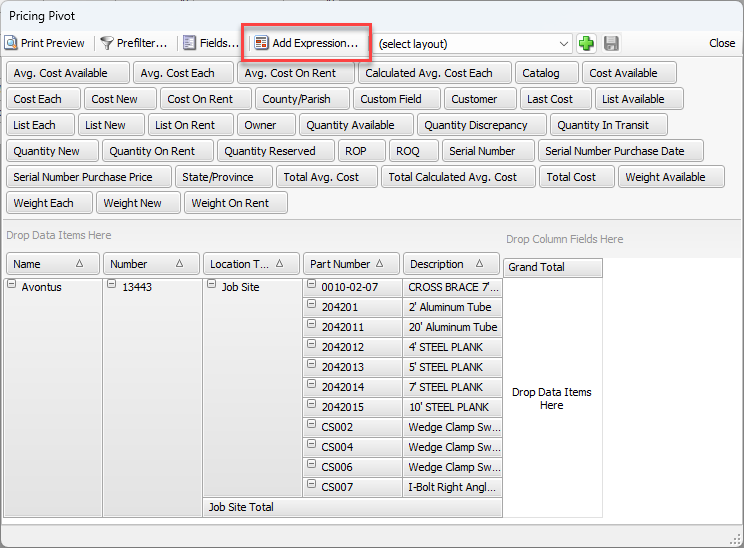
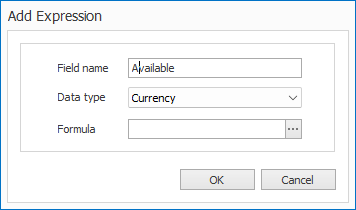
The Add Expression dialog appears.
Click in the Field Name text field and enter Total Quantity.
Click the Data Type dropdown and select Integer.
Click the Formula button (
 ).
).
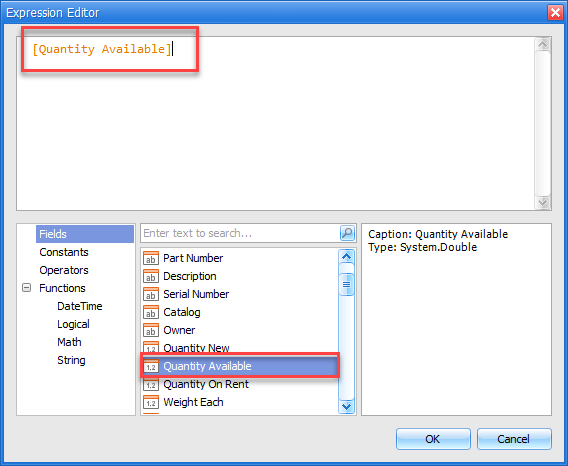
The Expression Editor dialog appears, with the Fields item pre-selected.Scroll down the list in the bottom-center column and double click Quantity Available.
[Quantity Available] appears in the text field in the top of the Expression Editor.
Click Operators in the bottom-left column of the Expression Editor.
The center column refreshes, displaying available operators.Scroll down the list in the bottom-center column and double click the plus sign (+).
The Expression Editor adds the plus sign to the top text field.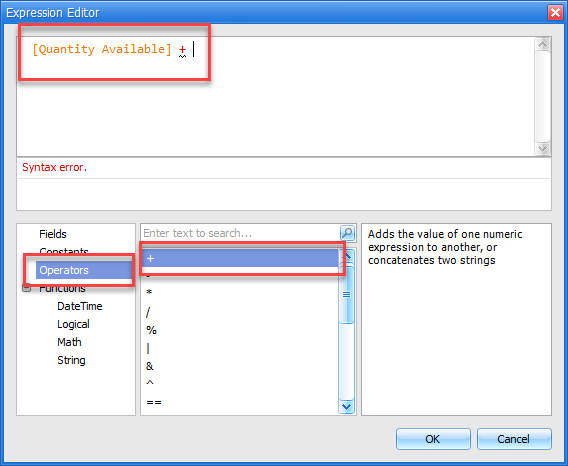
Note: The Expression Editor displays the words Syntax Error because the expression is not yet complete.
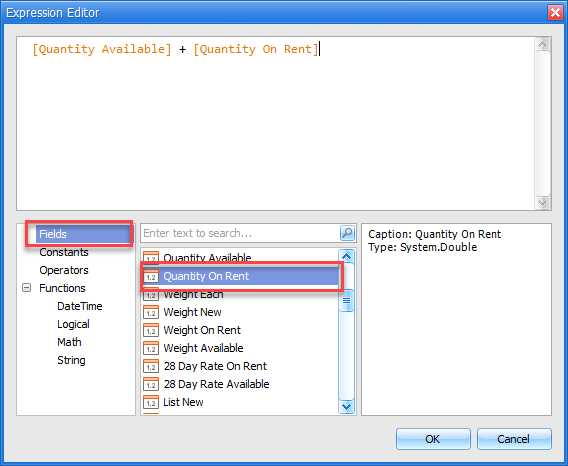
Click Fields in the bottom-left column of the Expression Editor.
The center column refreshes, displaying available operators.Scroll down the list in the bottom-center column and double-click Quantity On Rent.
The Expression Editor adds [Quantity on Rent] to the top text field.
Click OK.
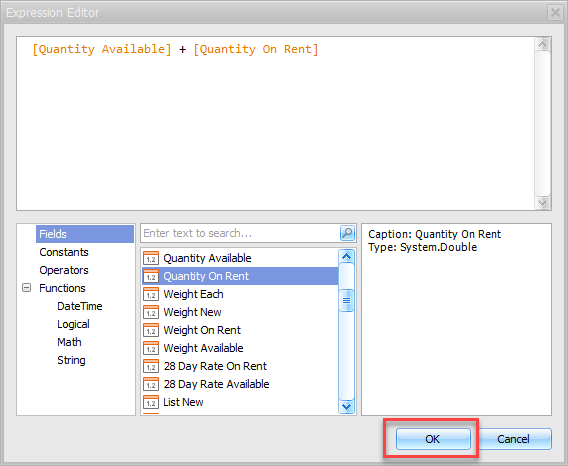
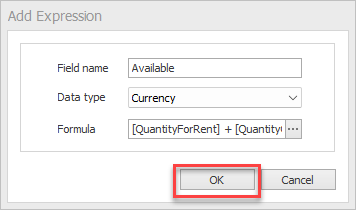
The Add Expression dialog returns, containing the expression in the Formula text field.
Click OK.
The Pricing Pivot returns, containing the new field.