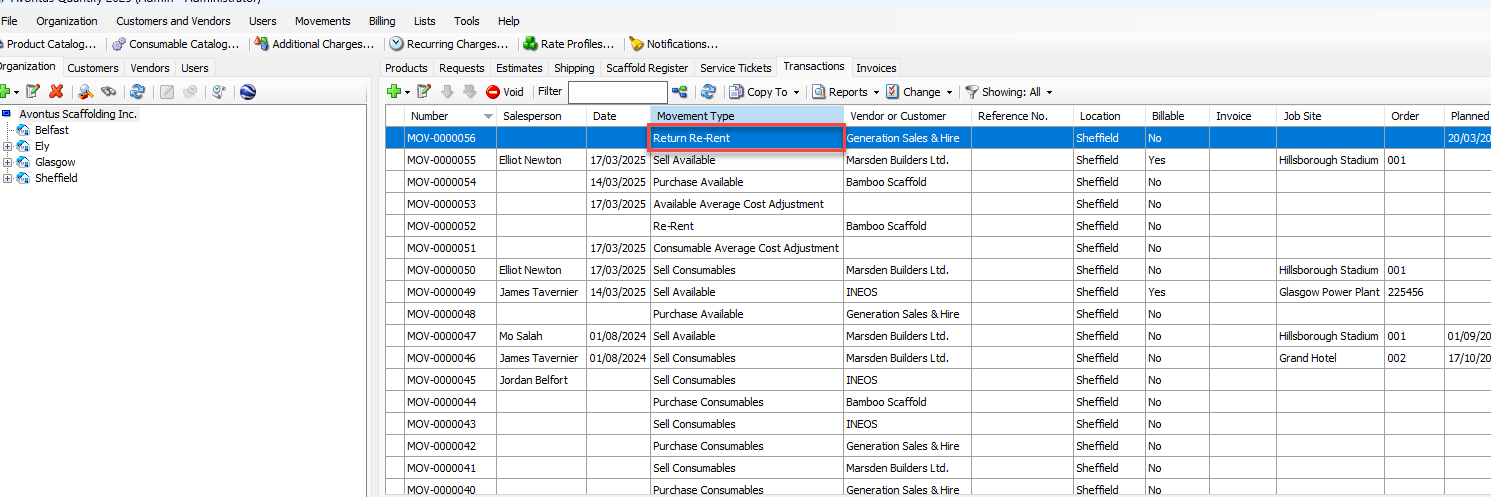
Quantify enables you to easily remove re-rent material, so you can return it.
To remove re-rent equipment from inventory:
Click the appropriate Branch Office and click the Transactions tab.
Click Add button (
 ) and select Return Re-Rent from the menu that appears.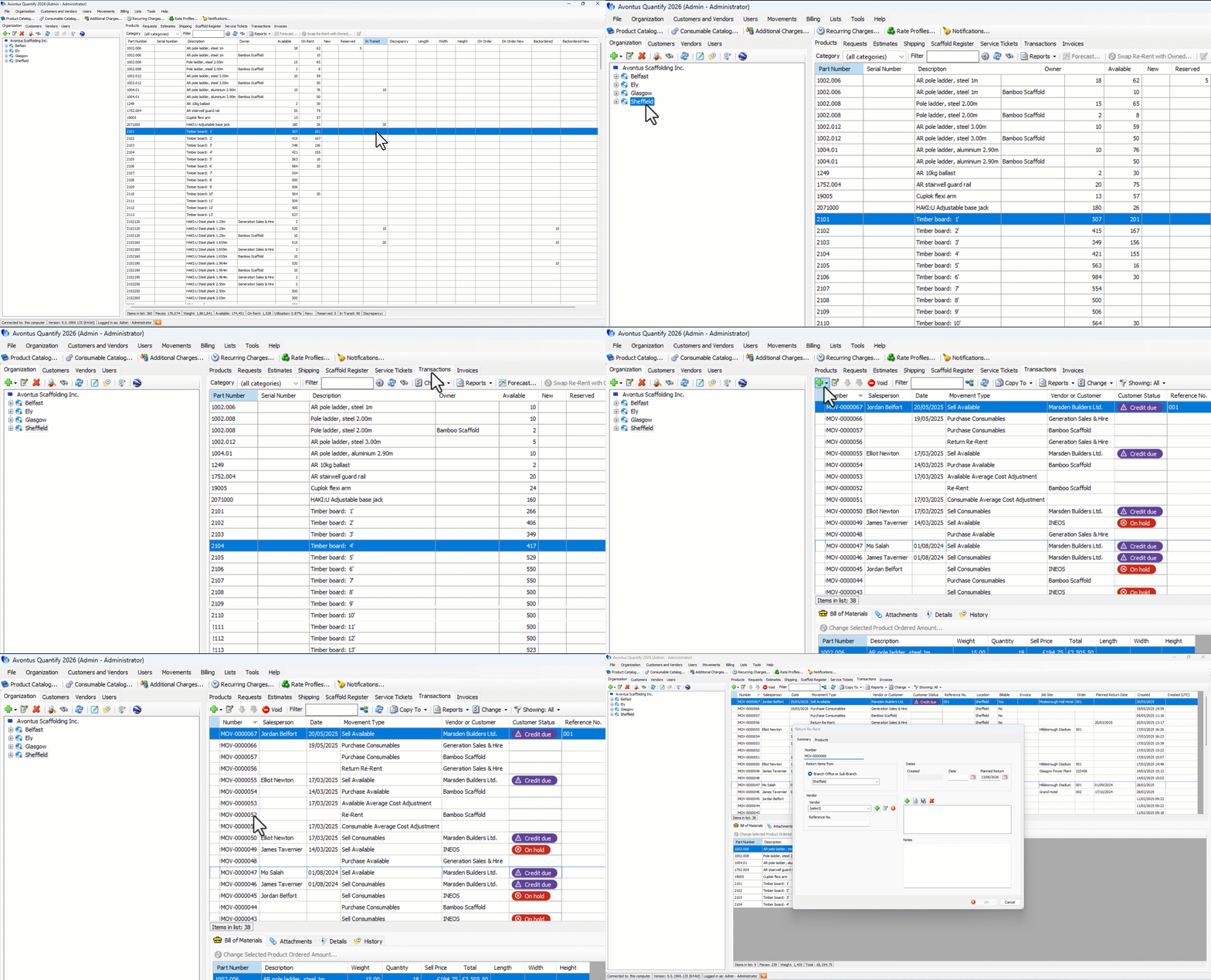
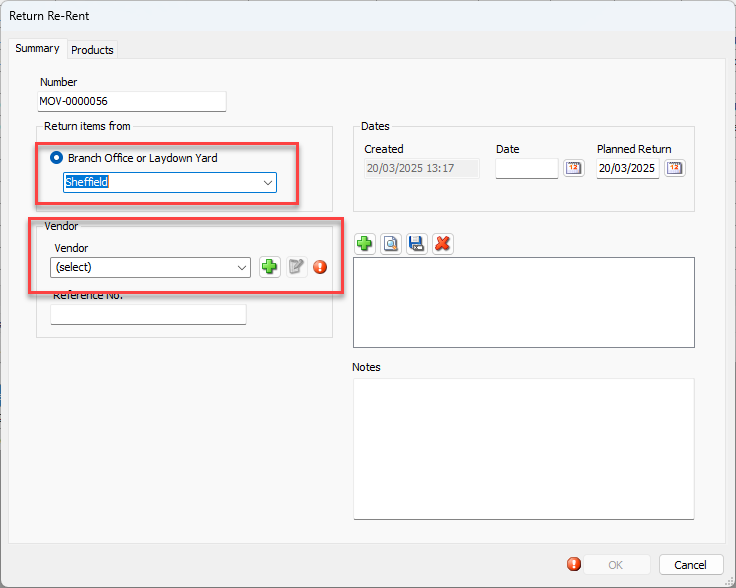
The Return Re-Rent dialog appears.Click the Return Items From dropdown and select the Branch Office or Sub-Branch from which to remove inventory.
Note: This field defaults based on Organization Tree focus, but may be changed, as needed.
Click the Vendor dropdown and select the Vendor.
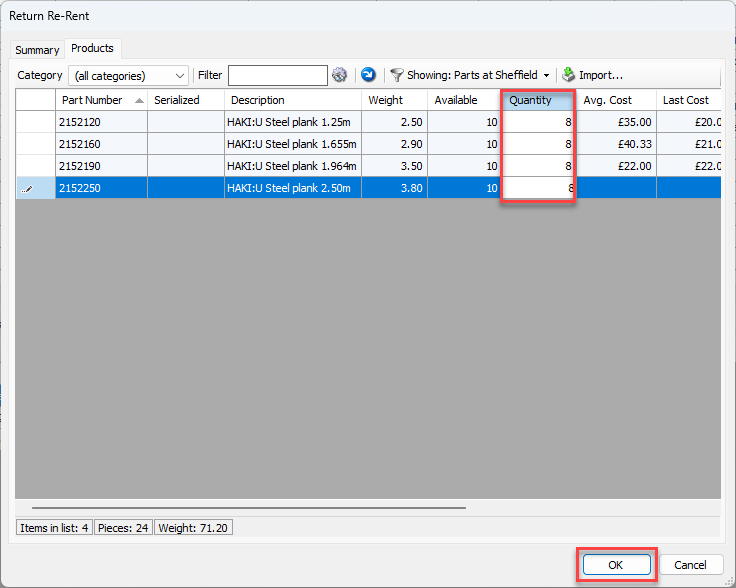
Click the Products tab.
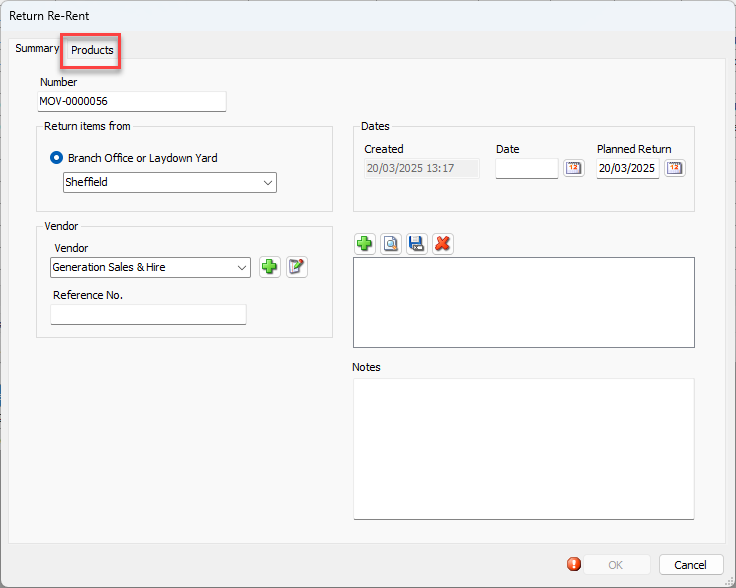
The Products tab displays the equipment rented from the Vendor selected on the Summary tab.Click in the appropriate Quantity cell and enter the count of items to be returned.
Click OK.
You can view the re-rent return Transaction in the Transactions tab.