NOTE: The features mentioned in these articles are only available in the Industrial Edition of Quantify.
Quantify makes it easy for you to save a QR code as a PDF file. The procedures below show you how to do that.
To save QR codes for a Scaffold as a PDF file:
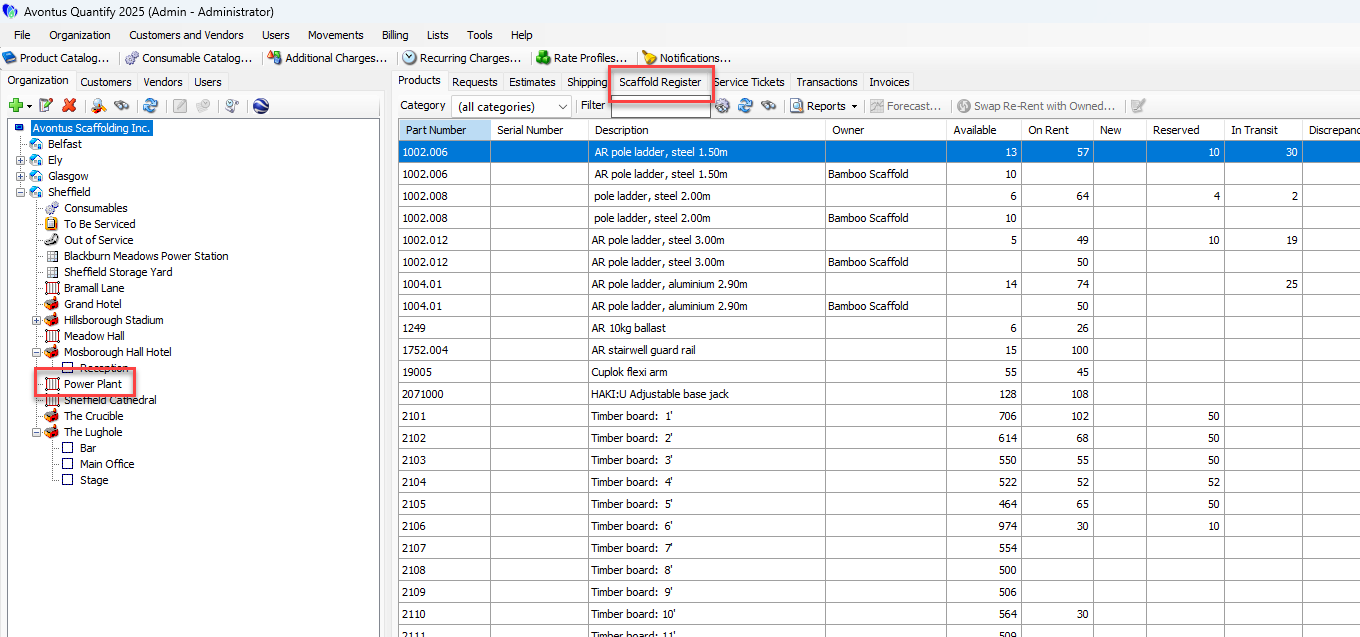
Locate and click the appropriate Scaffold Tracking Job Site, click the Scaffold Register tab.
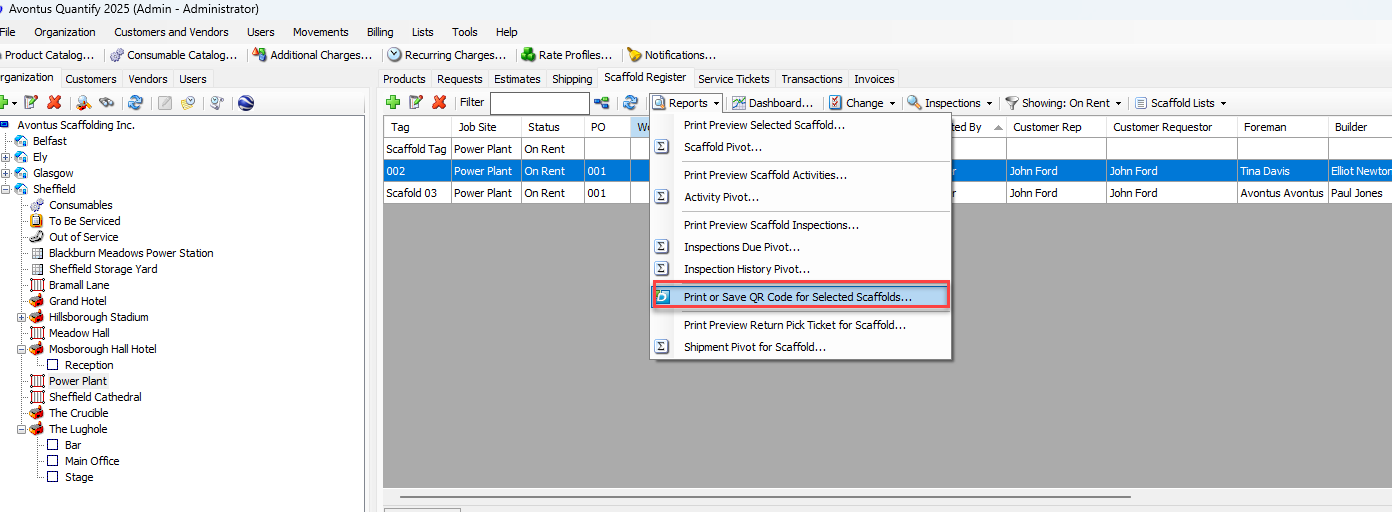
Click the Reports menu and select Print or save QR Code for Selected Scaffold.
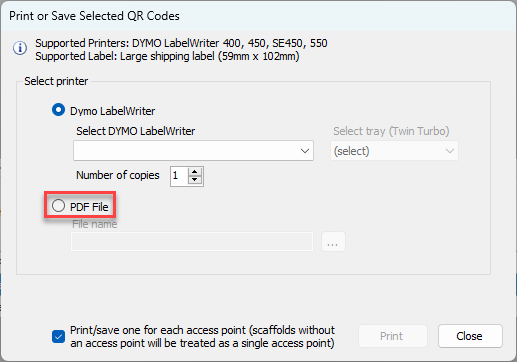
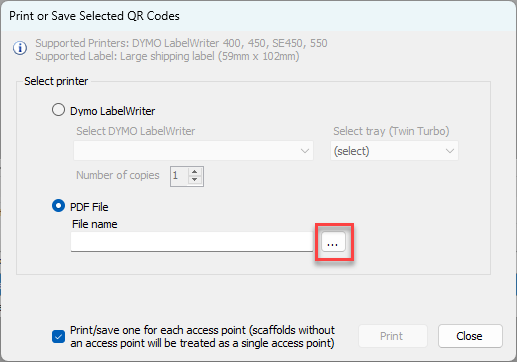
The Print or Save Selected QR Codes dialog appears.Click the PDF File radio button.
Click the button to the right of the File Name text field (
 ).
).
The Export to PDF dialog appears.
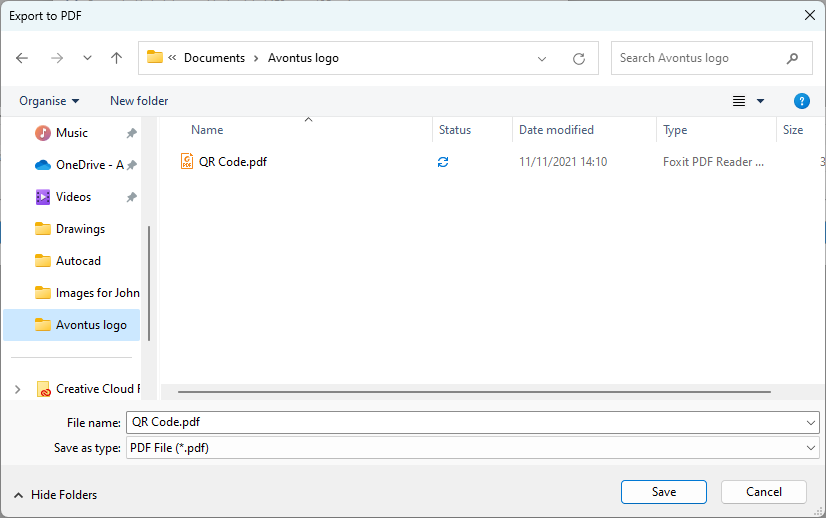
Navigate to the folder into which you want to save the file and click Save.
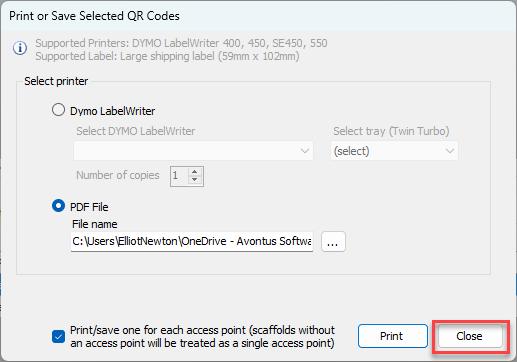
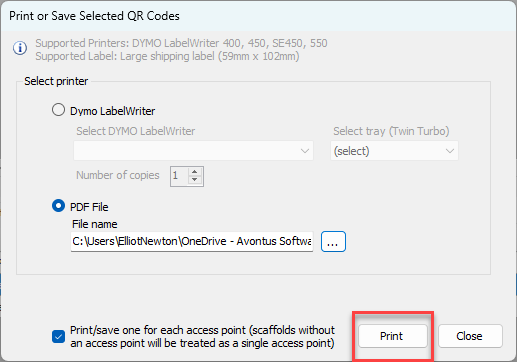
The Print or Save Selected QR Codes dialog returns.Click Print.
A confirmation dialog appears
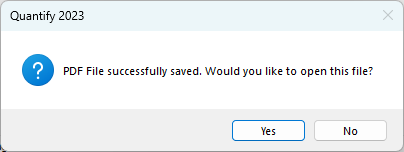
Click Yes to view the document, or No to close the dialog.
The Print or Save Selected QR Codes dialog returns.Click Close.