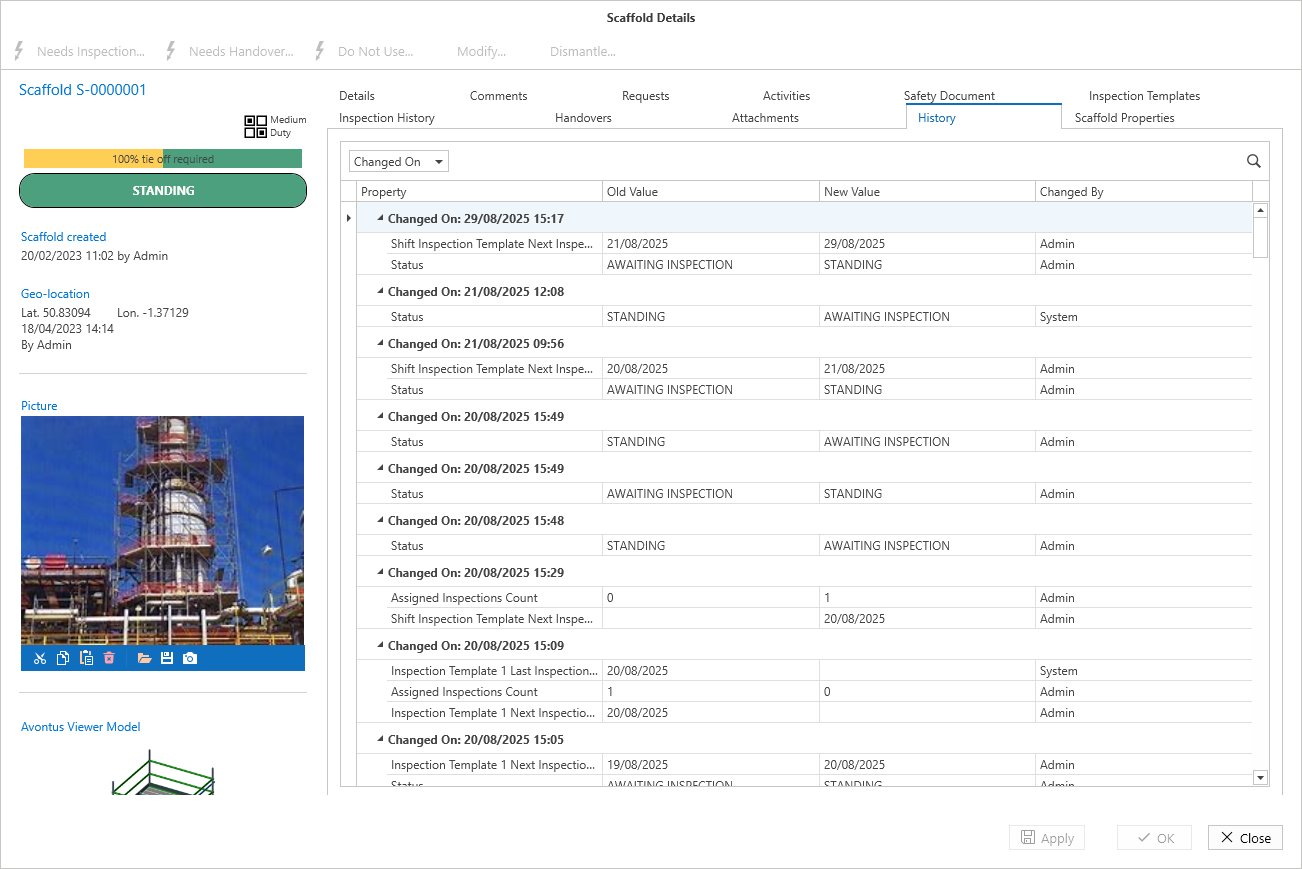
The Scaffold Details section provides an overview of the scaffold's details including its location, dimensions, and general information. You can action a scaffold from this screen. For example, you can begin an inspection, create a request to modify the scaffold, and create a scheduled dismantle.
To edit a scaffold's details, select the Edit button at the bottom right of the window.
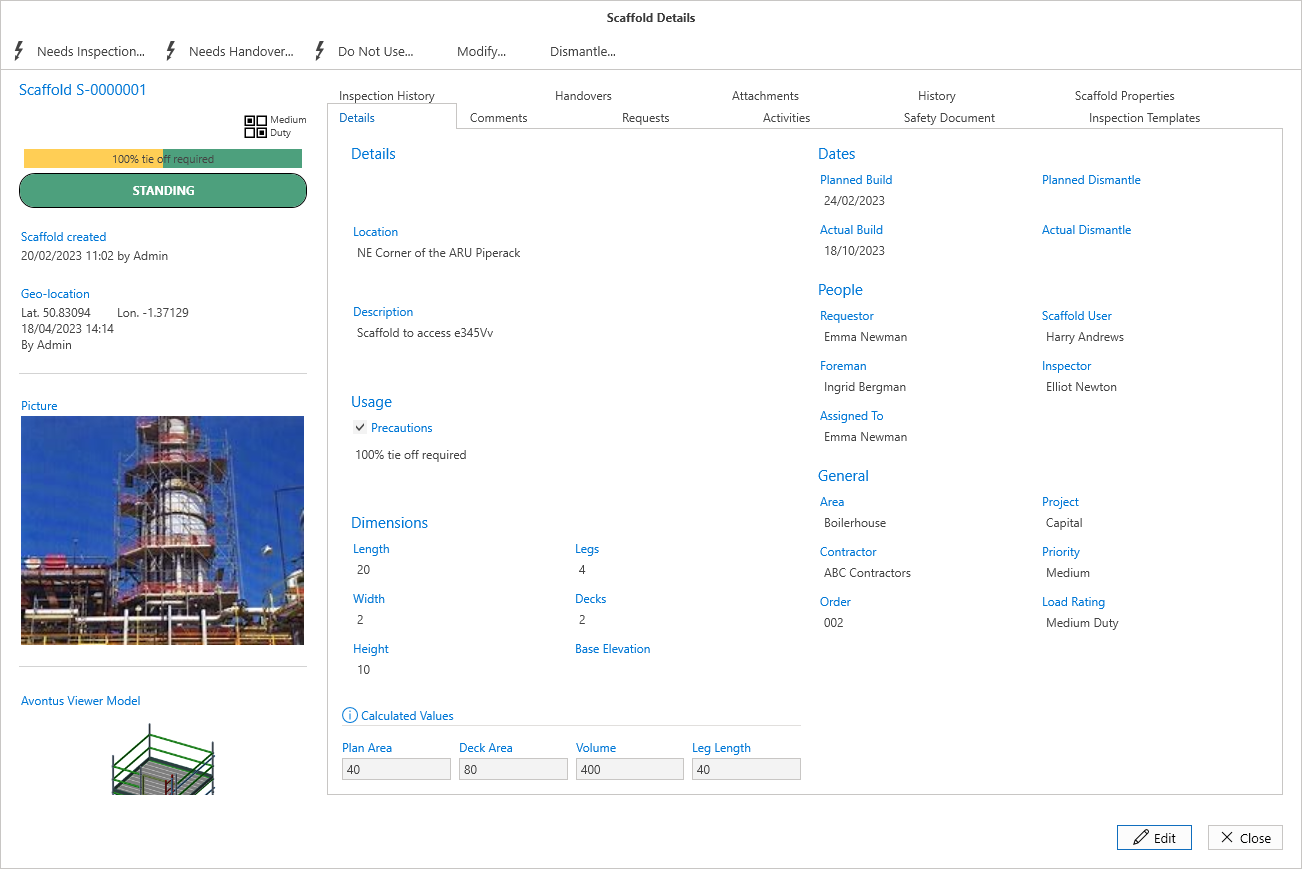
Details
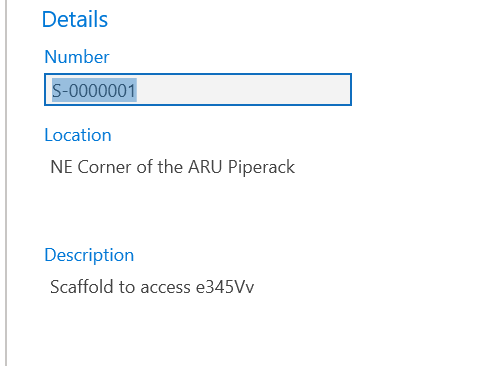
The Details section is for specifying the location (where the scaffold is erected) and provides useful information about the purpose of the scaffold.
Usage
Precaution is used to provide onsite workers with safety information and requirements when working on the scaffold.
Note: Tick the precautions checkbox to enable the text box so that the precaution can be added.
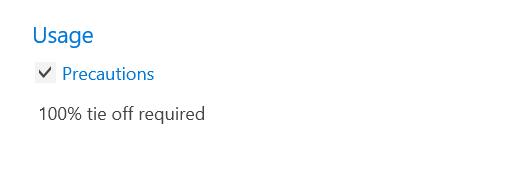
This will impact the scaffold's status where it will read "standing" but with precautions.
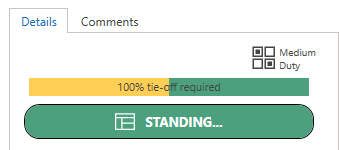
With the icon below appearing on the map.

Dimensions
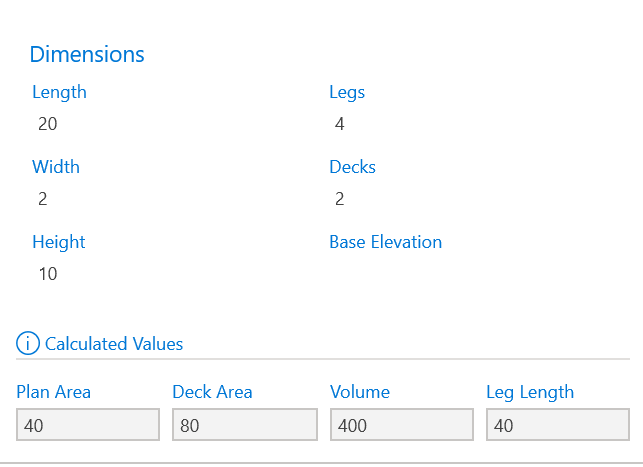
The dimensions section is where the dimensions of the scaffold are displayed. This will include the length, height and width as well the number of decks, legs, and the base elevation.
Note that the units are agnostic, and the unit the scaffold will be measured in will depend upon what is the most commonly used system (metric or imperial) in your geographical region.
The provided dimensions will be calculated and displayed in the Calculated Values section below the Dimensions section. The formula is:
Plan Area = Length x Width
Deck Area = Decks x Width x Height
Volume area = Length x Width X Height
Leg Length = Legs x Height
Dates
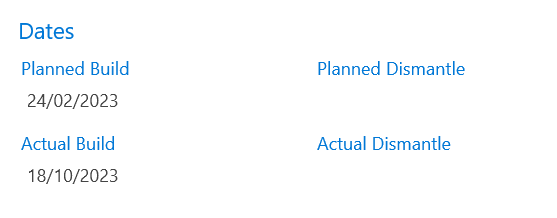
The dates section is for providing dates that are relevant to the scaffold. This includes the planned build date of the scaffold, the date the scaffold was actually erected, the planned dismantle date and the actual dismantle date.
People
This section is for providing the names of the people who will be managing and monitoring the scaffold, such as the Approver and Requestor.
Please see the Users section for more information.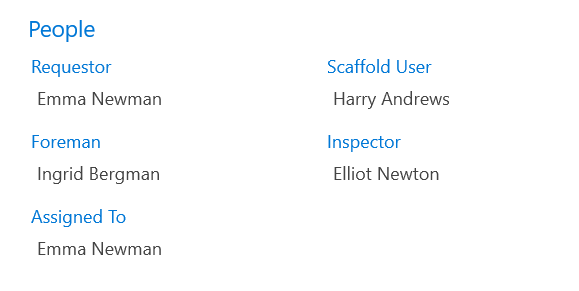
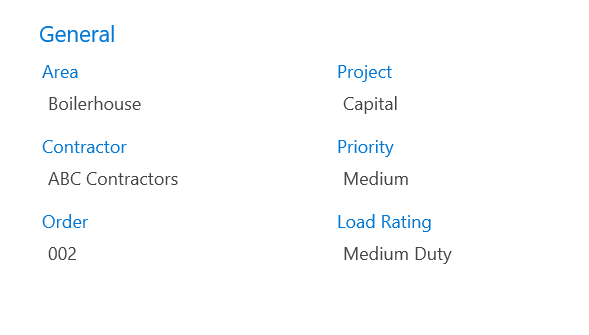
General
The General section is for general information concerning the area the scaffold is assigned to and the contractor hired to erect the scaffold. You can also assign the Area and select the order number.
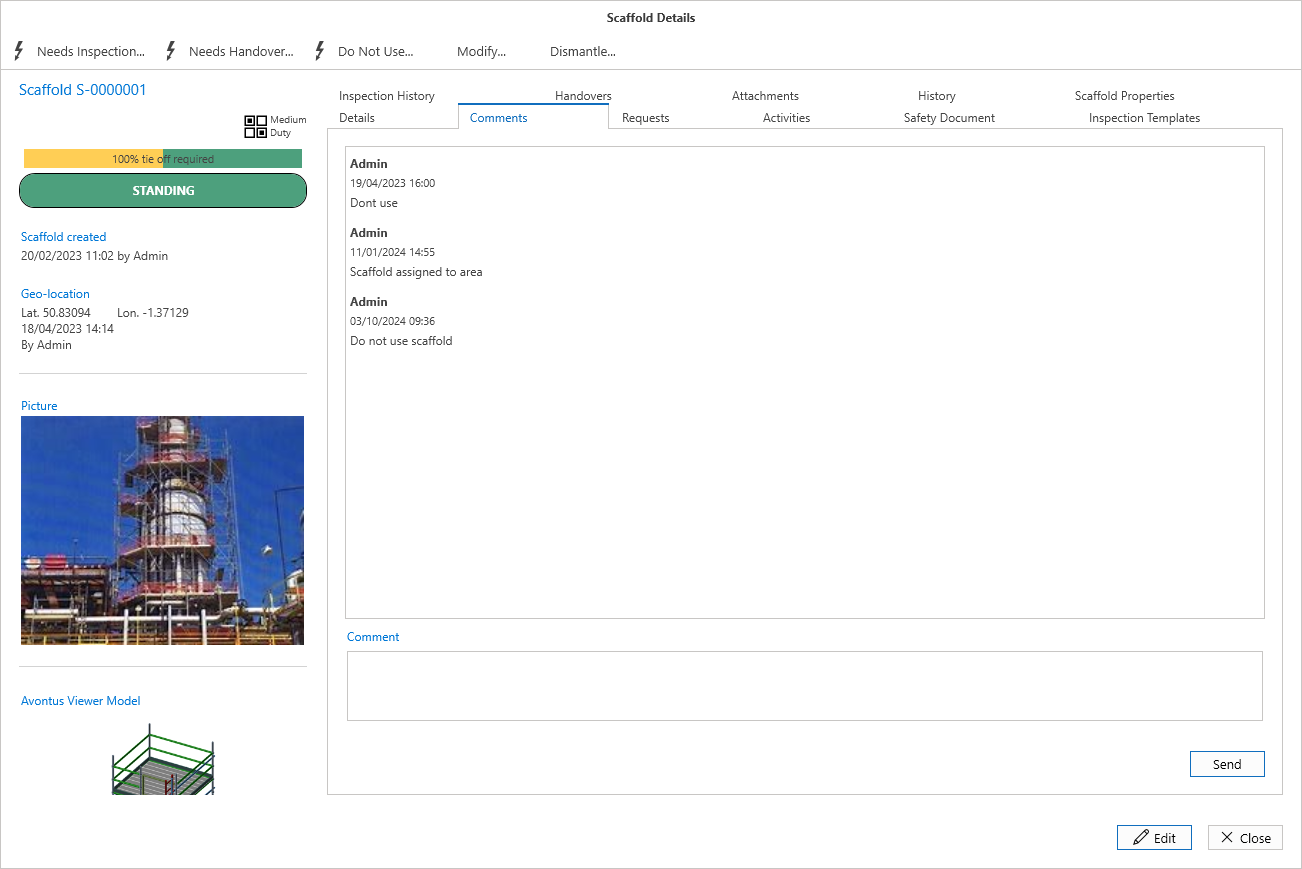
Comments
The comments section is where you can find additional comments that are related to the scaffold or request. These comments can either be added via the comment box or they are comments added during a status change, such as a Handover.
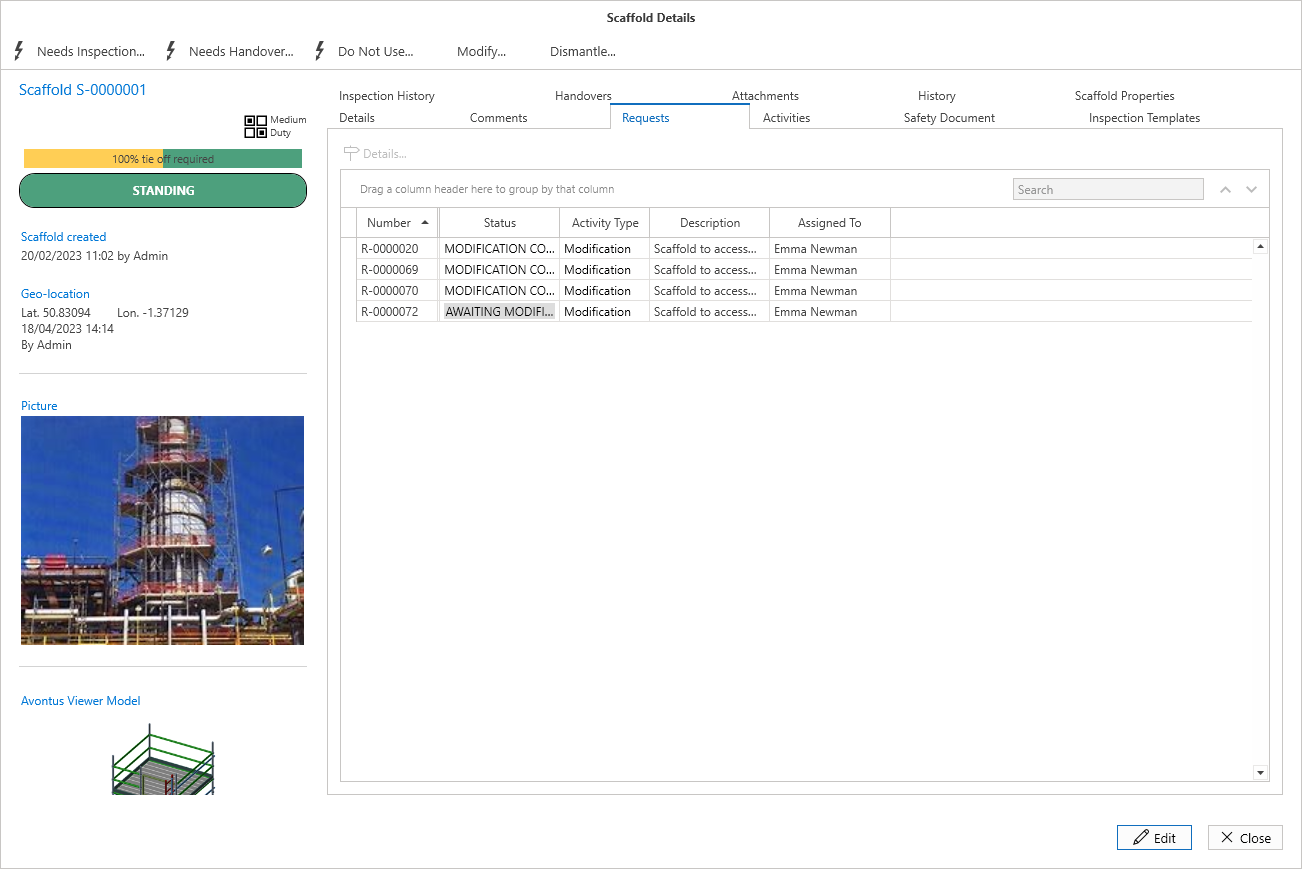
Requests
The Requests tab provides an overview of all requests relating to the selected scaffold. This could be a request like a modification request or a dismantle request.
Note: You can double-click a request to view the requests details. For more information on requests, visit the Working with Requests section.
Activities
The Activities tab provides an overview of all activities related to the selected scaffold. This could be where an approver approves a completed scaffold or completed modification.
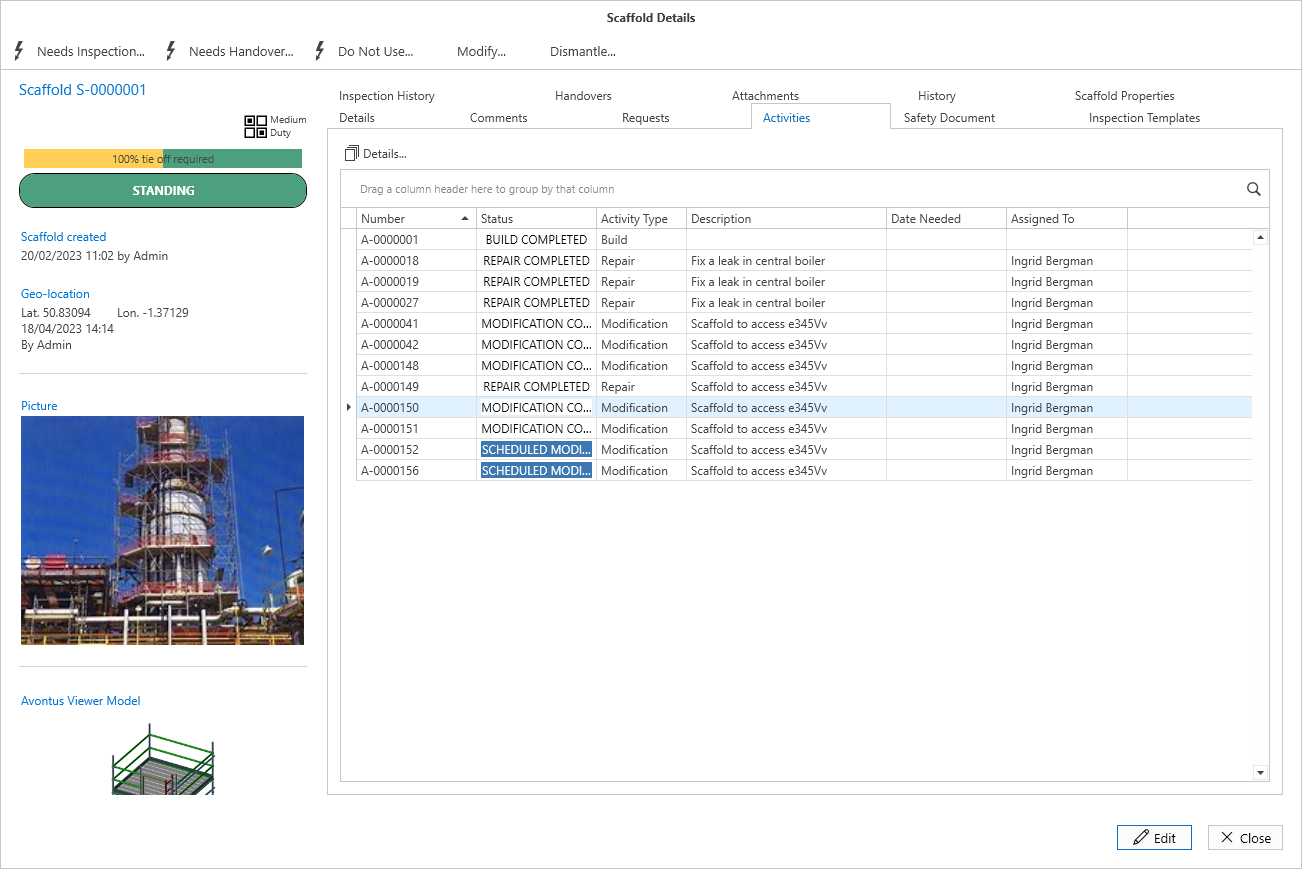
Double click on an entry in the table to be taken to the Activity Details screen where you can move the scaffold along the building process.
For more information on Activities, visit the Working with Activities guide.
Inspection Templates
The Inspection Template is where you can view the assigned Inspection Templates to this scaffold. You can also assign inspection templates to this scaffold in this tab.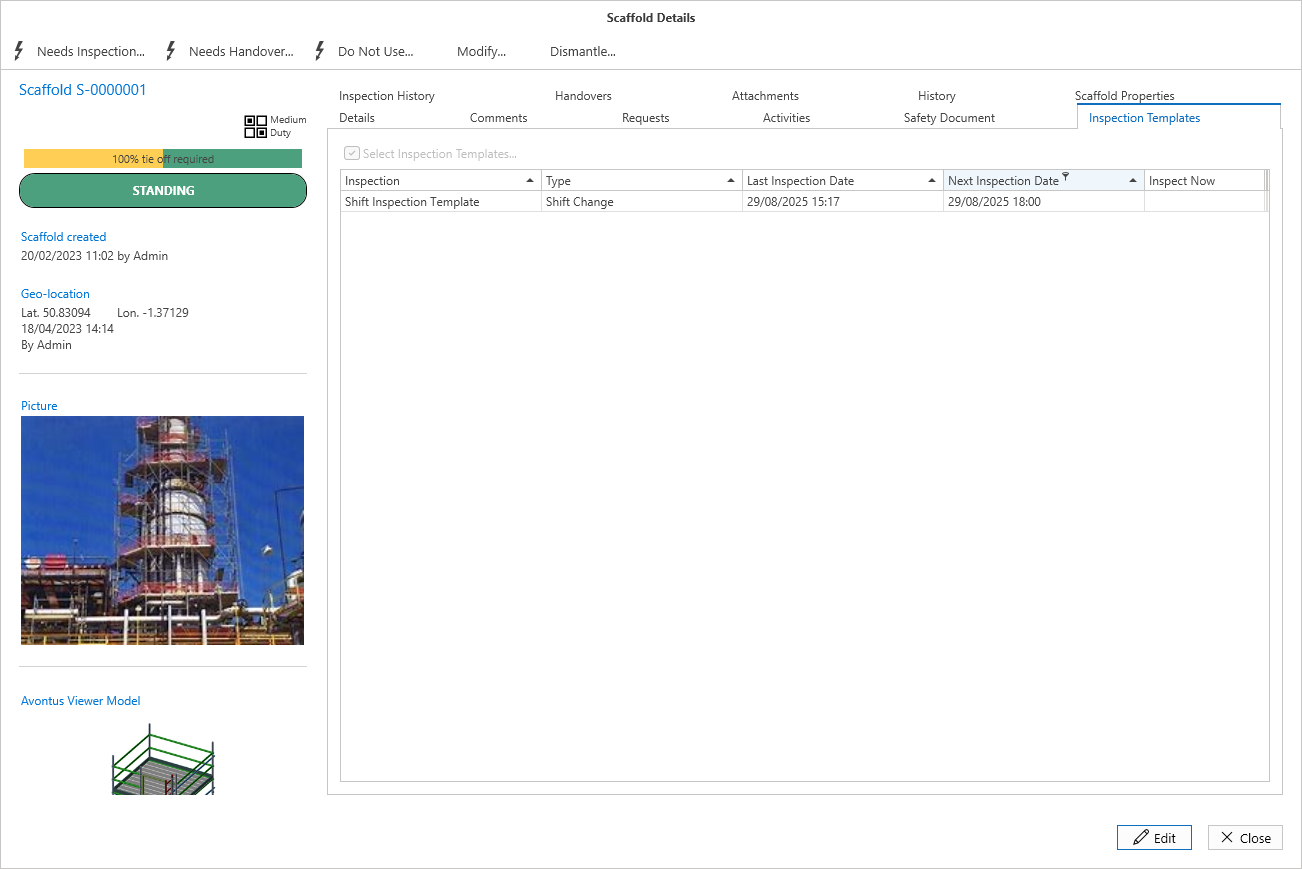
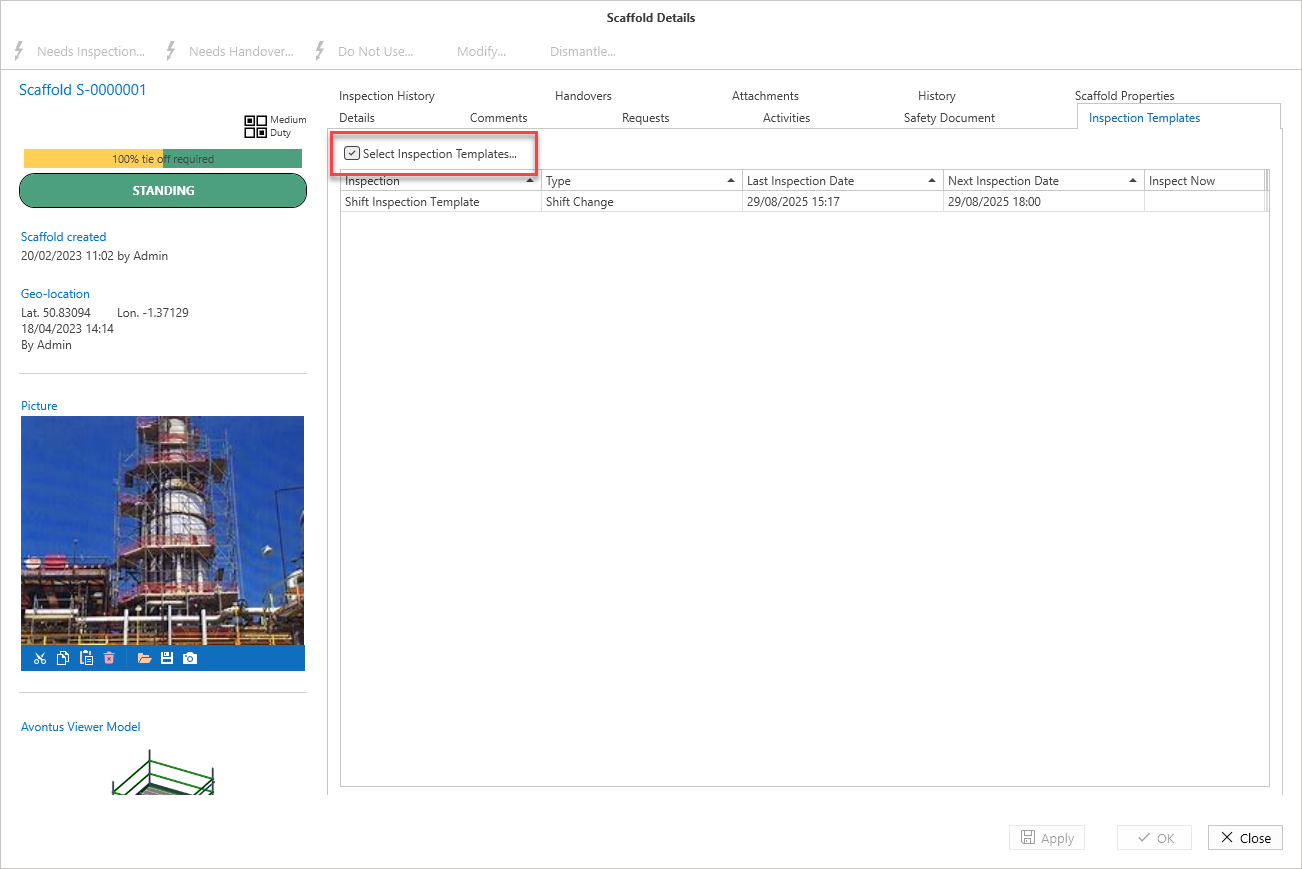
When in Edit mode, click Select Inspection Templates to assign Inspection templates to the Scaffold.
Inspections History
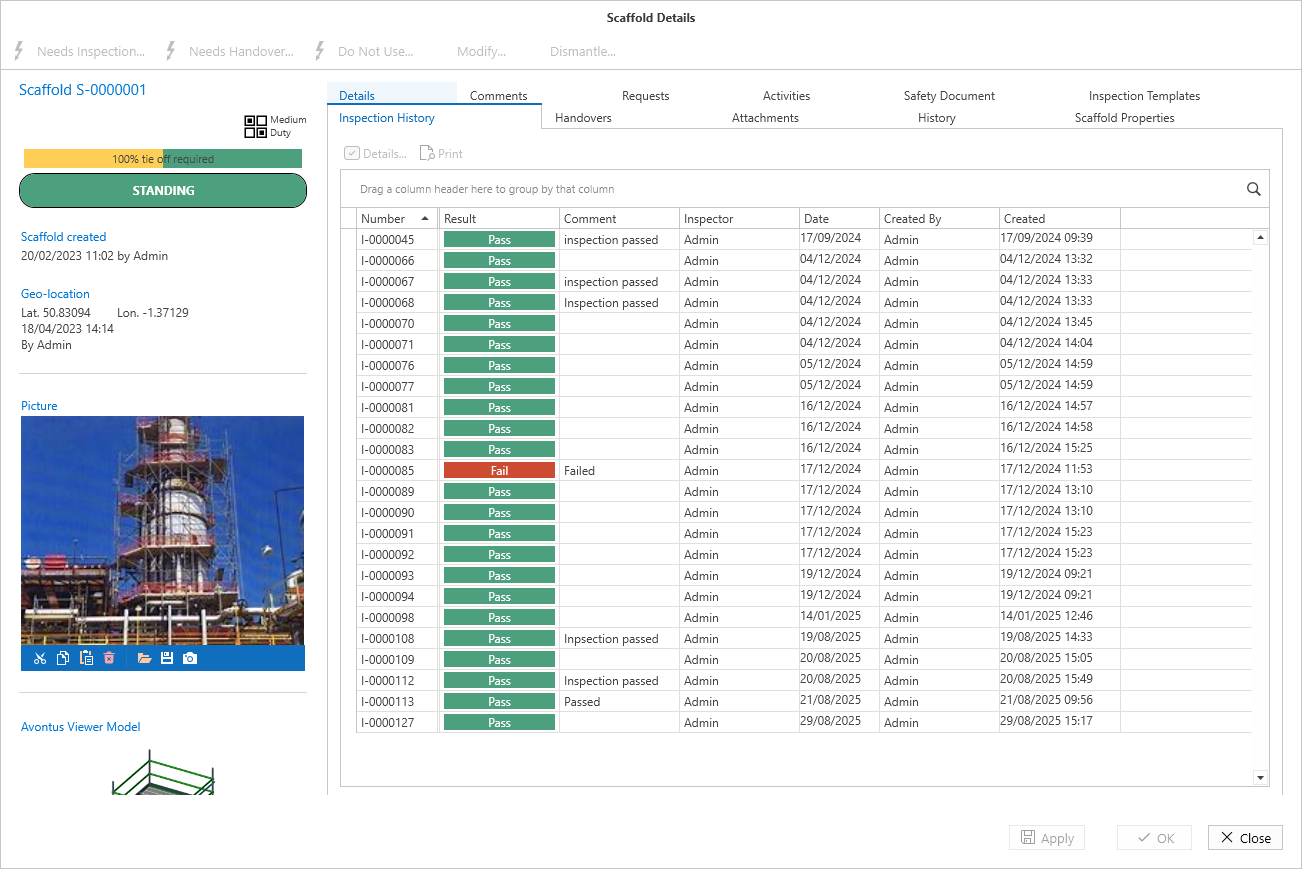
The Inspection History section details all the inspections performed on this scaffold.
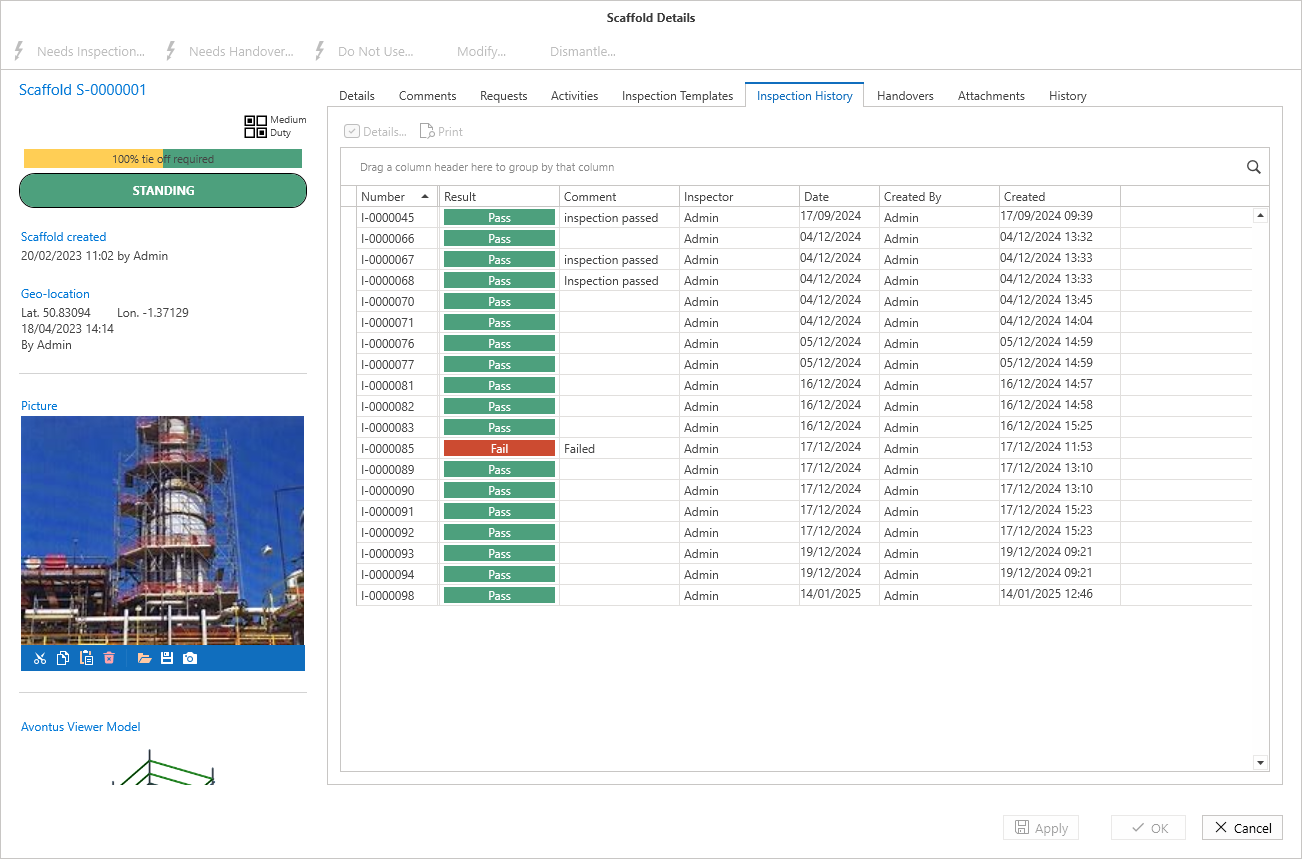
You can view the Inspection's details by clicking on the inspection and selecting Details.
Handover
The Handover section details all the Handovers performed on this scaffold.
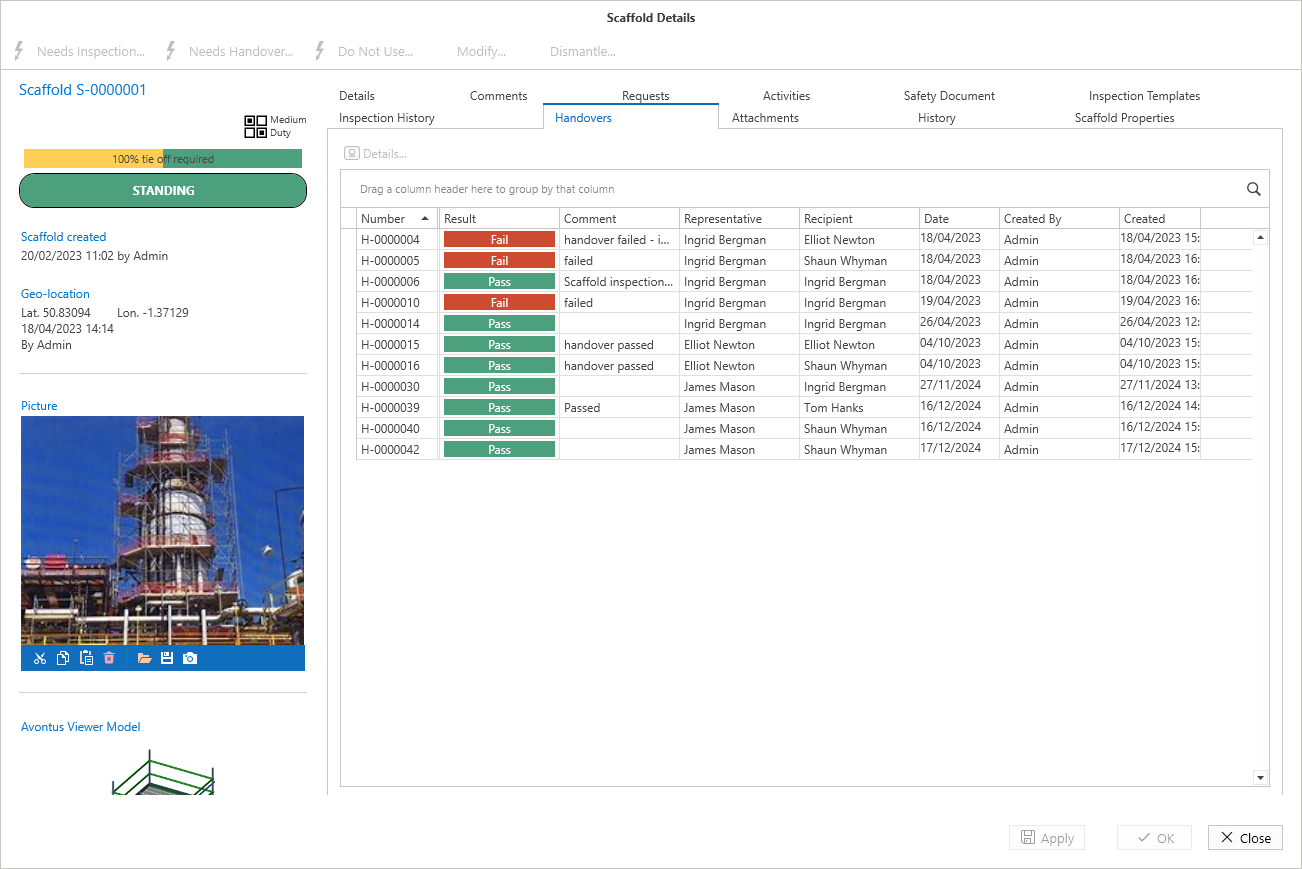
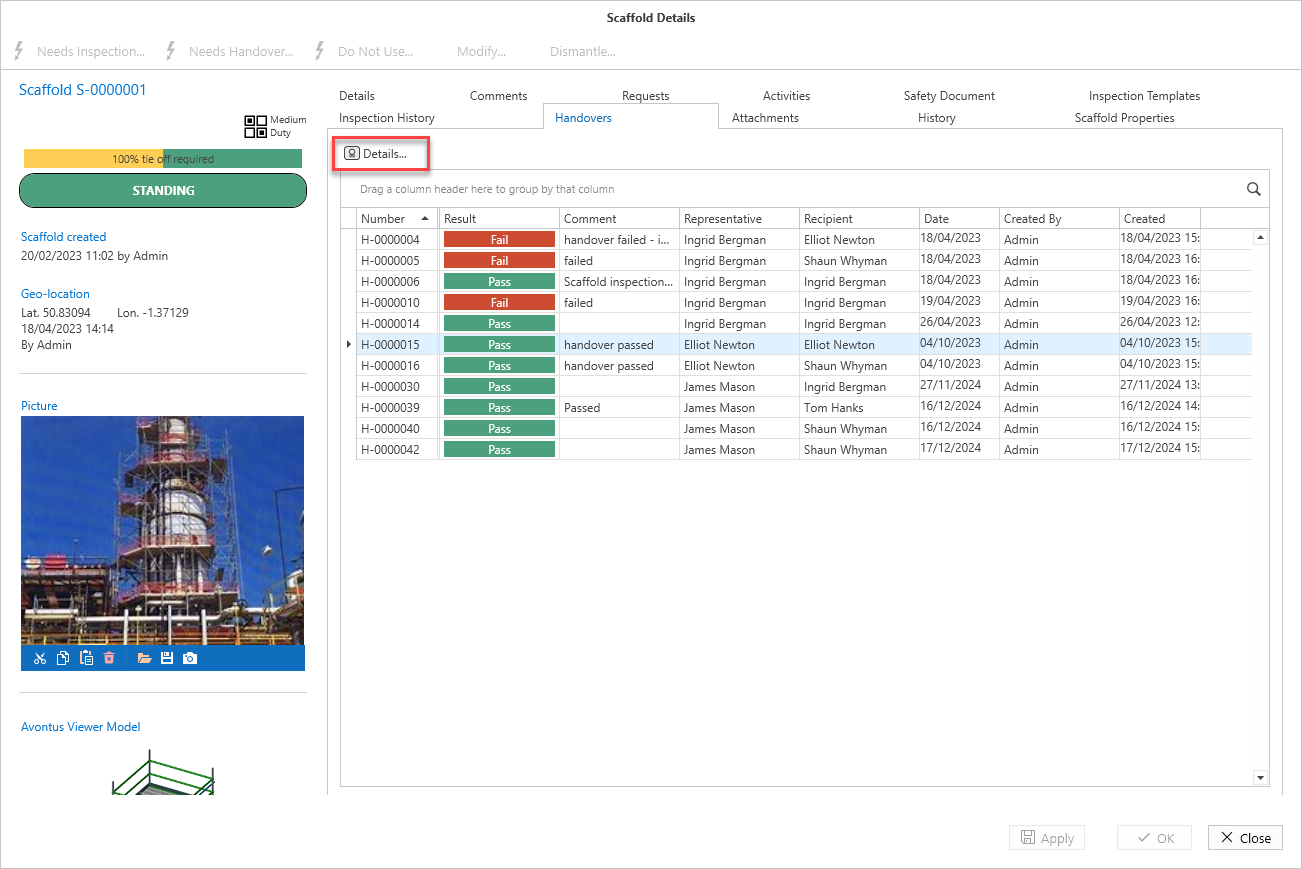
You can view the Handover's details by clicking on the inspection and selecting Details.
Attachments
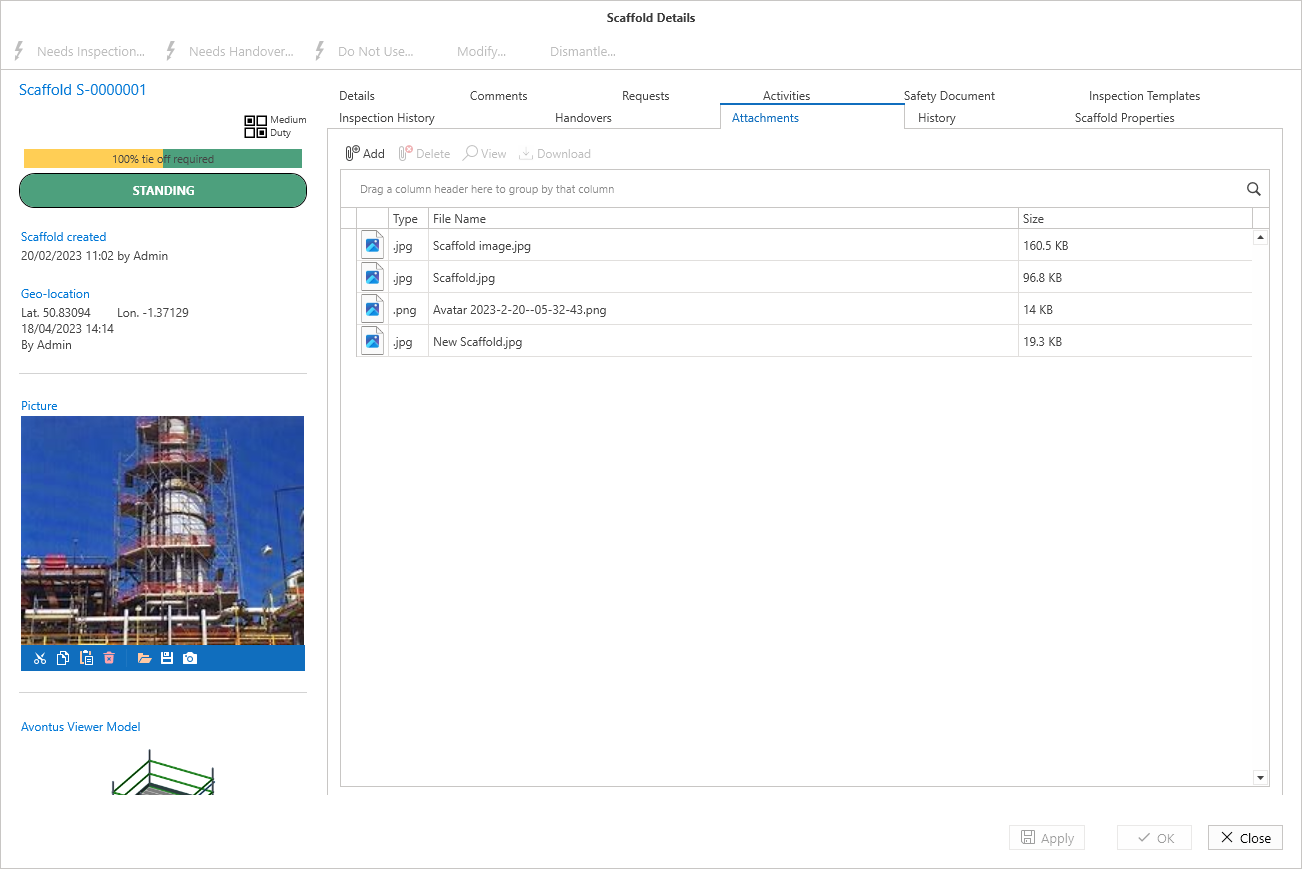
This section is for adding attachments, such as regulatory documents or plans, to the scaffold. In Edit mode, use the Add button to browse to a file and select OK and Apply to create the attachment.
For more information on adding attachments, please see the Adding an Attachment guide.
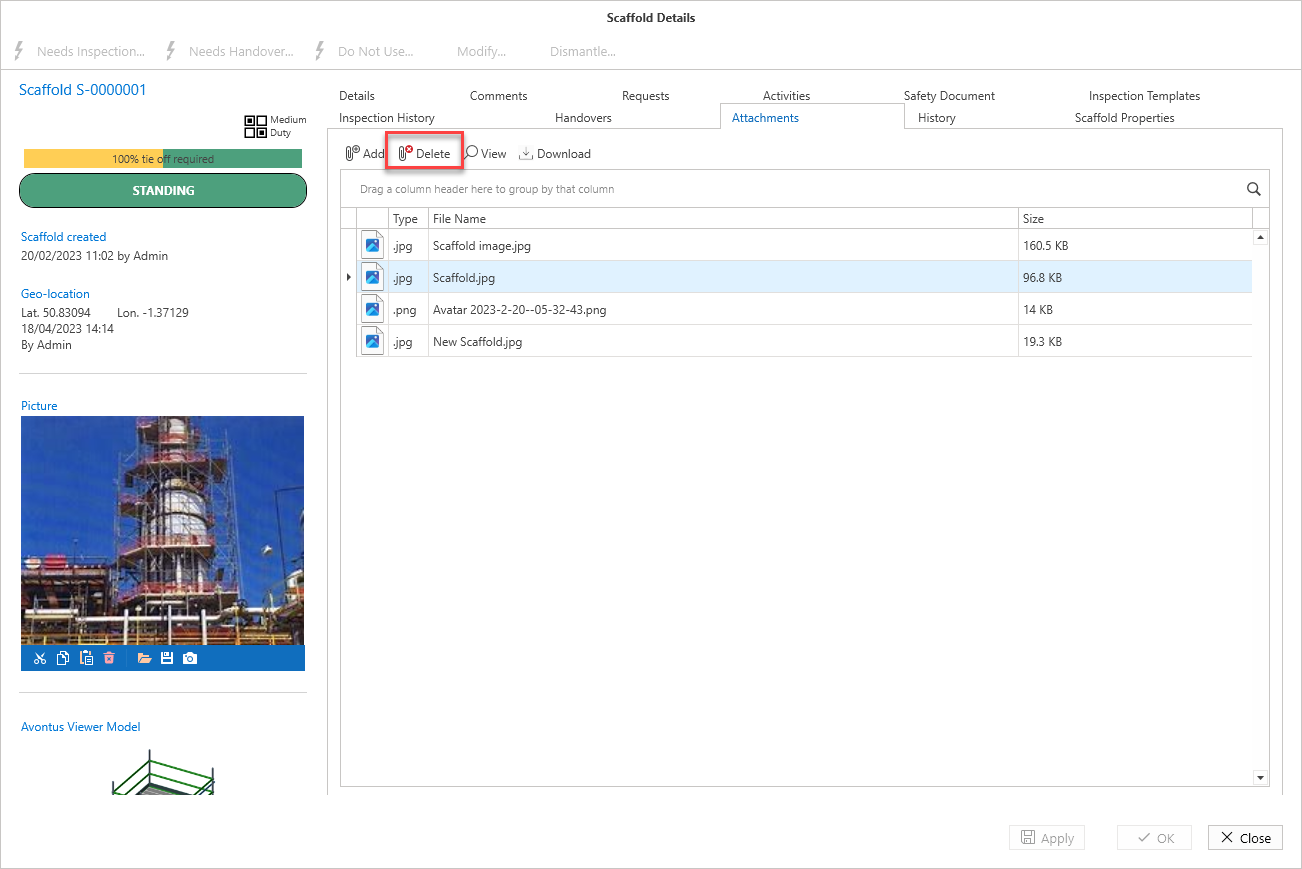
Attachments can be deleted by selecting the attachment and then clicking Delete.
History
The History screen provides an overview of all changes made to the scaffold. This includes the property that was changed, when it was changed, and what it was changed to.
Property - What was changed such as an approver moving the status from Initial Approval to Secondary Approval.
Old Value - The original value.
New Value - The new value.
Changed On - The date the change was made.
Changed By - The user who made the change.