If Additional Charges are in use, you must give each existing Additional Charge a Xero accounting item code.
To set up Additional Charges with Xero:
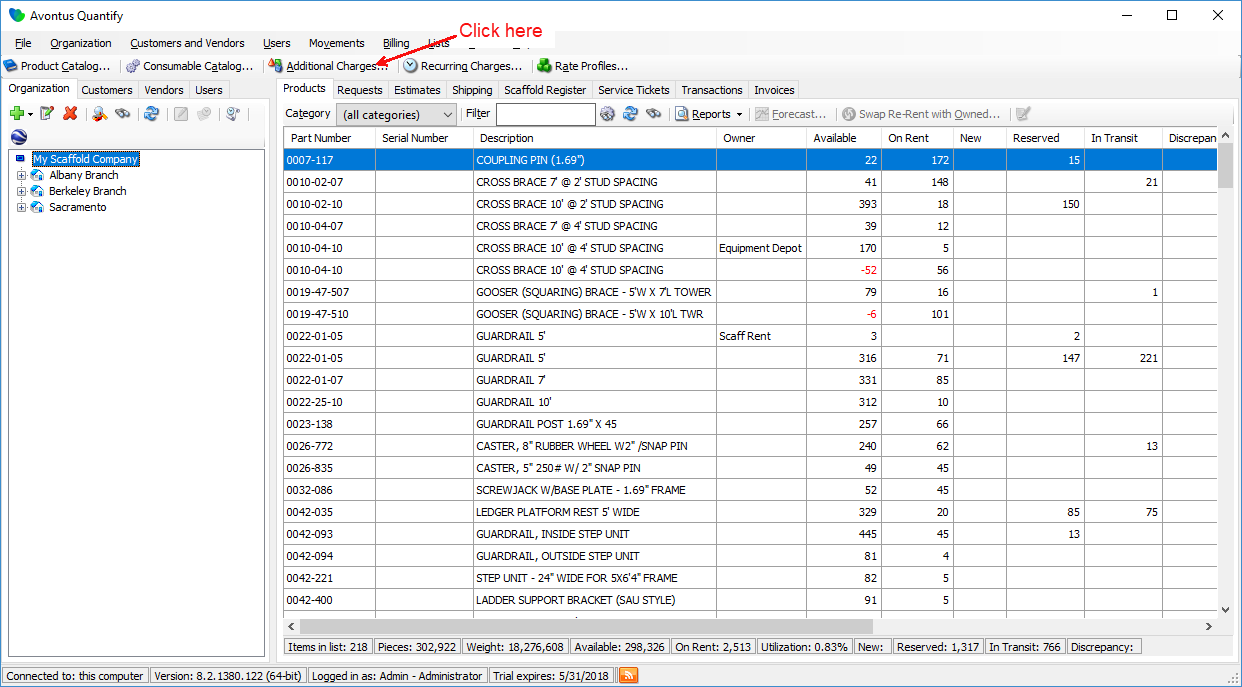
- Click Additional Charges.
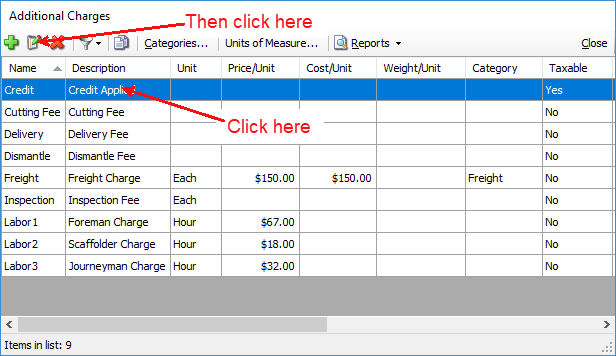
The Additional Charges dialog appears. - Click the first Additional Charge and click the Edit button (
 ).
).
The Additional Charge dialog appears. - Click in the Xero inventory item code text field and enter the Xero accounting item code for this additional charge.
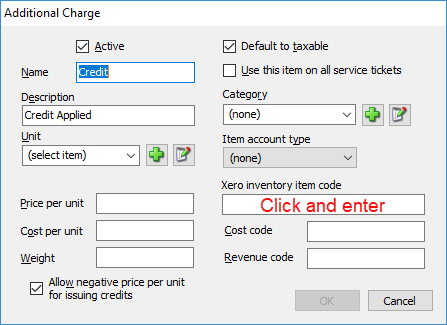
- Click OK.
Repeat steps 2, 3, and 4 for all the Additional Charges. - When all Additional Charges have a Xero inventory item code, click Close in the Additional Charges dialog.