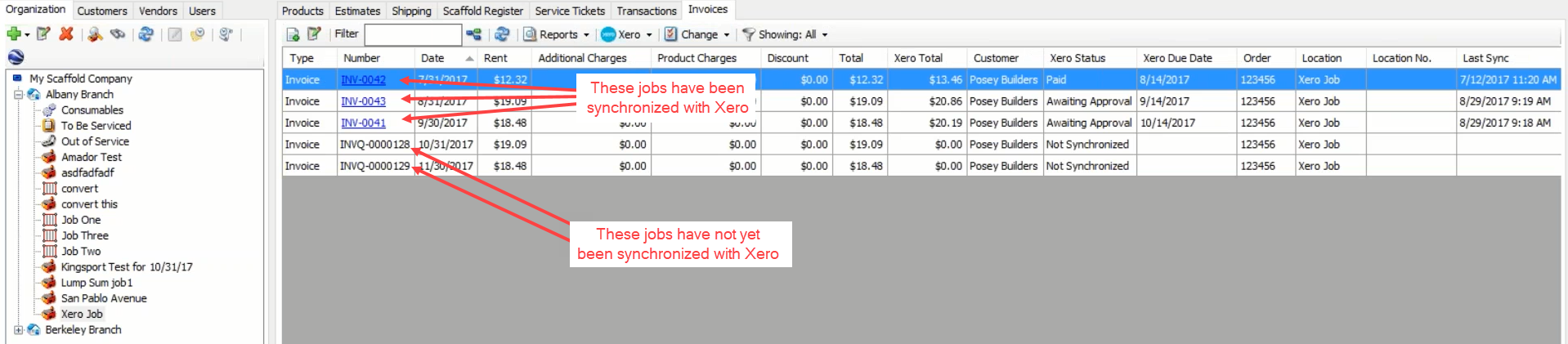
Once Invoices have been created in Quantify, they can be synchronized with Xero. Invoices with a Xero Status of Not Synchronized can be synchronized. Invoices with Do not Sync and Paid will be ignored by synchronization, even if selected to be synchronized.
To sync Invoices with Zero:
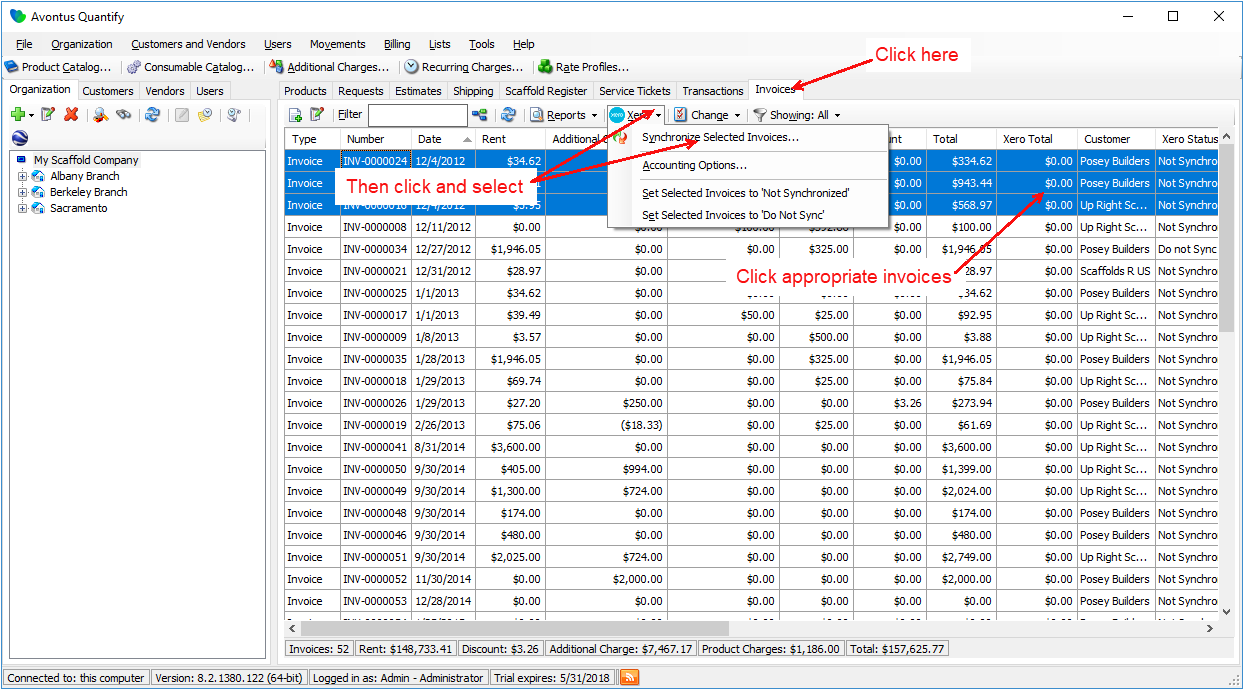
- Click the Invoices tab.
- Select the Invoices you want to synchronize, then click the Xero dropdown and select Synchronize Selected Invoices.
Your default browser launches and directs you to a Xero Accounting Software Login page. - Complete the Xero login process.
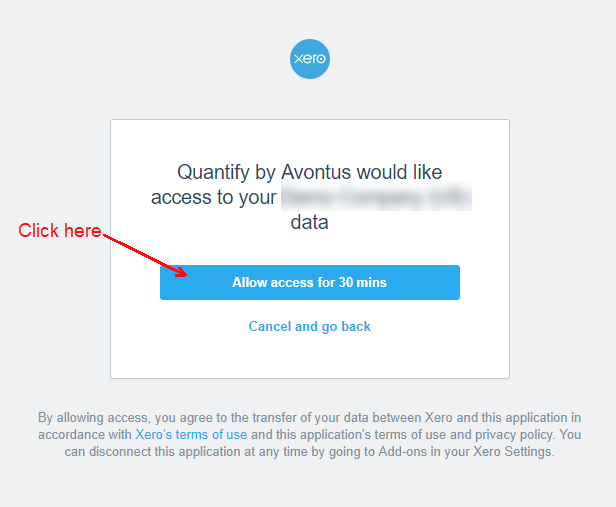
If you have not accessed Xero from Quantify in the last 30 minutes, your default browser launches and displays the following page. - Click Allow access for 30 mins.
A new page appears. - Click Copy code.
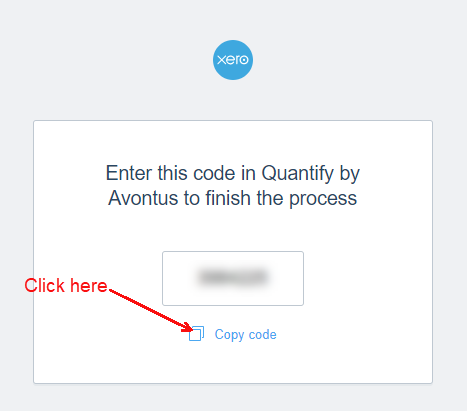
- Return to Quantify.
A Quantify dialog appears. - Click in the Enter the numeric code provided by Xero text field and paste the code you copied from Xero.
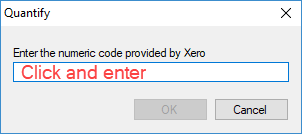
- Click OK.
The Synchronize Invoices dialog appears. - Click Synchronize.
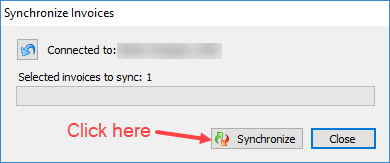
A new browser window appears with the synchronized Xero invoice.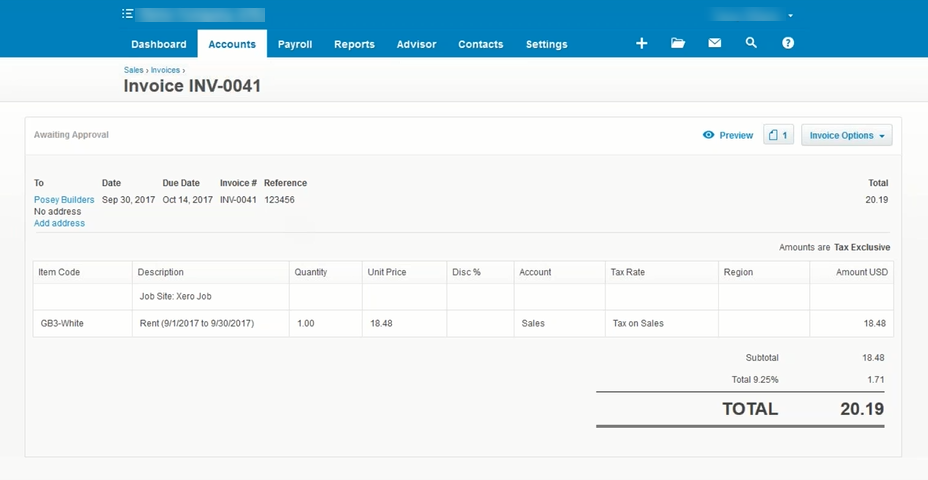
In Quantify, the Invoice Synchronization dialog appears, reporting the number of invoices added and updated, and customers linked to existing Xero contacts.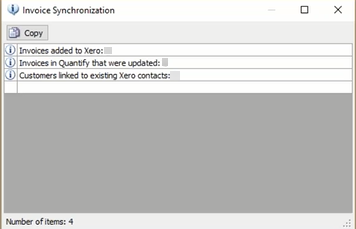
Invoices that have been synchronized with Xero have identification numbers that match Xero's numbering and an updated Xero status.