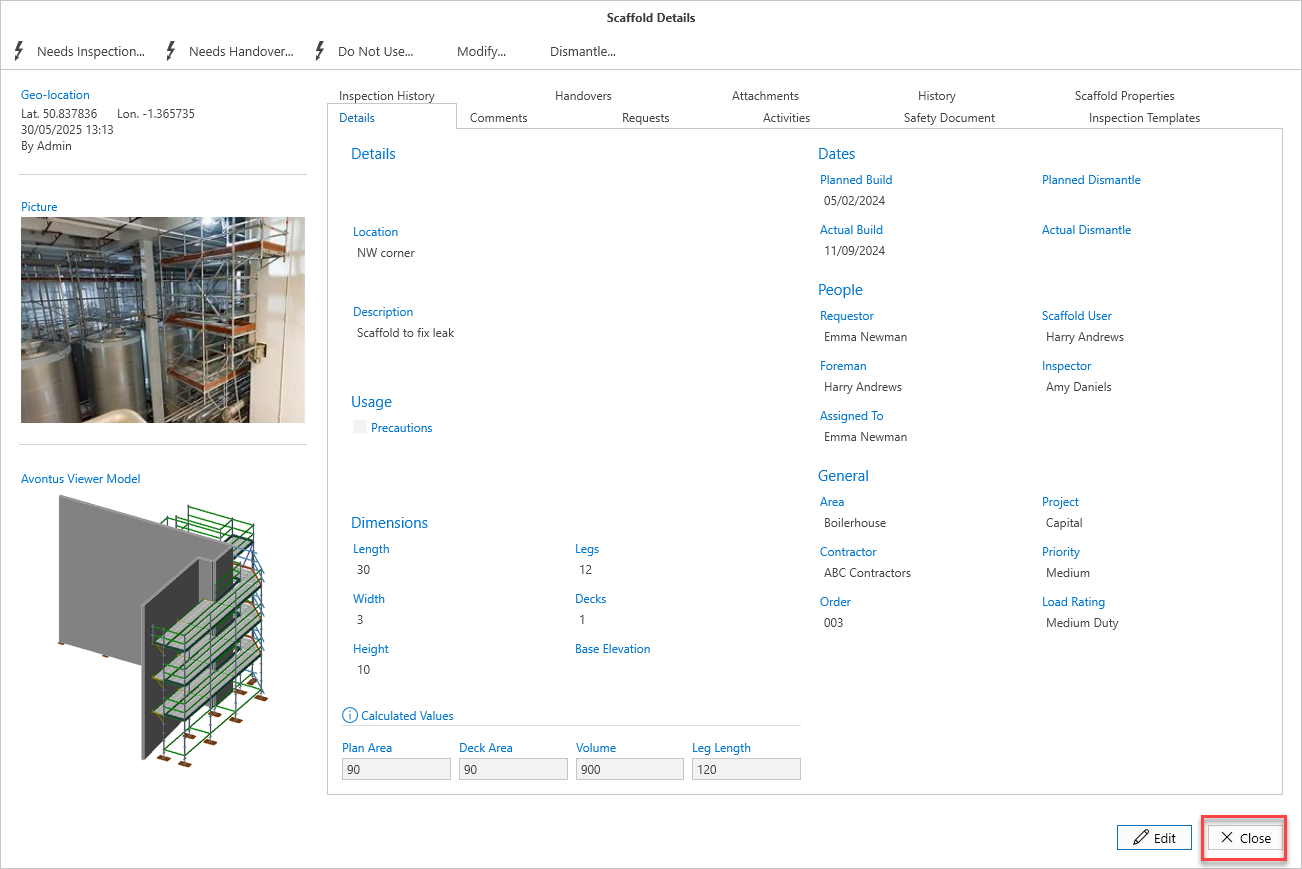
Using Avontus Viewer Model, users can view a 3D rendering of the scaffold to gauge an idea of what the scaffold will look like. You can upload a model of the scaffold on ScaffoldIQ.
Note: You will need an Avontus Viewer Model account and you will need to have Avontus Viewer Model installed.
To upload a 3D model:
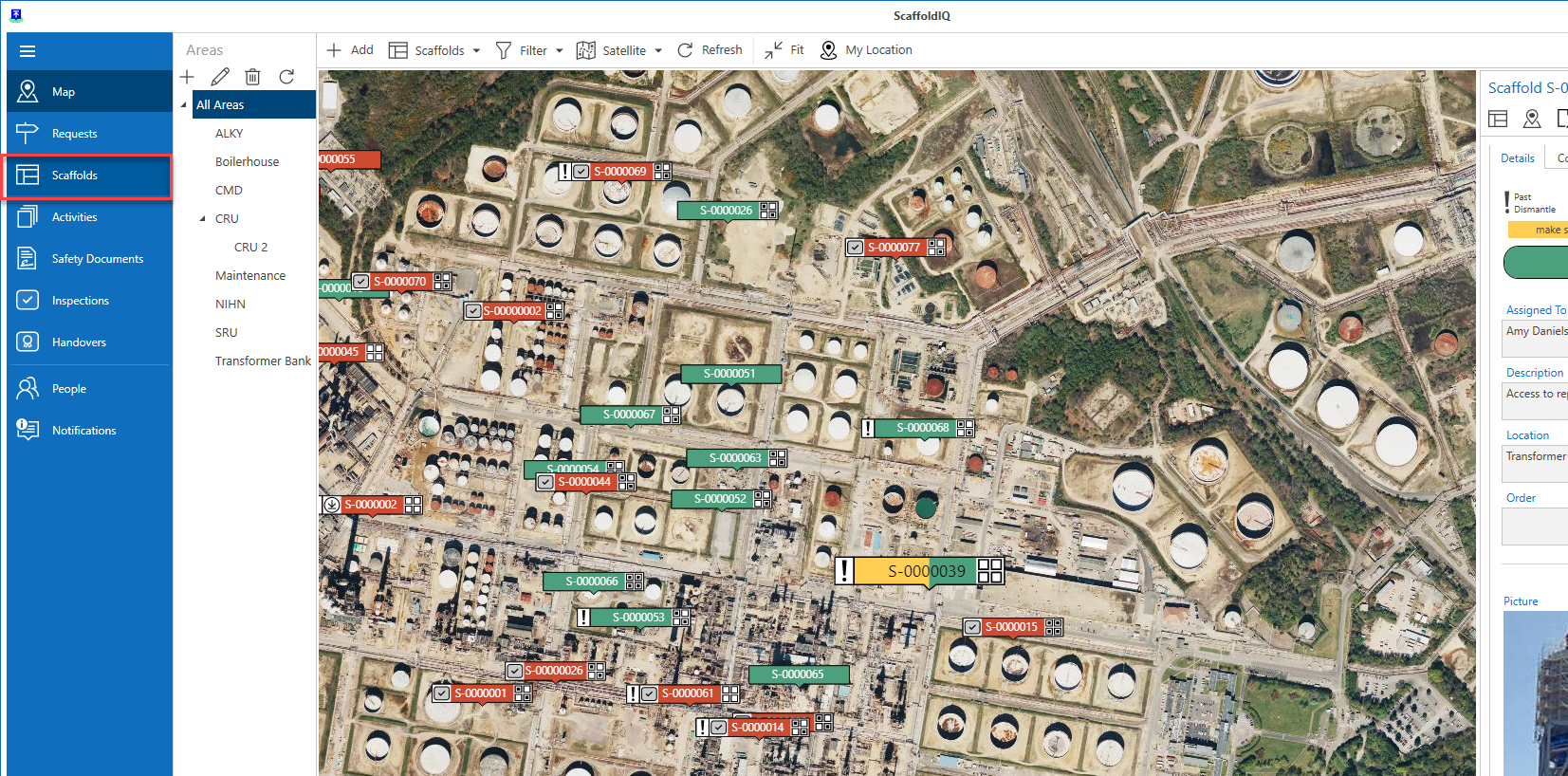
From the Map screen, select Scaffolds
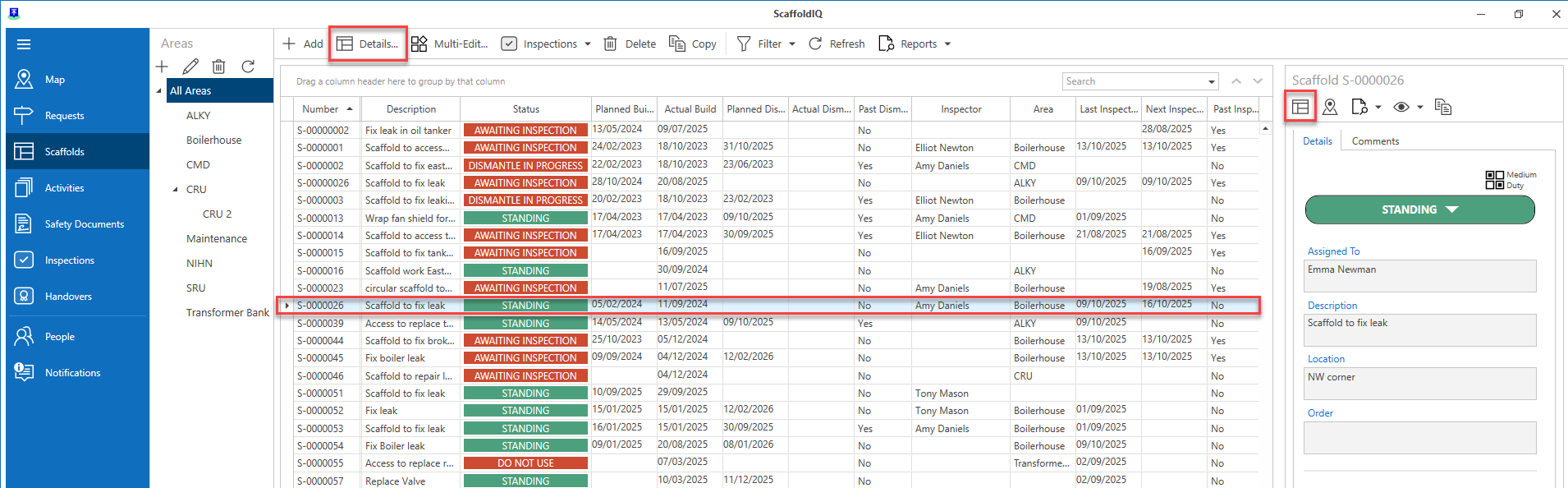
Double-click a row in the table to access the Scaffold Details screen. Or select the Details button.
Note: You can also access the same screen via the Map screen.
In the Scaffold Details screen, click Edit in the bottom right of the window.
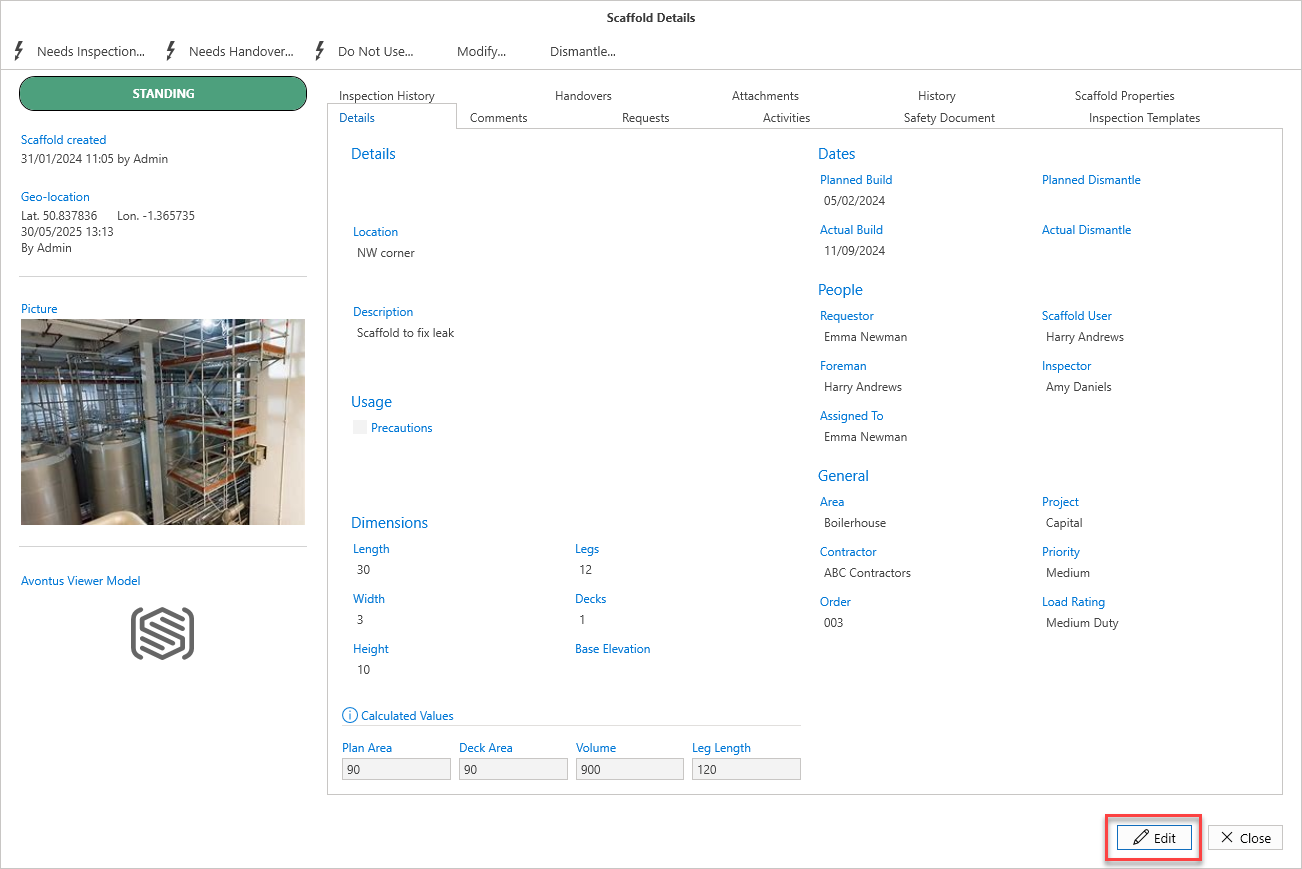
In the Avontus Viewer Model panel, select the blue icon.
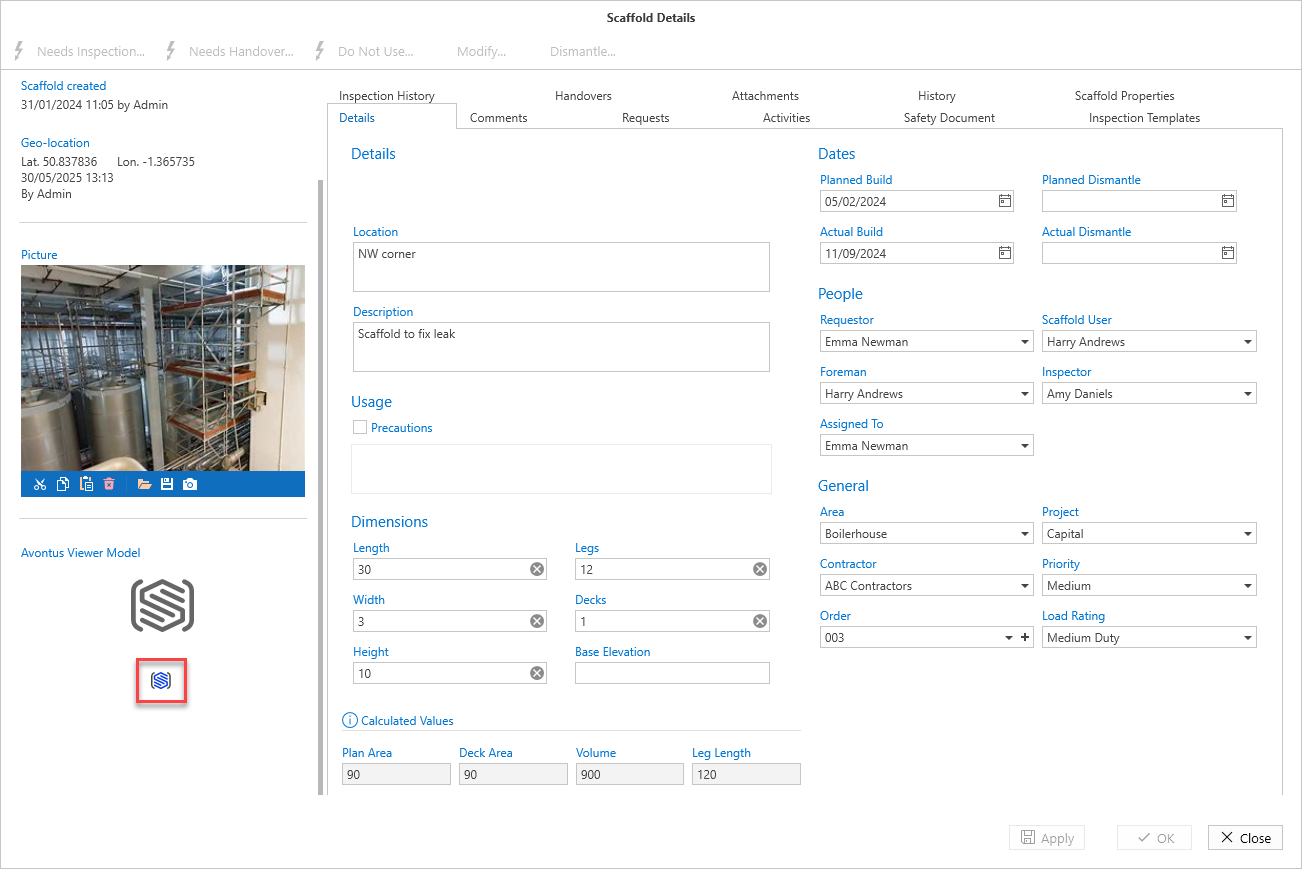
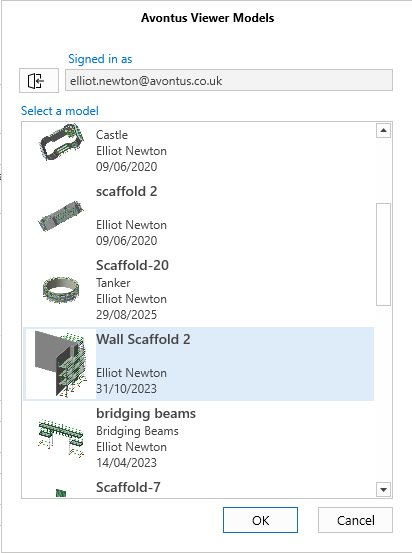
If prompted, log in with your Avontus Viewer details and select the 3D model you wish to upload.
Click Apply
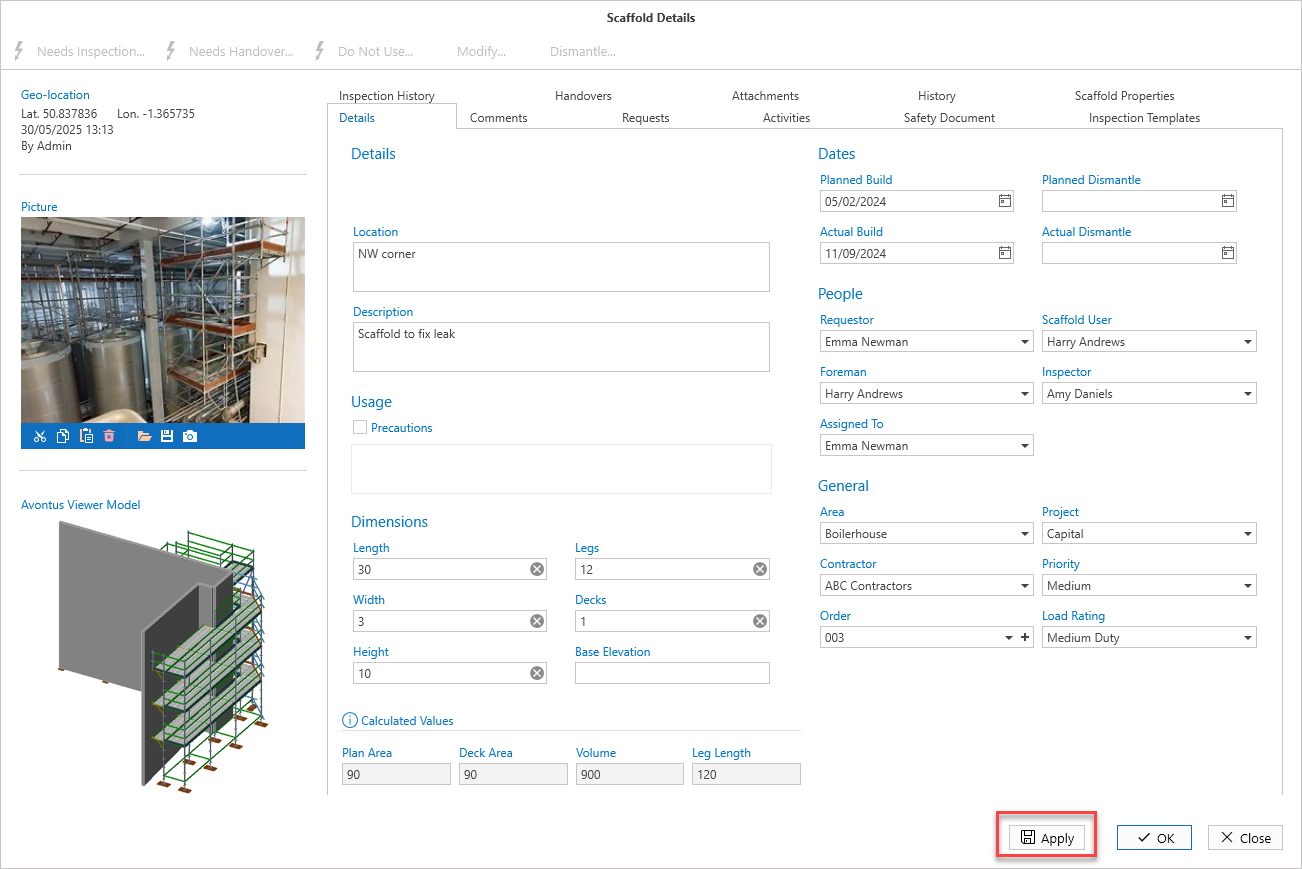
The 3D model of the selected scaffold will be uploaded.Click Close