The Material Master is a powerful tool for managing and tracking your material, including corner brackets.
Determining the Size of Available Corner Brackets
Determining the size of available corner brackets means verifying the effective length for each corner deck in your system. If you do not see a corner bracket listed, you can add one of any size. (Refer to Adding More Corner Bracket Sizes, below.)
To determine the size of available corner brackets:
Access the Backstage and click Material Master.
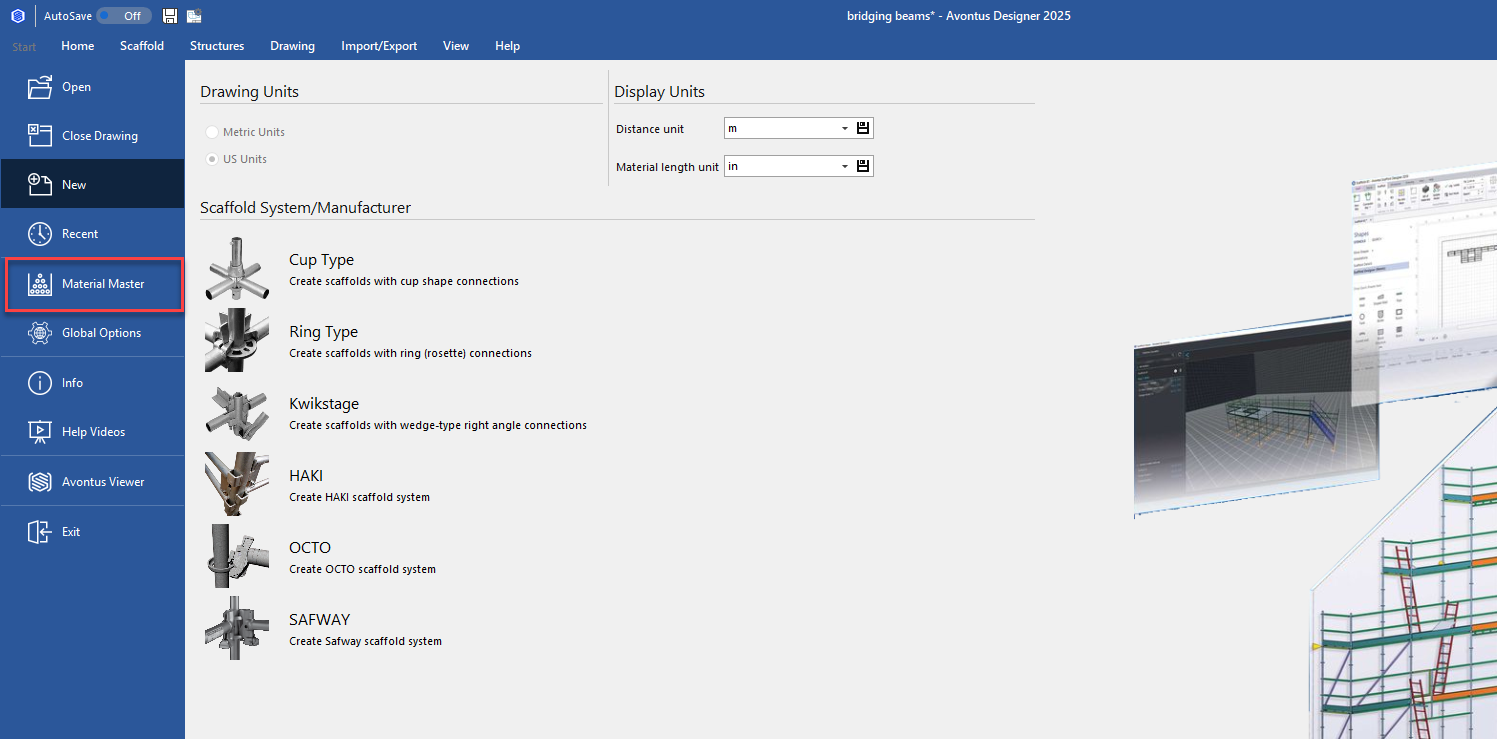
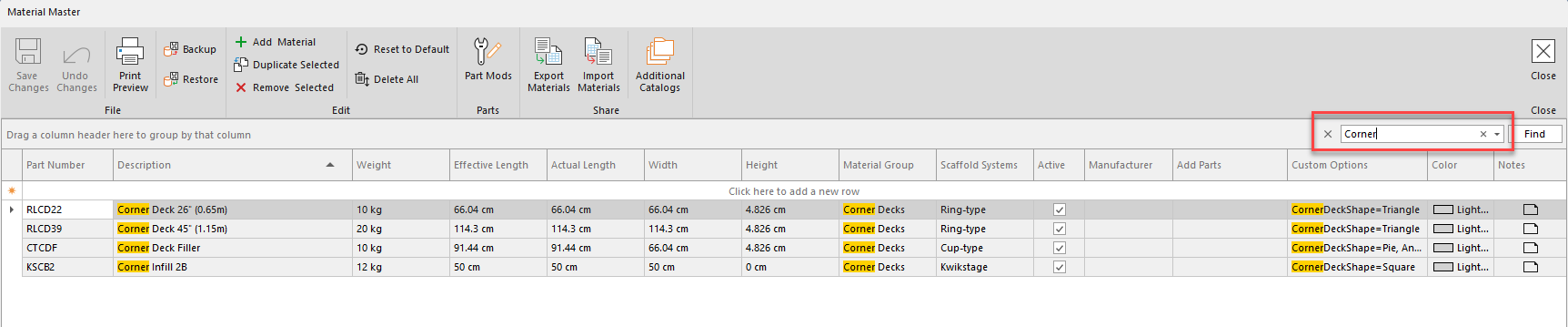
The Material Master appears.Click the Description column header, to sort the materials alphabetically.
Locate the available corner decks., you can do this by using the search bar
Click in the Effective Length text field and enter an appropriate effective length.
Click the Material Group dropdown and select Corner Decks.
Click the Supported Systems dropdown and select the appropriate scaffolding system.

Click Save in the upper left corner of the Material master and click Close in the upper right corner.

Adding More Corner Bracket Sizes
The Material Master enables you to add corner bracket sizes by duplicating a current corner bracket and changing the size of the resulting bracket.
To add more corner bracket sizes:
Access the Backstage and click Material Master.
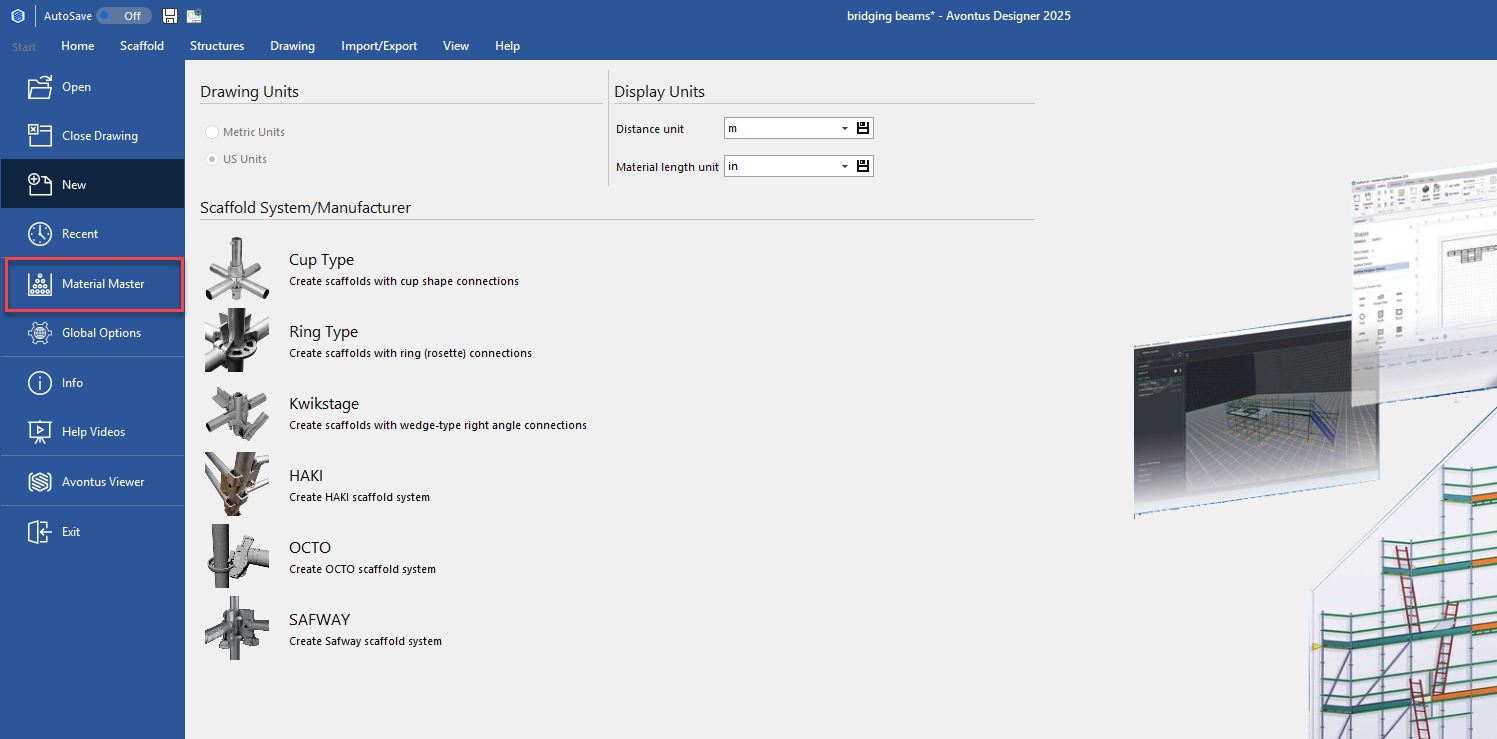
The Material Master appears.Use the search tool to locate the Corner Deck
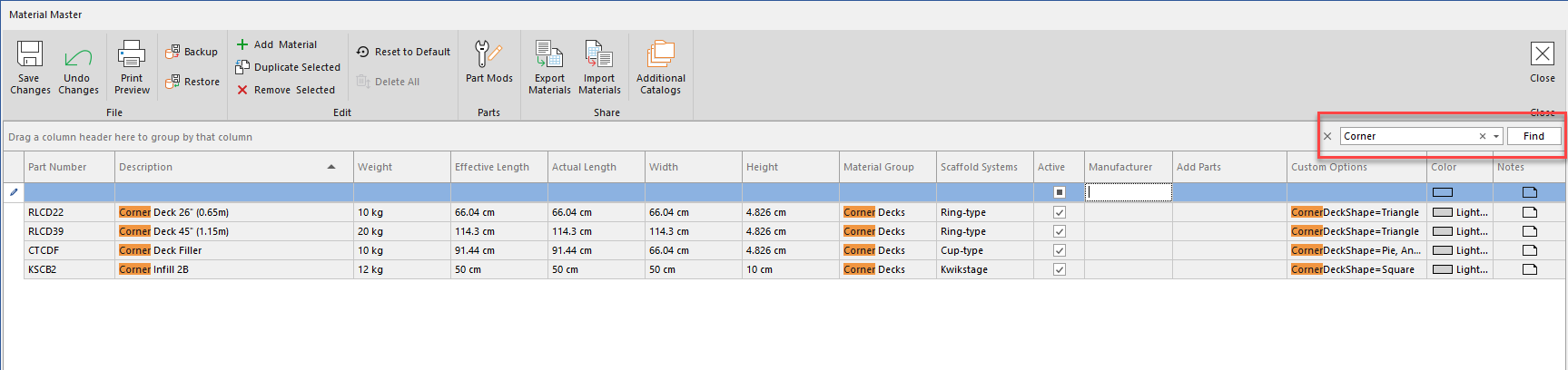
Locate and click the appropriate corner deck (to select it).
Click Duplicate Selected.

The Material Master displays the new, duplicate material in bold font.Double click the Part No text field and enter a new part number.
Double click the Description text field and enter a description of the new part.
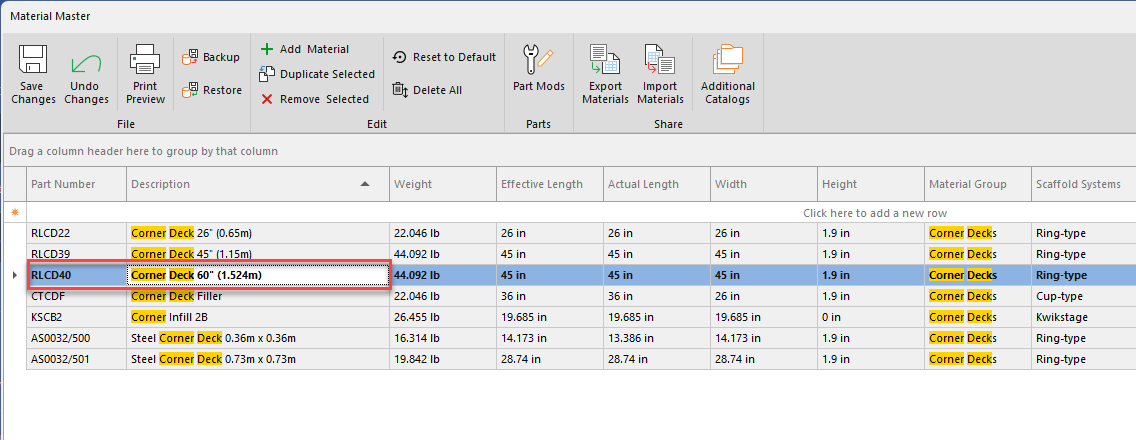
Make any further changes as required
Click Save in the upper left corner of the Material Mater and then click Close Material Master in the upper right corner.
Converting a Square Corner Bracket into a Triangle
By default, corner brackets are square. If you want a corner bracket to be triangular, you must convert them in the Material Mater.
To convert a square corner bracket into a triangle:
- Access the Backstage and click Material Master.
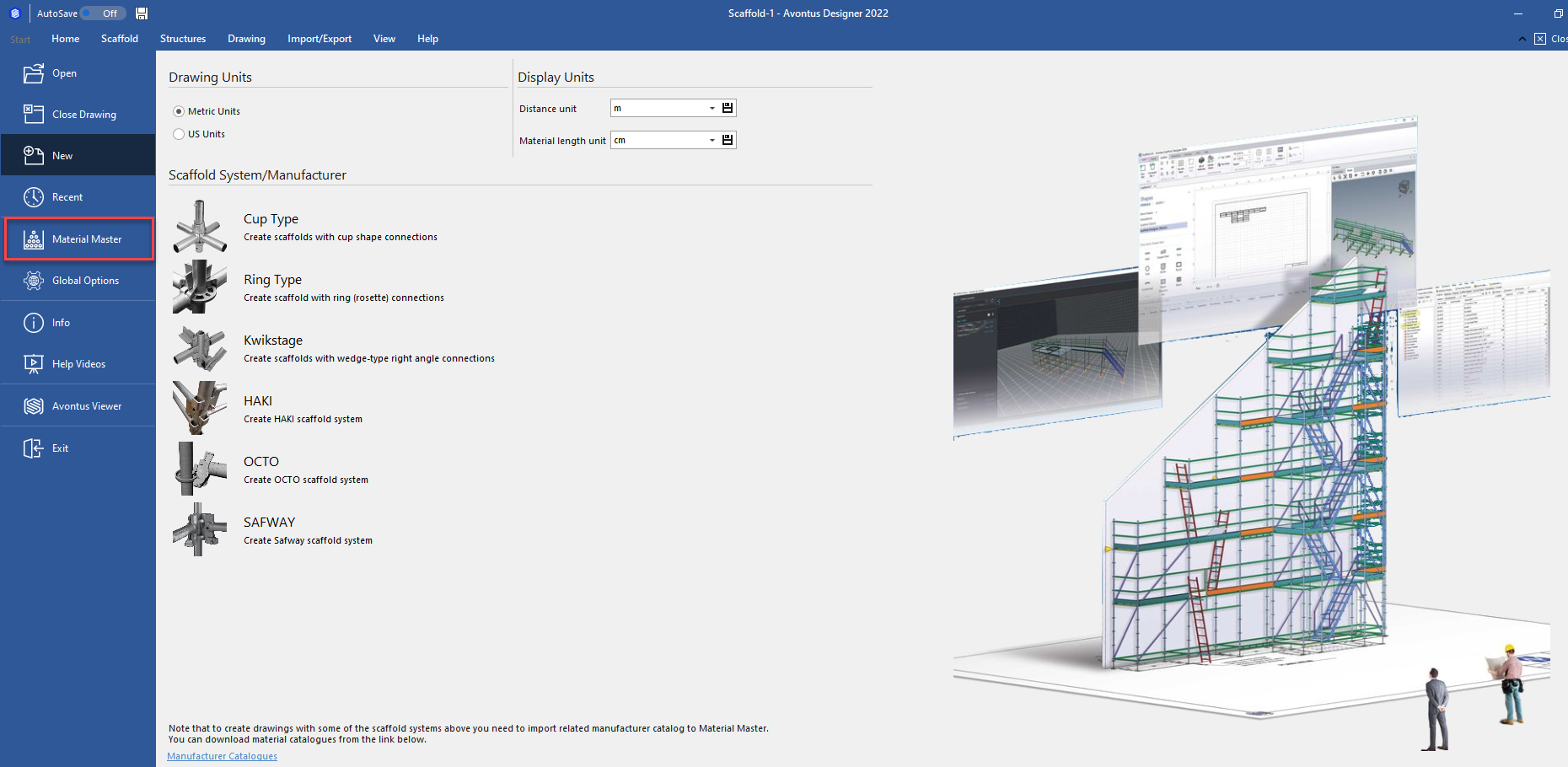
The Material Master appears. - Use the search tool to locate the Corner Deck
- Locate the corner bracket to want to convert, and click its Custom Options dropdown
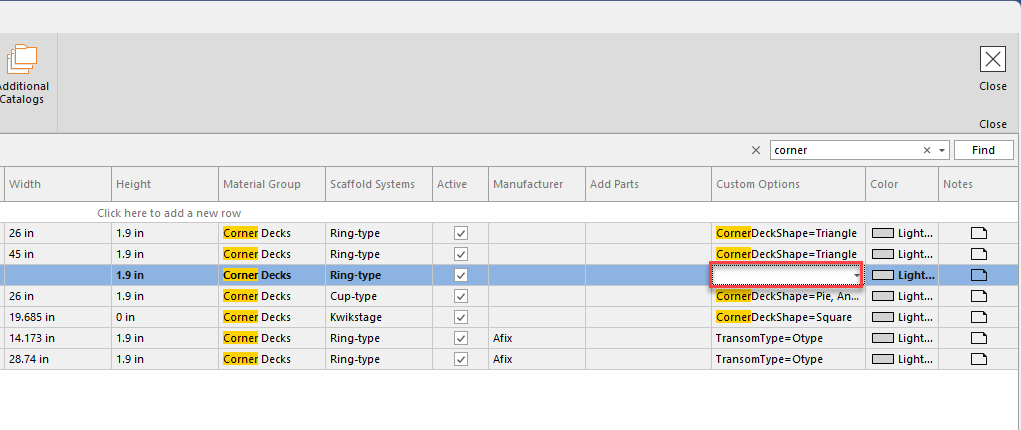
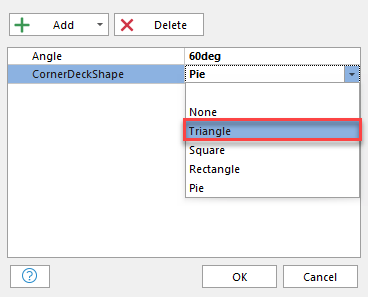
- Click Add and select CornerDeckShape.
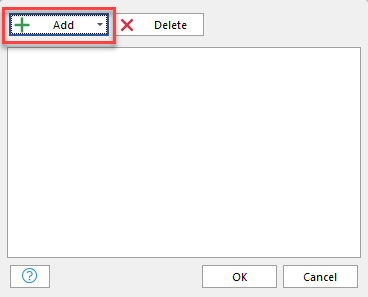
- Click in the Value text field and enter Triangle.