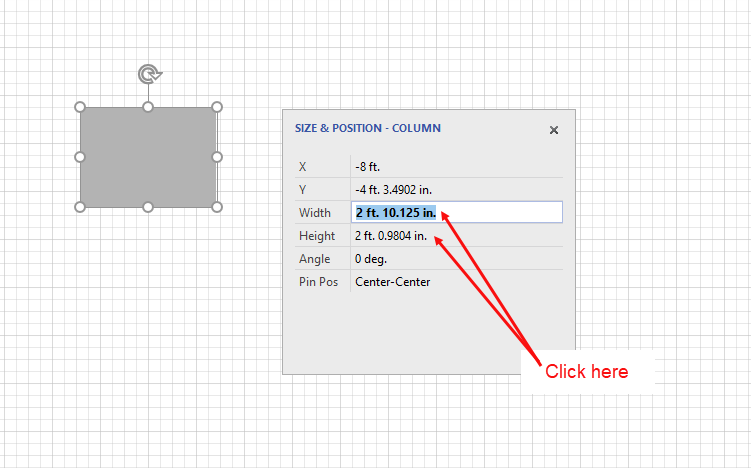
The Size & Position popup is a convenient and easy-to-use tool for resizing a Pilaster.
To use the Size & Position popup to enter the height and width:
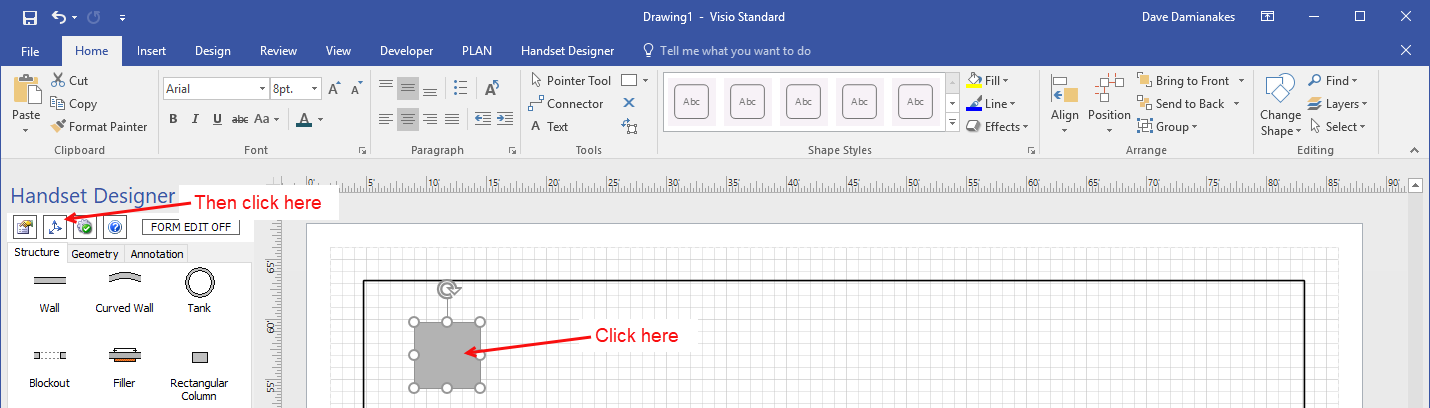
- Click the Pilaster, to select it.
- Click the Size & Position button in the Handset Designer pane.
The Size & Position popup appears.
As necessary: - Click in the Width text field and enter a new width.
- Click in the Height text field and type a new height.
Note: For measurements, use ft. for feet, in. for inches and m. for meters. You may also enter fractional measurements; for example, 1.5 ft. will automatically show as 1 ft., 6 in.