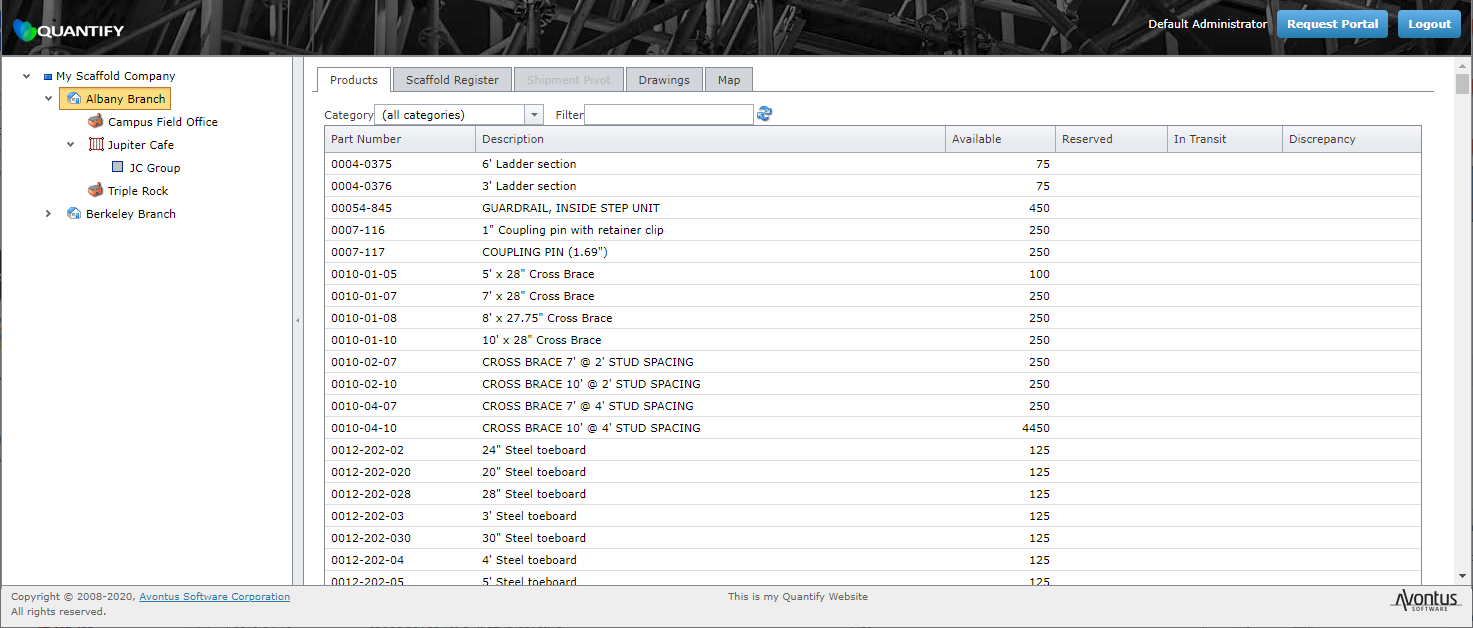
The Products tab in Quantify Web is a flexible interface that displays a simplified version of the Products found in Quantify's Products tab. It also enables you to filter Products by Product Category or keyword(s), as well as rearrange the columns by clicking and dragging.
Viewing Products
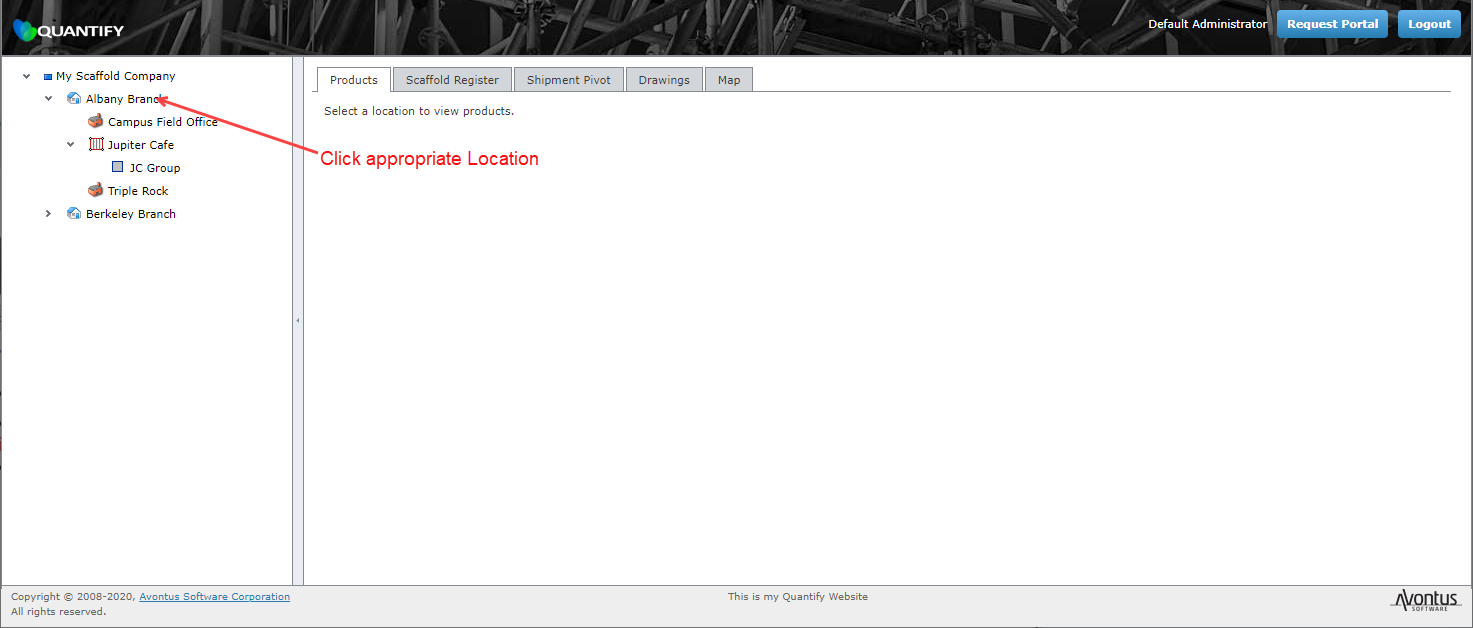
To view the Products in the Products tab, click the appropriate location on the left.
The Quantify web interface refreshes, displaying the available Products for that location.
Filtering the List by Category
Quantify enables users to organize Products into Product Categories, which helps with organization and filtering. To learn more about Product Categories, refer to Adding a Product Category. Quantify Web enables you to search for Products in the Products tab that belong to the same Category.
To filter the list of Products by Product Category:
Click the Category dropdown and select the appropriate Product Category.

The Products tab refreshes and displays only those products that belong to the selected Category.

Filtering the List by Key Word
Quantify Web enables you to filter the list of Products in the Products tab by one or more keywords (ladder, ledger, guardrail, etc.).
To filter the list of Products by key word.
Click in the Filter text field and enter the keyword(s), then click the Refresh button ( ).
).

The Products tab refreshes and displays only those Products that contain the keyword(s).

Rearranging the Columns
To facilitate quick review and understanding of Products assigned to a location, Quantify Web enables you rearrange the columns in the Products tab to best suit your needs.
To rearrange columns in the Products tab:
Click the column you want to move and drag it into the appropriate location.

Quantify Web moves the column.
