The Activities screen provides an overview of all activities both complete and incomplete on your Job site. An Activity is something that requires an action or is a previously performed action. Activities are created when an action is performed that requires a scaffold to be erected, dismantled, modified or repaired. An Activity's details can be changed, but you cannot change the status of the Request or Scaffold from this screen. This will have to be done from the Request or Scaffold itself.
Note: You cannot manually create Activities. These are created automatically.
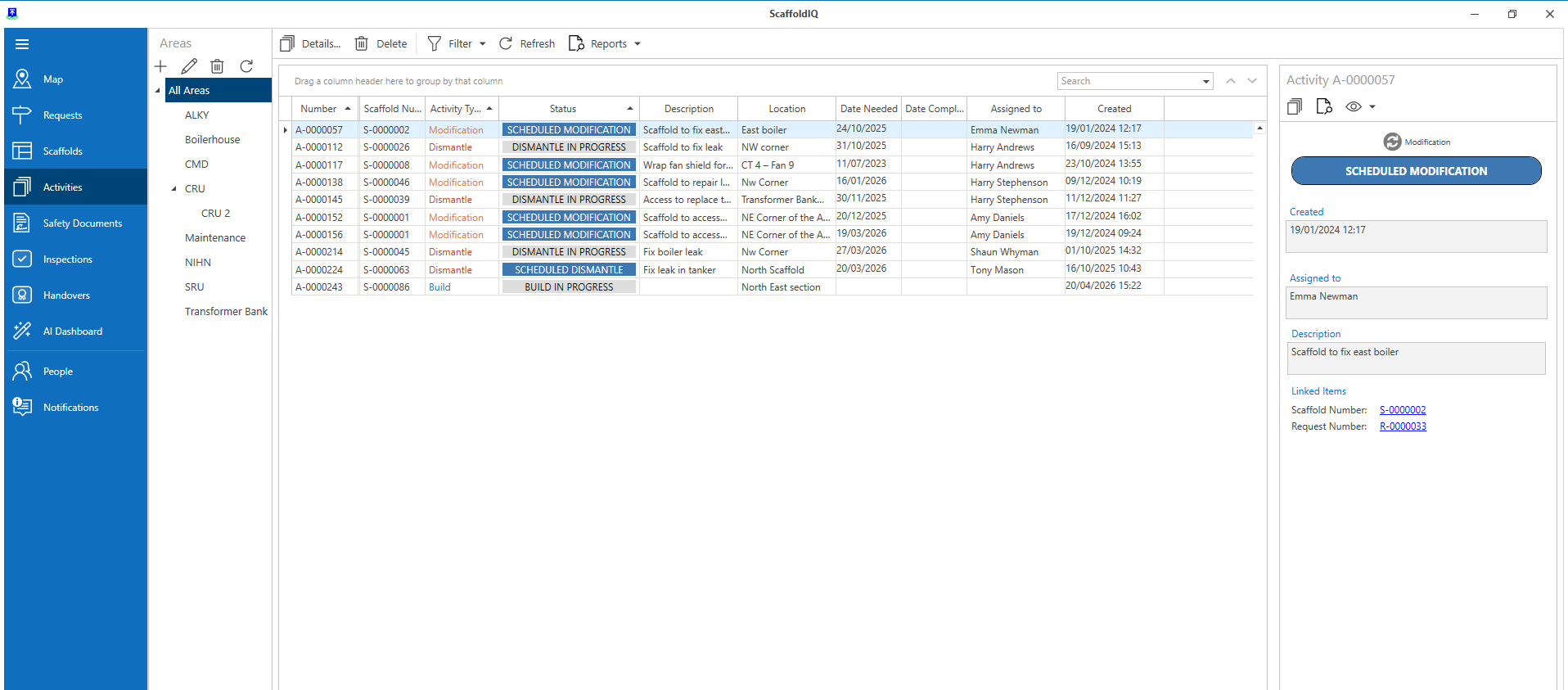
The colour of the activity indicates its status.
If the colour of the activity is blue, then the Activity needs to be actioned.

If it is grey, then the Activity is in process and needs to be changed when work on the scaffold (a build for instance) has been completed.

If it is white, then the Activity has been completed.

Note: For more information on status types, visit the Working with Statues guide
An Activity that requires action could be a scaffold that is in the Awaiting Build status. This needs an approver to process this Activity for it to move to the next stage.
Activities include:
Repairs
Modifications
Builds
Dismantles
The status of the activity is shown on the main activity screen, but if you wish to view further details on an activity, double-click the activity in the table or click Details on the toolbar.
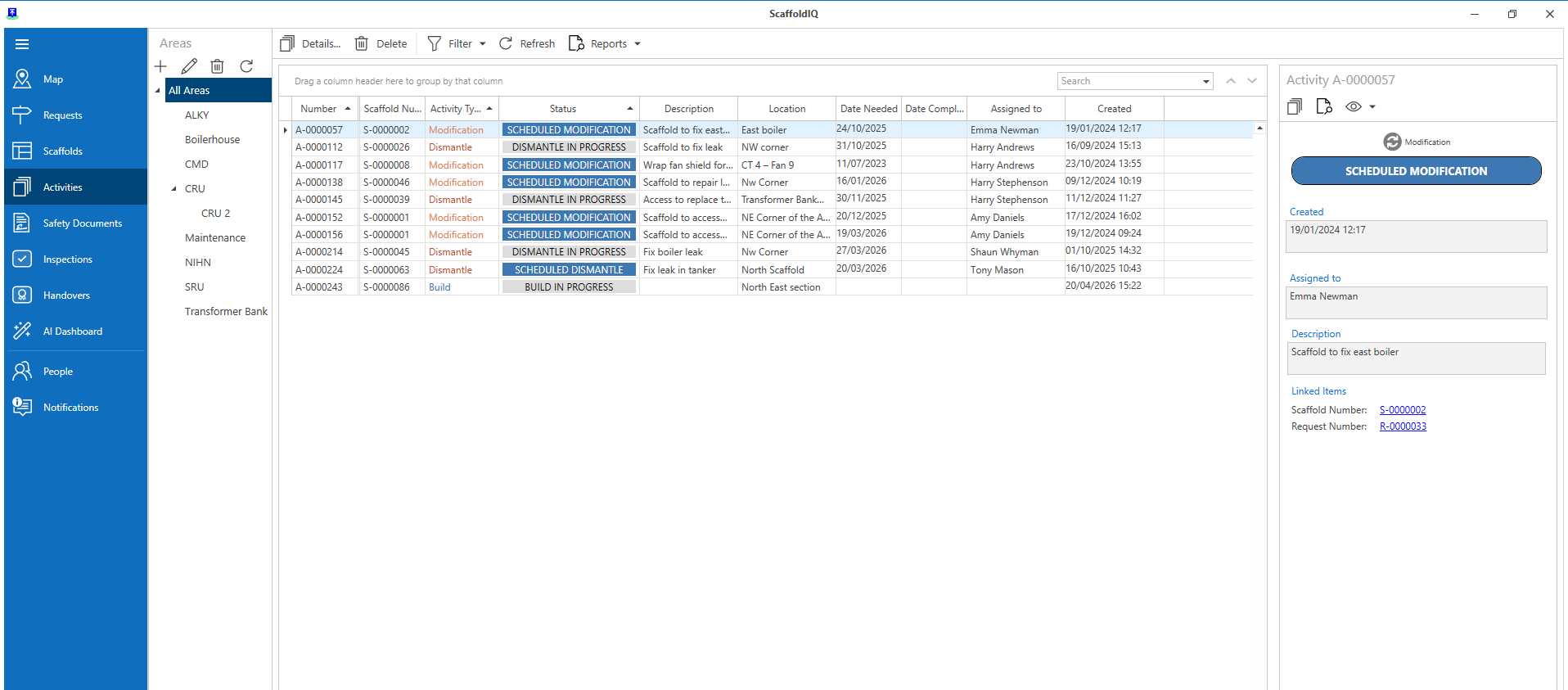
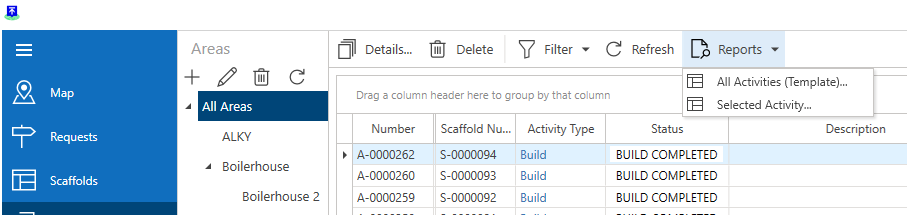
On the toolbar are the following options:

Details
View the Activity Details.

Note: You can also double-click an Activity to view its details
For more information on the Activity Details screen, please see the Activity Details section.
Delete
Delete the selected Activity.

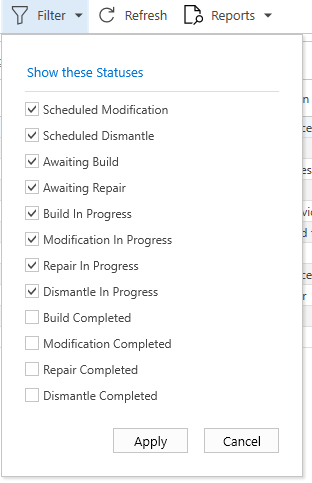
Filter
Use the filter to select to display or hide activity types based on their status.
Refresh
Reload the data within the table.

Report
Generate Reports from the Activities. Launch a report for all Activities or the selected Activity.
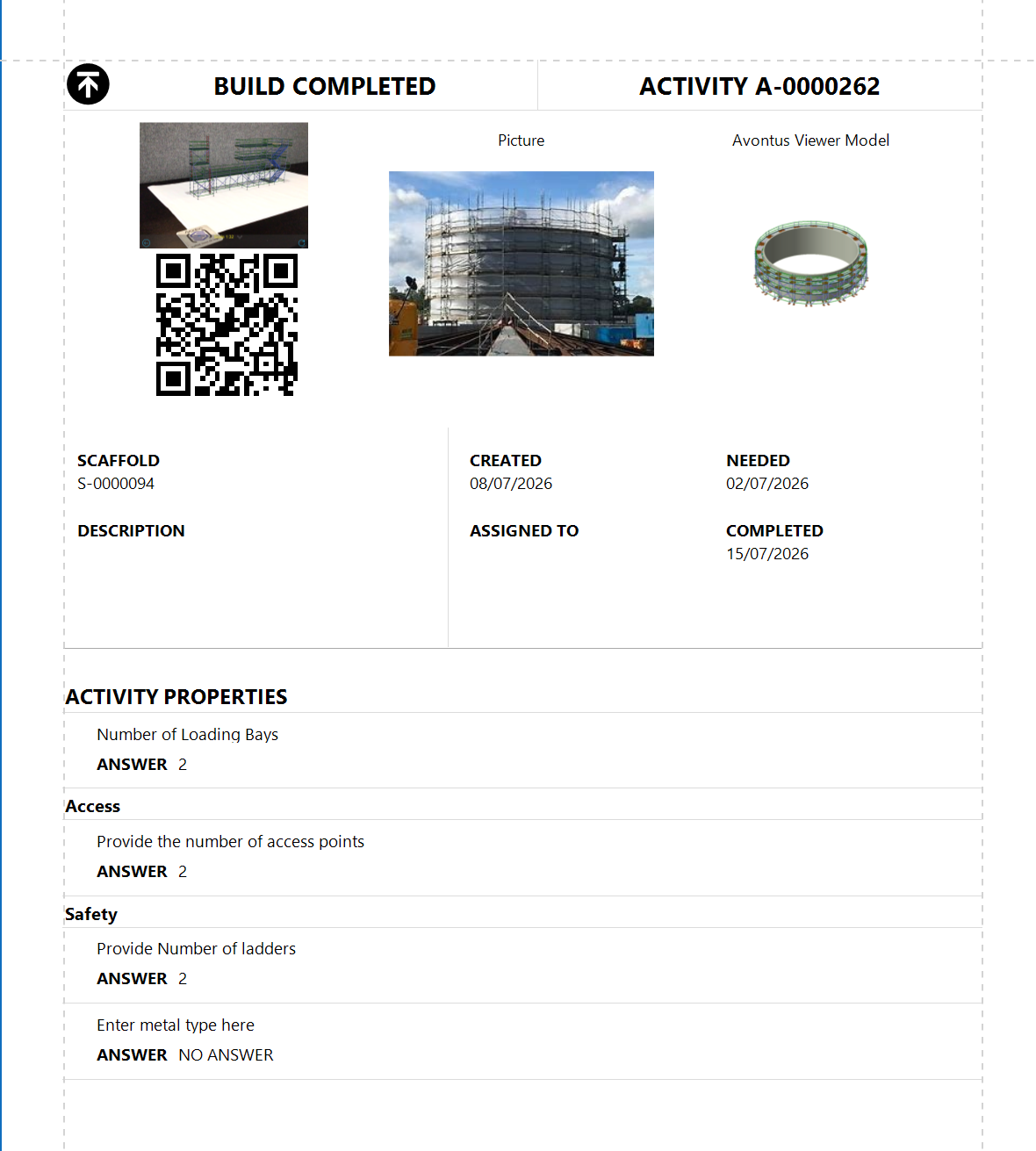
A report for a specific activity will look like this:
It may contain
A model of the scaffold
An image of the Scaffold
Activity properties
Table
The table displays information regarding the activities within the database. The columns within this table are:
Column | Purpose. |
|---|---|
Number | The Activity ID. This will be unique and increase in increments of 1 with each created activity. |
Scaffold Number | The ID of the Scaffold related to this Activity. |
Activity Type | The type of activity to be performed (Repair, Dismantle, Modification, Build). |
Status | The Activity status. |
Description | A description of the Activity. |
Date Needed | The date that the Activity needs to be completed. |
Date Completed | The date the Activity was completed. |
Assigned to | The user the Activity was assigned to. |
Project | The project assigned to the Activity. |
Percent complete | The percentage of the task complete. |
Created | The date the Activity was created. |
Location | The location of the Scaffold related to this Activity |
Column Filtering
On each column is a small key-like icon that allows you to filter content on that column.
For more information on using filters, please visit Working With Filters.
Searching
The search box can be used to filter content to a specific word or phrase.
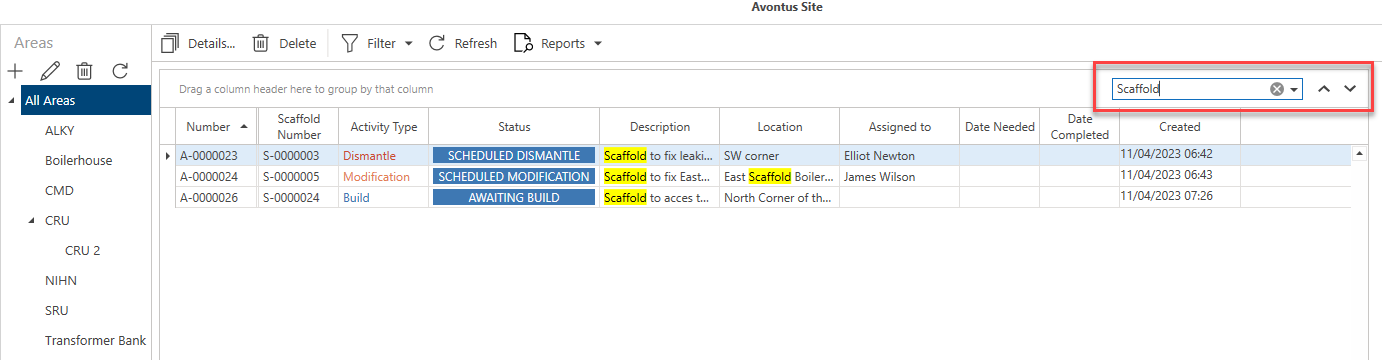
Use the chevron buttons to cycle through the returned results.
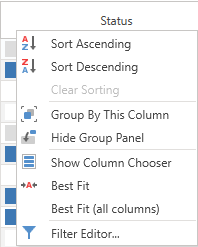
Left-click on a column to switch between ascending and descending order of that column. Right-click on the column to reveal more options, including:
Group by column
Hide/show group column
Show Column Chooser
Best Fit
Best Fit (all columns)
Filter Editor.