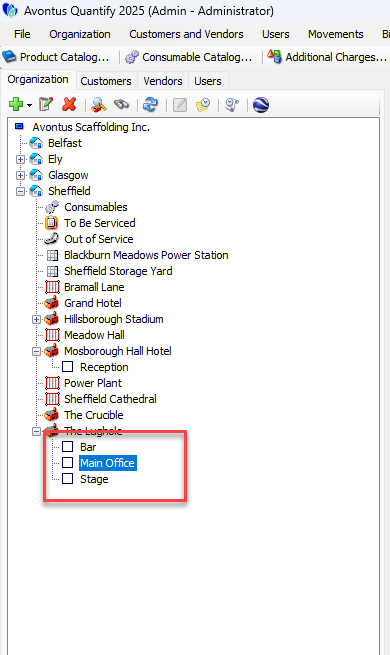
A Group ( ) is a Regular Job Site underneath a parent Regular Job Site. It has all of the same features, functions and options as the parent Job Site, the only difference being that it is a child location. Groups are primarily used for organizational or billing purposes. For more information about Regular Job Sites, refer to Working with Job Sites.
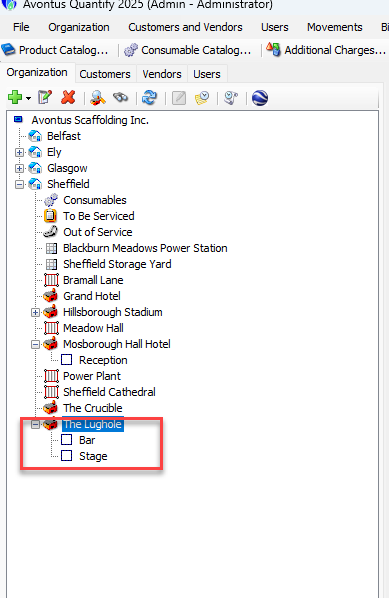
Why Choose a Group vs. a Regular Job Site
You can use Groups to divide or differentiate information for a single job or general location. For example, use them to separate inventory at a job. You can also use Groups to identify and bill different customers working at the same job. Alternately, you can use them to bill (or not bill) the same customer differently for portions of inventory at a job.
Note: You cannot use Groups with Scaffold Tracking Job Sites.
Parent Job Site
When a Regular Job Site has child Groups, both the parent Job Site and the Groups function as Regular Job Sites, receiving direct shipments and generating location-specific invoices. Reporting, product quantities and grid views for the parent Job Site include records and quantities from the child Groups.
Adding a Group
You can only add a Group to a Regular Job Site.
Note: For more information, refer to Creating or Editing a Job Sites (Regular or Scaffold Tracking) or Group and other Job Site help articles
To add a Group:
Click the appropriate Regular Job Site.
Click the Add button (
 ) and select Add Group from the dropdown that appears.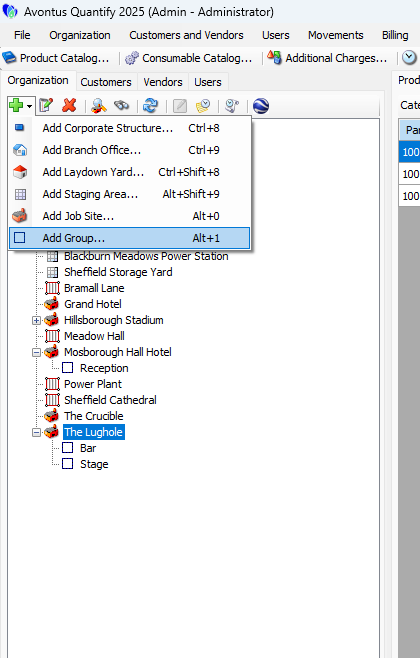
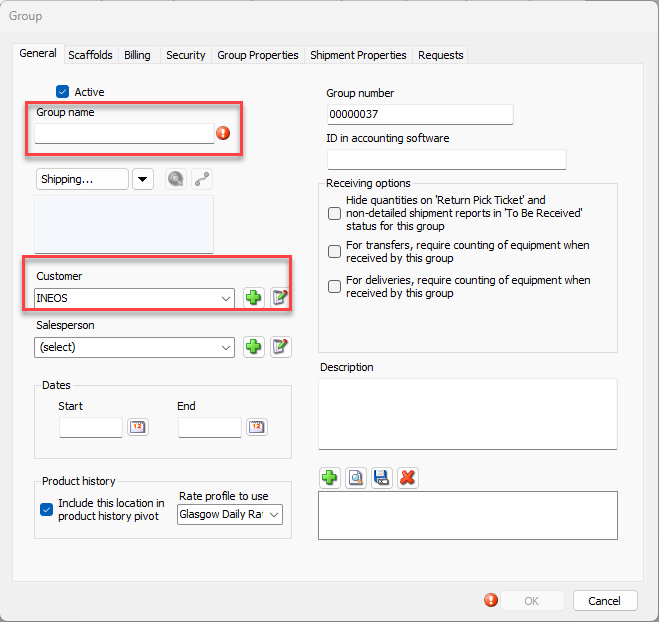
The Groupdialog appears. The default required fields for a Group include:Group Name
Customer
If the Group is Billable, Billing Method details and Rate Profile
Required field information will default from the parent Job Site, but can be changed if desired.
Click in the Group Name text field and enter the name of the new Group.
As necessary, click the Customer dropdown and select the appropriate customer.
Click the Billing tab.
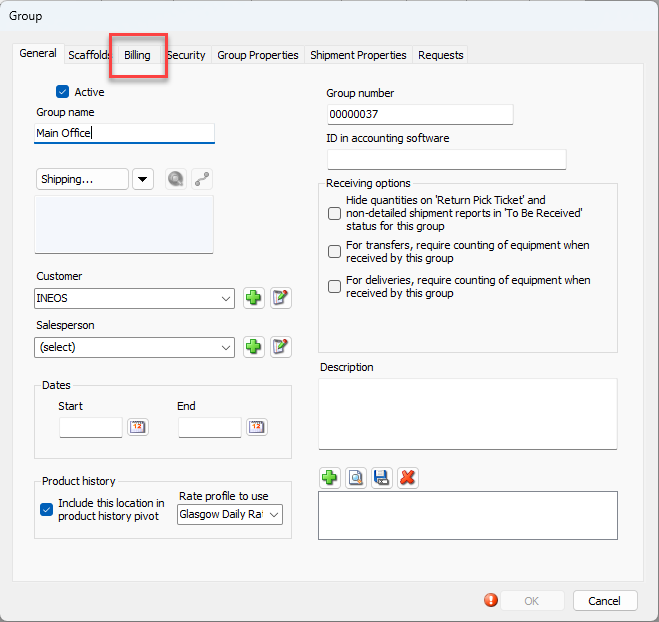
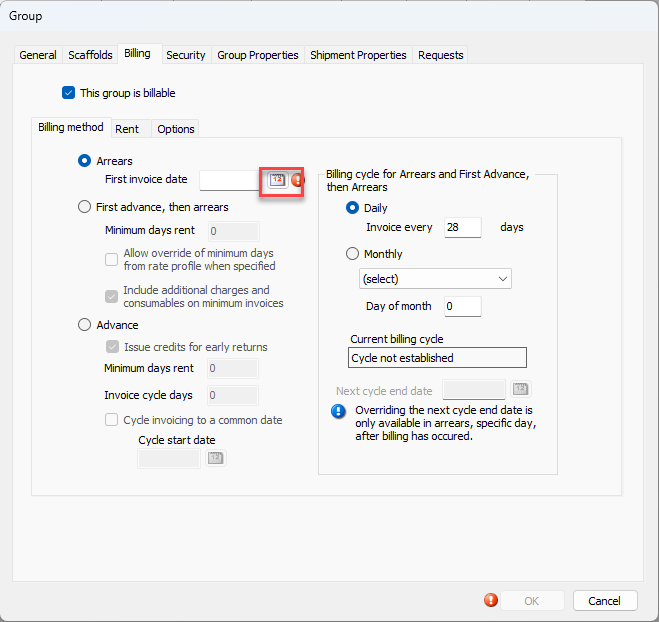
The Group dialog refreshes.Click the First Invoice Date calendar icon (
 ).
).
The calendar appears
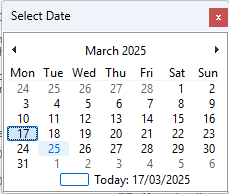
Locate and click the appropriate date.
Click OK when you are ready to save the new Group.
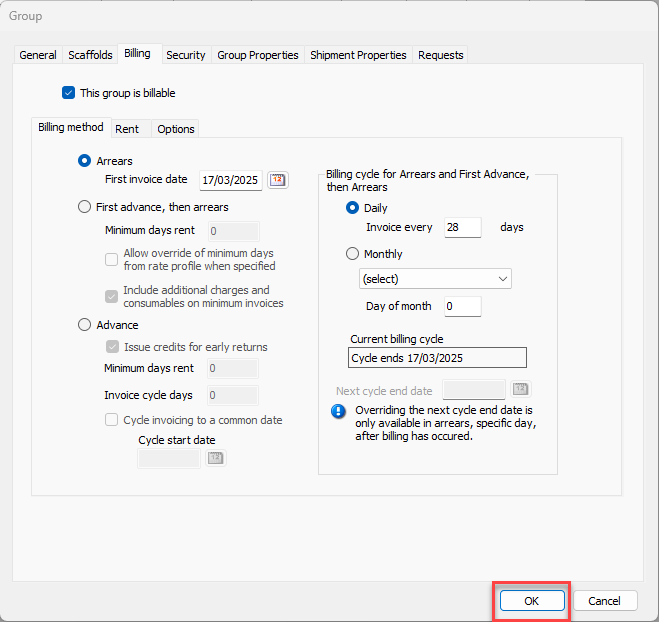
The Group will be added.