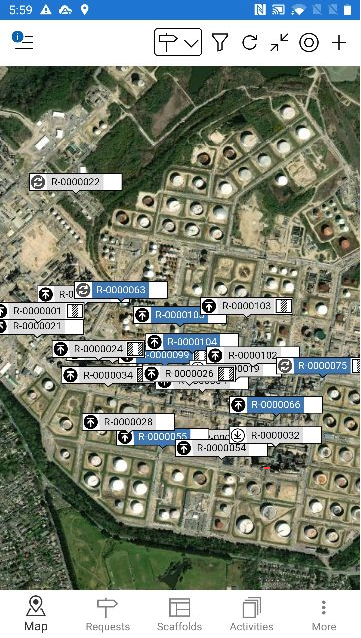
The Map screen provides a map view of your requests or scaffolds. This is particularly useful in finding the exact location of a Request or Scaffold on a job site. The Maps screen displays a set of coordinates so that you can exactly pinpoint a location for a Request or Scaffold.
On the Map screen, you can find all requests or scaffolds indicated by pins (depending on whether you filtered by Requests or Scaffolds) which denote the location of the Request or Scaffold.
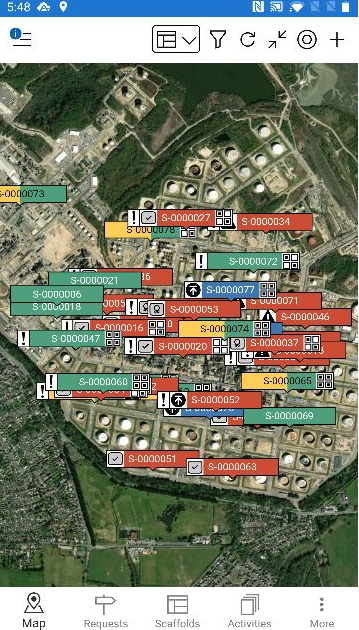
To scroll around the map, slide your finger across the screen. To zoom in, put two fingers on the screen and move them apart. To zoom out place two fingers on the screen and pinch them together
Any request/scaffold that has been created within the system will be marked by a pin. These pins’ colour will vary depending upon the status of the Request or Scaffold. Please see the table below for examples.
| Icon | Purpose |
|---|---|
| This means that the scaffold has been approved but is waiting to be built |
| This means that the scaffold is currently being built. |
| This means that the scaffold is ready to use with precautions. |
| This means that the scaffold has been built no precautions. |
| This means that the scaffold cannot be used. |
| This is a request and yet to approved. |
| This means that the scaffold is awaiting handover. |
| This means that the scaffold is awaiting inspection. |
| This means that modifications are currently being made to the scaffold. |
| This means that the scaffold is currently being dismantled. |
| This means that the scaffold is undergoing repairs. |











Click on a pin to view details of that scaffold or request. Details for the scaffold or request will be displayed at the bottom of the screen.
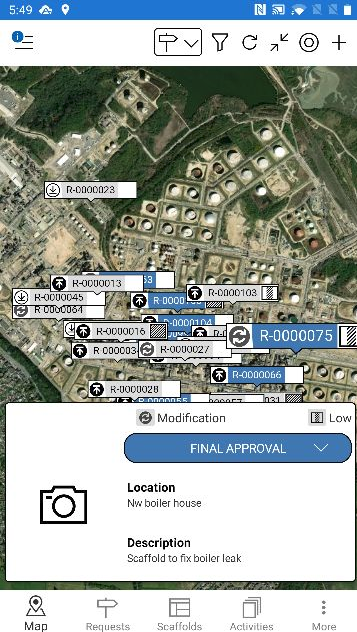
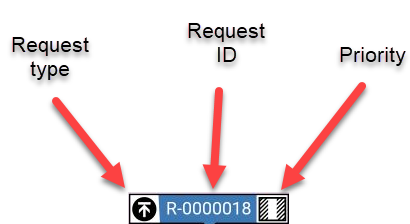
The request/scaffold map pin will display the request type, the ID, and the load rating. For more information on the Request section, please see the Request Details section.
The scaffold pin differs slightly. Please see below for details
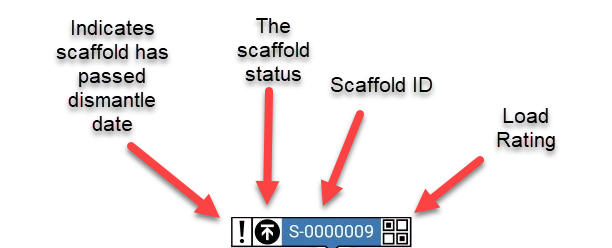
Viewing the Map
The map can be viewed in two ways. The way you can view the map can be changed in the Settings menu.
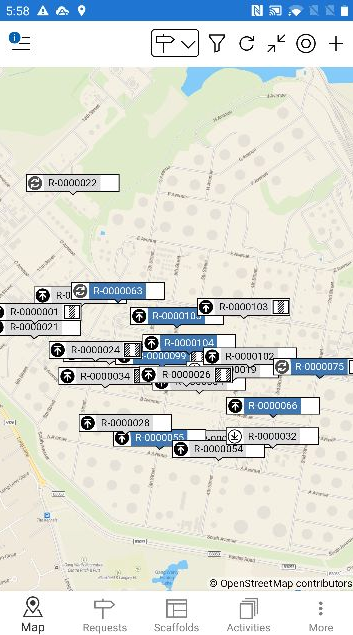
Street View
Street maps are the typical default maps that you see on Google Maps and other online mapping sites and they show the streets, landmarks, and individual structures when you zoom in.
Satellite Image
The satellite image is a photographic view of the map much like you would see on Google Earth. ScaffoldIQ uses Mapbox Satelite Maps for the download and display of satellite maps, which requires an API key.
You can enable Satellite maps by entering a Mapbox API Key in the Settings screen on the Desktop app. For more information, please see the Settings page for more information