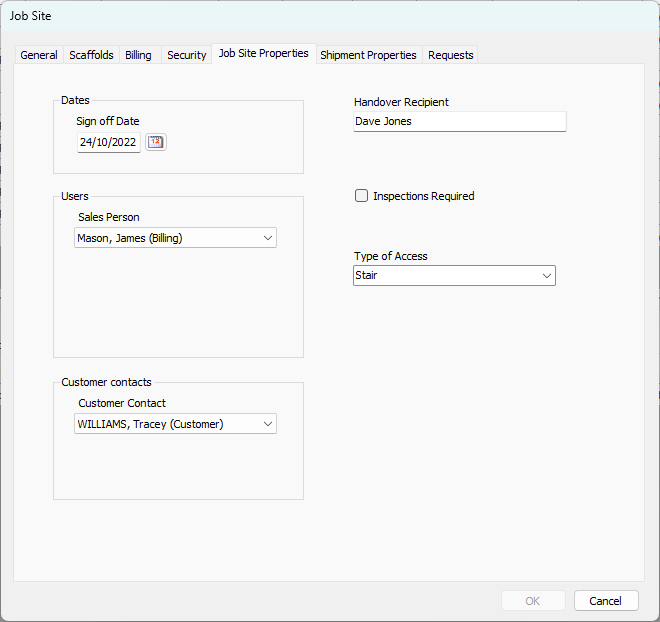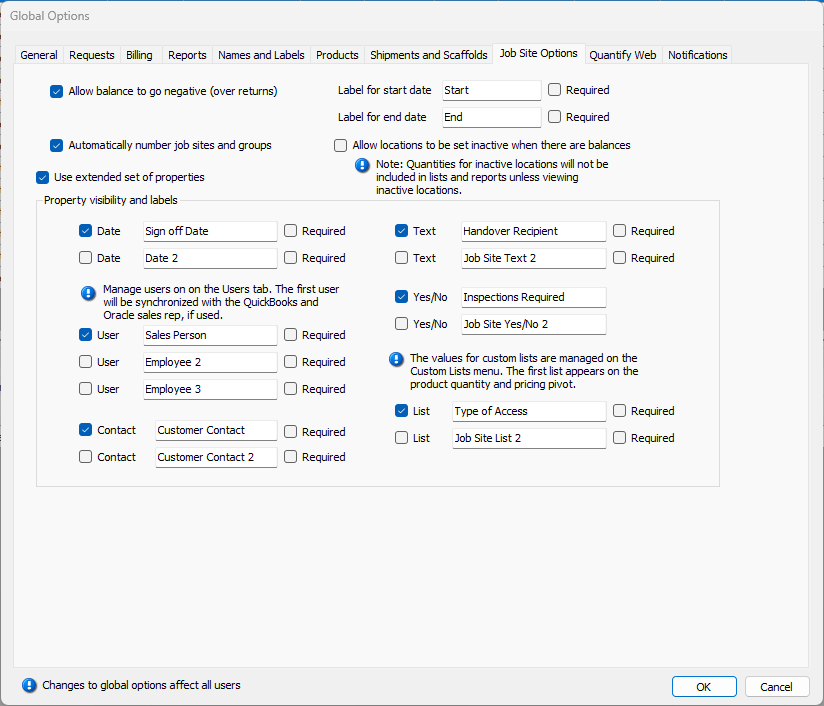
The Job Site Options tab enables you to determine specific ways in which Quantify handles Job Sites.
Top Section
The features in this section enable you to enable/disable some basic Job Site features and customize start and end date labels.
| Allow balance to go negative (over returns) | When this checkbox is checked, Quantify allows balances to go negative when there are over-returns. |
| Automatically number job sites and groups | When this checkbox is checked, Quantify automatically numbers Job Sites and Groups. |
| Use extended set of properties | When this checkbox is checked, the Property Visibility and Labels section of the dialog (below) becomes active. |
| Label for start date | Use this text field to edit the labels for start dates. |
| Label for end date | Use this text field to edit the labels for end dates. |
| Required | When this checkbox is checked, Quantify requires start and end dates. |
| Allow allocations to be set inactive when there are balances | When this checkbox is checked, Quantify allows locations to be set inactive when there are balances. |
Property Visibility and Labels Section
The Property Visibility and Labels section is unavailable until you click the Use extended set of properties checkbox, to put a check in it. When this section is active, its features enable you to configure some custom lists that appear in the Quantify interface.
| Date | When one or more of these checkboxes are checked, Quantify enables users to create custom Date fields for significant dates that are not in the Job Site dialog by default. Users creating or editing Job Sites can enter these dates in the dd/mm/yyyy format. Use the text field beside the Date checkbox to configure the appropriate label for the custom Date field that appears in the Job Site dialog. |
| User | When this checkbox is checked, Quantify adds the corresponding User dropdown to the Job Site Properties tab in the Job Site dialog. |
| Contact | When this checkbox is checked, Quantify adds the corresponding Customer Contact dropdown to the Job Site Properties tab in the Job Site dialog. |
| Text | When one or more of these checkboxes are checked, Quantify enables users to create custom text fields into which users can enter up to 50 characters. |
| Yes/No | When one or more of these checkboxes are checked, Quantify enables users to create custom Yes/No question/answer checkboxes that appear in the Job Site dialog. A check in the checkbox means the answer is Yes. For example, the Job Site dialog can ask a user if safety equipment is required on that particular Job Site. A check in the checkbox means that, yes, safety equipment is required. Use the text field beside the Yes/No checkbox to configure the appropriate label/question for the custom Yes/No checkboxes. |
| List | When this checkbox is checked, the corresponding custom list appears in the Job Site Properties tab of the Job Site dialog. |
| Labels | Use these text fields to enter labels for the features you enable above. You can use a labels to name the feature, indicate what a user should do with the feature, provide a question to which the user should respond, etc. |
| Required | When this checkbox is checked, users must use the custom property in order to create a Job Site. |
Quantify enables you to manage custom fields (except lists) for Job Sites in the Job Site Properties tab in the Job Site dialog.