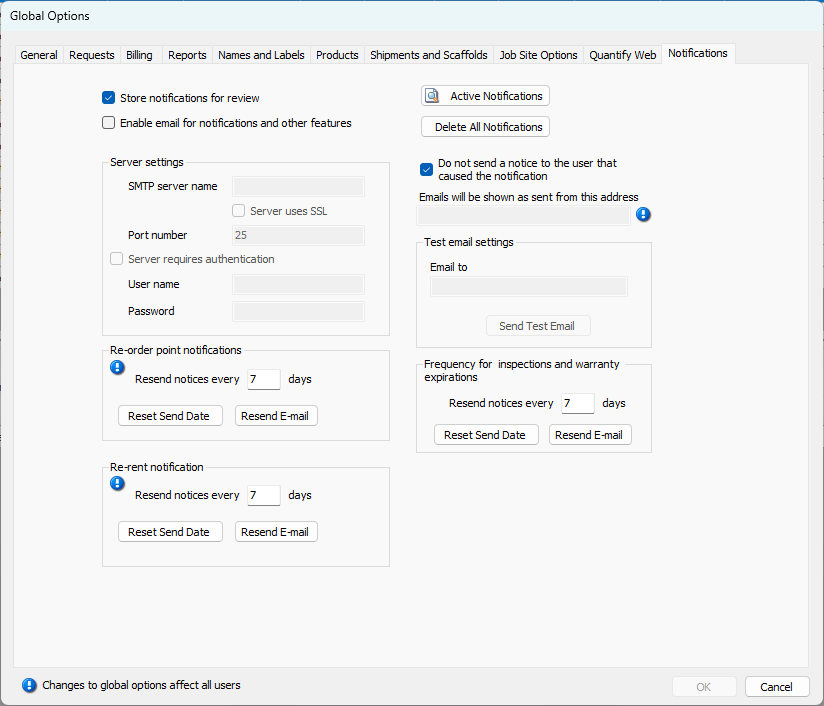
The Notifications tab enables you to determine specific ways in which Quantify handles notifications.
Top Section
The features in the top section enable you to turn the Notifications feature on and off, store and delete notifications, and view all active notifications.
Store notifications for review | When this checkbox is checked, Quantify stores Notifications for future review. |
Enable email for notifications and other features | When this checkbox is checked, Quantify sends email notifications - When email notifications use an HTML format, Quantify stamps them with the UTC (Coordinated Universal Time) time and date. - You can set up Quantify end users to receive specific notifications and emails by editing the users on the Users tab in the Quantify interface. |
Active Notifications | Click this button to view a report of all notifications that are still unresolved (haven’t been deleted), in PDF format. |
Delete All Notifications | Click this button to delete all active notifications. |
Do not send a notice to the user that caused the notification | When this checkbox is checked, Quantify will NOT a notice to the user who caused a notification. |
Emails will be shown as sent form this address | Use this text field to configure the email address that will appear in the From: field of email notifications. |
Server Settings Section
Use the information in this section to configure Notification email server settings.
It is recommended you check that your SMTP provider can provide the required velocity needed to send out notification emails. This is because certain email servers limit the number of emails that can be sent out. This could cause a few issues where some notification emails are not sent.
SMTP server name | Use this text field to configure the server name for the SMTP server. |
Server uses SSL | When this checkbox is checked, the Notification email client communicates with the email server via SLL. |
Port number | Use this text field to configure the port to use for email notifications. |
Server requires authentication | When this checkbox is checked, the User name and Password text fields (below) become active. |
User name | Use this text field to configure the username for the SMTP server. |
Password | Use this text field to configure the password for the SMTP server. |
Re-Order Point Notifications Section
Use the information in this section to help you configure Quantify to notify users when inventory is low at a location and that it is time to order more of the item.
Resend notices every X days | Use this text field to configure the number of days Quantify waits before resending Re-order Point notifications. |
Reset Send Date | Use this button to save the new time interval entered above. |
Resend Email | Click this button to resend a re-order email notification. |
Re-Rent Notification Section
Use the information in this section to help you configure Quantify to notify users when the owed balance at a location exceeds the re-rented quantity .
Resend notices every X days | Use this text field to configure the number of days Quantify waits before resending Re-rent notifications. |
Reset Send Date | Use this button to save the new time interval entered above. |
Resend Email | Click this button to resend a re-rent email notification. |
Test Email Settings Section
Use the information in this section to help you configure and send test email notifications.
Email to | Use this text field to configure the email address that will receive test email notifications. |
Send Test Email | Click this button to send a test email notifications. |
Frequency for Inspections and Warranty Expirations Section
Use the information in this section to help you configure notices for Inspection and Warranty Expiration notifications.
Resend notices every X days | Use this text field to configure the number of days Quantify waits before resending Inspection and Warranty Expiration notifications. |
Reset Send Date | Use this button to save the new time interval entered above. |
Resend Email | Click this button to resend a re-order email notification. |