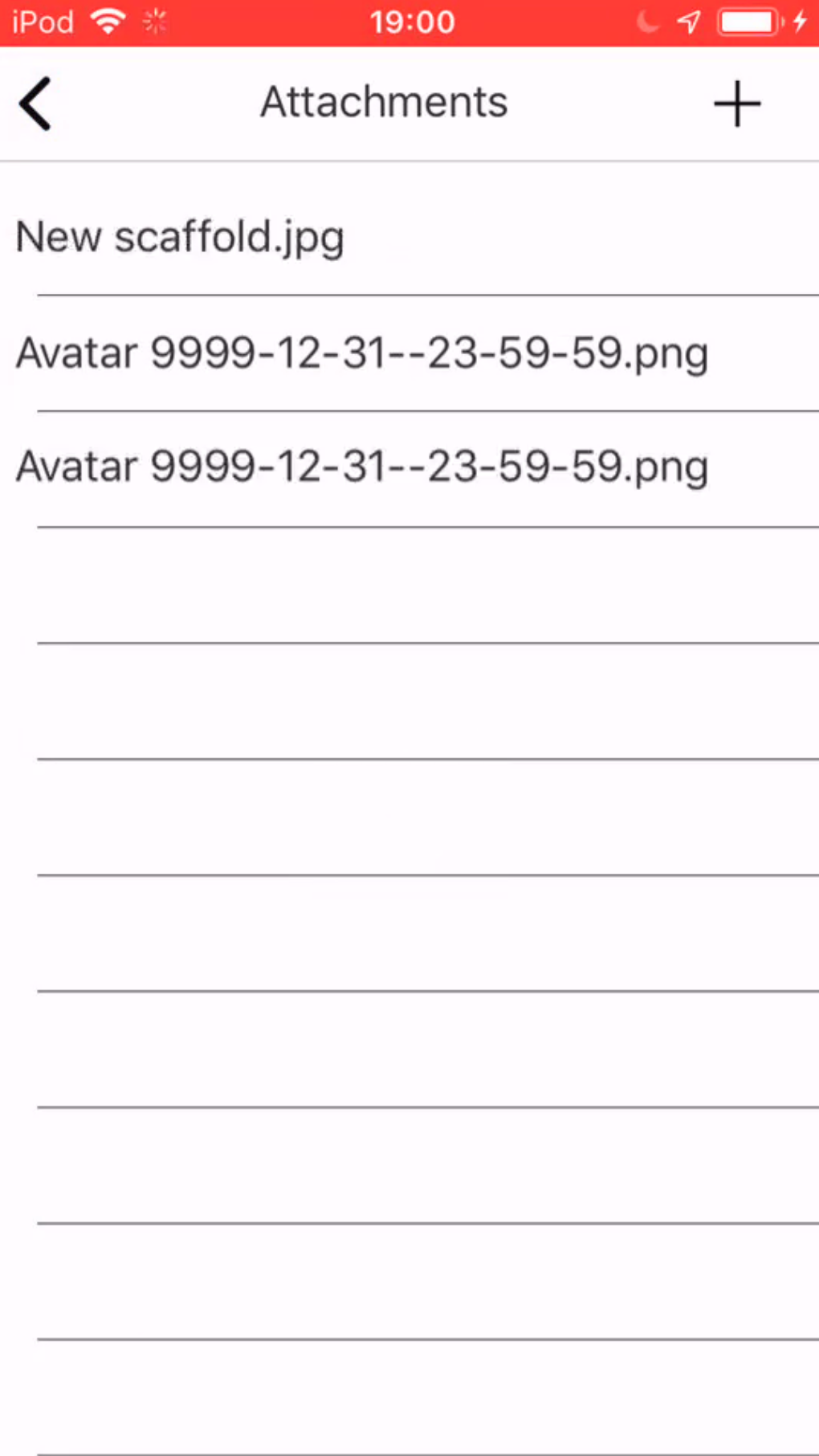
You can add attachments to a Request. This could be an image of where the Scaffold would be erected.
To add an attachment to a request or scaffold.
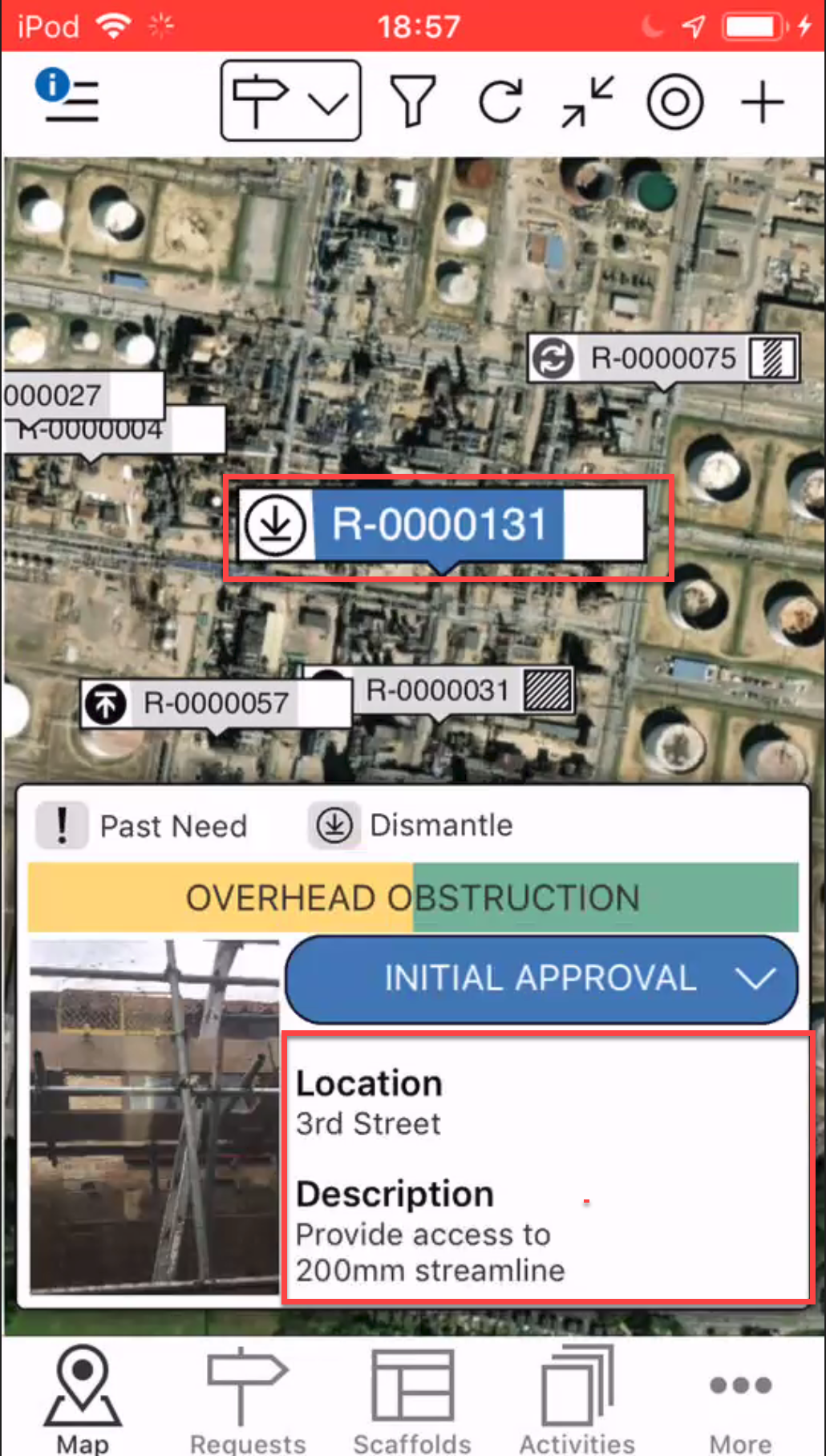
From the Map screen, tap on the Request pin
Tap the Request details area.
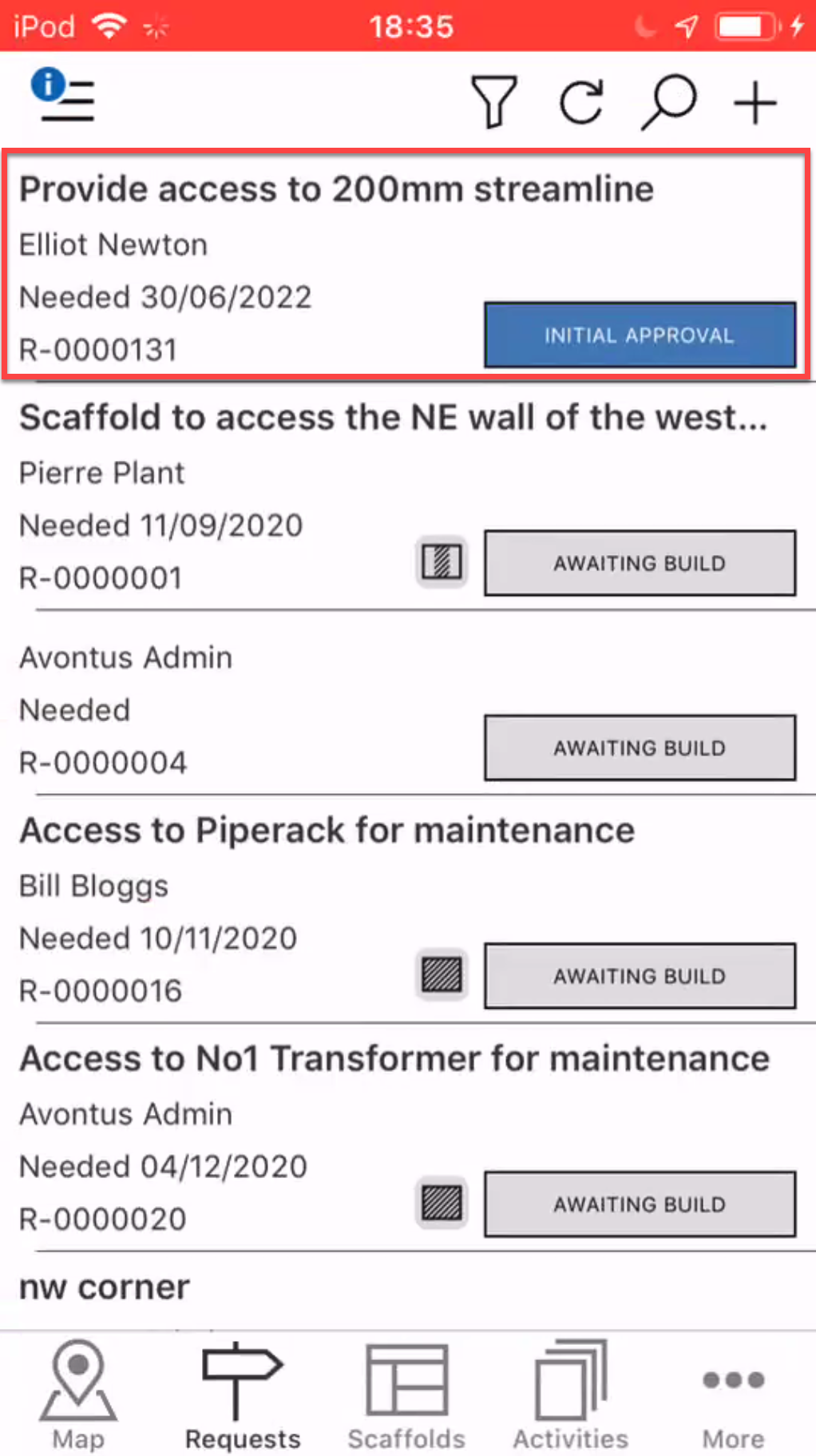
Note: You can also access the Request Details by tapping on the Request in the Requests screen
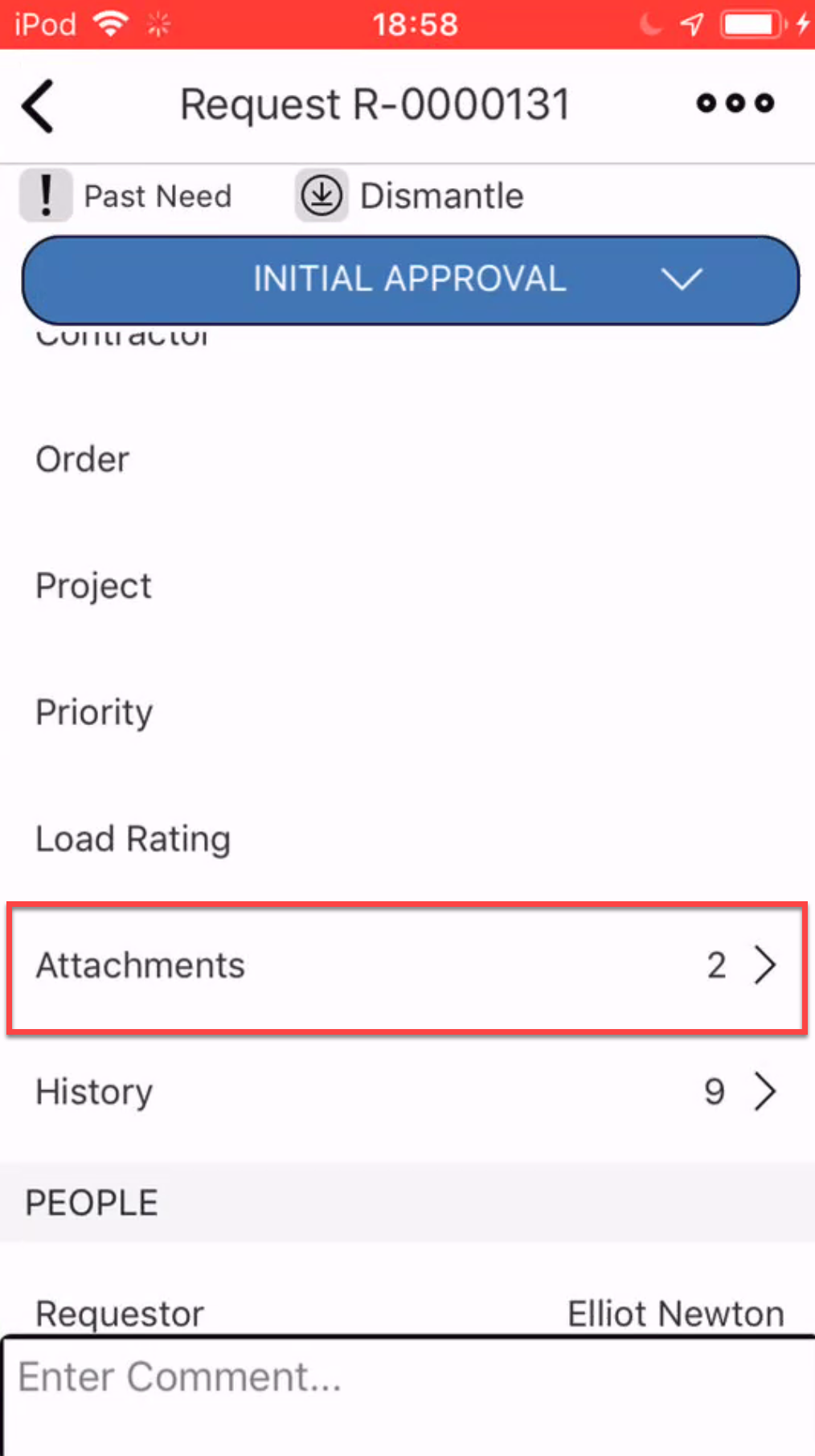
In the Request Details screen, scroll down to the Attachment section and tap the Attachment section.
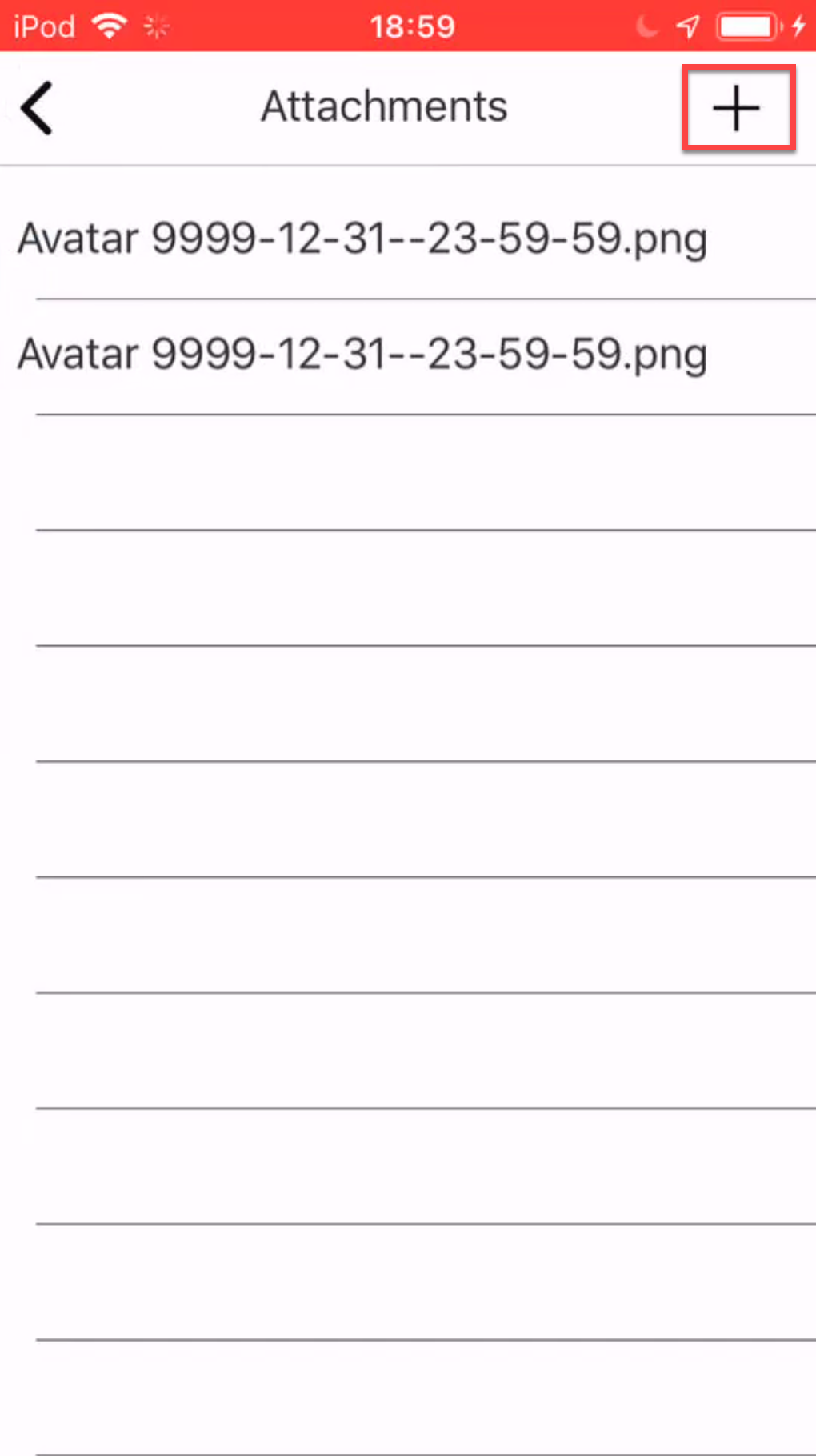
In the Attachments screen, tap + in the top-right.
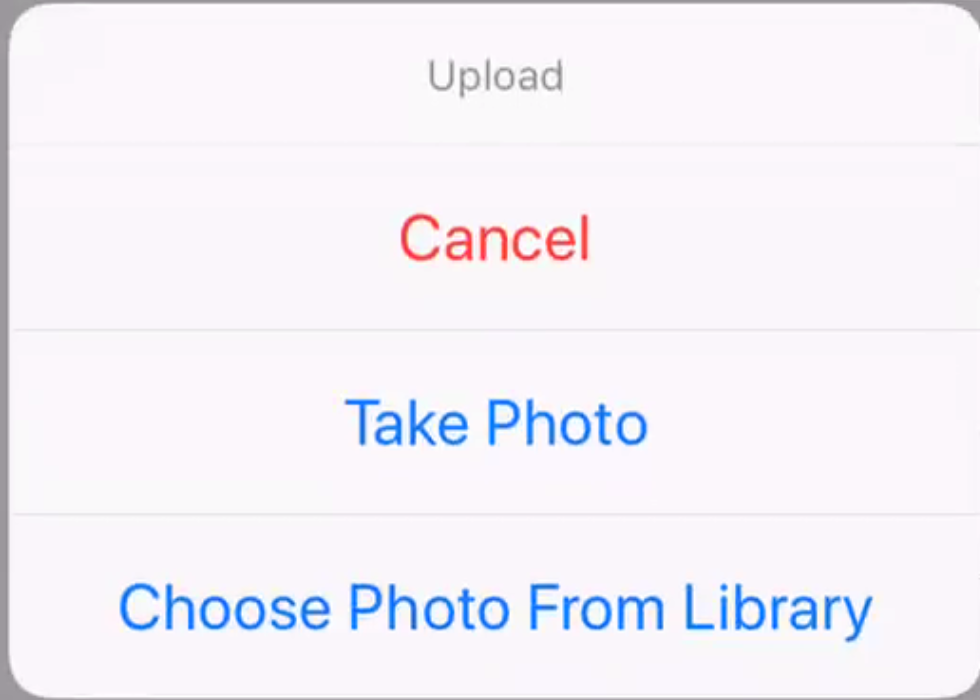
Select to specify whether you wish to take a photo or choose a photo from your library.
6a. If you decide to take a photo, take the photo and tap Use Photo
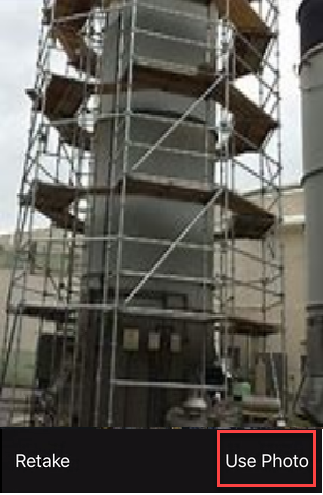
Note: Retake to take the picture again if you are not happy with the photo you have taken
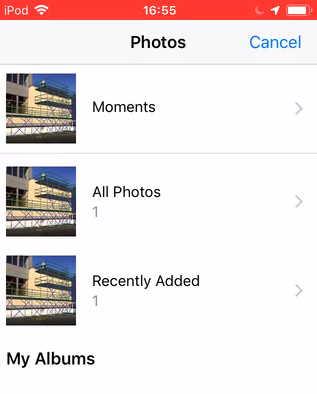
6b. If you decide to choose a photo from your library, select a photo from your albums by tapping on the selected photo.
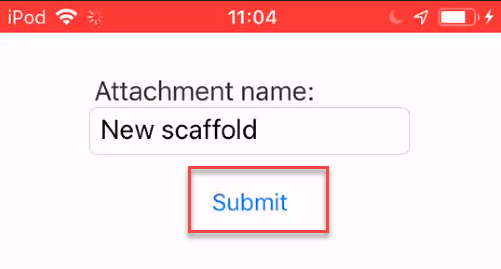
Specify the attachment name and tap Submit.
The attachment will be uploaded to the Request.