The Circular Scaffold feature in the Structures tab enables you to configure and add scaffolding to any Tank you create.
Adding a Scaffold to a Tank
Once you add a Tank structure to the Drawing Page, Avontus Designer automates the creation of interior or exterior Scaffolding, based on parameters you define.
To add a Scaffold to a Tank:
Click the Tank shape to select it
Click the Structures tab, then click the Circular Scaffold button.
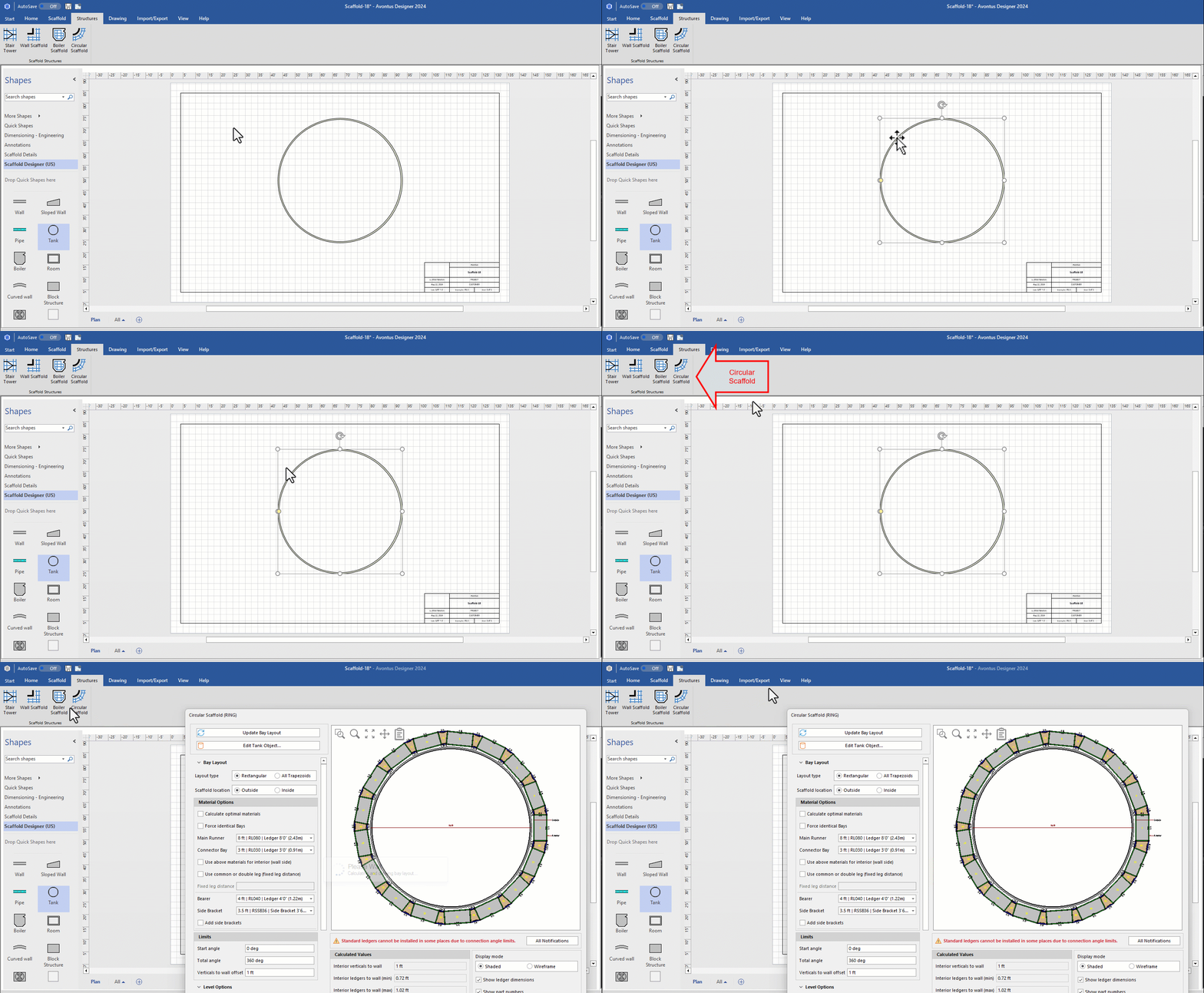
The Circular Scaffold dialog appears.
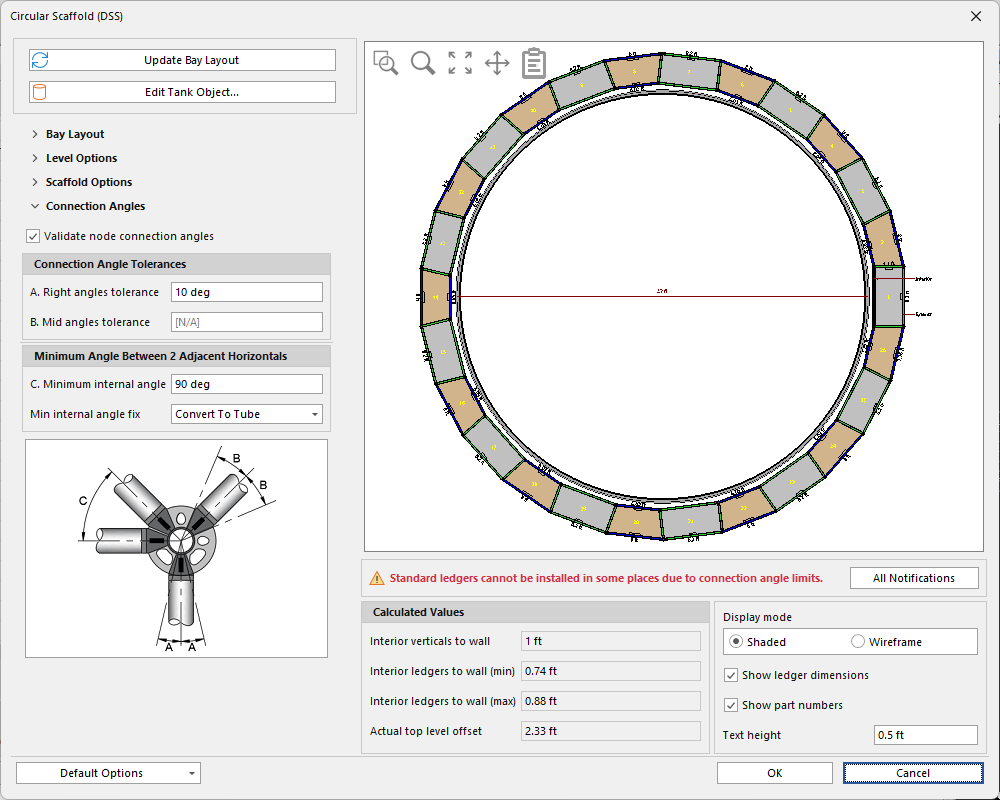
Use the tabs in the Circular Scaffold dialog to configure the Scaffolding for the Tank.
For information on the features in this dialog, refer to the Circular Scaffold Dialog.When you are done, click OK.
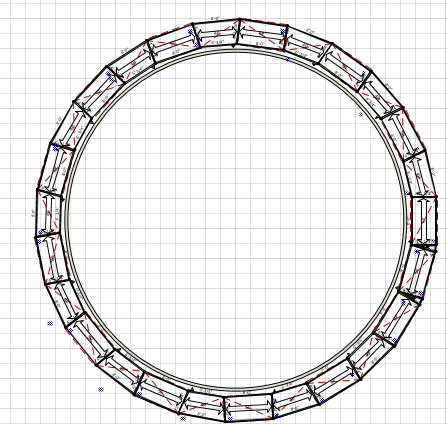
Avontus Designer calculates and draws the Scaffolding.
Adding a Partial Scaffold to a Tank
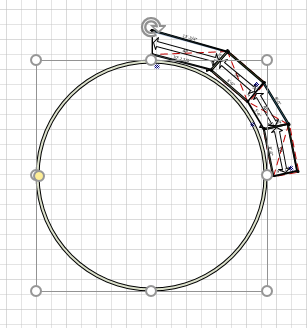
Avontus Designer enables you to add a partial scaffold design to any area of a Tank.
To add a Scaffold to a Tank:
Click the Tank shape to select it
Click the Structures tab, then click the Circular Scaffold button.
The Circular Scaffold dialog appears.As necessary, click the Bay Layout tab.
Click in the Start Angle text field and enter the location at which you want to start the partial Scaffolding.
Note: Avontus Designer divides Tanks into 360 degrees, with zero (0) being located in the mid right of the Tank (where the diameter line intersects with the Tank wall in the Drawing View area of the Circular Scaffold dialog.). If you enter zero into this text field, this is where Avontus Designer will start building partial ScaffoldingClick in the Total Angle text field and enter the location at which you want to end the partial Scaffolding.
Note: For example, if you enter zero (0) as the Start Angle and 90 as the Total Angle, Avontus Designer will start the partial Scaffolding in the mid right of the Tank and end it at the top of the TankClick Update Bay Layout.

The Drawing Area refreshes, showing what the partial Scaffolding will look like.
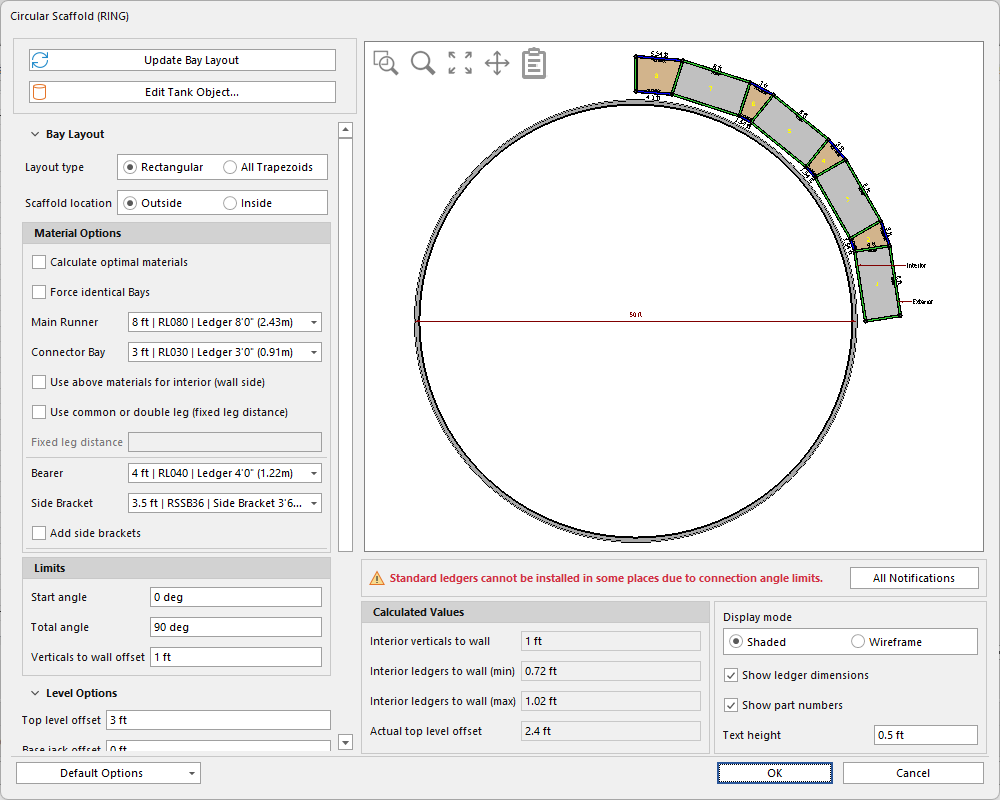
Use the rest of the Circular Scaffold dialog to finish configuring the Scaffolding for the Tank.
For information on the features in this dialogue, refer to The Circular Scaffold Dialog.When you are done, click OK.
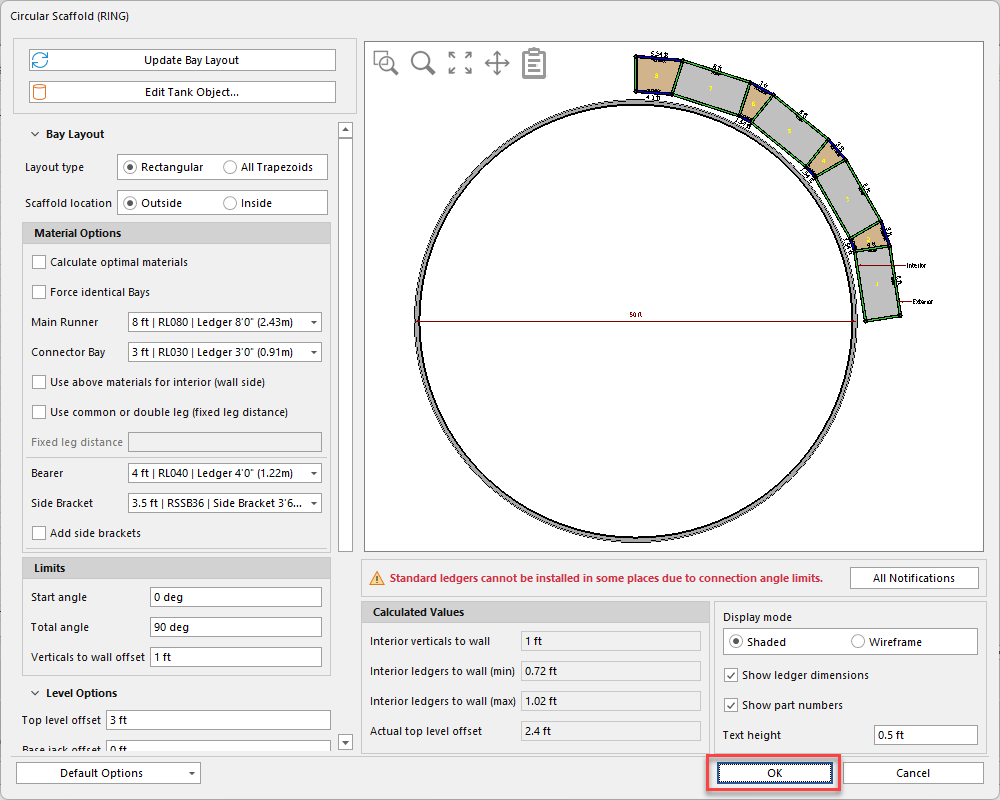
Avontus Designer calculates and draws the Scaffolding.