You can code Product Catalog Categories with Xero accounting item codes to facilitate synchronizing rental charges by categories.
You can code Consumable Catalog Categories with Xero accounting item codes to facilitate synchronizing Consumable charges by categories.
Note: When Invoices are synchronized with Xero, rent for parts that are not in coded categories will be totaled on a single Rent line, and synchronized using the Global Options Accounting Item Type for Rent. Refer to Accounting Item Types.
To code Product Categories with Xero accounting codes:
- Click Product Catalog.
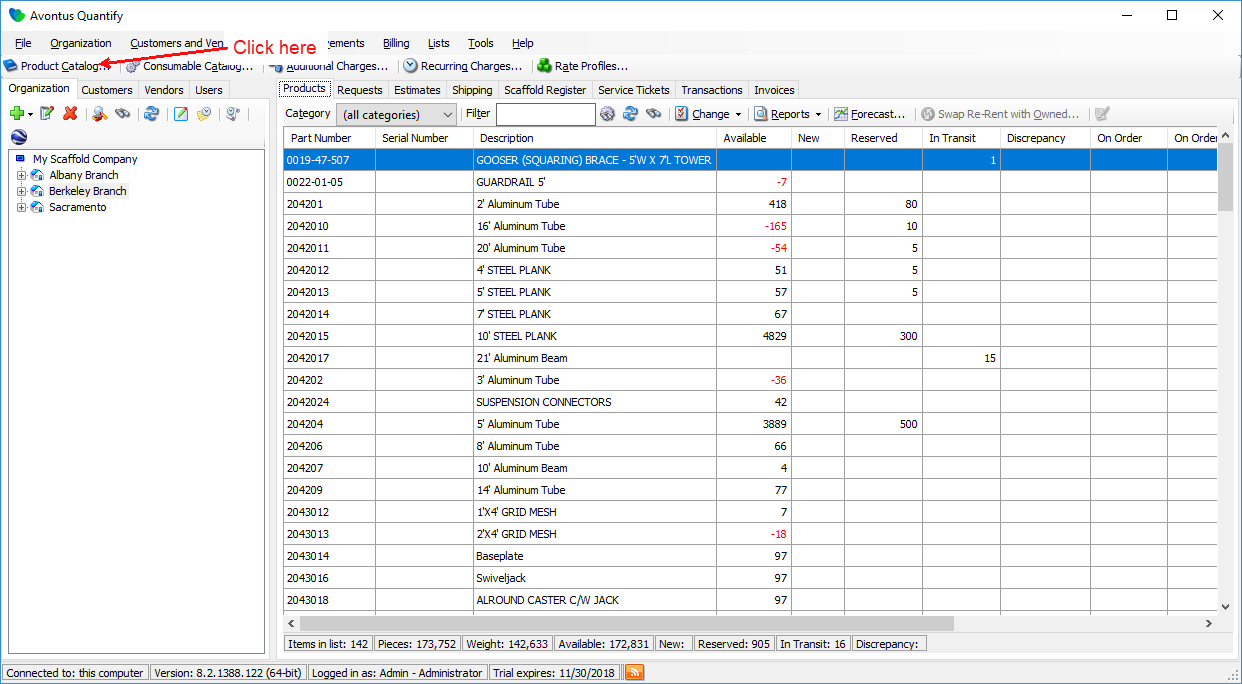
The Product Catalog appears. - In the upper left of the Products Catalog, click the Add button (
 ) and select Parent Category.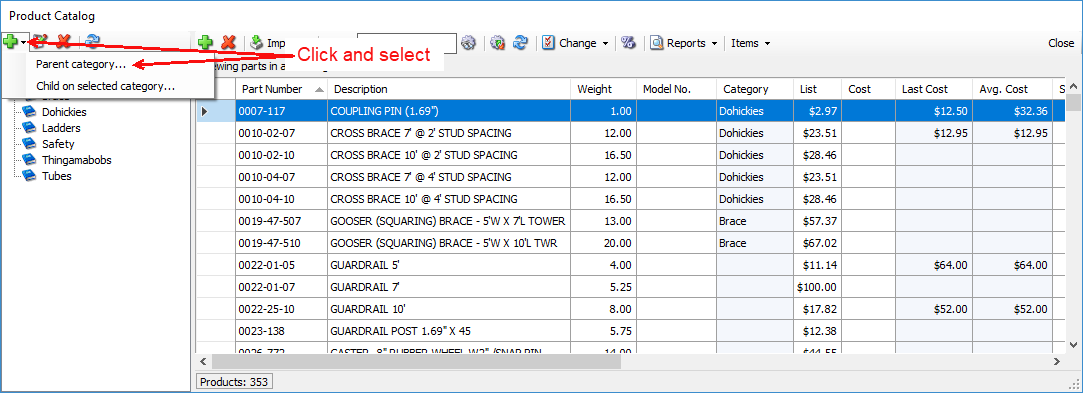
The Category dialog appears. - Click in the Name text field and enter the name of the new Product Category.
- Click the Xero Rent tab.
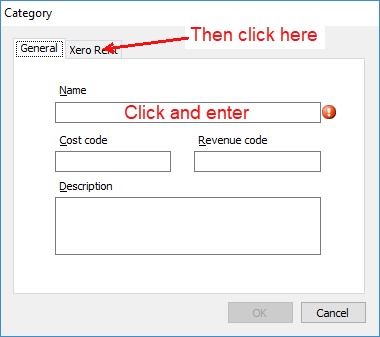
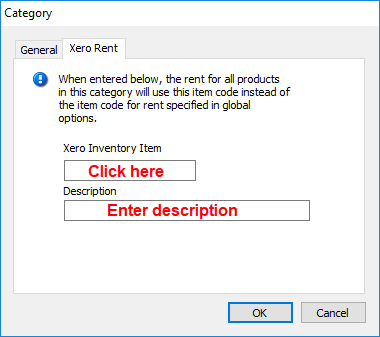
The Category dialog refreshes. - Click in the Xero Inventory Item text field and enter a code that matches the Xero accounting item code for this category.
- Click in the Description text field and enter a description.
This description will appear in the Invoices when viewed in Summary format. - Click OK.
Quantify adds the new Category to the Catalog. - Assign parts to this Catalog Category as appropriate.