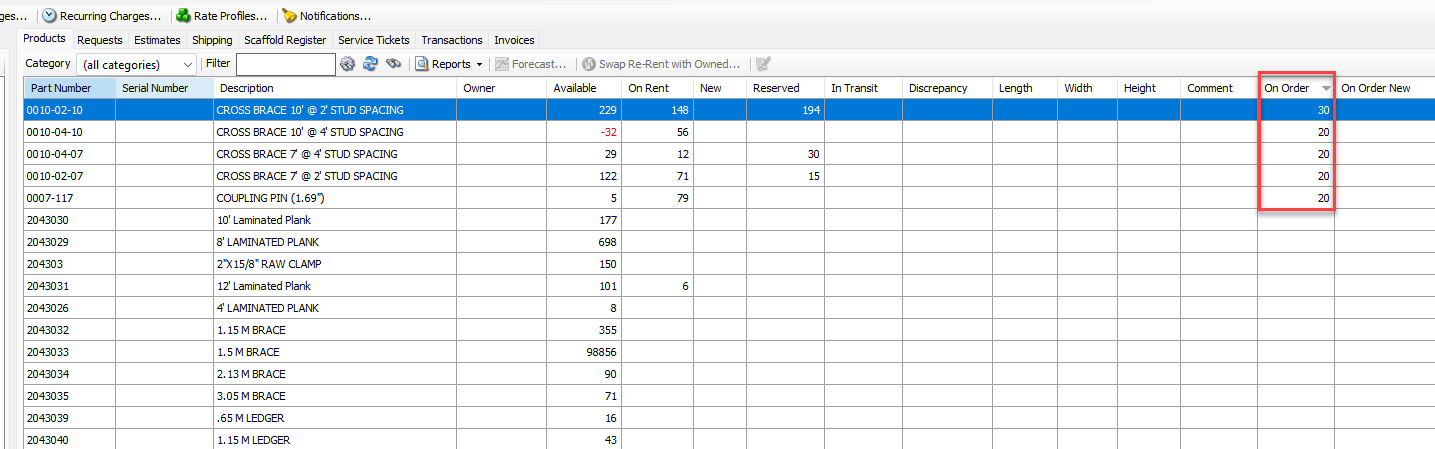
The procedures below are for ordering available Products. However, they are identical to those for order re-rent and new Products with the exception being step 2 where you select the Transaction type.
To order available, re-rent and new Products
Click the Transactions tab.
Click the Add button (
 ) and select Order Available Products from the menu that appears.
Note: Select Order Re-rent or Purchase new to perform these transactions
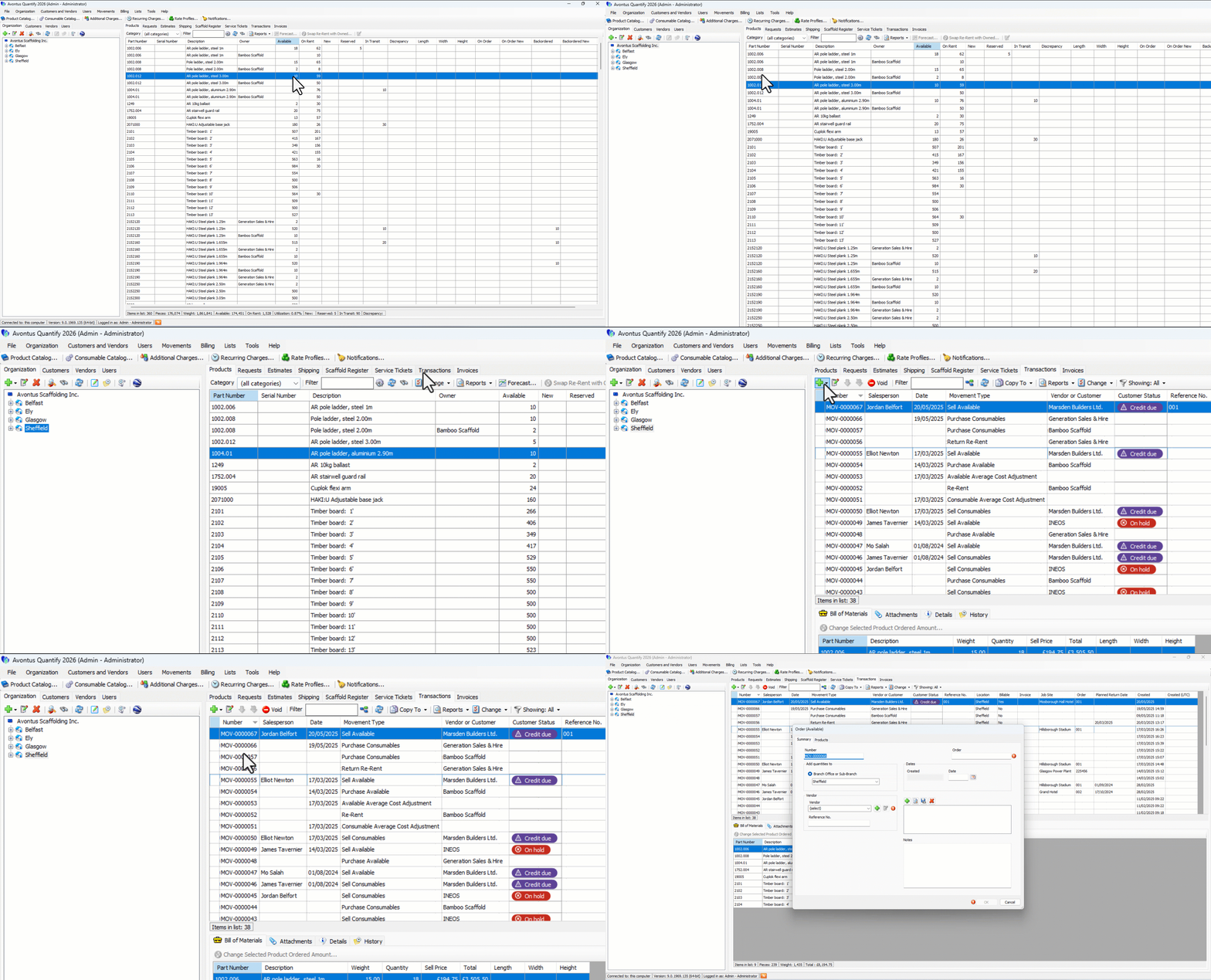
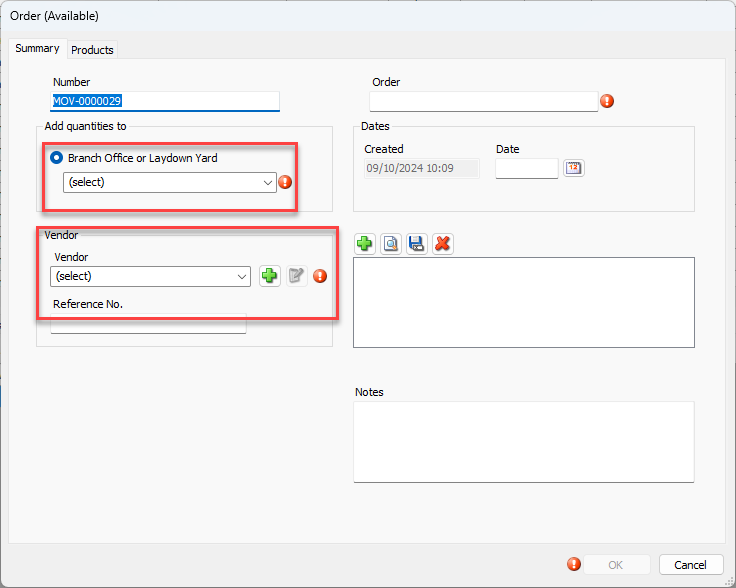
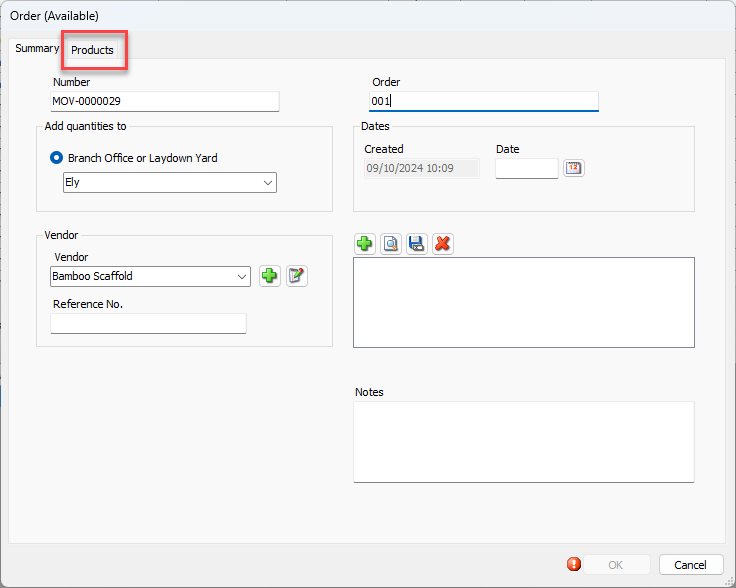
The Order (Available) dialog appears.Note: The procedures below only include the required fields.
Click the Branch Office or Sub-Branch dropdown and select the appropriate Branch Office or Sub-Branch.
Click the Vendor dropdown and select the appropriate vendor.
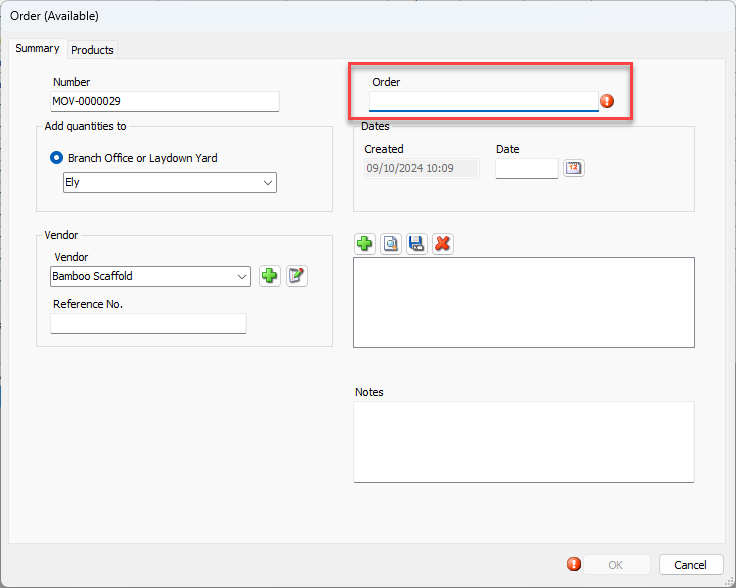
Click in the Order text field and enter the appropriate order number (a number supplied by the vendor or an internal order number).
Click the Products Tab.
The Order (Available) dialog refreshes.Locate the appropriate Product, click in the cell in the Quantity column and enter the counts of material ordered.
Click a cell in the Cost Ea. column and enter the cost of one piece each.
Note: You also have the option to Import parts into the order, please see Importing parts into an order for more information.
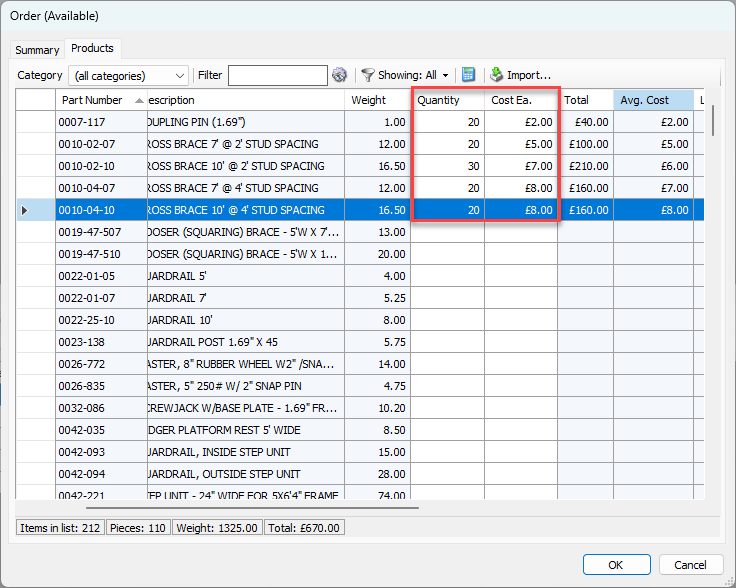
Repeat the above two steps as many times as necessary.
Click OK.
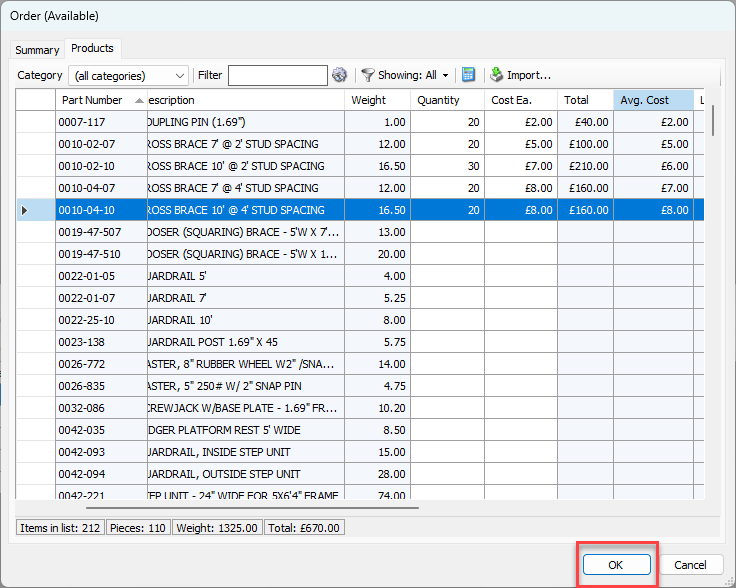
Quantify adds the completed Order Available transaction to the Transactions tab. Quantify displays the material in this transaction in the Product Grid in the On Order column.