As a scaffold representative, you will reach an agreement with a foreman/builder regarding a Handover. The handover could result in a pass or a fail.
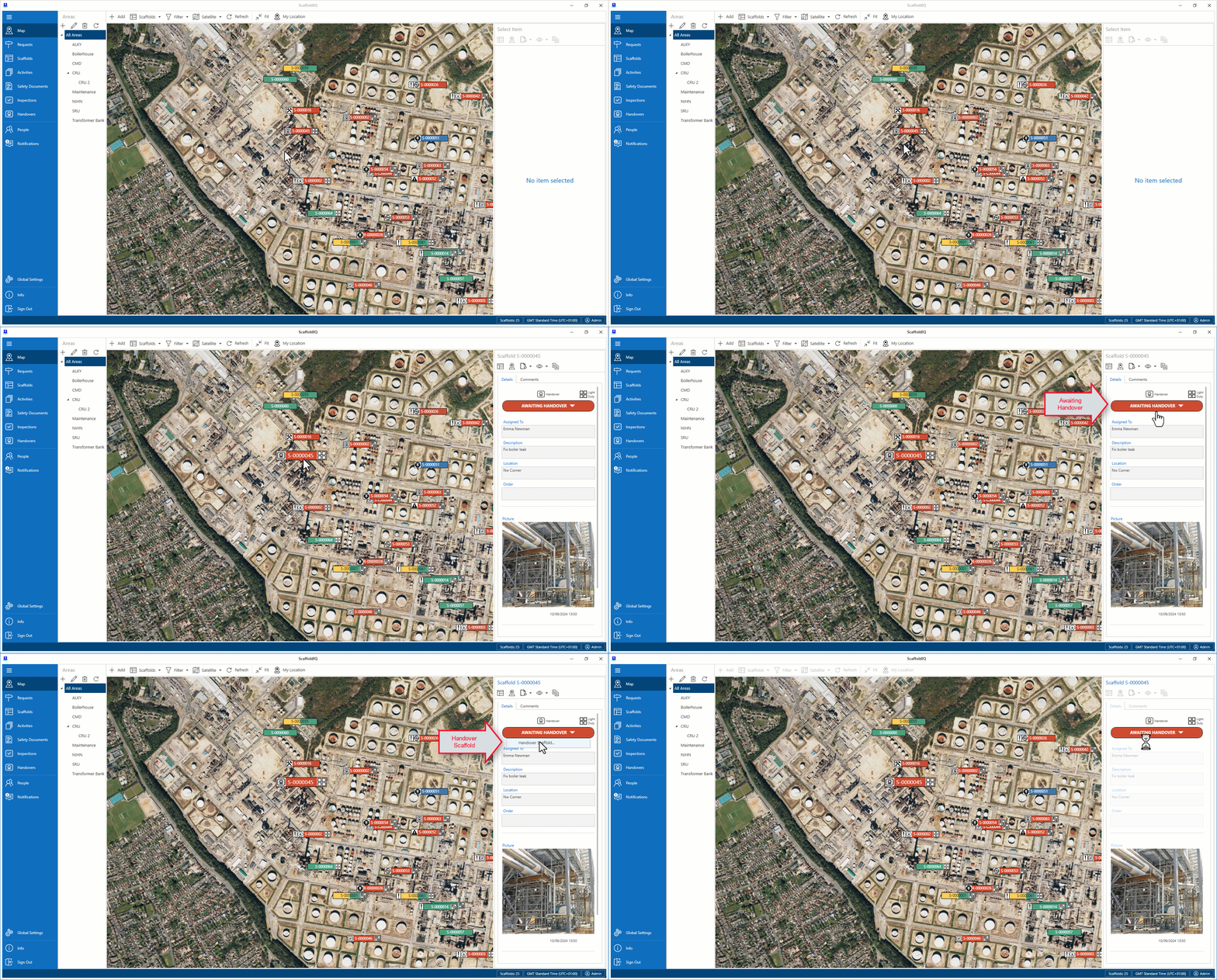
To pass or reject a Scaffold via the Map screen
1. On the Map screen, select the Scaffold pin and select Awaiting Handover
2 Select Handover Scaffold
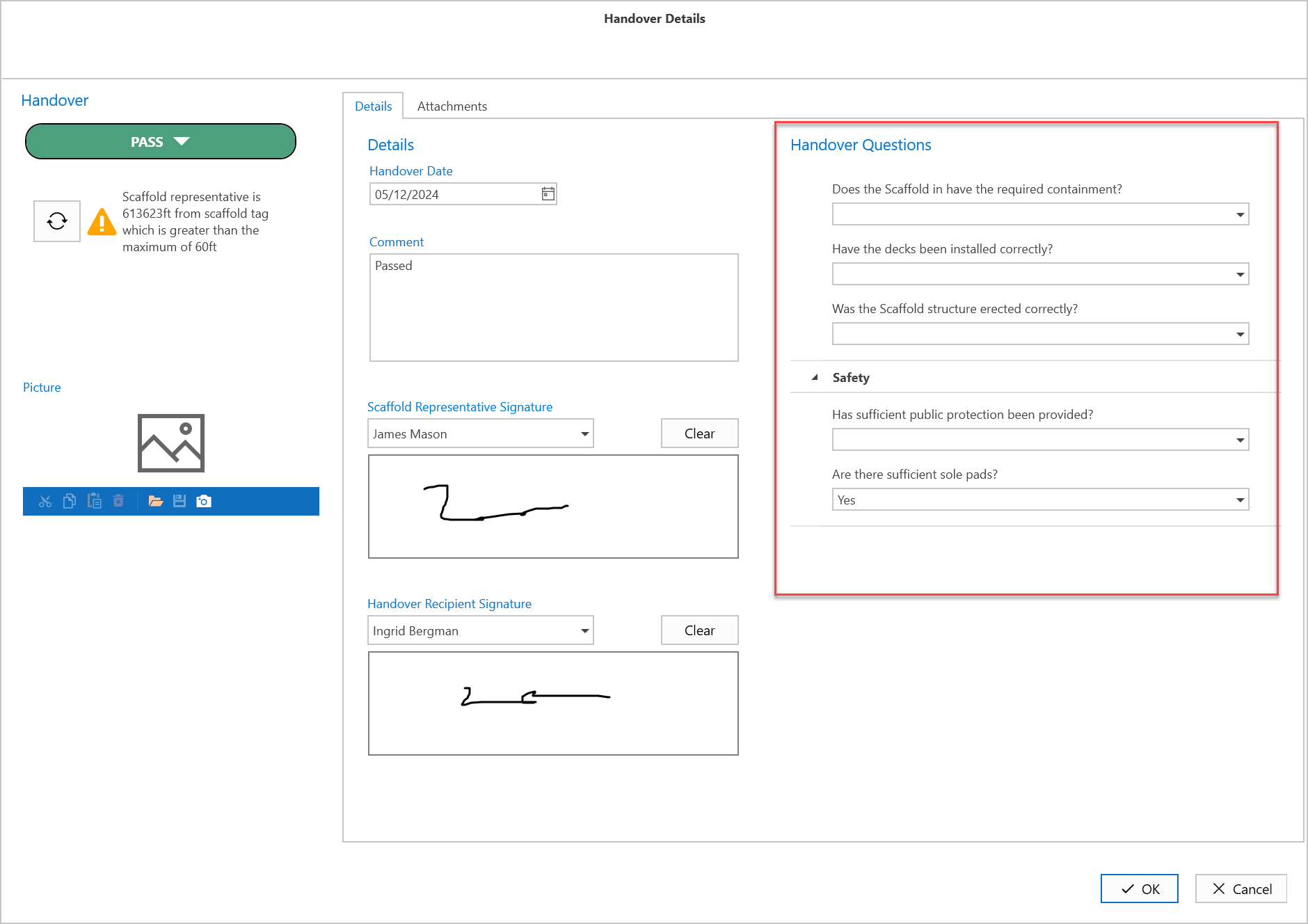
3. In the Handover Details screen, enter the details of the handover, including
The Handover result
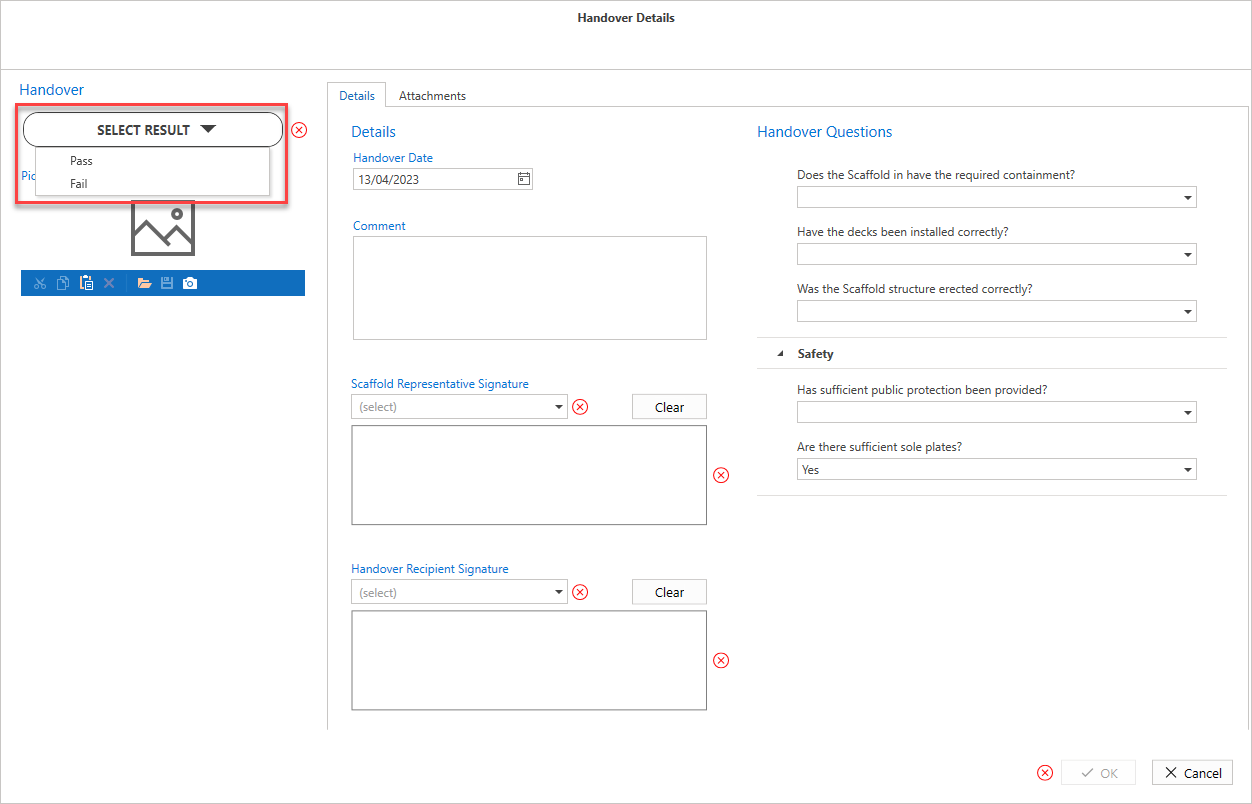
A comment (only if the Handover failed)
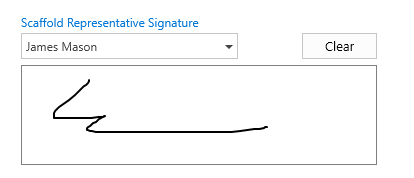
A Scaffold Representative Signature
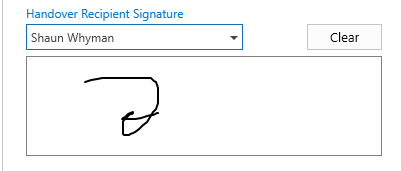
A Handover recipient and signature.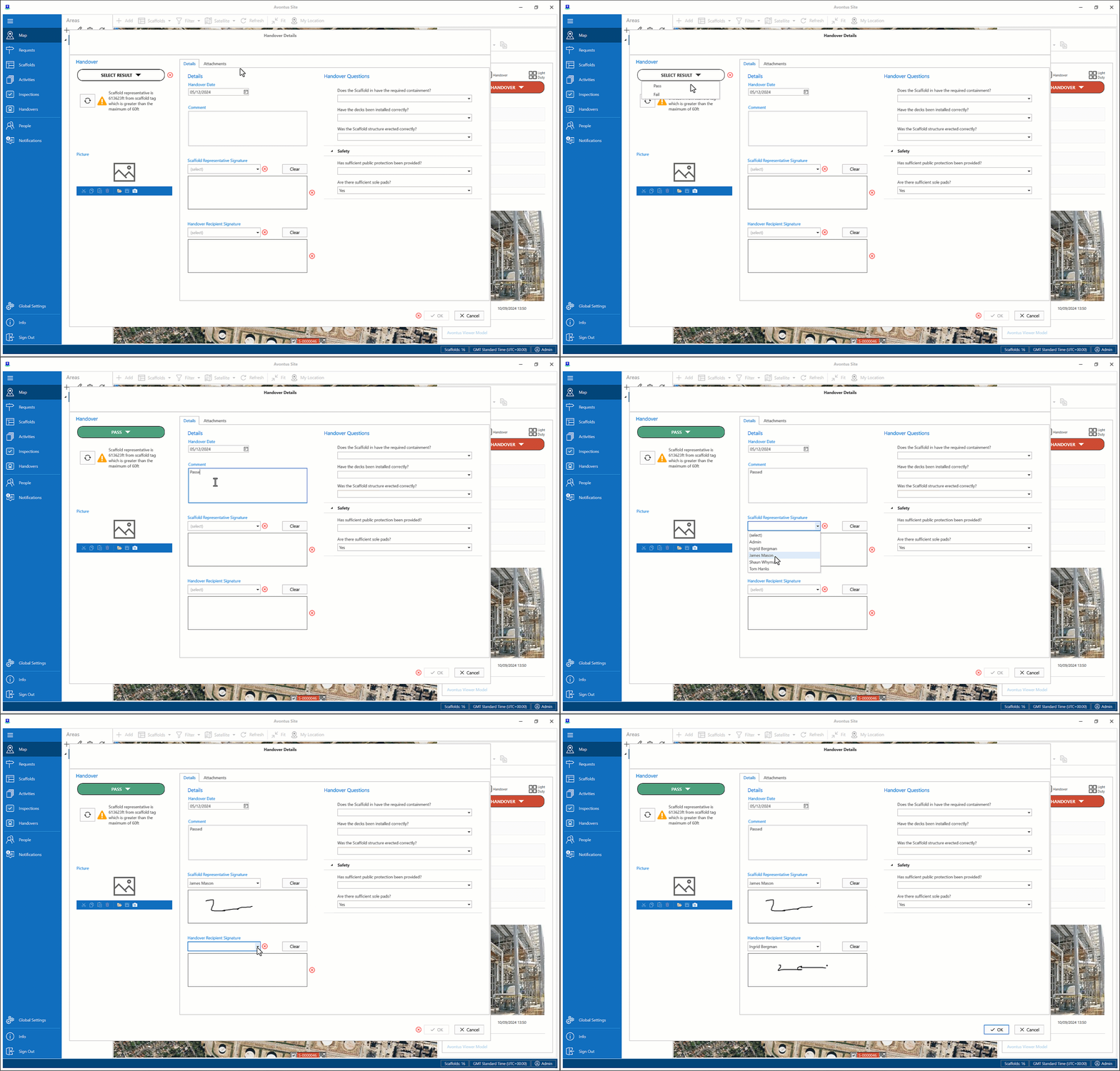
Handover Questions
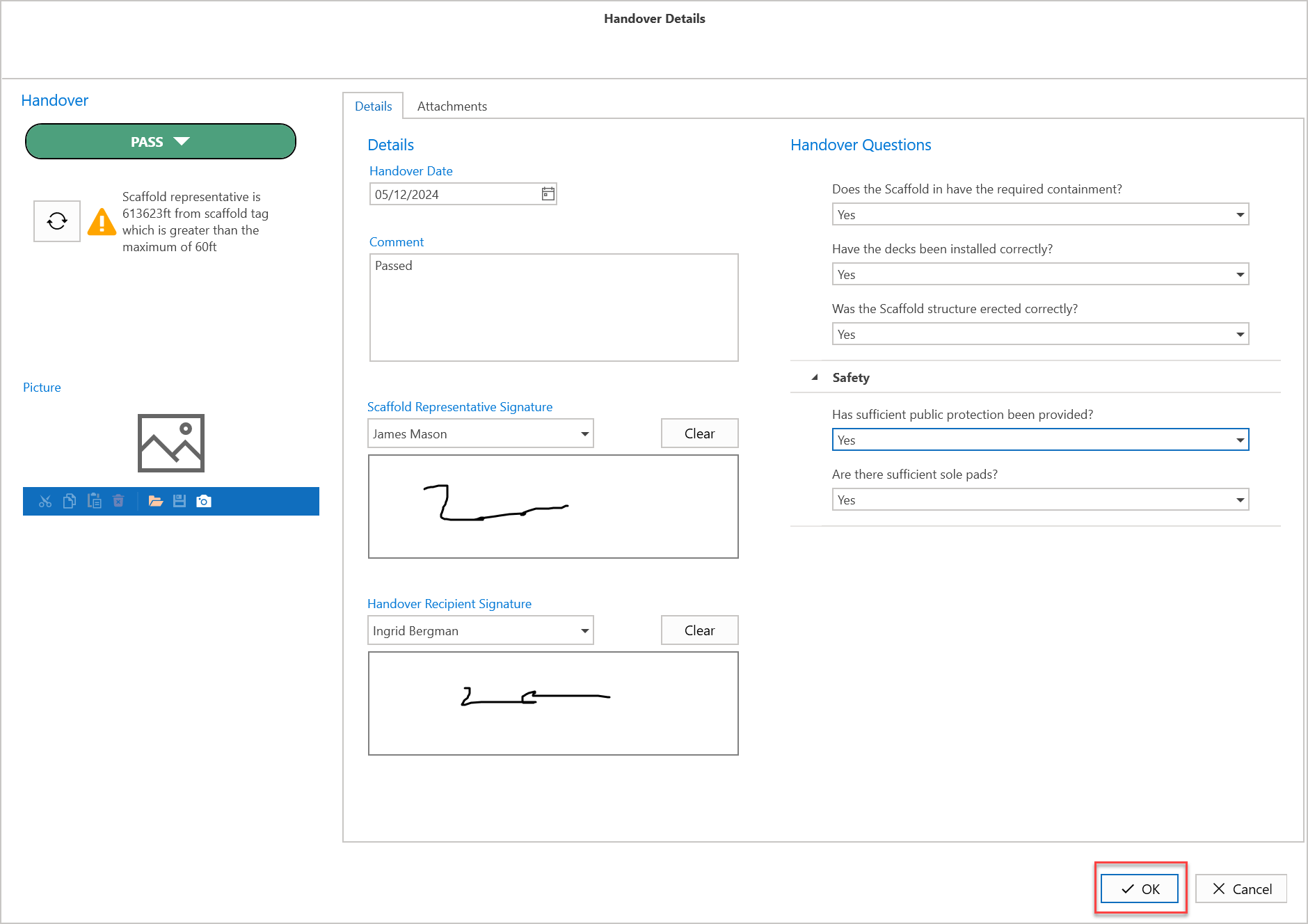
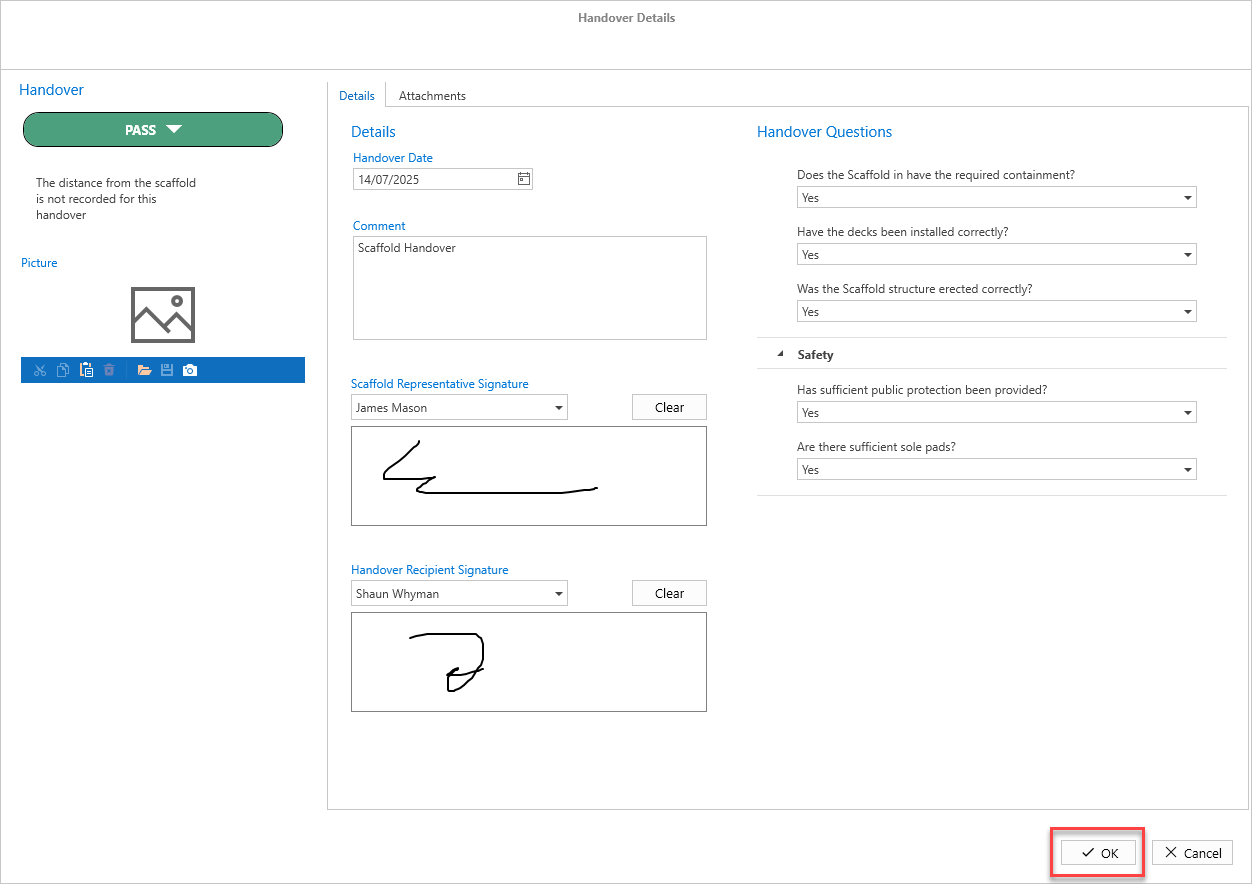
4. Click OK.
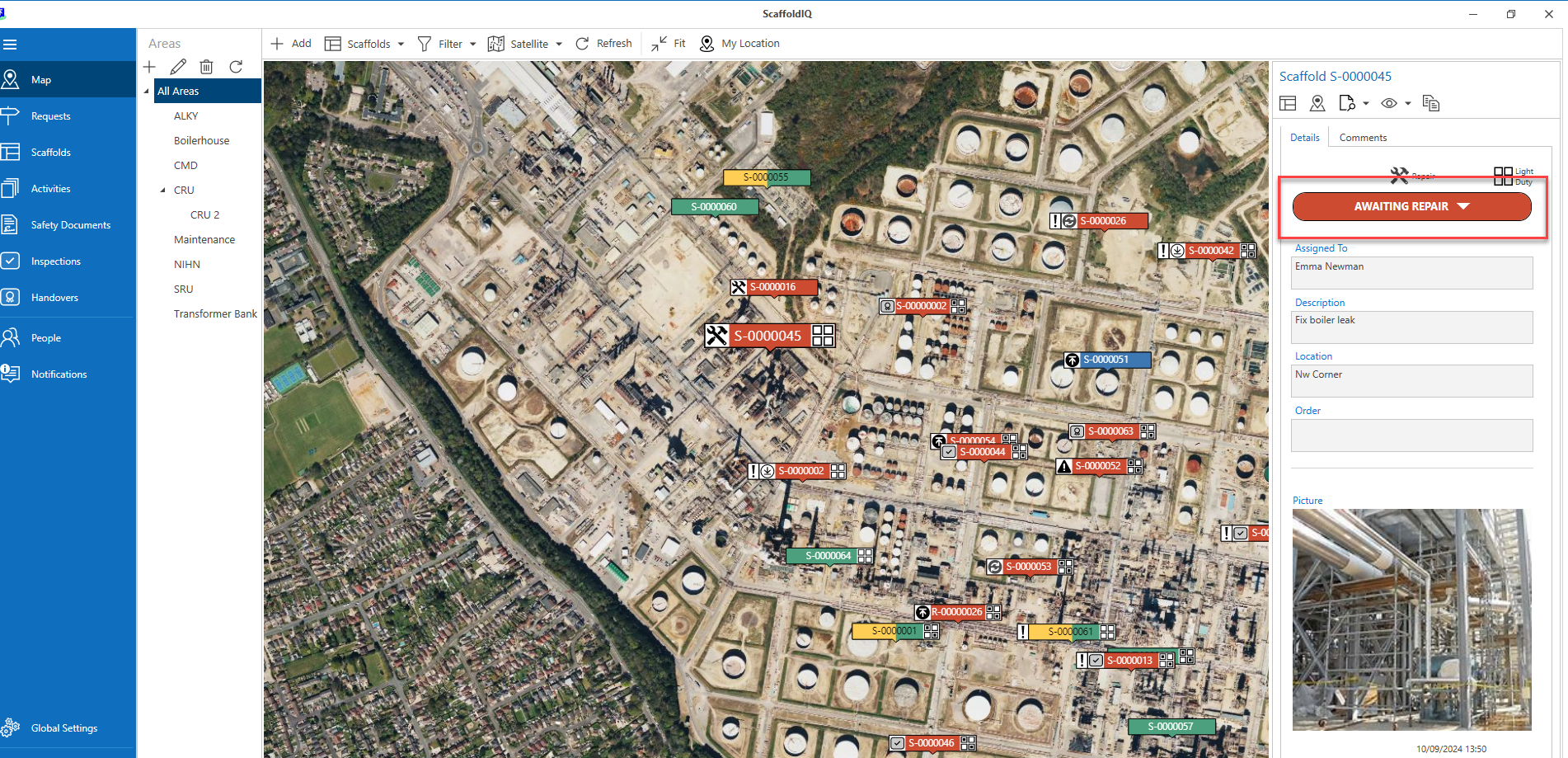
If the Handover failed, the status of the scaffold will change to Awaiting Repair. For more information on repairs, see the Repairing a Scaffold guide.
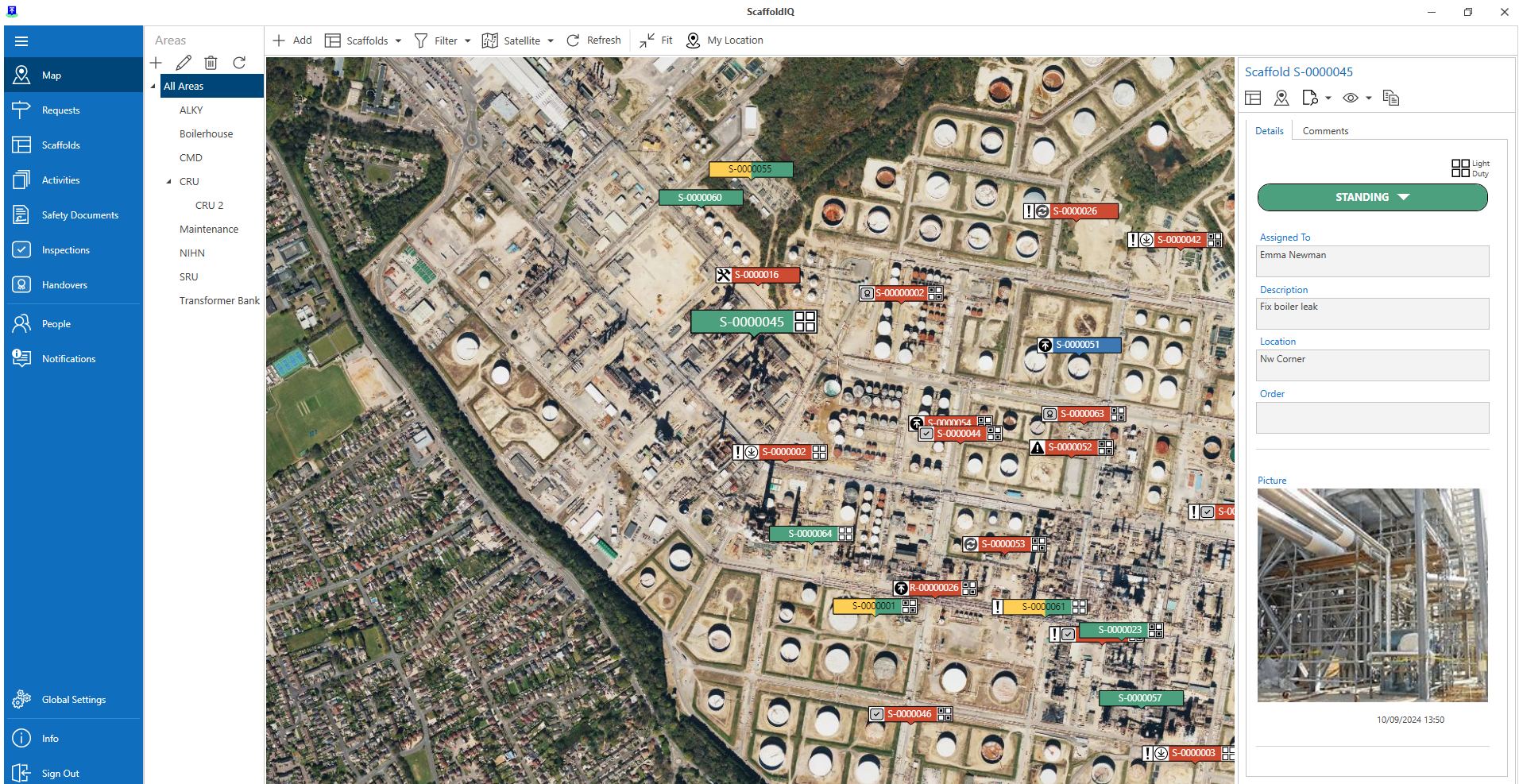
If the Handover was successful, the status of the scaffold will change to Standing.
To pass or reject a handover via the Scaffold Details screen
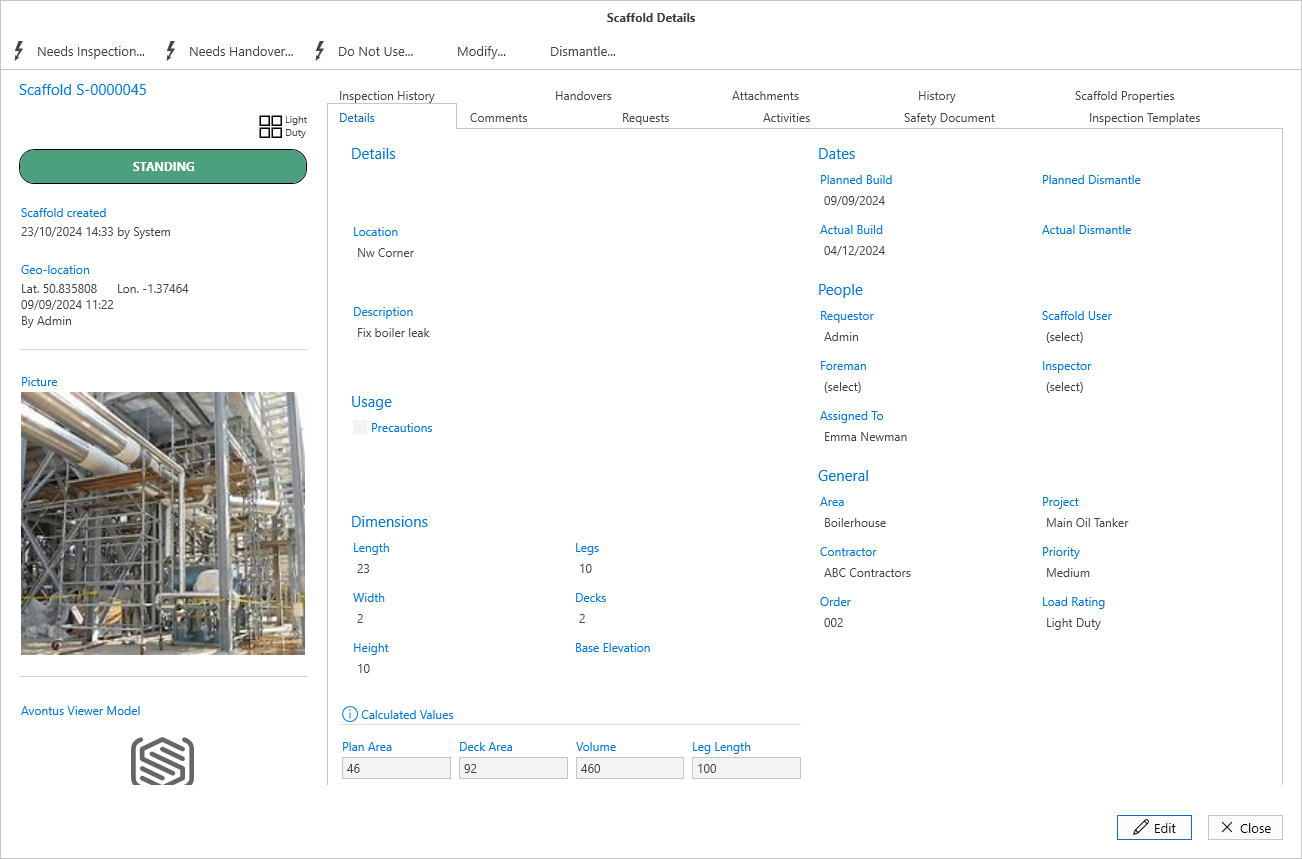
From the Map screen, select the Scaffold and click Details
Note: You can also access the Scaffold via the Scaffolds screen
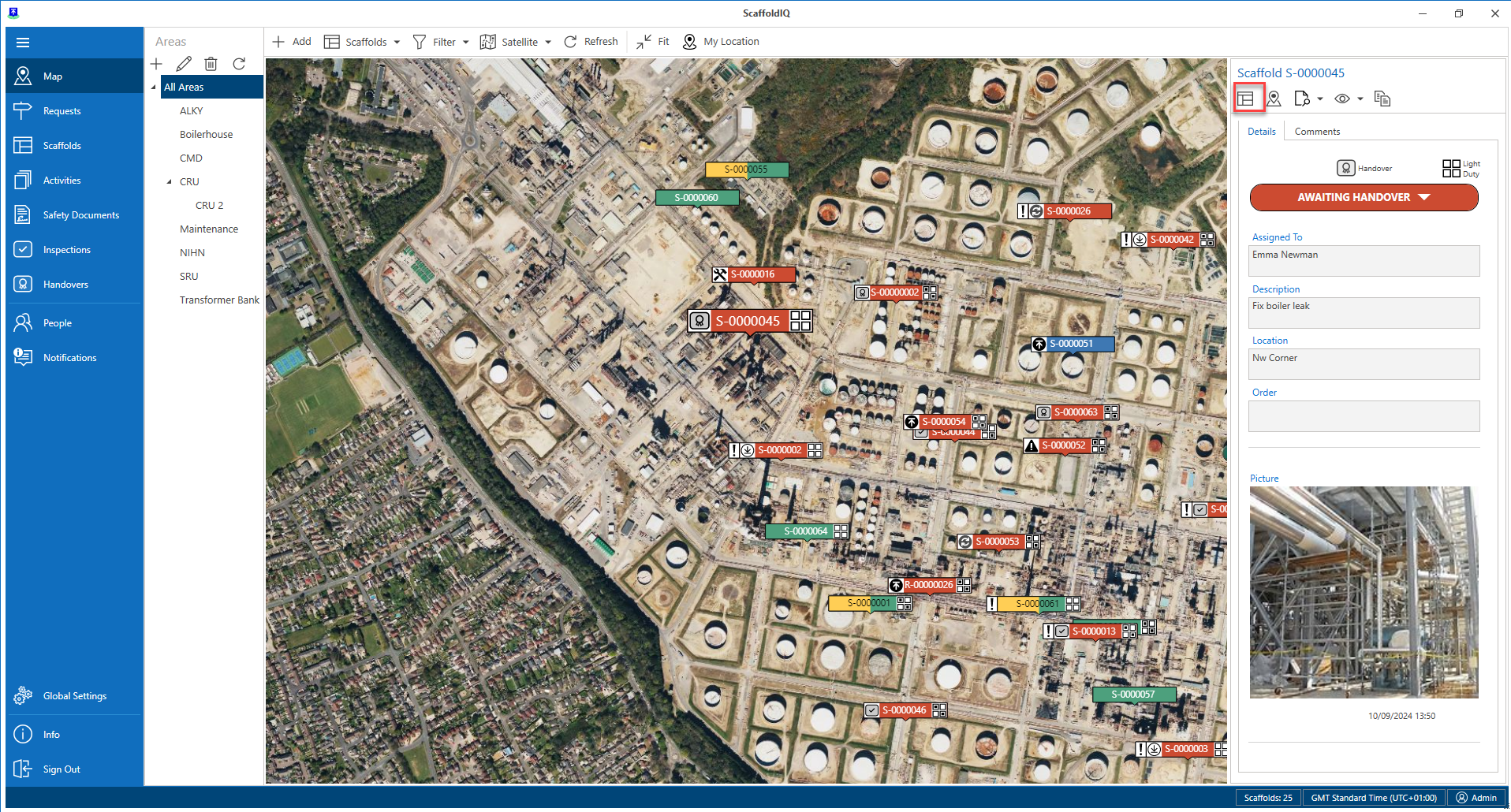
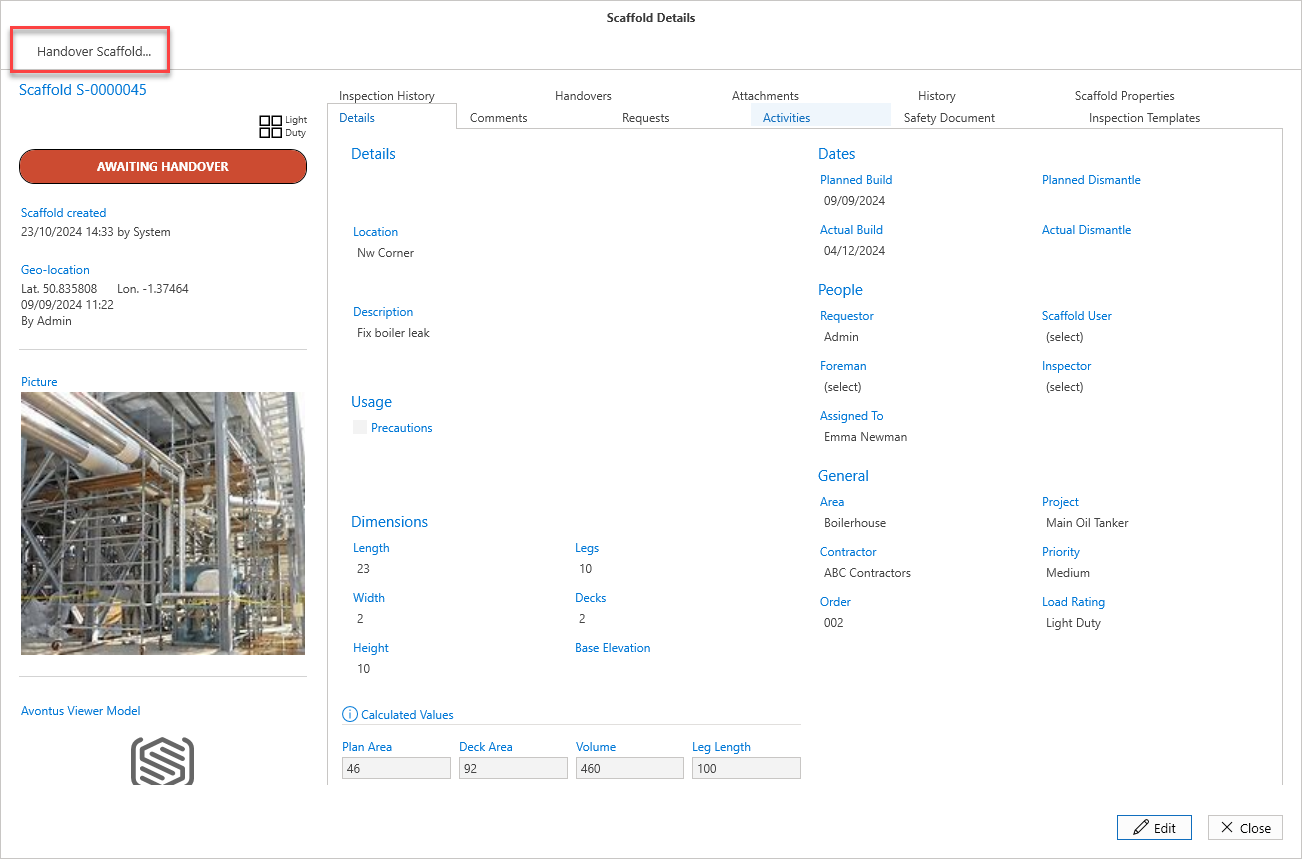
In the Scaffold Details screen, select Handover Scaffold.
In the Handover Details screen, enter the details of the handover
IncludingThe Handover result
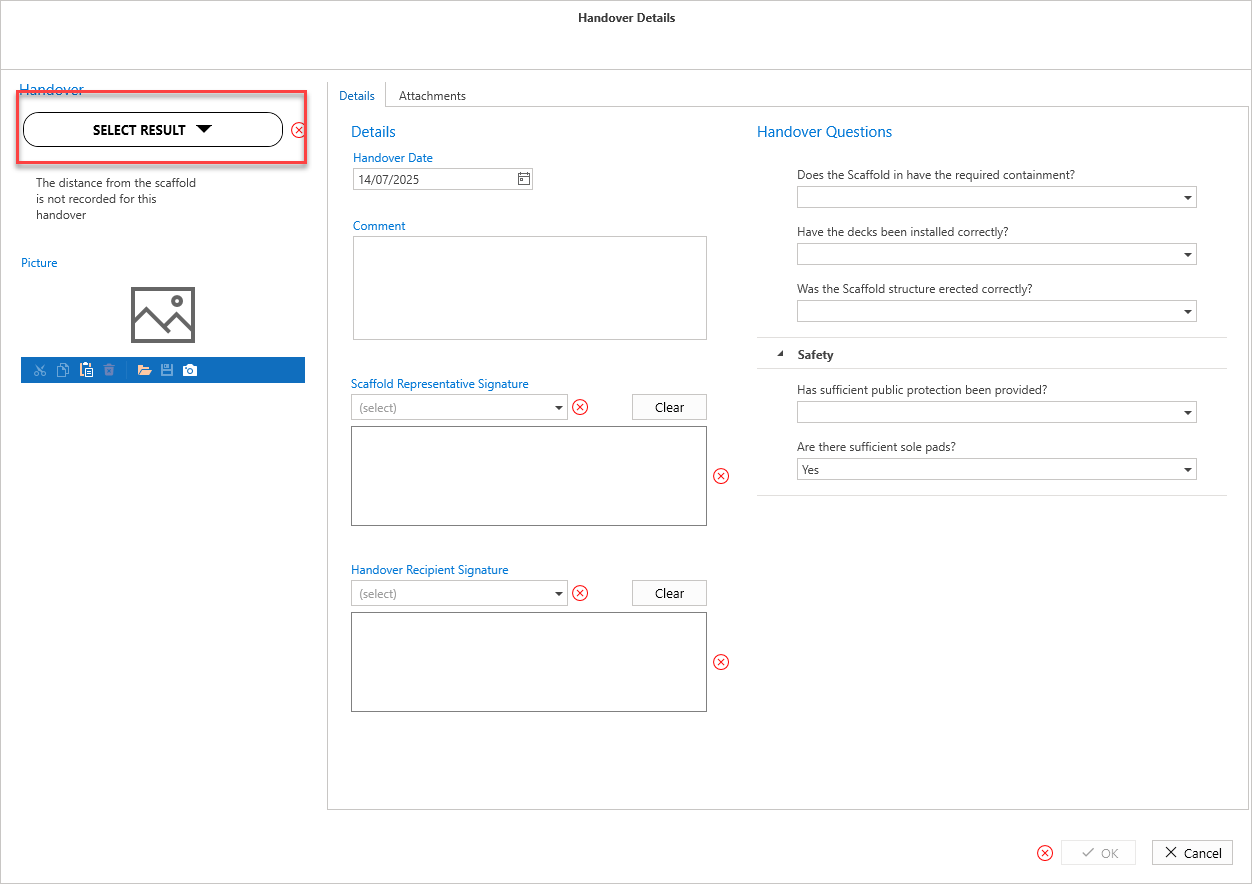
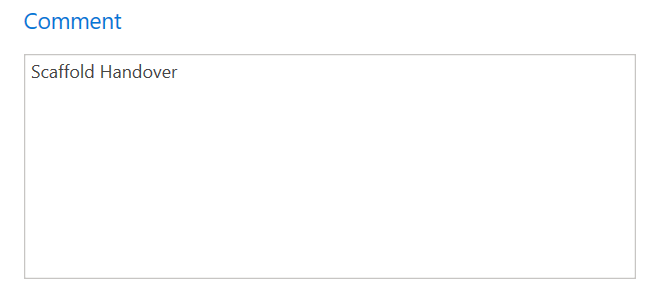
A comment (only if the Handover failed)
A Scaffold Representative Signature
A Handover recipient and signature.
Handover Questions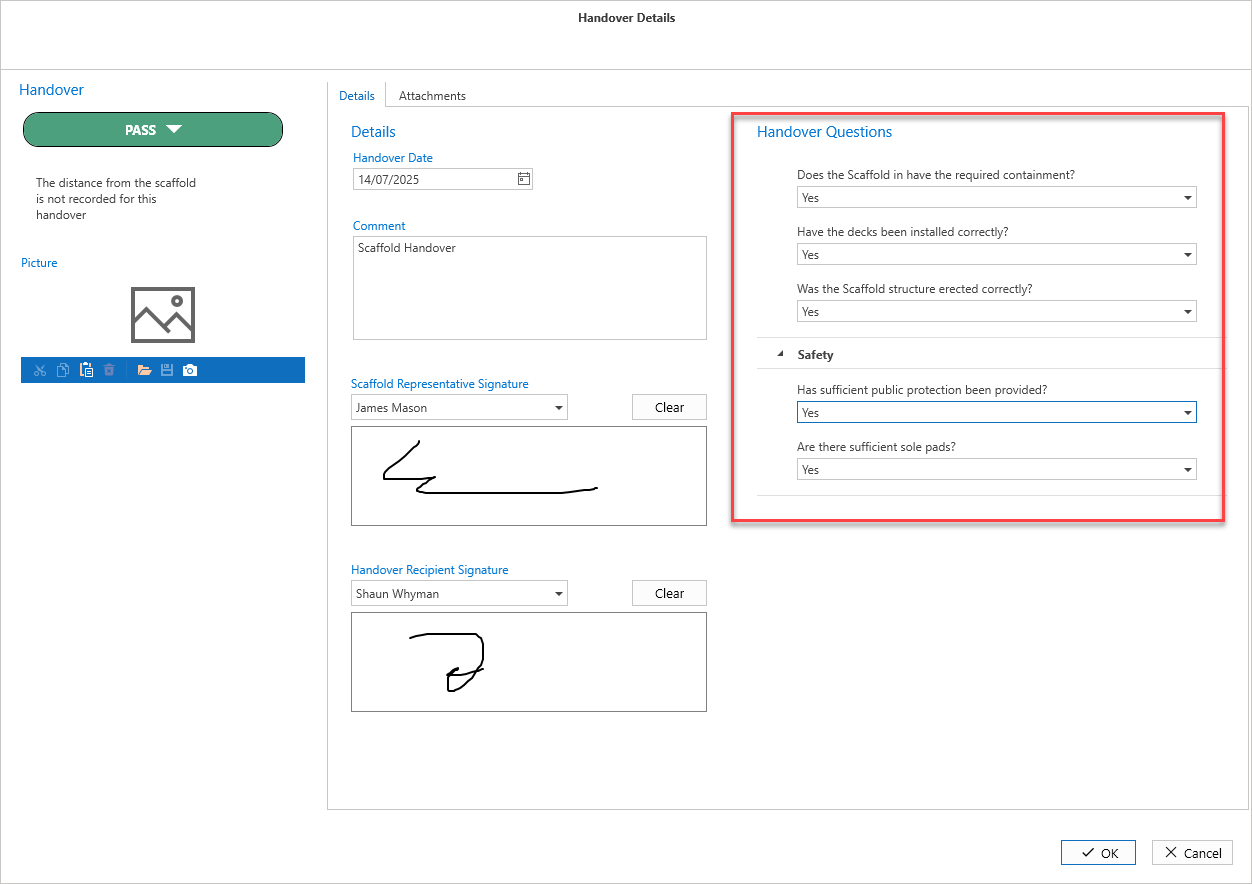
Click OK.
If the Handover failed, the status of the scaffold will change to Awaiting Repair. For more information on repairs, see the Repairing a Scaffold guide.
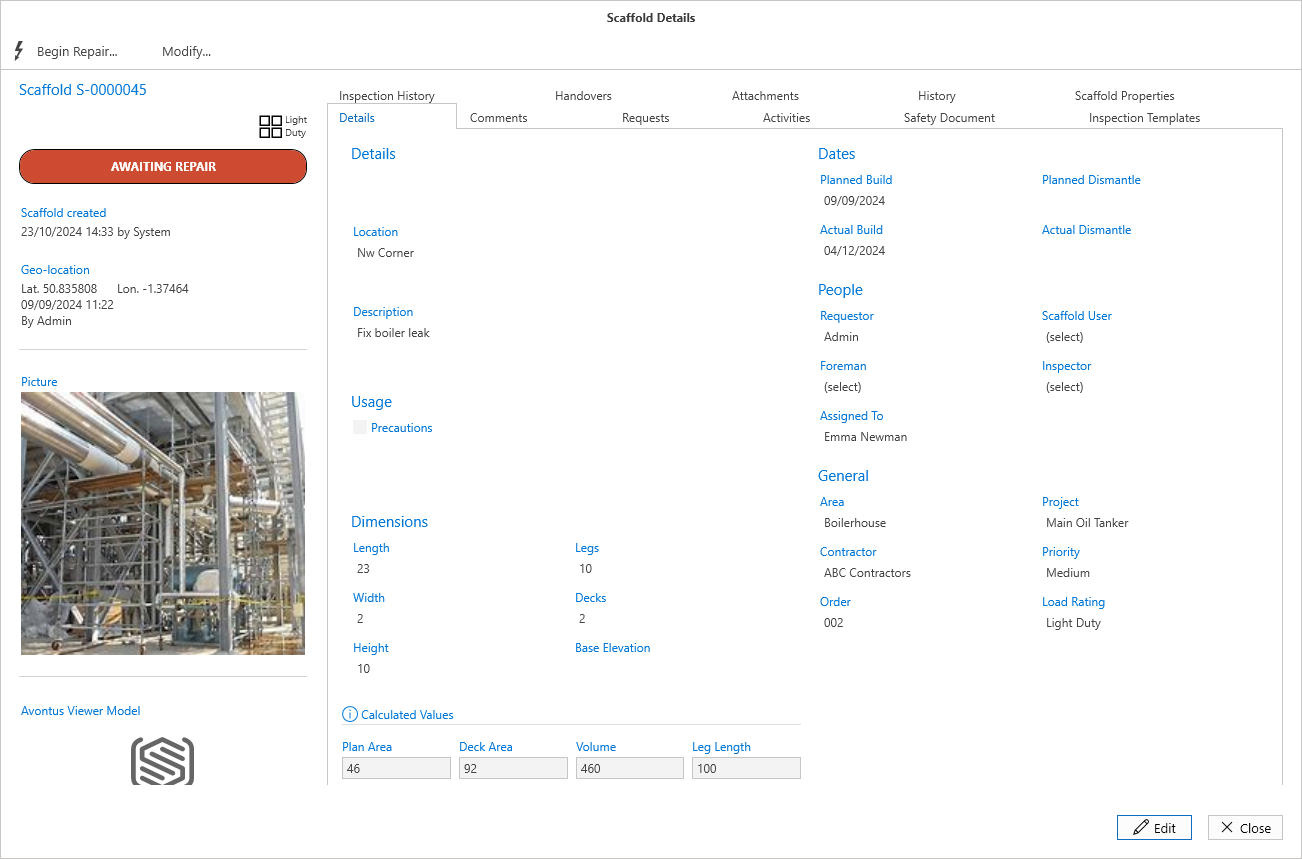
If the Handover was successful, the status of the scaffold will change to Standing.