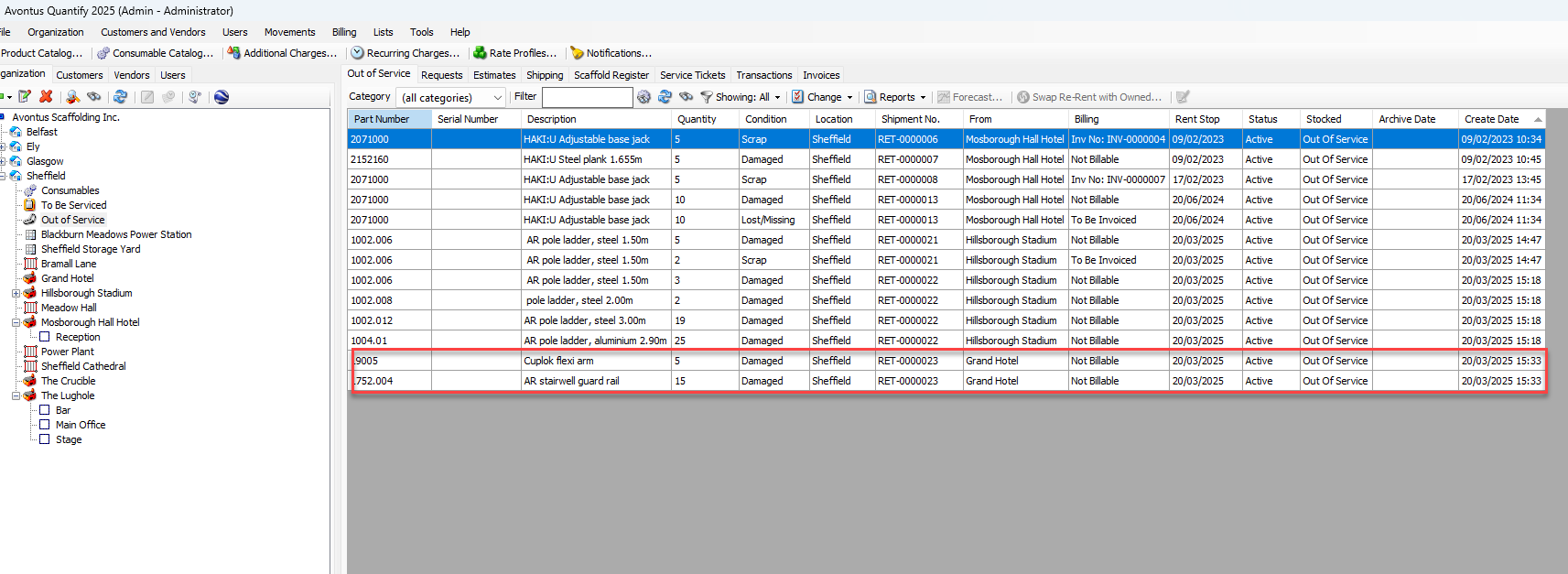
When returning equipment to a Branch Office that requires counting of equipment on returns, you will identify the equipment as Out of Service at the time the return is counted.
Note: you will need to enable counting on a Branch Office. Please see Setting up Counting on a Branch Office for more information.
To place equipment out of service when creating return shipments:
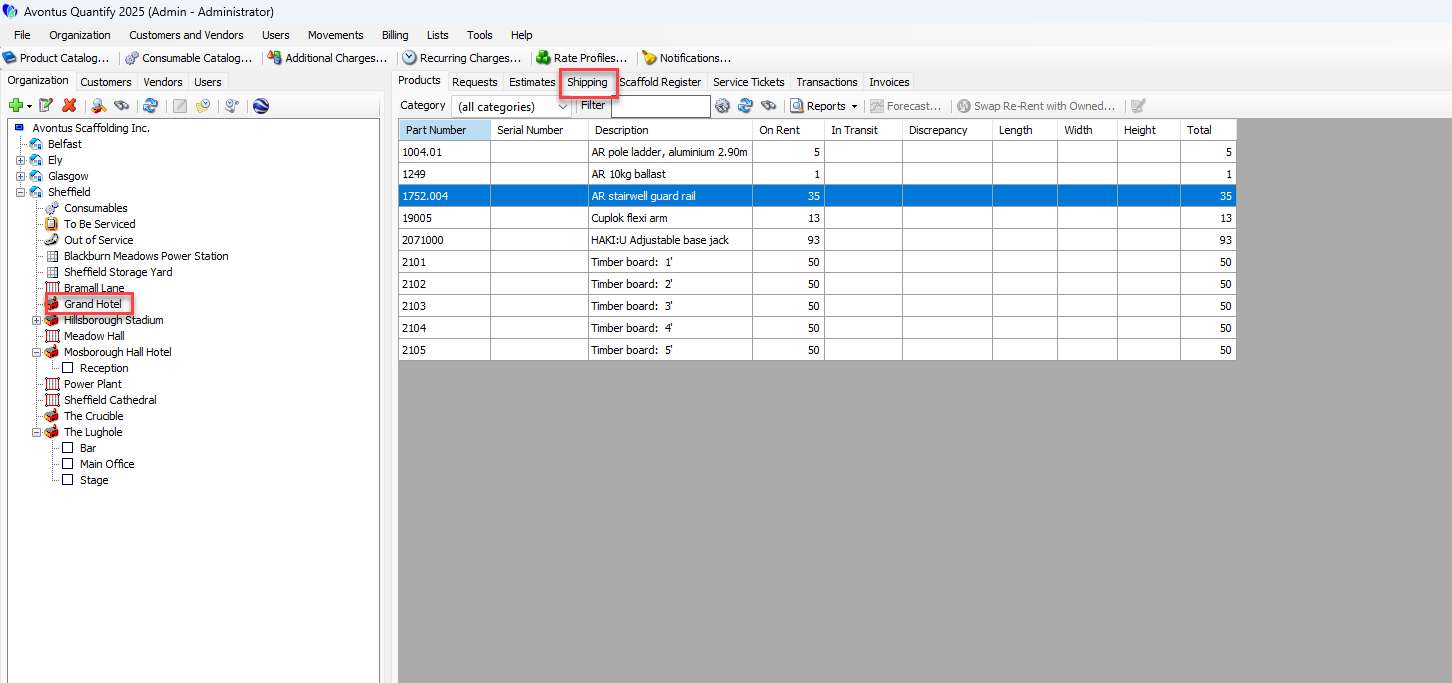
Locate and click the appropriate Branch Office and click the Shipping tab.
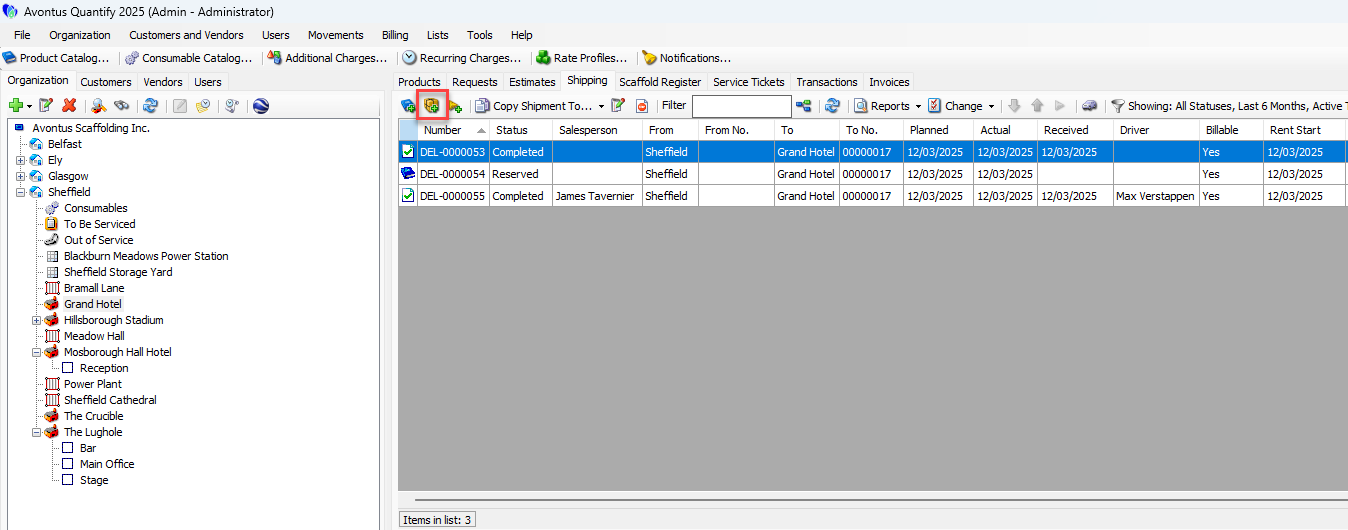
Begin creating a return Shipment by clicking the Ship Items to Location button (
 ).
).
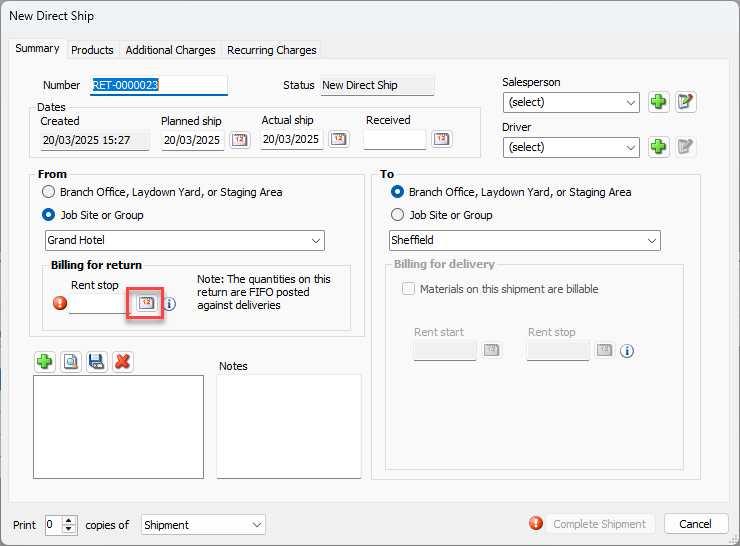
Click the Rent Stop calendar icon (
 ).
).
The calendar appears.
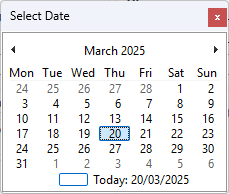
Locate and click the date for the Rent Stop date for the return Shipment. This date will also be set to the item(s) that will be recorded as out of service.
Click the Products tab.
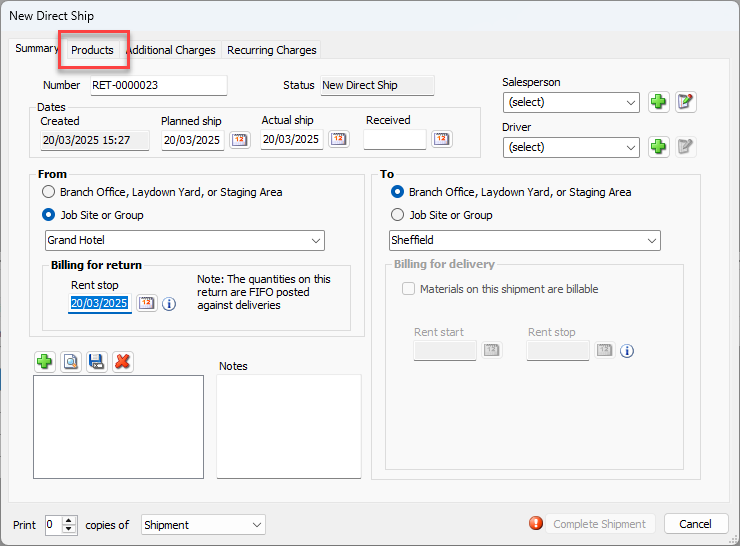
Locate the item you want to place out of service.
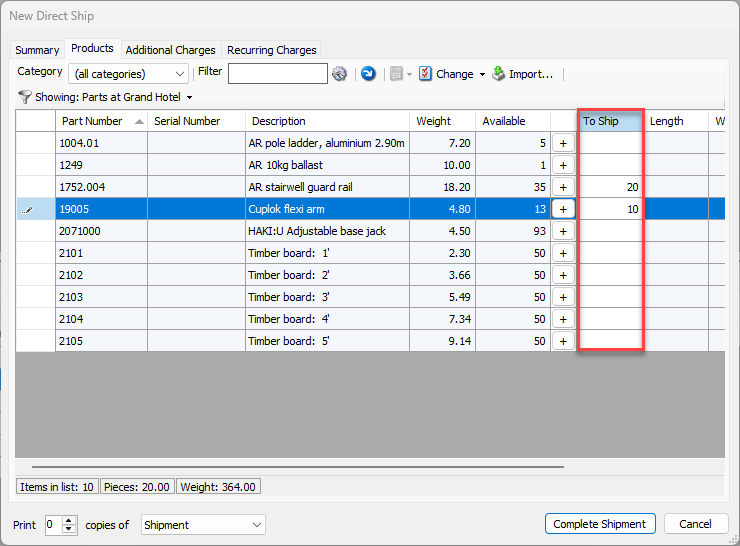
Click the item's To Ship cell and enter the quantity to be returned as out of service.
Note: The Out of Service control is not available in the Direct Shipment dialog because Counting is enabled
Repeat the above step as many times as necessary.
Click Complete Shipment.
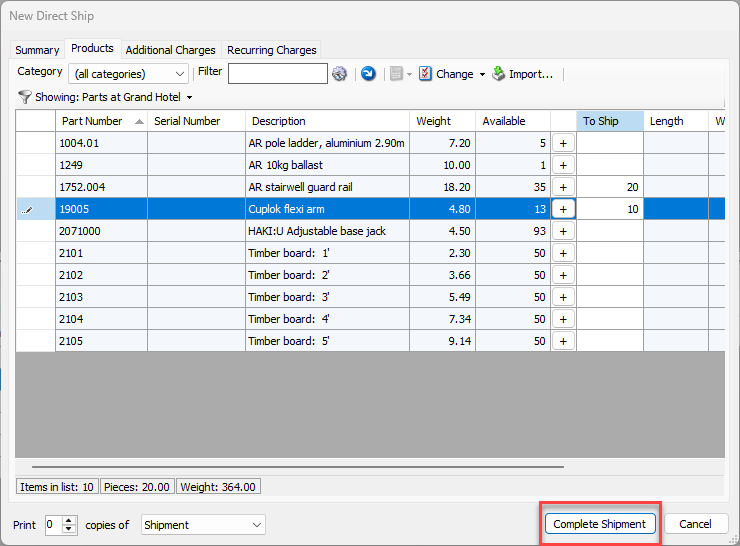
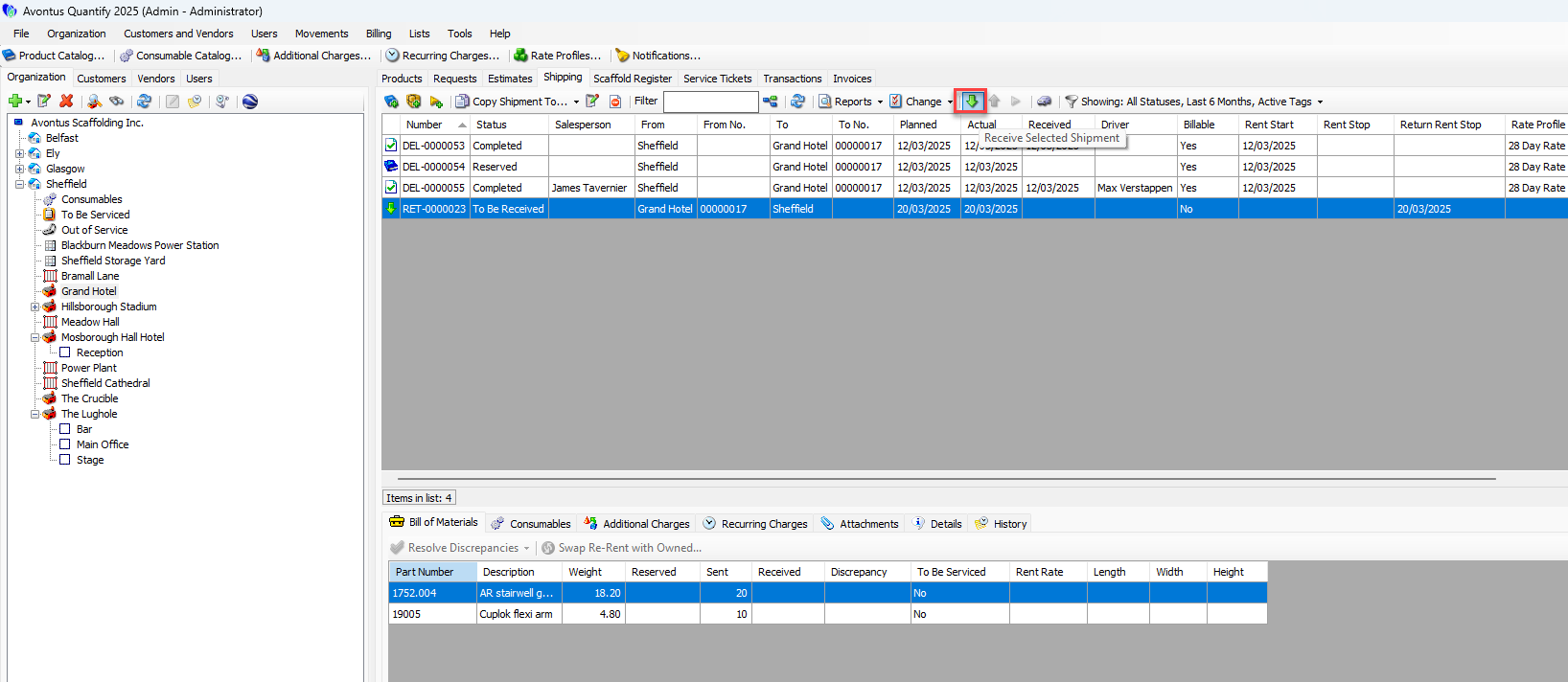
The shipment was saved in To Be Received status under the appropriate Branch Office.Locate and click the Shipment, then click the Receive Selected Shipment button (
 ).
).
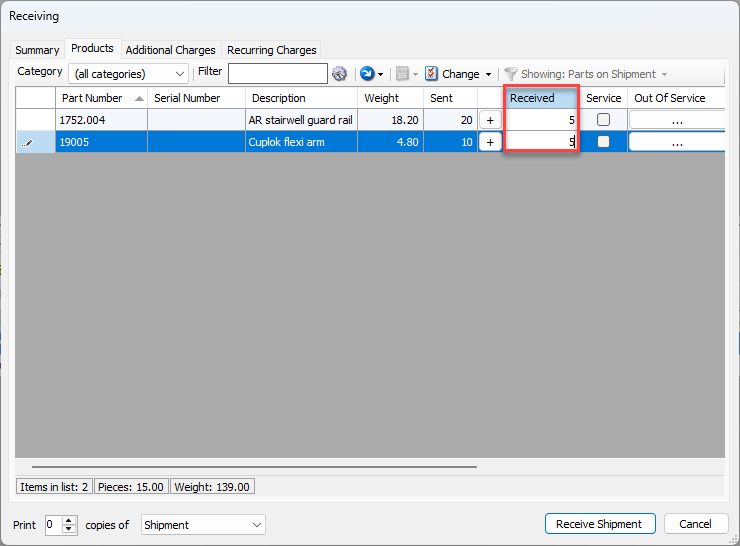
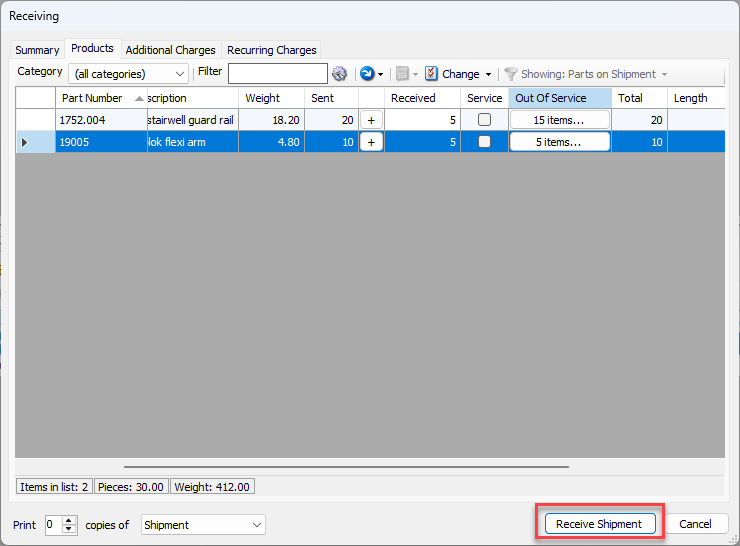
The Receiving dialog appears, displaying the Products tab and the items waiting to be received.Note: The Out of Service control is available.
Click in the appropriate cell in the Received column and enter the number of items received that are not Out of Service.
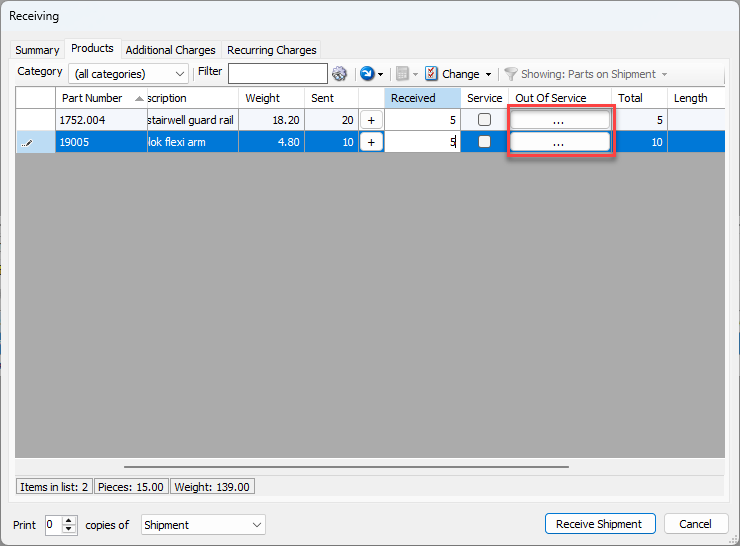
Click the appropriate Out of Service button (
 ).
).
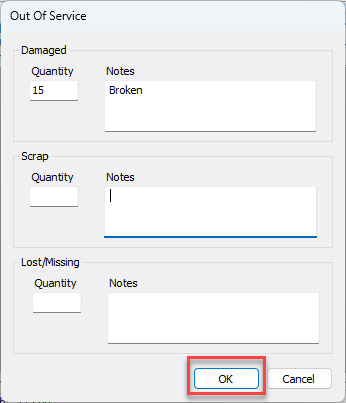
Click in the appropriate Quantity field(s) and enter the appropriate quantity.
Click in the appropriate Notes text field(s) and enter any notes.
Note: These notes will appear in Out of Service reports, but not on invoices.
Click OK.
Repeat the above steps as many times as necessary.
Click Receive Shipment.
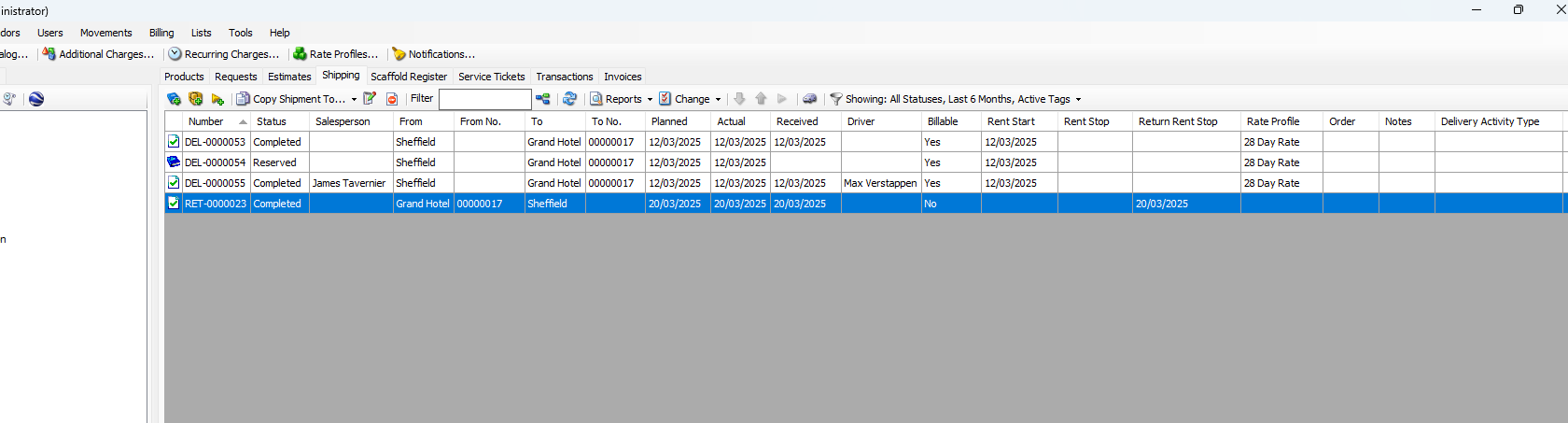
Quantify categorizes the Shipment as received with a status of Completed.
The items appear in the Out of Service queue for the Branch Office.