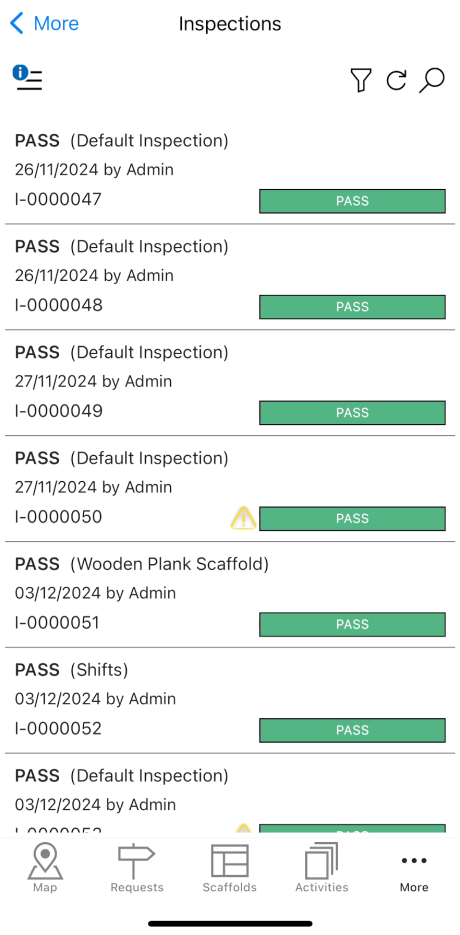
The inspections screen provides an overview of all passed or failed inspections. Whenever a scaffold's inspection is passed or failed you can find details of the scaffold inspection here. You can also see the inspection template used to perform the inspection. It will be displayed in the brackets ().
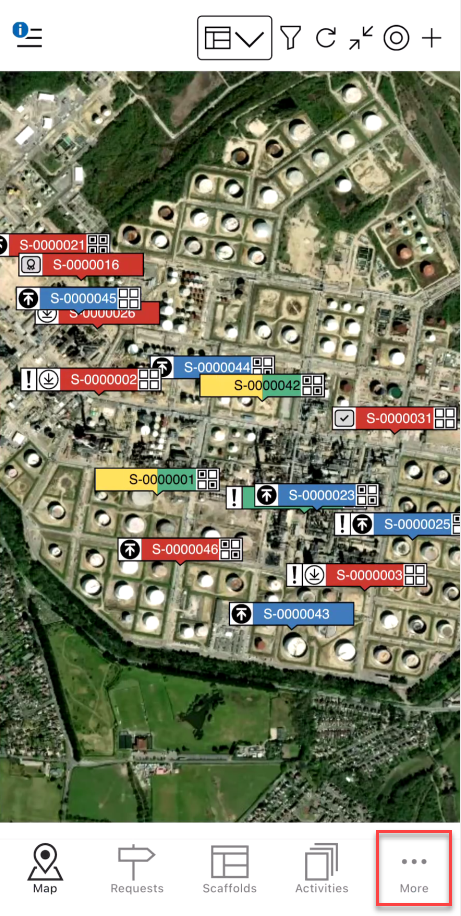
To access the Inspections screen
Tap More
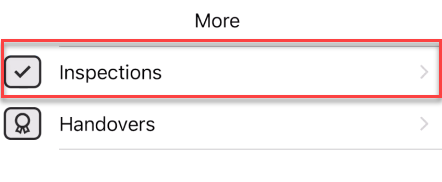
Tap Inspections
You will see a list of inspections
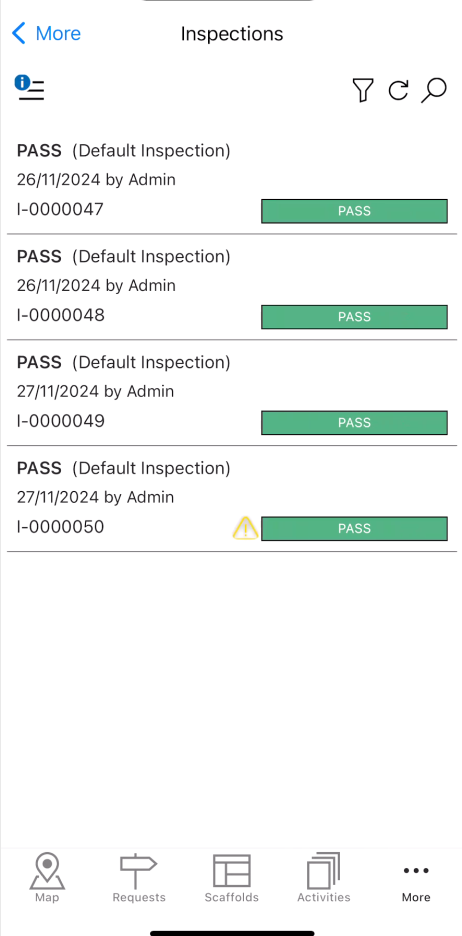
Tap on an inspection to open its details.
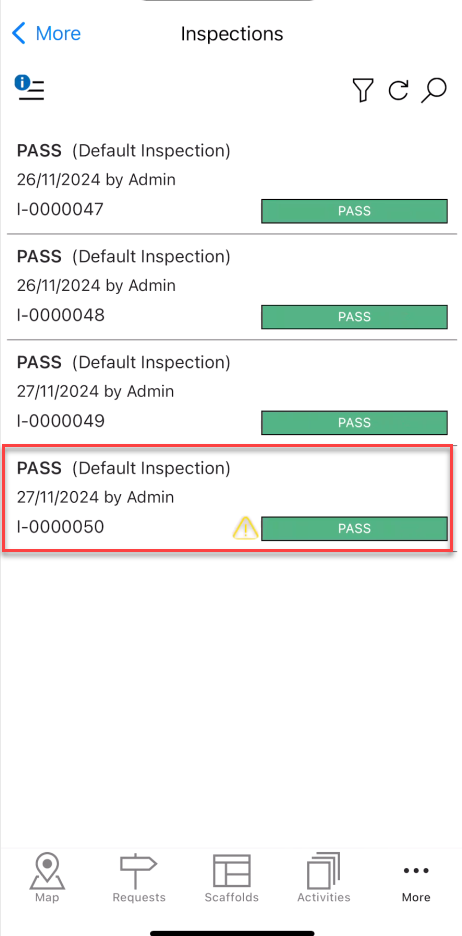
The details of the selected Inspection will be displayed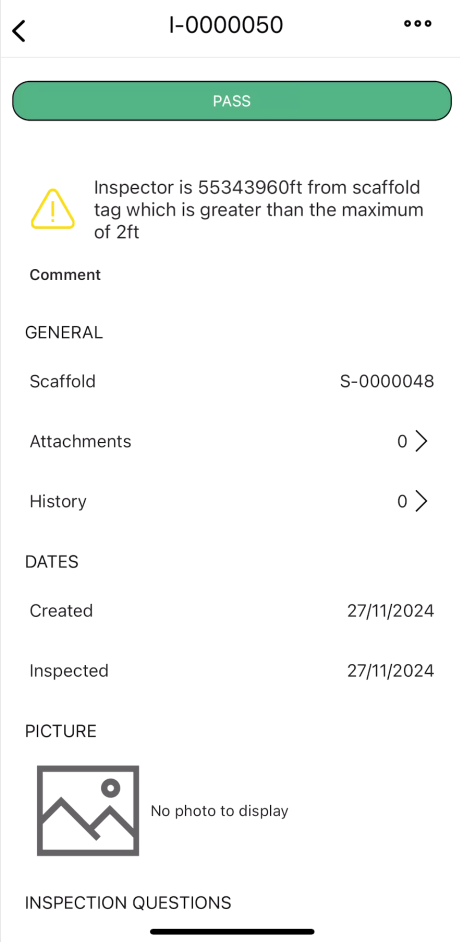
Pass/Fail


This is the result of the inspection
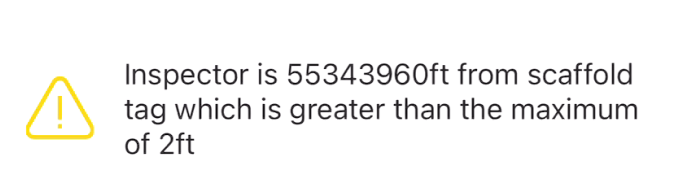
Inspection Warning
If the inspector is over a specified distance from the inspected scaffold, a warning will appear on the inspection.
The distance can be specified on the Settings screen.
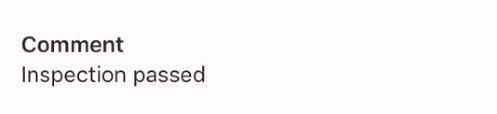
Comment
Add a relevant comment that highlights the purpose of the inspection.
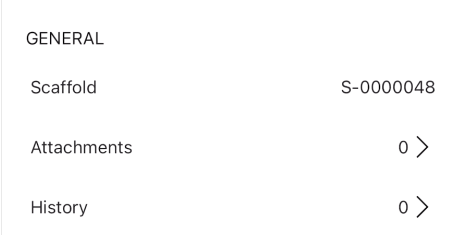
General
This section details the attachments and the history of the inspection.
Scaffold - The scaffold undergoing inspection.
Attachment - Any attachments linked to this inspection. The preceding number displays how many attachments are attached to this Inspection.
History - The history of this inspection. The preceding number displays how many changes have been made to this Inspection.
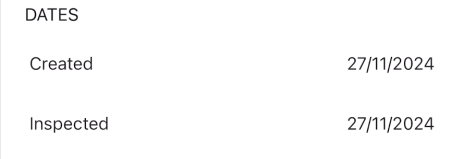
Dates
This section is for dates related to the inspection.
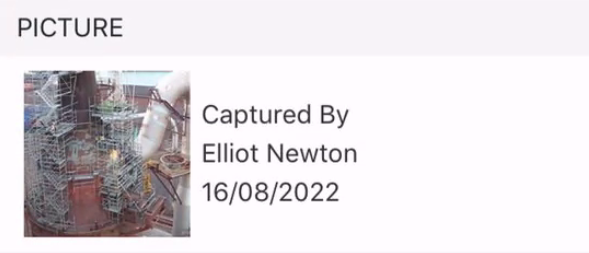
Picture
An image of the scaffold
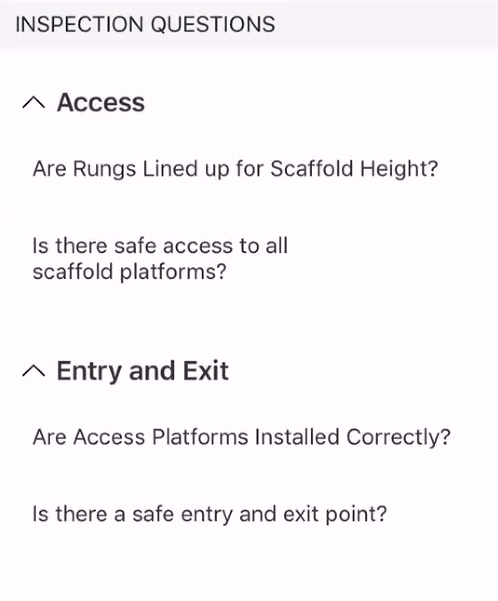
Inspection Questions
The answers to the questions posed on the inspection checklist. You can create Inspection questions on the Desktop, please visit Adding an Inspection Question.
Inspector
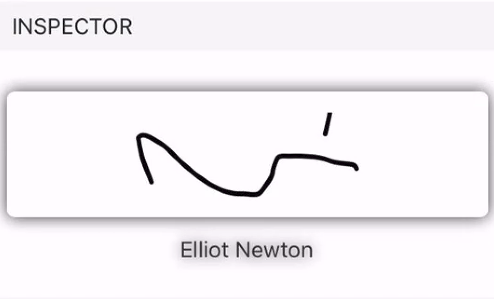
This section shows the inspector assigned to the scaffold inspection and provides a space for the inspector to provide a signature.