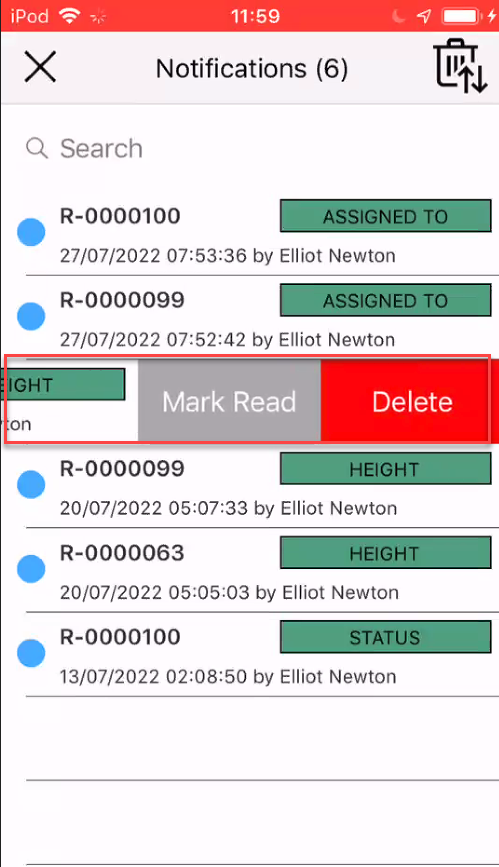
The Notifications screen is where a user can see any changes to a Scaffold or Request made in the system either by themselves or another user. You will be notified of changes to Requests or Scaffolds that you are watching. It is a vital tool in tracking what changes have been made to the Scaffolds or Requests on your Job Sites.
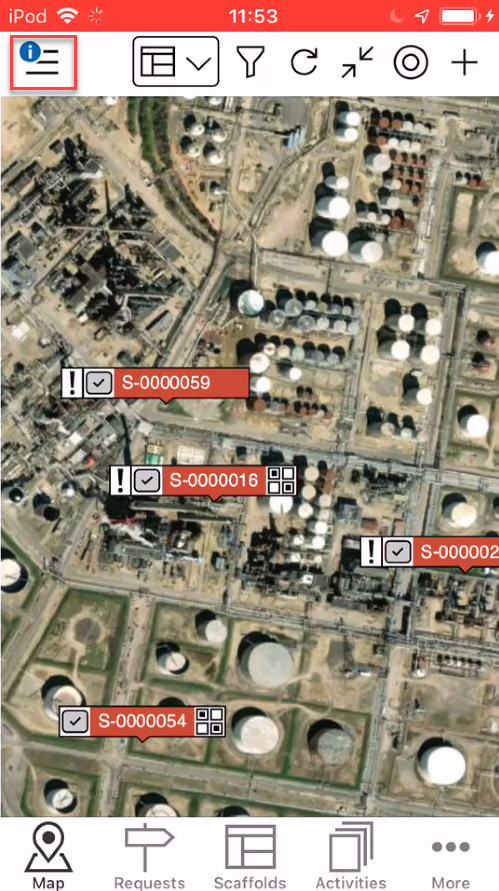
To access the Notifications screen, tap the hamburger icon.
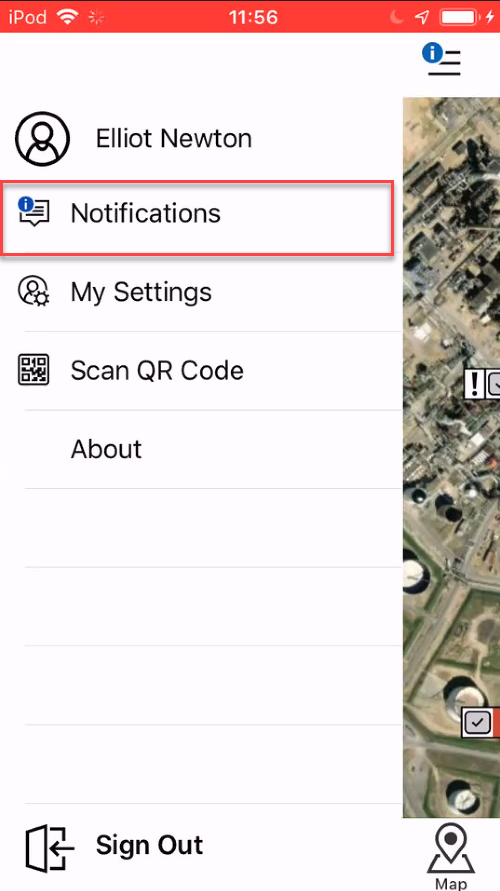
Select Notifications.
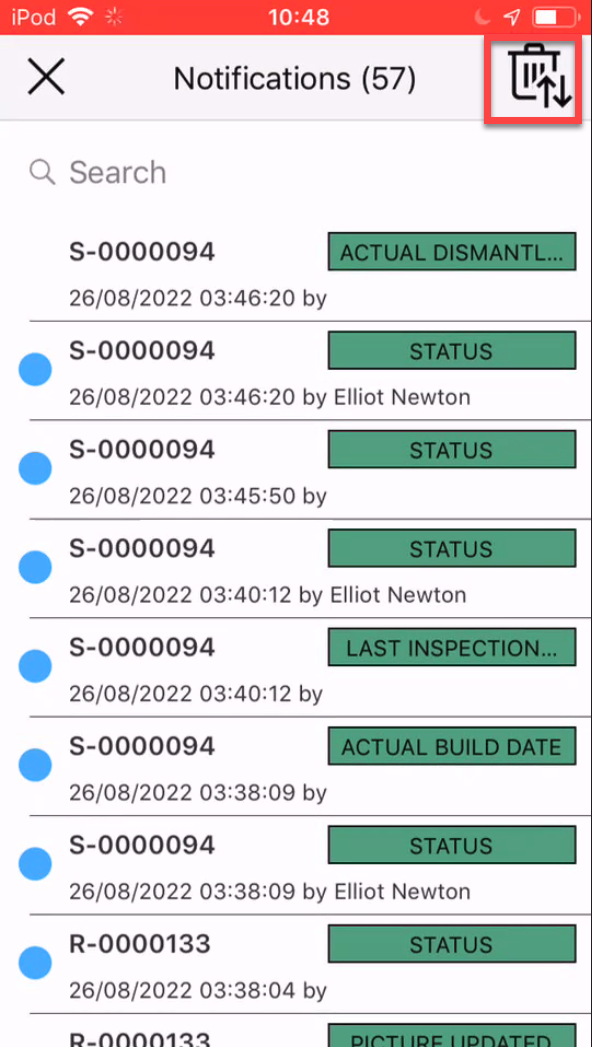
You will be taken to the Notifications screen.
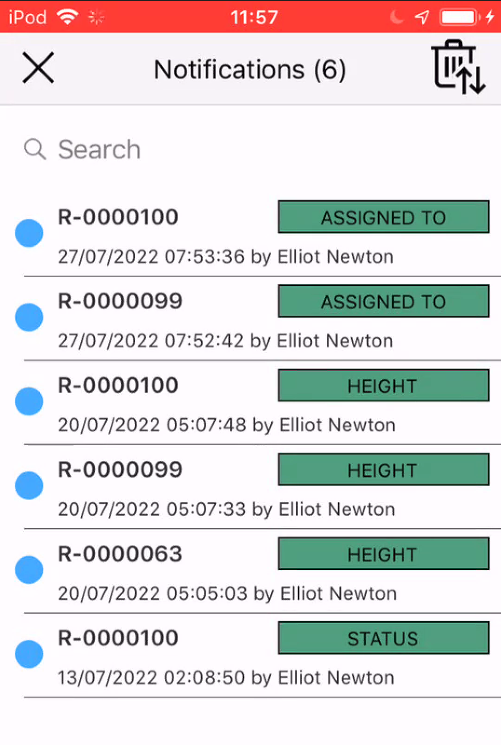
You can tap on a notification to open the details of the request, scaffold or activity the change occurred on.
The blue dot indicates an unread notification.
Users have the ability to "watch" requests, scaffolds or activities so that they receive a notification whenever there is a change to the request or scaffold. The Notifications screen provides an overview of the changes made on these "watched" tasks.
For more information on "watching" Requests or Scaffolds, please visit the Watching a Request (IOS) or Watching a Scaffold (IOS) guide.
Mark as Read and Deleting notifications
You can delete all notifications or delete selected notifications.
To delete all notifications, select the delete icon in the top-right.
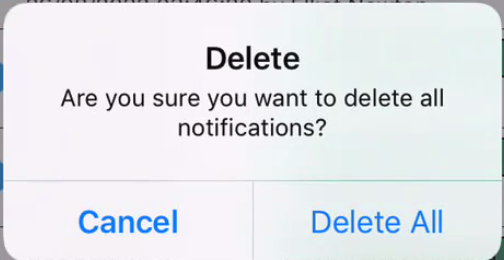
When you select this icon, you will need to confirm whether you wish to delete all Notifications
To read or delete a single notification, swipe left on the notification and select either Mark Read or Delete