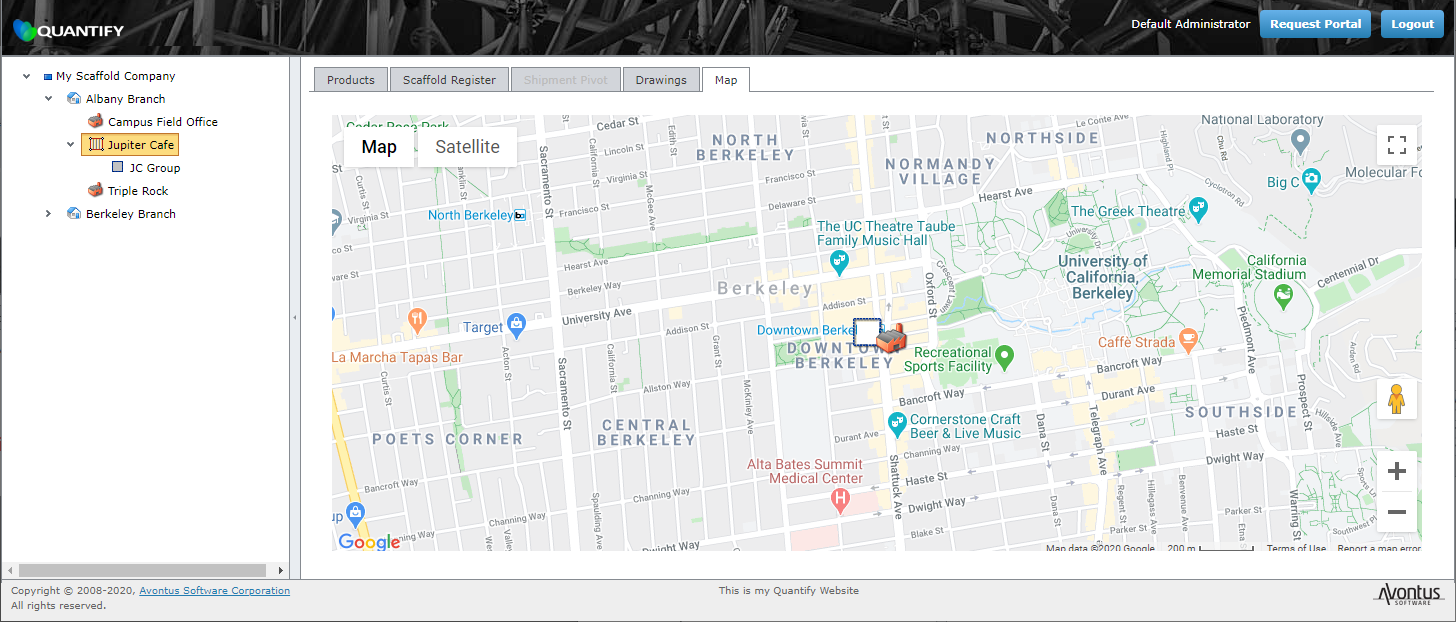
Quantify Web enables you to configure a Scaffold Register pivot report and save it as an Excel spreadsheet and a PDF document. The Scaffold Register pivot is the same as the Scaffold pivot report in Quantify. Even though you are working in a web browser, you configure the report in the same way as if you were working in the Quantify interface.
Note; To learn about working with pivot reports, refer to About Pivot Reports.
Accessing the Scaffold Register Pivot Report
To access the Scaffold Register pivot::
- Click the appropriate Scaffold Tag Job Site, then click the Scaffold Register tab.
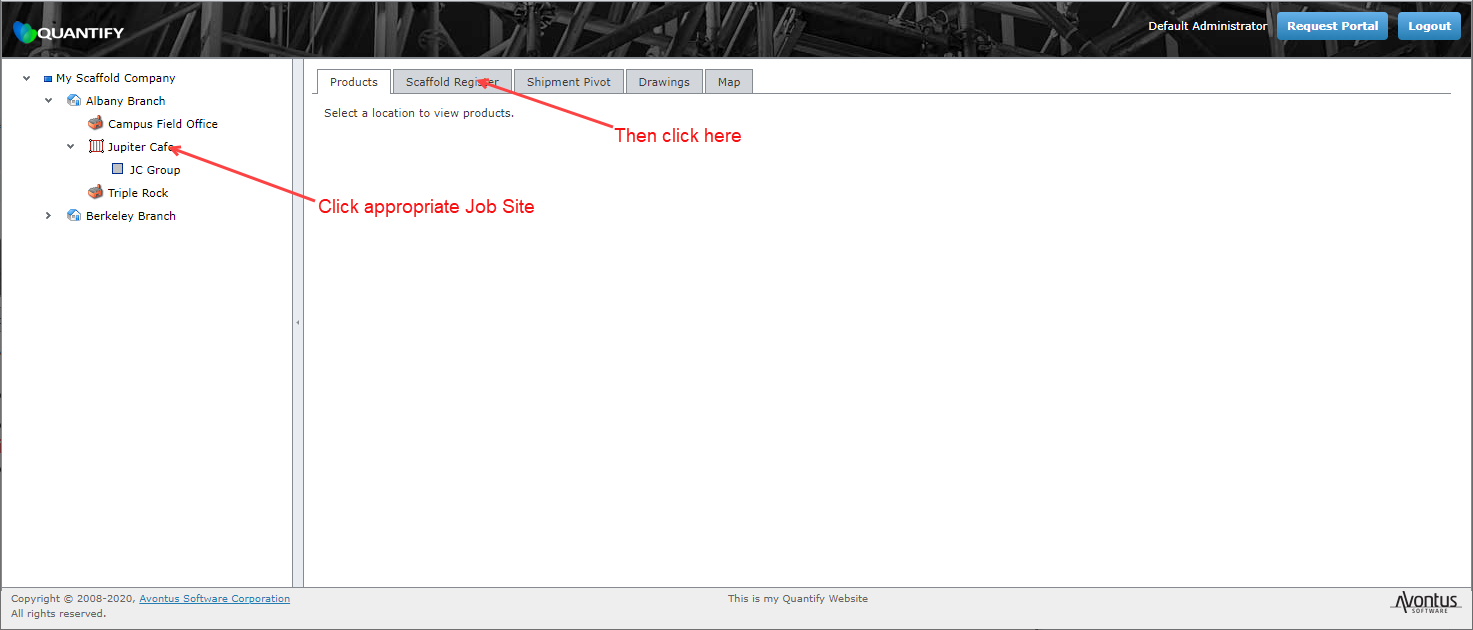
The Quantify Web interface refreshes, displaying the Scaffold Register Pivot page.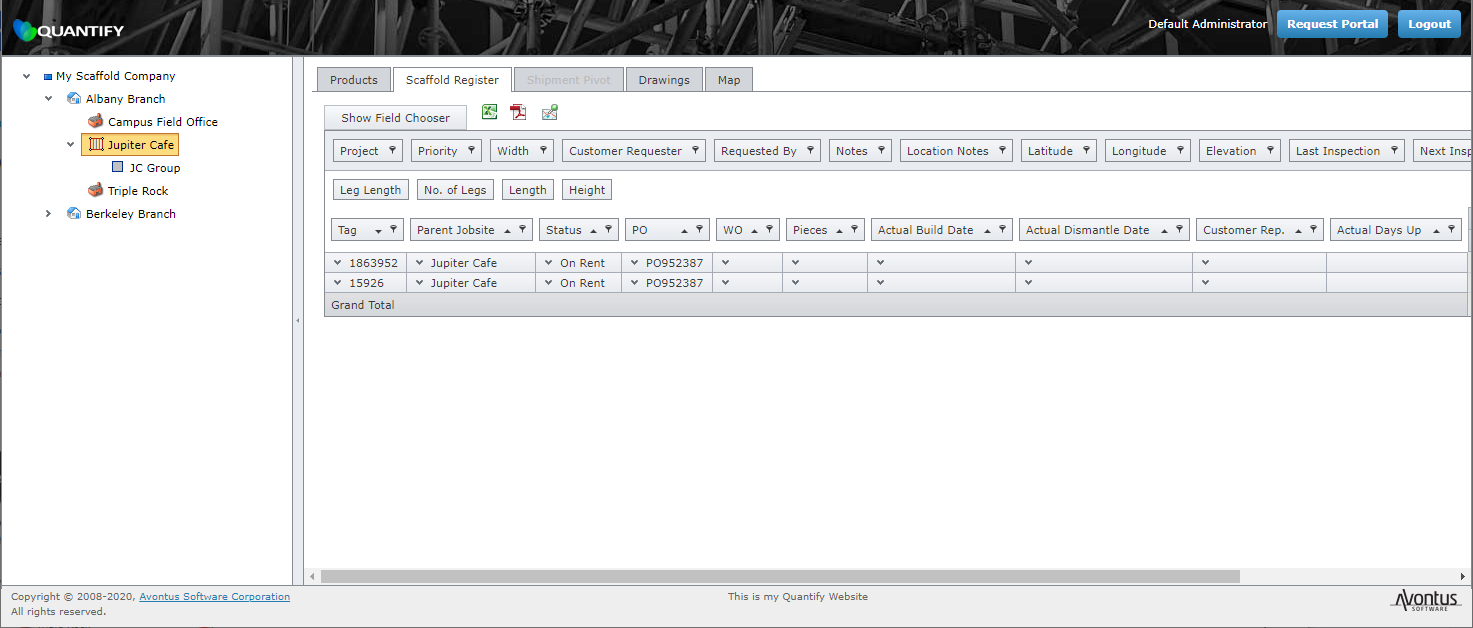
- Configure the report as appropriate.
For information about configuring pivot reports, refer to Creating and Managing Pivot Reports.
Adding a Field To/Removing a Field From a Report
Just like the pivot reports in Quantify, Quantify Web enables you to add add new fields to the Scaffold Register pivot report and remove existing fields from it. If you remove a field, you can replace it whenever you need it.
To add a field to/remove a field from a report:
- Click Show Field Chooser.
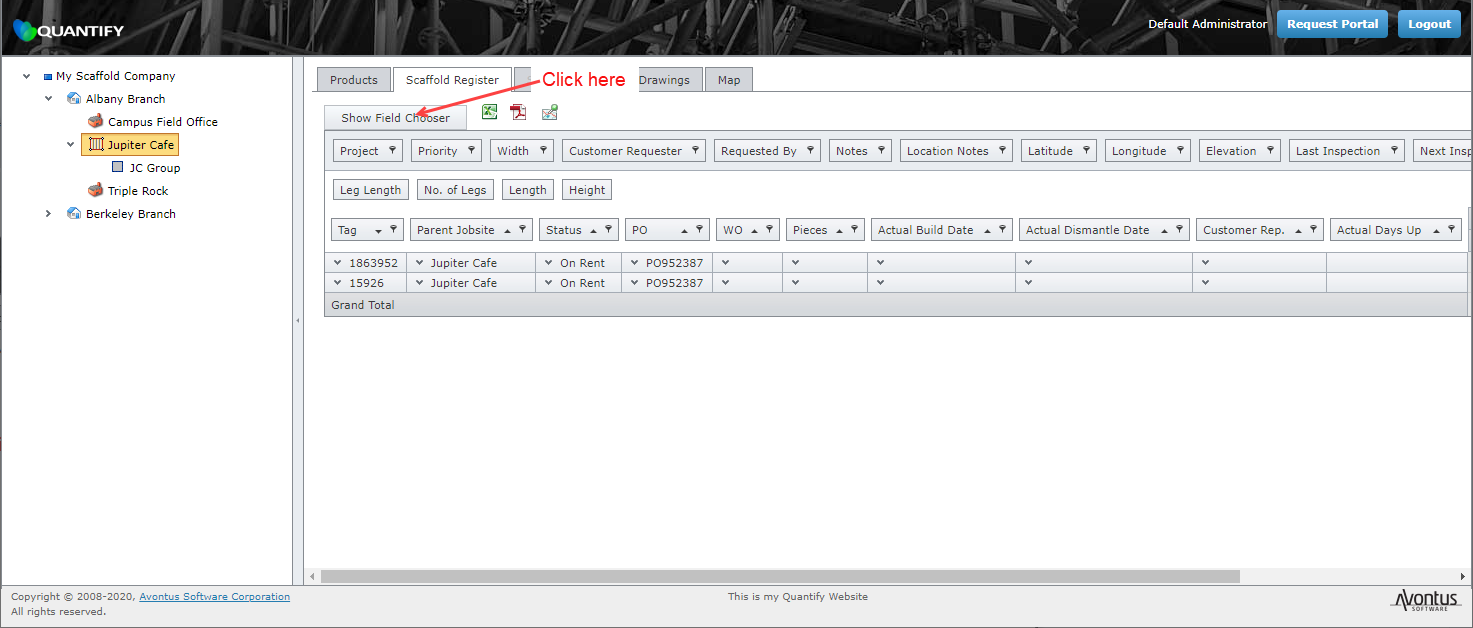
The PivotGrid Field List appears. - Click the appropriate field and drag it into the Filter Header area.
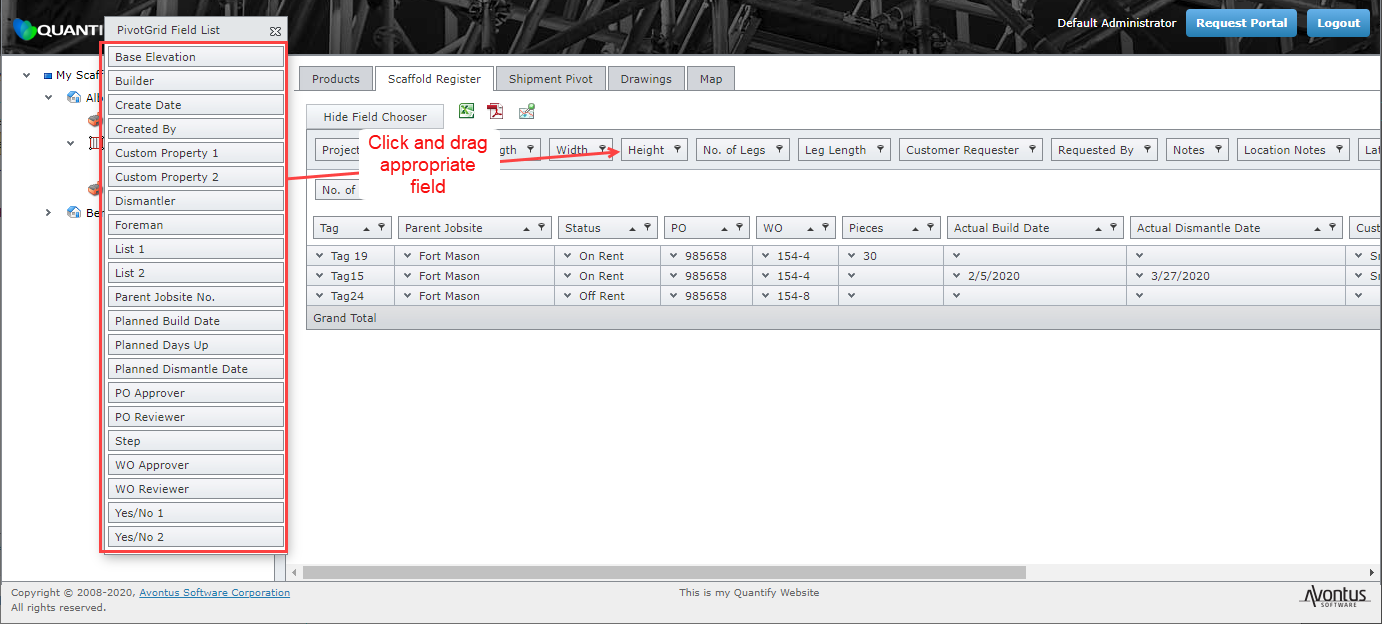
- Repeat the last step as necessary.
To remove a field, click the selected tab and drag it into the PivotGrid Field List.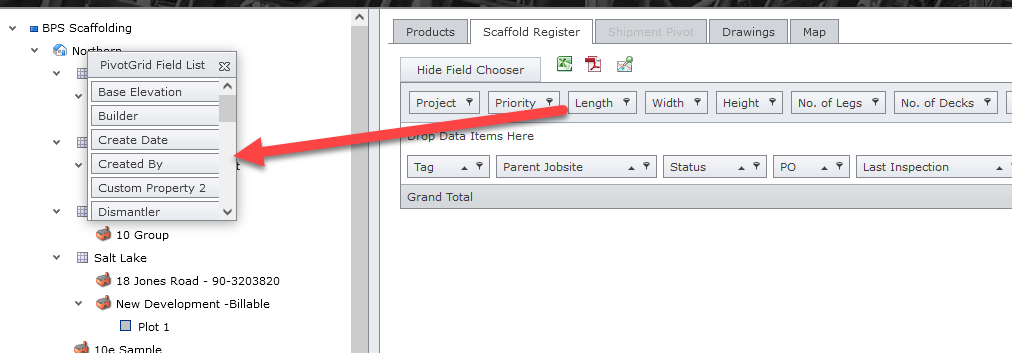
Repeat the last step as necessary.
Saving the Report as an Excel or PDF File
Once you have configured the Scaffold Register pivot report, Quantify Web enables you to save it as an Excel or PDF file, with the click of a button.
To download the report as an Excel or PDF file, click either the Open as Excel ( ) or Save as PDF (
 ) button.
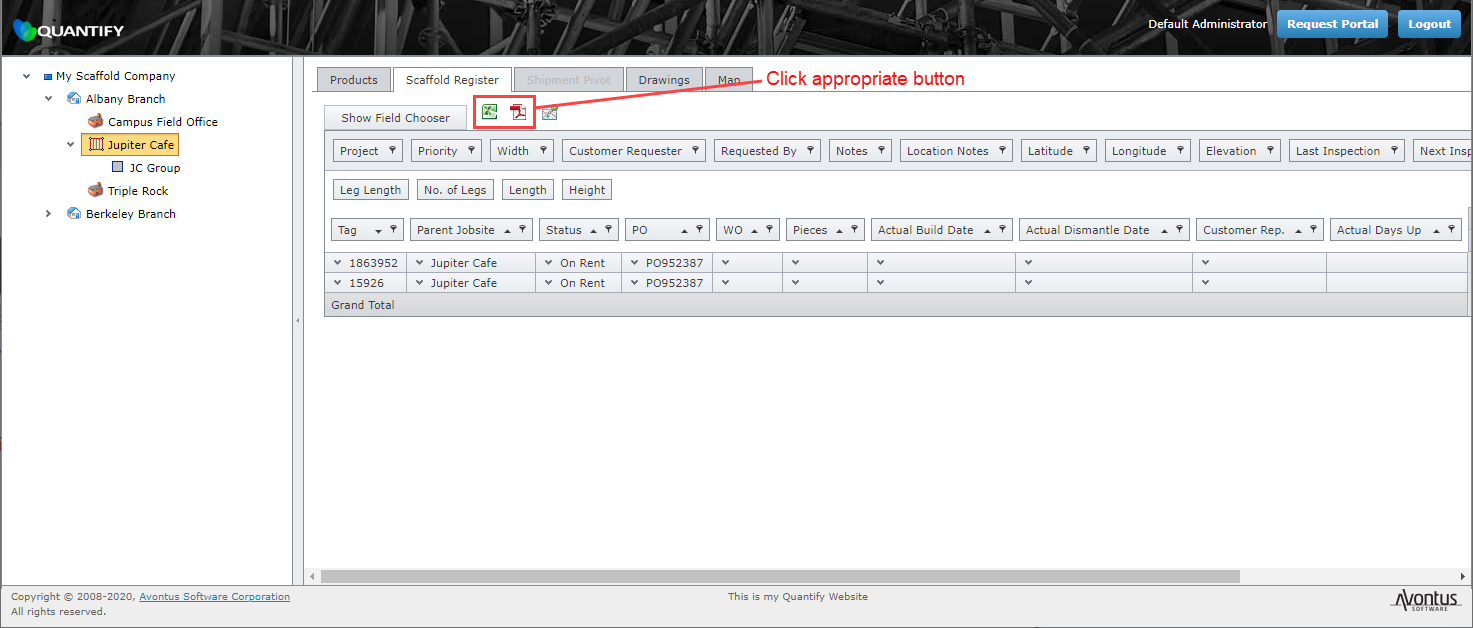
Quantify downloads the file to your default downloads folder.
Viewing the Scaffold Location in the Maps Tab
With the click of a button, Quantify Web will display the location for which you are creating a Scaffold Register pivot report.
To view the scaffold location in Google Maps:, click the View in Google Maps button ( ).
).
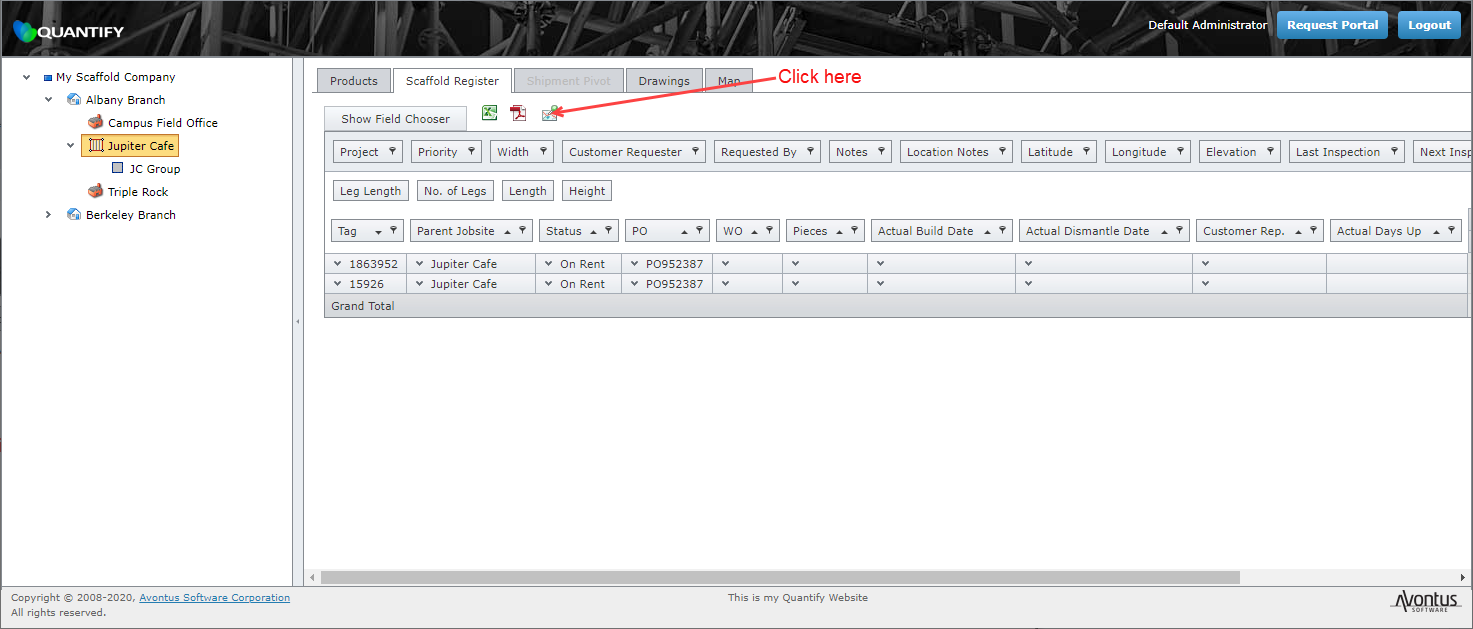
Quantify Web launches the Map tab and displays the location.