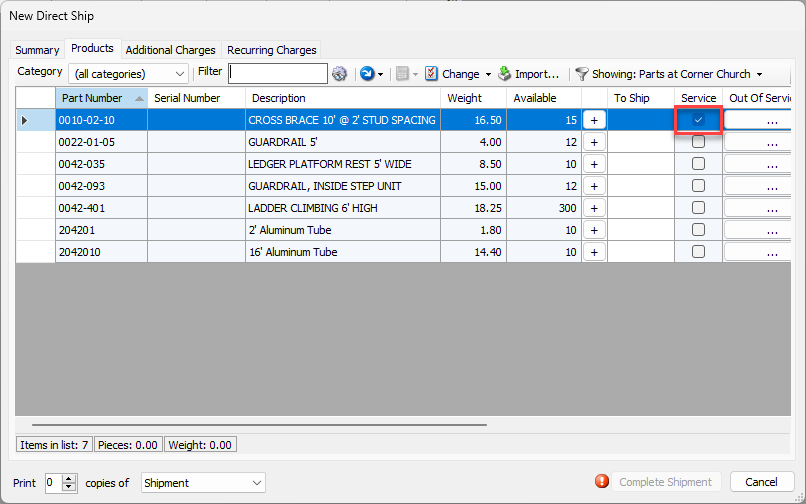
The To Be Serviced feature allows items that need repair, inspection, routine maintenance, etc. to be placed in the To Be Serviced queue. You can place equipment in the queue at the time it is returned to the Branch Office from a Job Site. Alternatively, you can move equipment from the Branch Office directly to the To Be Serviced queue.
Note: If the Branch Office requires counting of returned equipment (see Receiving Options - Count Shipments upon Receipt), you will see the Service checkbox when receiving/counting the returned equipment rather than on the return Shipment.
The Servicing feature must first be enabled globally then for the desired Branch Office(s). Once enabled it cannot be disabled if any Products are in the To Be Serviced queue.
To Be Serviced items can be moved from Out of Service to To Be Serviced and vice versa. Refer to Working with Servicing for more information.
Parts can be set to be returned directly to the Servicing queue when returned from a Job SIte.
Moving Products to the To Be Serviced Queue from the Products Tab
You can move Products from the Product Grid directly to the To Be Serviced queue for servicing.
To move Products to the To Be Serviced queue from the Products tab:
Locate and click the appropriate Branch Office, then click the Products tab.
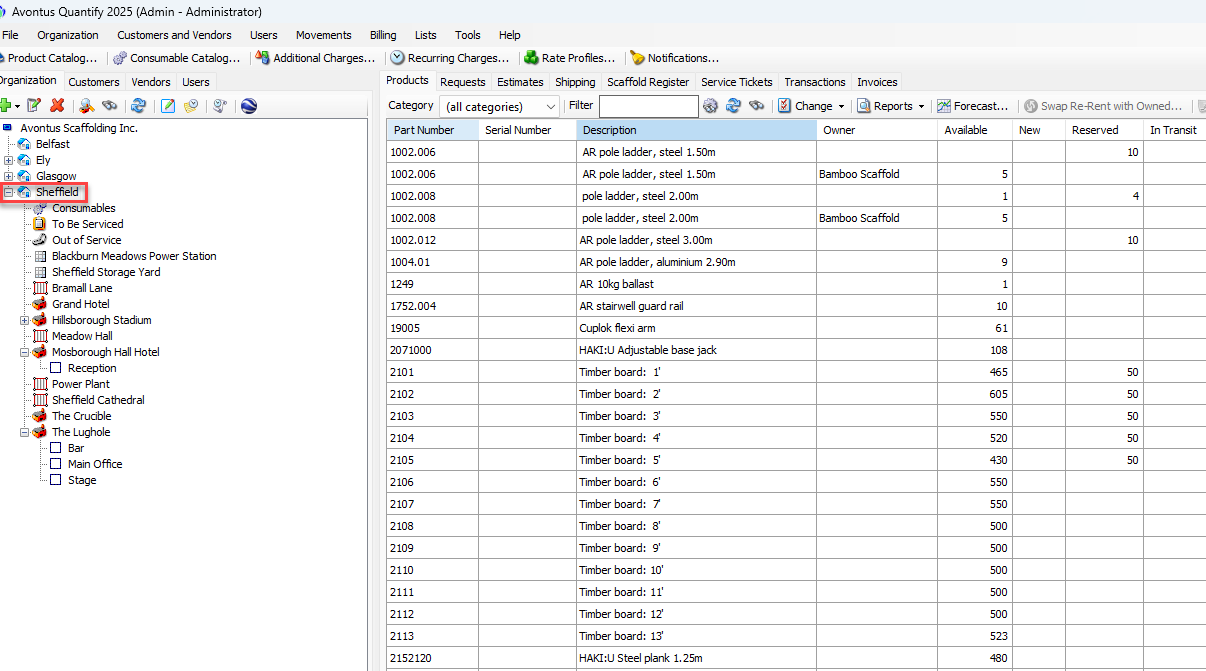
Locate and click the appropriate Product.
Click the Change dropdown and select Move to To Be Serviced.
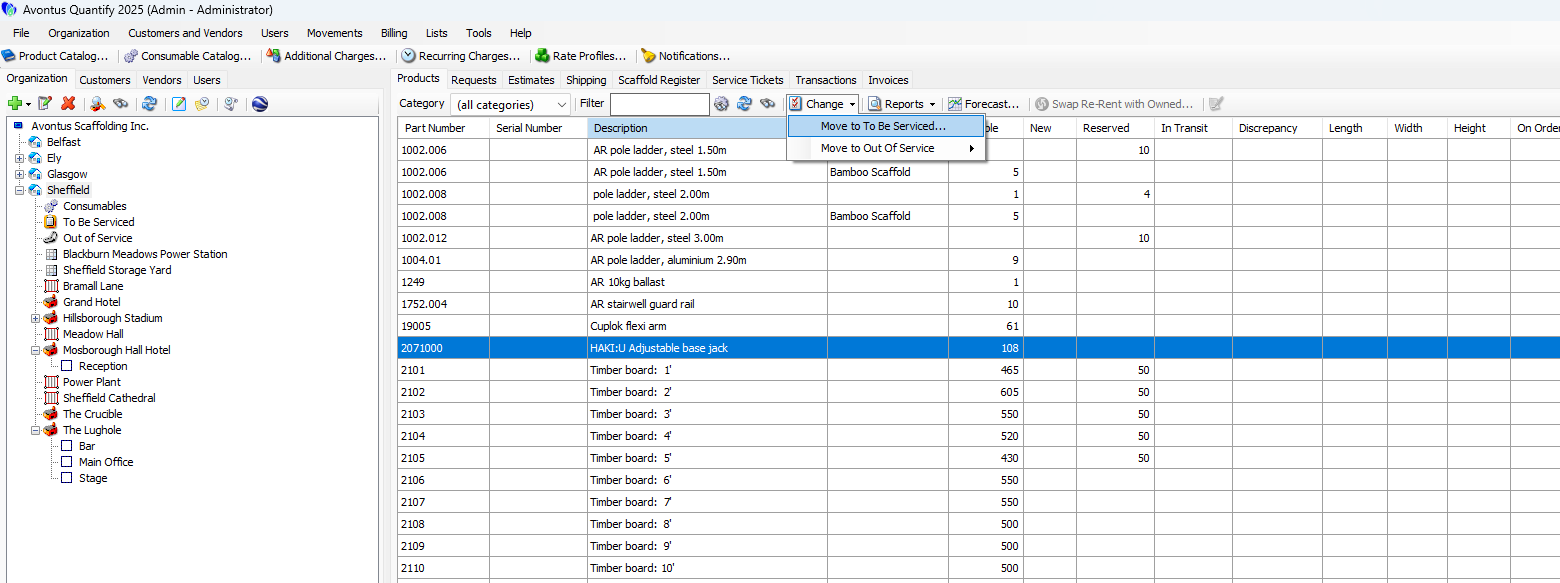
The Product Number - Product Description dialog appears.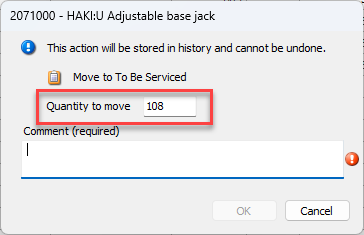
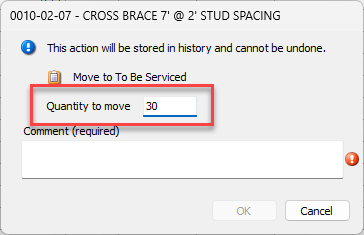
Click in the Quantity to Move text field and enter the appropriate quantity of Product you want to move to the To Be Serviced queue.
Note: The Quantity to Move text field defaults to the total count of the Product available in inventory.
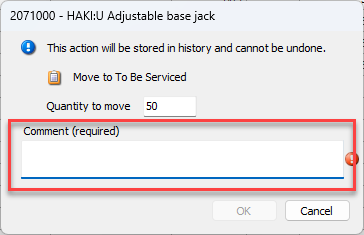
Click in the Comment text field and enter a comment.
Note: This is required.
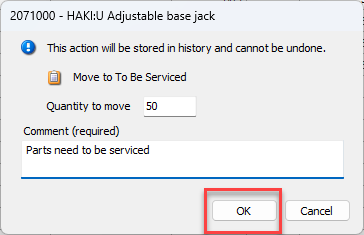
Click OK.
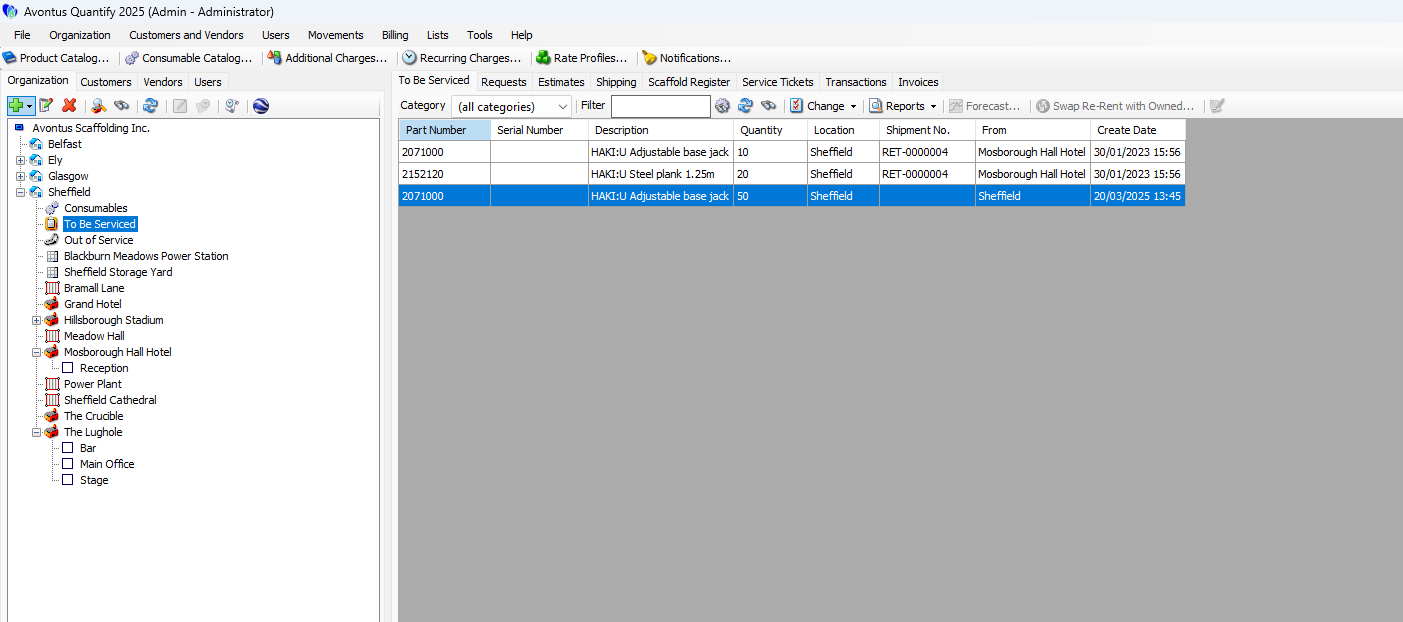
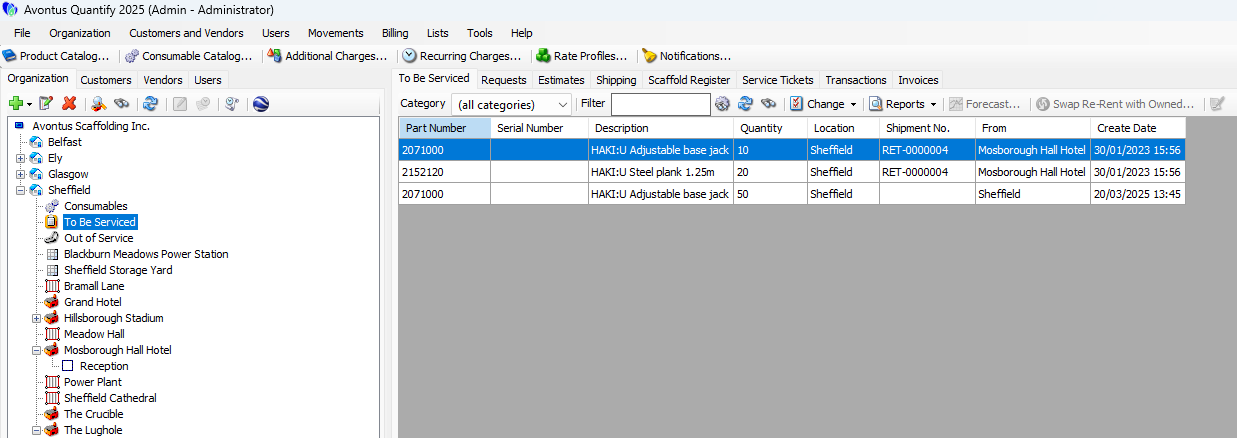
You can now view the Products in the To Be Serviced tab. Note that because these were not sent to the queue through a Shipment, they are not associated with a Shipment number. The From column identifies the Branch Office the Product was moved from.
Setting Products to be Serviced by Default on Returns
Some parts need to be serviced whenever they are returned from a job site. You can set products to go directly into servicing, by default, when returned from job sites.
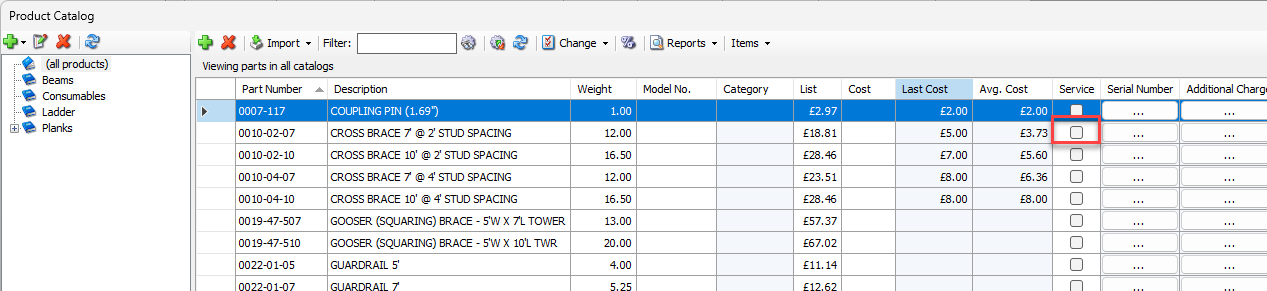
To set one or more parts to be sent to serviced when returned, enable the part's Service checkbox in the Product Catalog.
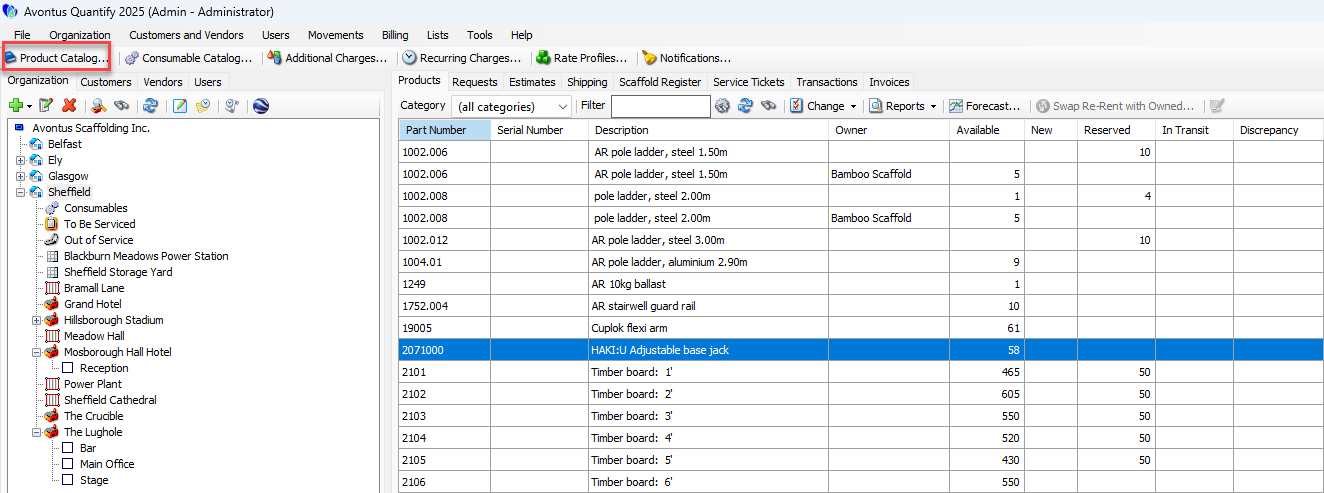
Click Product Catalog.
The Product Catalog appears.Select the checkbox in the Service column of the part that should default to be serviced when returned.
Repeat for all parts that should not be included in Utilization pivot reports.
Click Close
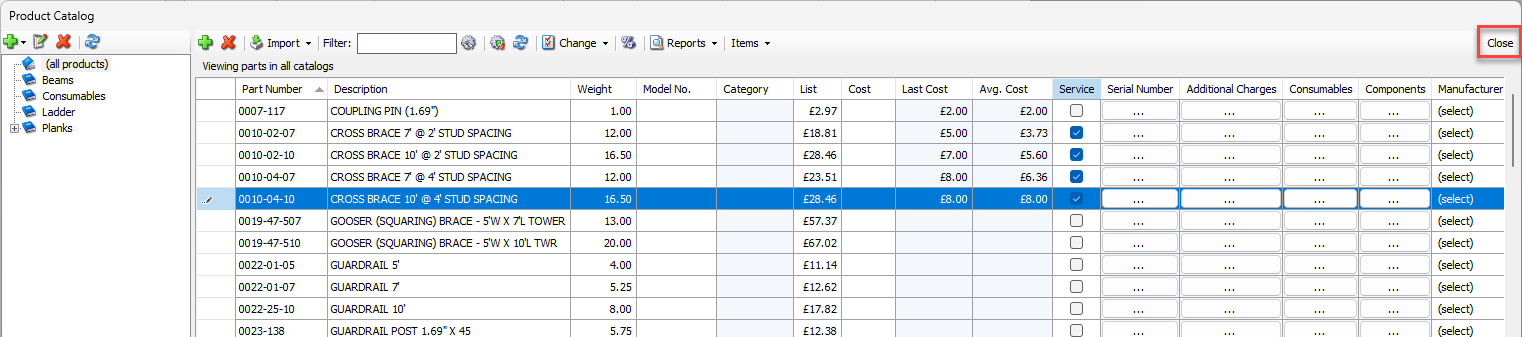
Now, when this part is returned from a job site, a return Shipment will automatically set the part's Service option on.