The information in this article provides context for working with Slabs, Block Structures, Spheres and Domes.
About Slabs
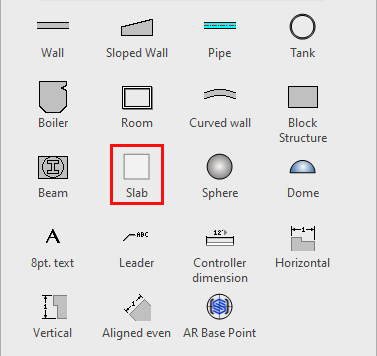
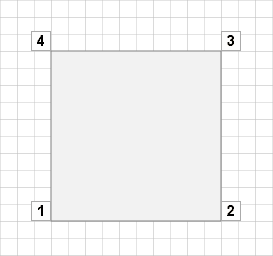
Slabs are similar to Block Structures, in that they are shapes that can be adapted for multiple uses in a drawing. For example, besides being used as a Slab (for example, for a floor), you can add a Slab object and make it cover a wide area in the drawing and use Visio's Format Shape function to color it green for a vegetated area or brown for dirt.
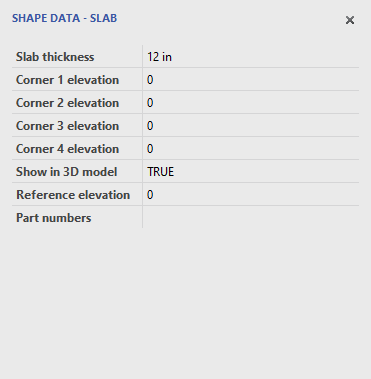
Slab Options
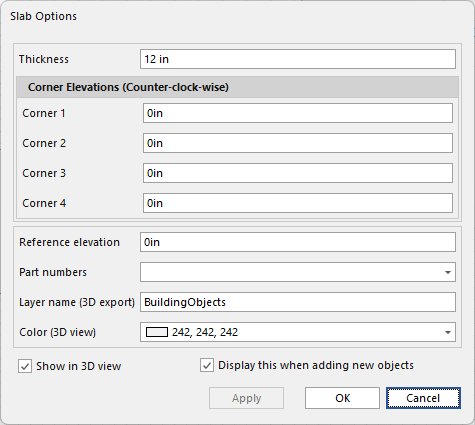
The Slab options (accessed by double-clicking on the slab) has much the same settings as the Shape Date, but it will also include:
Layer Name - When exported, the object will be assigned to these 3D export files.
Color - Select what color that object will appear in the 3D view
Display unit - The unit the measures are displayed in
About Block Structures
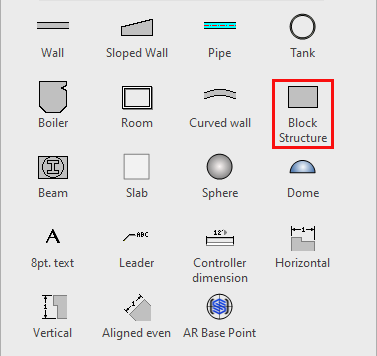
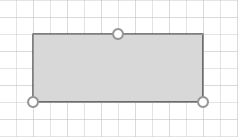
Block Structures have all of the controls of a wall, but they do not respond when you click Wall Scaffold in the Structures tab. Block Structures do not perform the usual end clean-up functions, making them useful for designing Slabs, floors, columns, ducts, etc. You can enter a negative base elevation to a Block Structure to add sunken elements to a drawing, like a swimming pool. By entering a higher than ground-level base elevation, you can use Block Structures to indicate elevated drawing elements, like balconies.
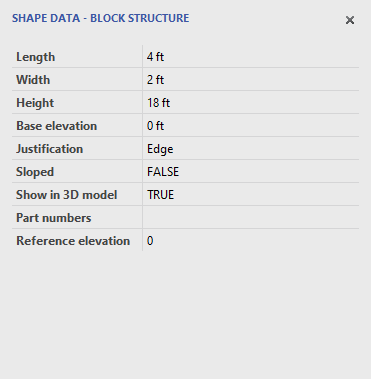
Block Structure Options
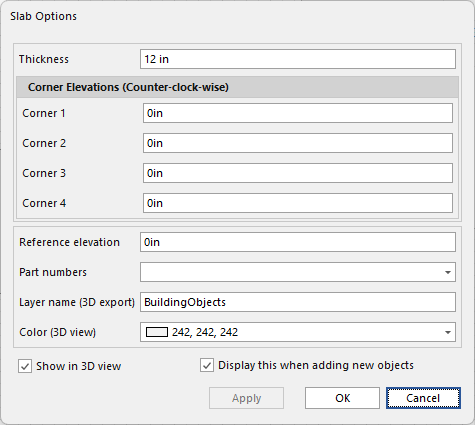
The Block Structure options (accessed by double-clicking on the Block Structure) has much the same settings as the Shape Date, but it will also include:
Layer Name - When exported, the object will be assigned to these 3D export files.
Color - Select what color that object will appear in the 3D view
Display unit - The unit the measures are displayed in.
About Spheres
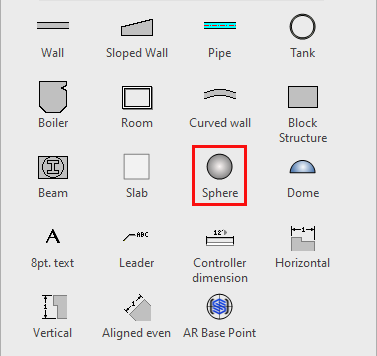
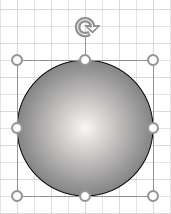
On the drawing page, a Sphere is a circle that has a gradient fill. You can increase or decrease its outside diameter. You can also elevate it, to create (for example) an elevated water tank.
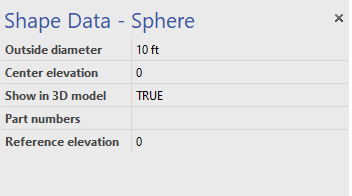
Sphere Options
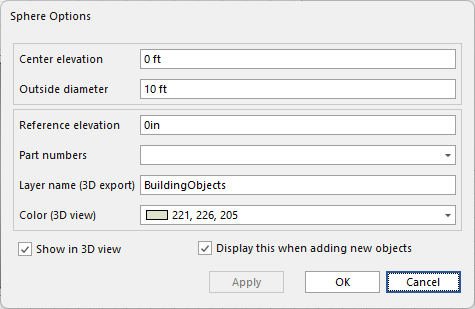
The Sphere Options options (accessed by double-clicking on the Sphere Options) has much the same settings as the Shape Date, but it will also include:
Layer Name - When exported, the object will be assigned to these 3D export files.
Color - Select what color that object will appear in the 3D view
Display unit - The unit the measures are displayed in.
Domes
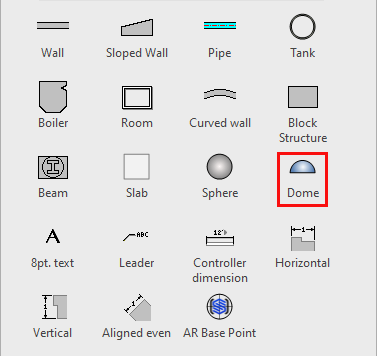
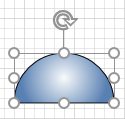
On the drawing page, a Dome is half a circle that has a gradient fill. You can increase or decrease its base diameter and height. You can change its direction: horizontal, vertical up and vertical down. You can also elevate it.
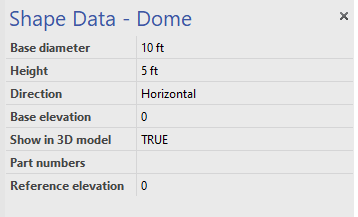
Dome Options
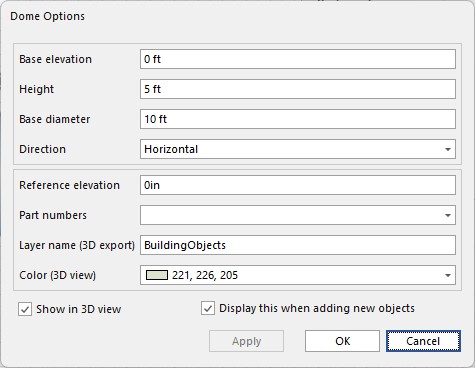
The Dome Options options (accessed by double-clicking on the Dome Options) has much the same settings as the Shape Date, but it will also include:
Layer Name - When exported, the object will be assigned to these 3D export files.
Color - Select what color that object will appear in the 3D view
Display unit - The unit the measures are displayed in.