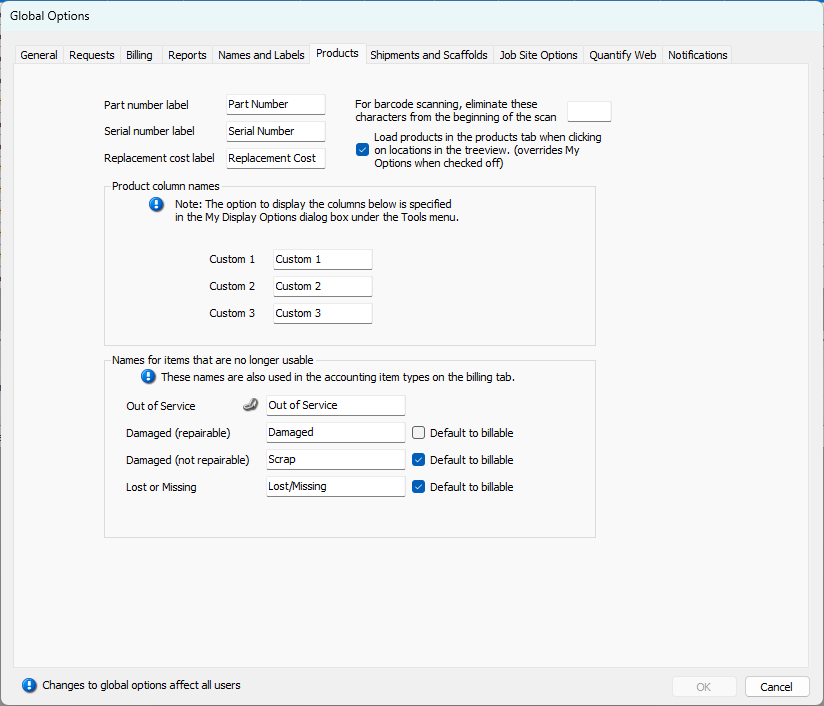
The Products tab enables you to determine what Quantify calls specific interface items. You can also determine which characters to eliminate from the beginning of a barcode scan. Finally, you can determine whether Quantify displays Products when you click a location then click the Products tab by enabling/disabling automatic refresh of the Product Grid, which overrides the setting in the My Options dialog. This helps save SQL Server resources for installations that have thousands of concurrent end-users.
Top Section
The information entered into this section determines some of the default labels Quantify uses, how Quantify displays Products and how it displays barcodes.
| Part number label | Use this text field to determine the label for Part Number columns in the Quantify interface. |
| Serial number label | Use this text field to determine the label for Serial Number columns in the Quantify interface. |
| Replacement cost label | Use this text field to determine the label for Replacement Cost columns in the Quantify interface. |
| For barcode scanning, eliminate these characters from the beginning of the scan | Use this text field to determine a set of characters in the beginning of a barcode that Quantify will exclude from barcode scanning. You can enter up to 10 characters. |
| Load products in the products tab when clicking on locations in the tree view. (overrides My Options when checked off) | When this checkbox is checked and users click a location and then the Products tab, Quantify displays the list of available products in that tab. |
Custom Product Column Names Section
| Custom | Use this text field to determine the label for custom columns in the Quantify interface. Note: Enable or disable the display of custom column in the Products and Consumables tab of the My Options dialog. For more information, refer to The My Options Dialog. |
Names for Items that are No Longer Usable Section
Quantify's Out of Service feature enables you to place out of service any items that aren’t returned, returned damaged or damaged beyond repair. Out of service items are moved to an Out of Service queue until repaired and placed back into service and/or optionally billed back to the Job Site. Use the properties in this section to change the Out of Service feature default names and labels that Quantify uses to whatever labels work best for your company.
| Out of Service | Use this text field to determine the label for Out of Service interface elements in the Quantify interface (for example, the Out of Service node under a Branch Office). |
| Damaged (repairable) | Use this text field to determine the label for interface elements that describe Products that are damaged and repairable. |
| Damaged (not repairable) | Use this text field to determine the label for interface elements that describe products that are damaged and not repairable. |
| Lost or Missing | Use this text field to determine the label for interface elements that describe products that are lost or missing. |
| Default to Billable | When this checkbox is checked and a user moves one or more items to Out of Service, Quantify marks the item(s) as billable and charges the customer for the costs in the next invoice. |