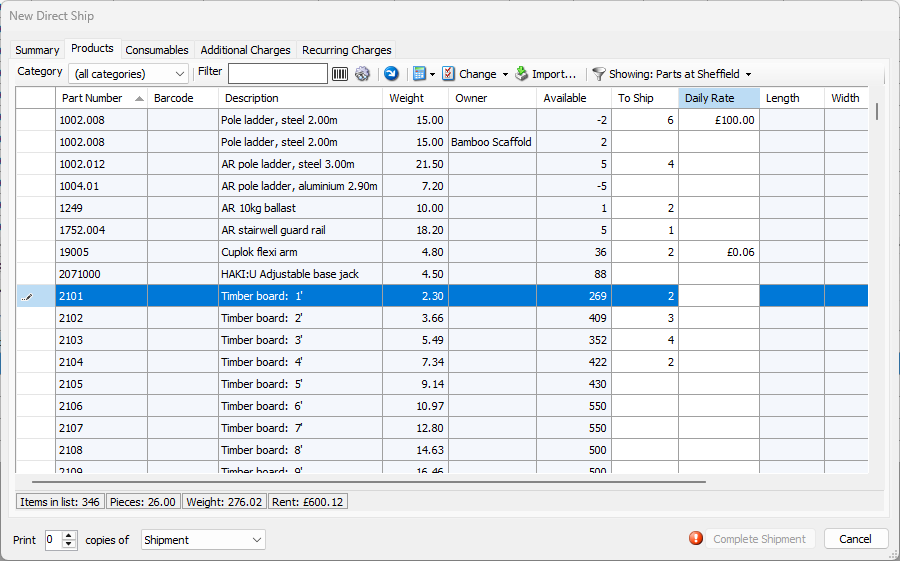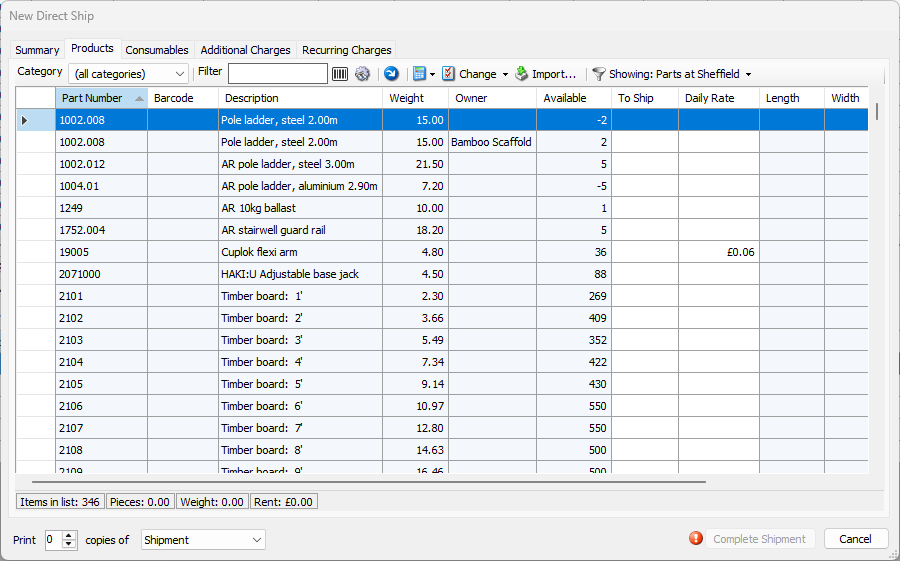
Use the Products tab to select the products you want to ship. By default, the Products tab displays Products currently stocked at the From location chosen in the Summary tab. In the example above, the grid shows parts assigned to the Albany Branch Office. Quantify displays totals in the status bar at the bottom of the tab.
Category | Use this dropdown to filter the list of Products in this tab by Product Category. Product Categories are managed in the Product Catalog. |
Filter | Use the Filter text field to only show specific Products in the grid, by entering the item you want to view. The grid shows items that match your criteria. For example, to only show ladders, start entering ladder into the Filter text field. By default, Quantify searches in the Part Number and Description columns. |
Barcode ( | Use this button to enable the barcode mode, which will allow you to scan parts using a barcode scanner, and place each scanned part in to the To Ship column. |
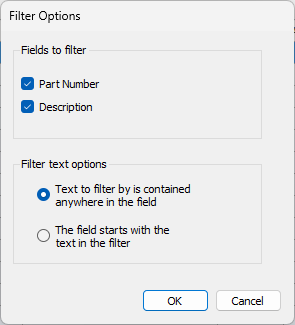
Filter Options ( | Use this button to configure how Quantify will filter the information in this tab, based on the characters you enter. When you click this button, the Filter Options dialog appears. Use it to configure filter options.
|
Copy Available to To Ship ( | Use the Copy Available to To Ship button to enter all available parts in the To Ship column. |
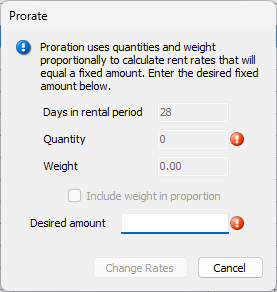
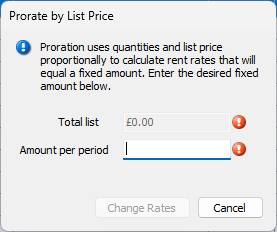
Prorate Calculator ( | Use this dropdown to prorate items in the Shipment by Weight and Quantity or by List and Quantity. Proration uses rent quantities and list price proportionally to calculate rent rates that will equal a fixed amount. Depending on what you select, the Prorate by Quantity or the Prorate by List Price dialog appears. Use them to configure how Quantify will prorate the selected Product. The rent amount in the bottom of the dialog reflects the new prorated amount.
The Prorate feature is enabled in the Shipments and Scaffolds tab of the Global Options dialog. |
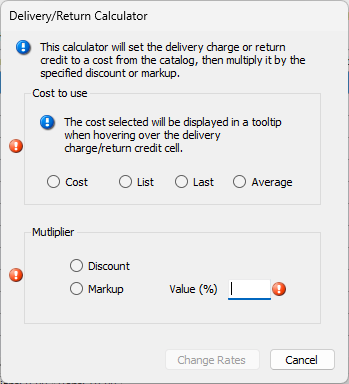
Delivery Charge/Return Credit Calculator | Use this button to calculate delivery charges and return credits. When you click this button, the Delivery/Return Calculator dialog appears.
Use it to configure the appropriate charge and any related discount or markup. |
Change Selected Items ( | Use this dropdown to change selected pre-configured features for a selected Product: Rent Calculator, Sell Calculator, Factor. You can also copy a Rate Profile into the selected Product. |
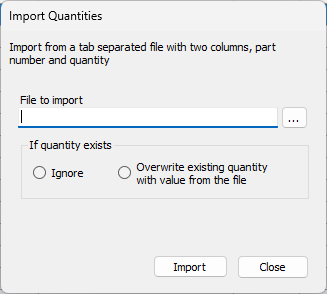
Import | Use this button to import Products into the Estimate. You must have a tab-separated file that contains part numbers and quantities. When you click this button, the Import Quantities dialog appears. Use it to import the necessary Products into Quantify.
|
Showing | To change which Products appear in the grid, select All or Parts on Shipment from the Showing dropdown. |
Part Number | This column displays the part numbers of all parts displayed in the Products tab of the Estimate dialog. |
Serial Number | This column displays the serial number of any available serialized product. |
Description | This column displays descriptions of each part displayed in the Products tab of the Estimate dialog. |
Weight | This column displays the weight of each Product on per-item basis. |
Owner | This column displays the name of the vendor that owns specific Products. |
Available | This column displays the current stock of each part and enables you to enter. |
Add ( | Use this button to increase the number of items (per product) to the Shipment. Click this button once for each unit you want to add to the Shipment. The number in the Sent column increases by one for each click |
To Ship | Use this column to enter the quantities of each item to you want to include in a shipment. |
Delivery Charge | Use this column to enter any applicable delivery charges for appropriate Products. |
28 Day Rate | Use this column to enter the rental rate for each product for a 28 day period. |
Return Credit | This column appears when configuring a return. Use it to enter any applicable return credits for appropriate Products |
List | This column displays the recommended retail price for each Product in the dialog. |
Use this row in the bottom of the dialog to let Quantify know to automatically print copies of Shipment reports when the Shipment has completed. |
 )
) )
)
 )
) )
)
 )
)
 )
)As you enter part counts and rates for the Shipment, Quantify displays the total pieces, total combined weight and rent totals for this Shipment at the bottom of the dialog.