The Summary tab enables you to set up specific details for the Shipment. Use the bottom left area of the Summary tab to add attachments and notes to the Shipment. To automatically print shipment reports, see Configuring Summary Information for the New Shipment.
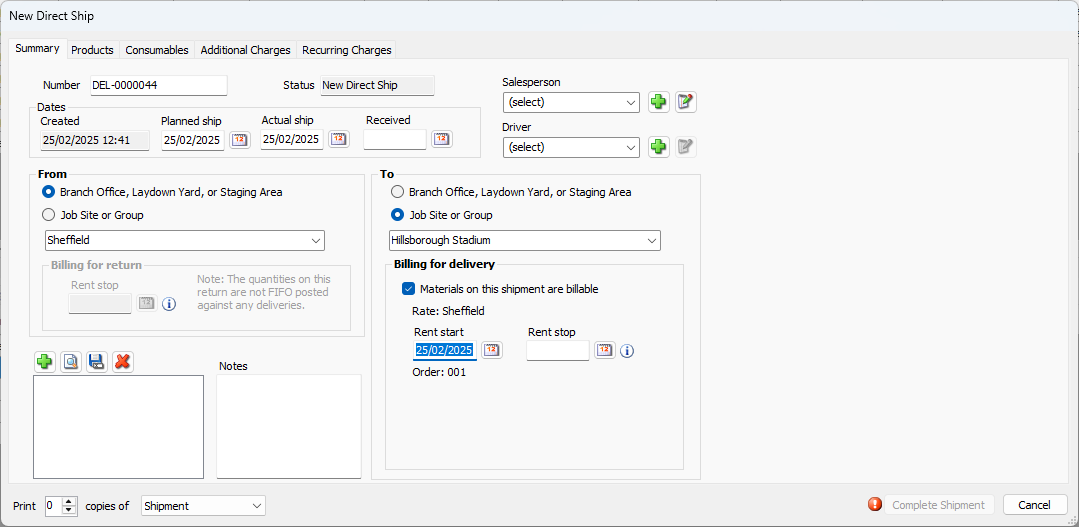
Top Section
Number | The Number text field contains the Shipment's number. By default, Quantify populates this text field with a sequential DEL number. You can edit the Shipment number if this option is enabled in the Shipment and Scaffold Tags tab in the Global Options dialog. |
Status | The Status text field displays the status of the Shipment: New Direct Ship. Editing Received or Editing Completed. This text field cannot be edited. |
Salesperson | This salesperson field displays the assigned sales person to this shipment |
Driver | The Driver dropdown enables you to assign a driver to the shipment. If the driver isn’t in the list, the Add button ( |
 ) enables you to add a driver to the database.
Dates Section
The fields in this section default to the current date. You can change the Planned Ship and Actual Ship dates.
Created | This date field contains the date and time at which the Shipment was originated. You cannot edit this field. |
Planned Ship | Use this date field to enter the date on which you plan to the ship the shipment. |
Actual Ship | Use this date field to enter the date on which the shipment was actually shipped, which may or may not be the planned shipment date. |
Received | Use this date field to enter the date on which the shipment was received at its destination. |
From Section
| Branch Office, Laydown Yard, or Staging Area | Use this radio button to determine whether the sending location is a Branch Office, Laydown Yard or a Staging Area. |
| Job Site or Group | Use this radio button to determine whether the sending location is a Job Site or Group. |
| Location Dropdown | The From field defaults to the location previously selected in the Organization Tree. The Branch Office or Sub-Branch can be changed or selected here with the dropdown. |
| Rent Stop | Use this date field to determine the date on which rent on the equipment in the Shipment will stop. When creating a Return Shipment from a billable Job Site, Quantify enables the Billing for Return section. The Rent Stop date field is required for a return shipment from a billable job site. The date in the Rent Stop date field ends the rental period for the Products in the Shipment that will be invoiced, based on the billing method chosen for the Job Site. |
To Section
Branch Office, Laydown Yard, or Staging Area | Use this radio button to determine whether the receiving location is a Branch Office, Laydown Yard or a Staging Area. |
Job Site or Group | Use this radio button to determine whether the receiving location is a Job Site or Group. |
Location Dropdown | Use this dropdown to select the receiving location. |
Billing for Delivery Section
If the To location selected is billable, the Billing for Delivery section becomes available and the Rent Start date field becomes a required field. This is the date that billing for items in the Shipment will begin.
Materials on this Shipment are Billable | Use this checkbox to ensure that Quantify will invoice the materials in a shipment. |
Rent Start | Use this date field to determine the date on which rent for the equipment in the shipment will start. The date in the Rent Start date field begins the rental period for the products in the shipment that will be invoiced, based on the billing method chosen for the Job Site. Quantify invoices Additional Charges and Consumables included in the shipment based on the date entered into the Rent Start date field. This is a required field on a delivery to or Shipment from a billable Job Site. |
Rent Stop | Use this date field to determine the date on which rent for the equipment in the shipment will start. If you enter a date into the Rent Stop date field, it takes precedence over the rent stop date set when returning equipment. Quantify uses this rent stop date for equipment that is still remaining on rent, if any. It is possible that equipment has already been taken off rent due to FIFO allocations in rent billing, or when a rent stop date has been specified for a shipment. This field is optional. If the rent stop date is unknown, leave this field blank. |