Use the Consumables tab to select the Products you want to ship by entering the number of the parts you want to sell and for how much in the Sent and Sell columns. Quantify displays totals in the status bar at the bottom of the tab.
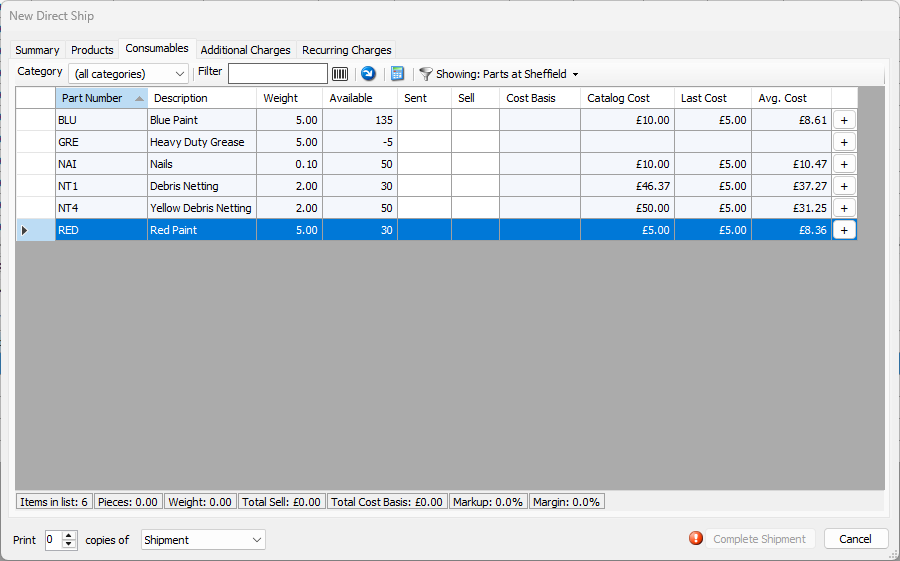
Category | Use this dropdown to filter the list of Consumables in this tab by Product Category. Consumable Categories are managed in the Consumable Catalog. |
Filter | Use this text field to only show specific Consumables in the grid, by entering the item you want to view. The grid shows items that match your criteria. For example, to only show netting, start entering netting into the Filter text field. By default, Quantify searches in the Part Number and Description columns. |
Barcode ( | Use this button to enable the barcode mode, which will allow you to scan parts using a barcode scanner, and place each scanned part in to the To Ship column. |
Copy Quantities to Actuals ( | Use this button to quickly populate the Sent column with all counts in the Available column. |
Calculate Sell Price for Selected Rows ( | Use this button to calculate the sell price for the selected Consumable. When you click this button, the Change Selected Rows dialog appears. Use it to configure how Quantify will calculate the sell price of the selected consumable. (For information about calculating Consumable sell prices using the Discount, Markup and Profit Margin calculator, refer to the About Consumable Markup and Margin section in The Consumables Tab.) |
Showing | Use this dropdown to filter the list of Consumables in this tab so that the tab displays either all the parts available in the Branch Office assigned in the Summary tab, or only the parts assigned to the current Estimate. |
Part Number | This column displays the part numbers of all parts displayed in the Consumables tab of the New Direct Ship dialog. |
Description | This column displays descriptions of each part displayed in the Consumables tab of the New Direct Ship dialog. |
Weight | This column displays the weight of each part displayed in the Consumables tab of the New Direct Ship dialog. |
Available | This column displays the number of pieces available of each part displayed in the Consumables tab of the New Direct Ship dialog. |
Add ( | Click this button to once for each unit you want to add to the shipment. The number in the Sent column increases by one for each click. |
Sent | Use the cells in this column in the to include Consumable items in the Shipment. The total sell amount of Consumable items is shown in the status bar at the bottom of the Consumables tab. |
Sell | This column displays the sale price of each part displayed in the Consumables tab of the New Direct Ship dialog. If you are selling the Consumables to the customer, click in the Sell column cell and enter the appropriate sell amount. |
Cost Basis | This column displays the configured value for each Consumable. The cost basis is configured in the Billing tab of the Global Options dialog. If no value appears in this column, the cost basis is set to None. Users can also configure the cost of consumables to be based on: Catalog Cost, Average Cost and Last Cost. |
Catalog Cost | This column displays the cost of the consumable as entered in the Consumable Catalog. |
Last Cost | This column displays the cost of the Consumable that was last entered on a purchase Transaction |
Avg. Cost | This column displays the average cost to purchase one unit of each part displayed in the Consumables tab of the New Direct Ship dialog. |
 )
) )
) )
) )
)