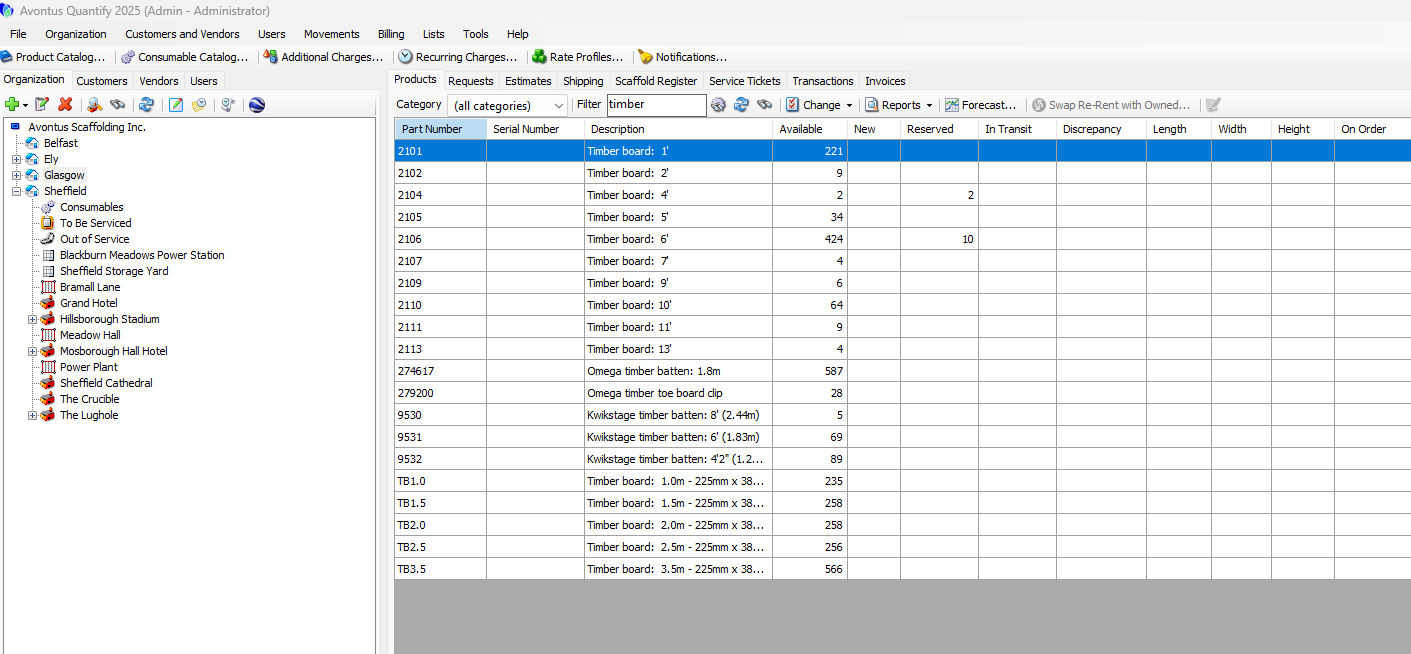
The Products tab displays inventory counts of equipment associated with the selected organizational entity and is focus-sensitive.
Corporate Structure View
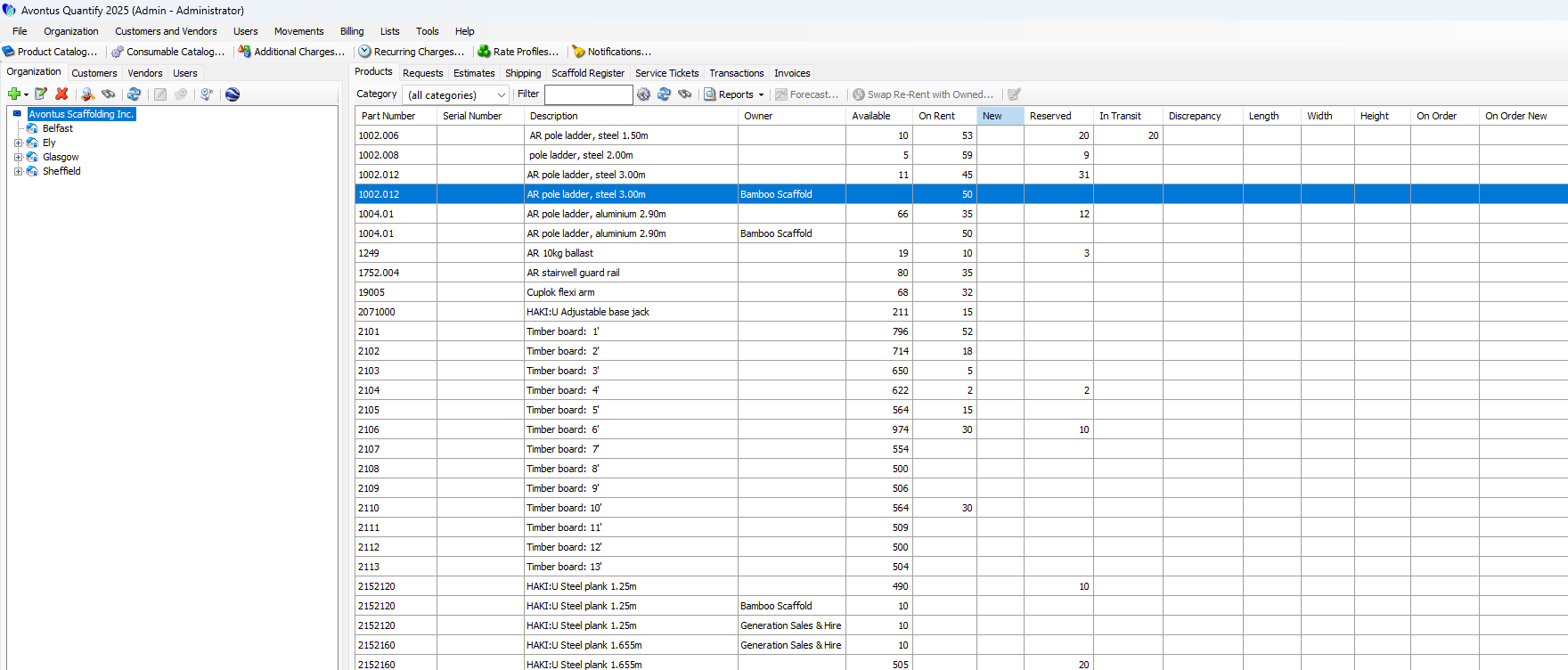
When you click a Corporate Structure in the Organization Tree, the Products tab shows inventory counts of equipment located at all locations under the Corporate Structure. The Products tab for a Corporate Structure displays:
Part Number | Part number assigned to each part. |
Serial Number | Serial number, if assigned |
Description | Part description |
Owner | Owner of this part if a part is a re-rent item. If this cell is blank, your company owns the part. |
Available | The count of this part that is available for rent at all Branch Offices, Sub-Branches and Staging Areas under this Corporate Structure. |
On Rent | The count of parts on rent at all job sites under this Corporate Structure. |
New | The count of this part in New status and available to be sold new. These parts are not available For Rent. |
Reserved | The count of this part in Reserved status and being held for future shipment. |
In Transit | The counts of parts currently in In Transit status and waiting to be counted, if Counting (Receiving Options) is used at this branch office. |
Discrepancy | Any unresolved counting discrepancy, if Counting (Receiving Options) if used at the branch office. |
On Order | The count of this part that is on order. |
On Order New | The count of this part for which new items are ordered. |
Backordered | The count of this part that is backordered. |
Backordered New | The count of this part for which new items are backordered. |
Total | Total of On Rent through Discrepancy columns. |
Branch Office View
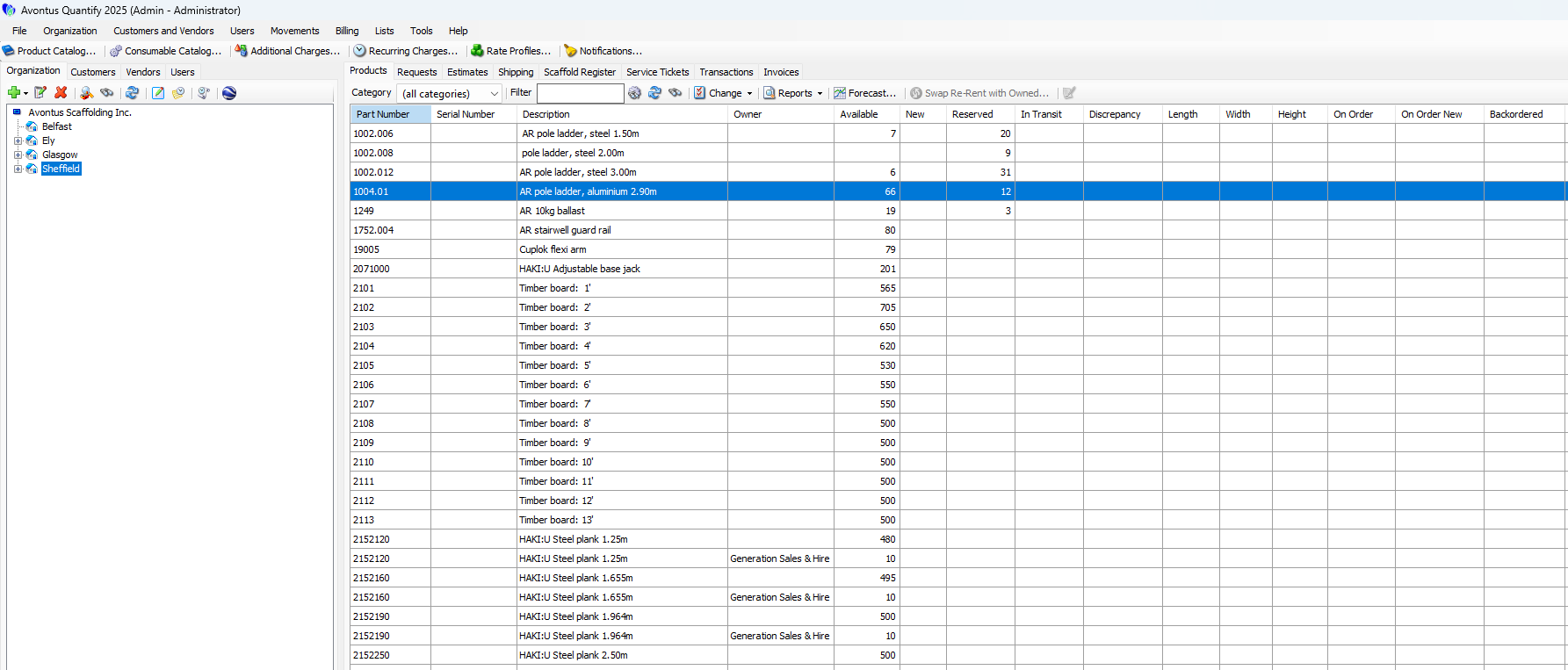
When you click a Branch Office in the Organization Tree, the Products tab shows inventory counts of equipment located at that Branch Office. The Products tab for a Branch Office displays:
Part Number | Part number assigned to each part |
Serial Number | Serial number, if assigned |
Description | Part description |
Owner | Owner of this part if a part is re-rent item. If this cell is blank, your company owns the part. |
Available | The count of this part that is available for rent |
New | The count of this part in New status and available to be sold new. These parts are not available For Rent. |
Reserved | The count of this part in Reserved status and being held for future shipment. |
In Transit | The counts of parts currently in In Transit status and waiting to be counted, if Counting (Receiving Options) is used at this branch office. |
Discrepancy | Any unresolved counting discrepancy, if Counting (Receiving Options) if used at the branch office. |
On Order | The count of this part that is on order. |
On Order New | The count of this part for which new items are ordered. |
Backordered | The count of this part that is backordered. |
Backordered New | The count of this part for which new items are backordered. |
Total | Total of On Rent through Discrepancy columns. |
Job Site View
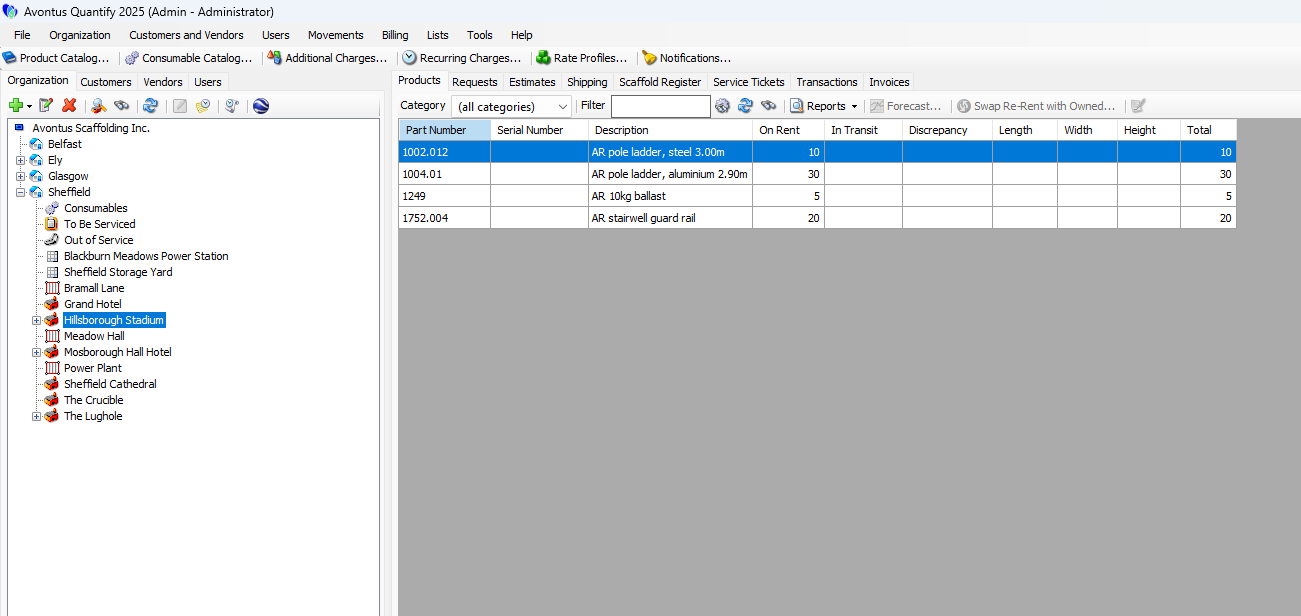
When you click a Job Site in the Organization Tree, the Product tab shows inventory counts of equipment located at that Job Site . The Products tab for a Job Site displays:
Part Number | Part number assigned to this part |
Serial Number | Serial number, if assigned |
Description | Part description |
On Rent | The count of this part at (rented by) this location |
In Transit | The counts of parts currently in In Transit status and waiting to be counted, if Counting (Receiving Options) is used at this Job Site |
Discrepancy | Any unresolved counting discrepancy, if Counting (Receiving Options) is used at this Job Site |
Total | Total of On Rent through Discrepancy columns |
The Products Change Dropdown
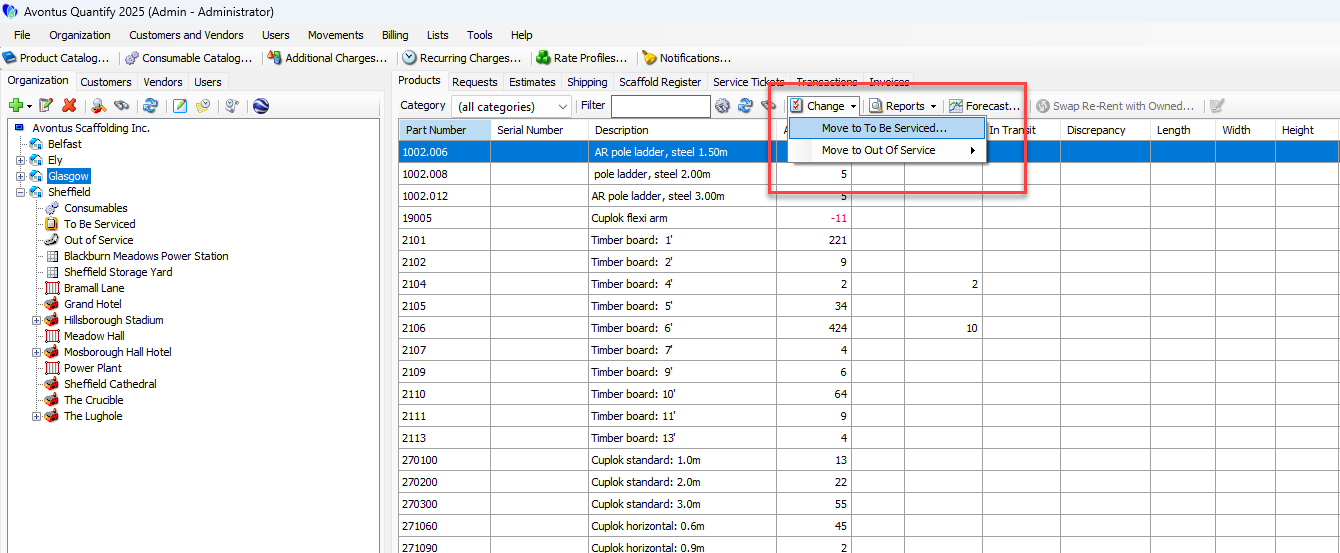
The Change dropdown enables you to place items that need repair, inspection, routine maintenance, etc. in the To Be Serviced queue, or place items that aren’t returned (missing/lost) or are returned damaged beyond repair into the Out of Service queue.
The Products Reports Dropdown
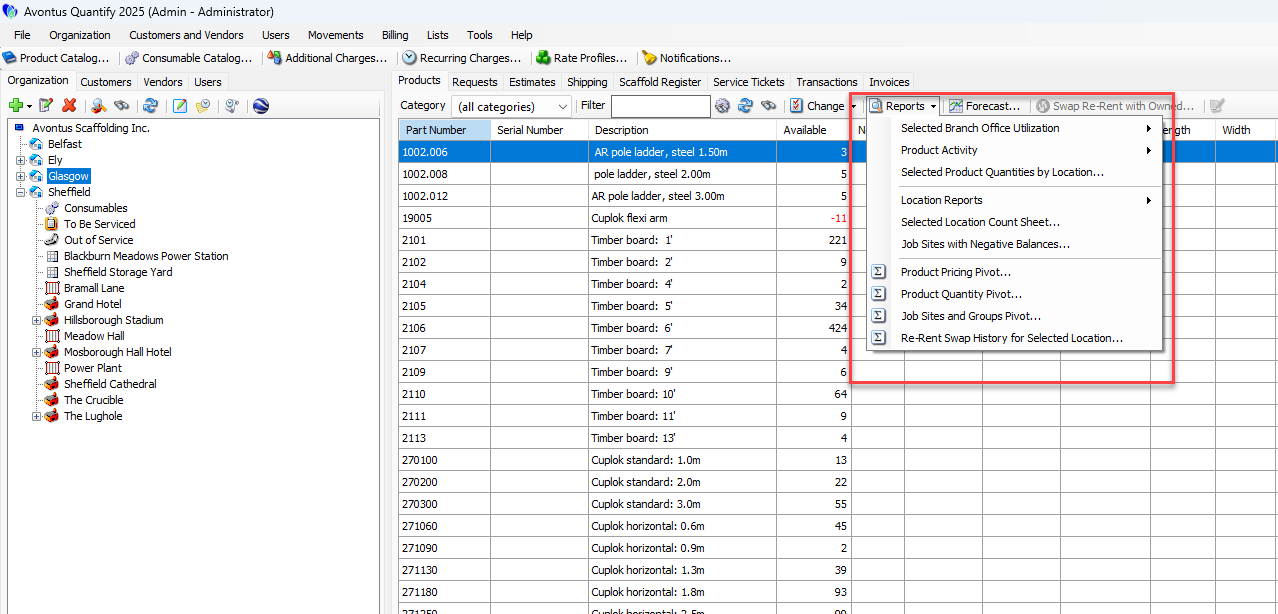
The Reports dropdown in the Products tab enables you to run the following product-related reports:
Product Utilization Report | Product Utilization Reports are available for stocking locations: Branch Offices and Sub-Branches. There are three types of Product Utilization Report: The Utilization by Quantities report displays use and utilization information for all stocked inventory for a selected location. This includes both available/on rent inventory and Out of Service inventory when the Out of Service feature is enabled. The Utilization by Average Cost report displays use and utilization information for all stocked inventory for a selected location. This includes both available/on rent inventory and Out of Service inventory when the Out of Service feature is enabled. The Utilization by Catalog Cost report displays use and utilization information for all stocked inventory for a selected location. This includes both available/on rent inventory and Out of Service inventory when the Out of Service feature is enabled. |
Product Activity Reports | Product Activity Reports can assist in resolving balance discrepancies. These reports include: All Product Activity by Category Selected Product Activity Pivot Report |
Selected Product Quantities by Location Report | The Selected Product Quantities Report shows:
It also lists the status of the parts in each of those locations: Available, On Rent, Reserved, In Transit, Discrepancy, To Be Serviced and Out of Service, as well as the total number of parts. |
Location Reports | Location reports are: Active Job Sites and Groups All Active Locations with Shipping Address All Active Location with Billing Address All Active Locations with Business Address Each of these reports contain the information named in the titled, plus details, like customer, address, billing rate profile, billing method, etc. |
Selected Location Count Sheet Report | The Selected Location Count Sheet Report shows a list of the inventory found at the selected location, organized by Product Category. The list includes the quantity Quantify believes is present at that location and a space for someone to do a live count of the quantity of each product at the location, as well as space for the counter to write his/her name, the date and put his/her signature. This acts as a double-check on quantities, and may later be used to adjust the quantities within Quantify. |
Job Sites with Negative Balances Report | The Job Sites with Negative Balances Report shows any negative quantity balances for all Job Sites in a Branch Office. |
Product Pricing Pivot Report | The Product Pricing Pivot Report will report stocked item quantities, including cost data, (Cost, Last Cost, Average Cost) for the selected location and all child locations under the selected node. This can be used as a good Asset Report. |
Product Quantity Pivot Report | The Product Quantity Pivot Report shows stocked item quantities for a selected location and all child locations under the selected node. This includes quantities available, on rent, backordered, in transit, to be serviced, damaged, scrapped, etc. |
Job Sites and Groups Pivot | The Job Sites and Groups Pivot shows administrative and billing information for a selected Job Site or Group, or for all the Job Sites and Groups under a selected location. |
Re-Rent Swap History for Selected Location Pivot Report | The Re-Rent Swap History for Selected Location Pivot Report shows each re-rent swap for owned materials at the selected Branch Office. |
Product Forecasting
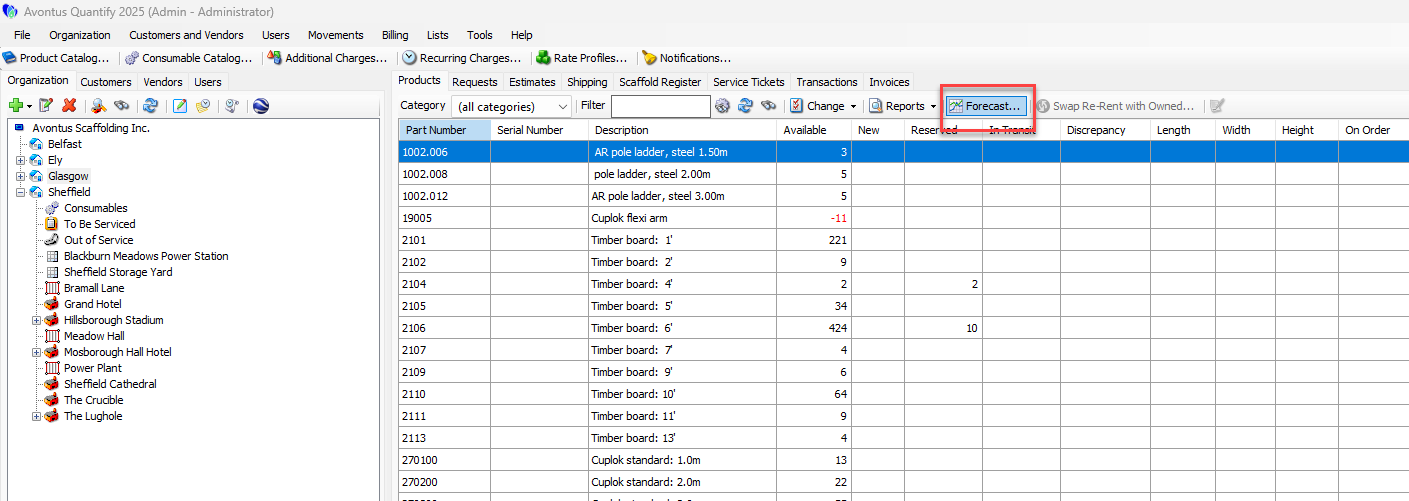
Forecasting enables you to anticipate product allocation and demand through a specific date. This feature is available for Branch Offices and Sub-Branches. Quantify can display forecasting results in Pivot or Chart format. In order to properly forecast product balances, Quantify uses calculations to determine information, such as the current balance. Forecasting reports can sometimes display Warnings, which are intended to inform you when certain balances or settings have affected the report results.
For information on how Forecasting data is calculated, view the informational video Forecasting.
Filtering the Products in the Product Tab
To filter the products in the Products tab, you first configure which column(s) you want to filter, how you want to filter those columns, then enter the characters you want to filter with.
To filter the products in the Products tab:
Click the Products tab.
Click the Filter Options button.
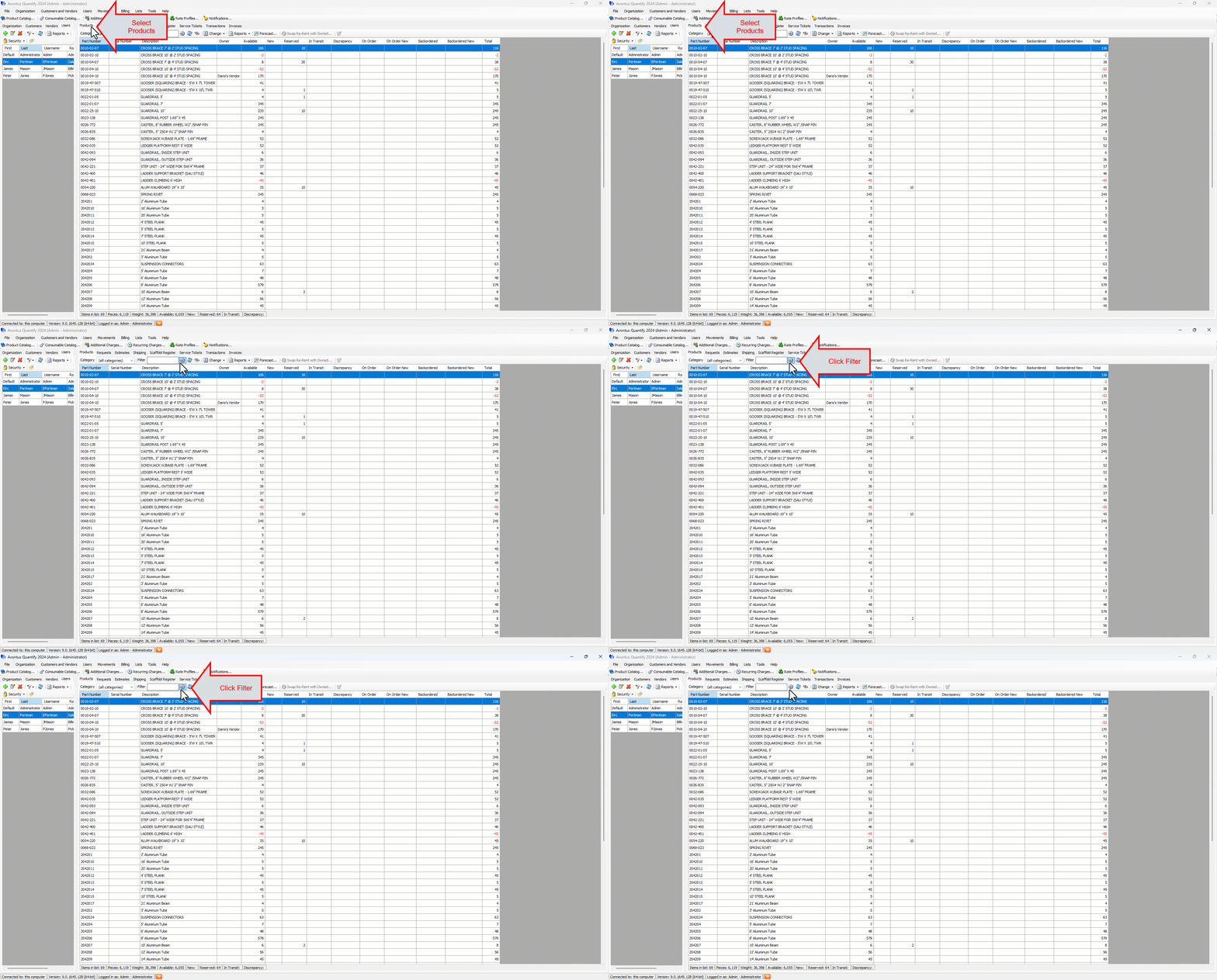
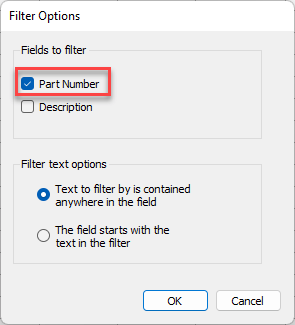
The Filter Options dialog appears.To filter by items in the Part Number column, click the Part Number checkbox.
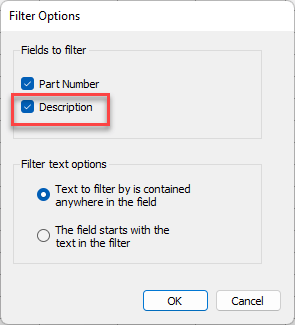
To filter by items in the Description column, click the Description checkbox.
Click the appropriate radio button:
Text to filter is contained anywhere in the field
Quantify will filter by any text in the fields in the selected column(s).The field starts with the text in the filter
Quantify will filter by text in the beginning of of the fields in the selected column(s).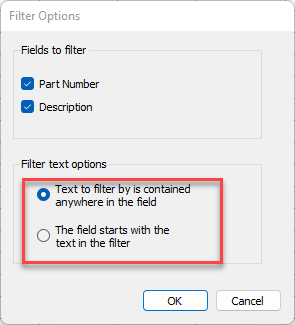
Click OK.
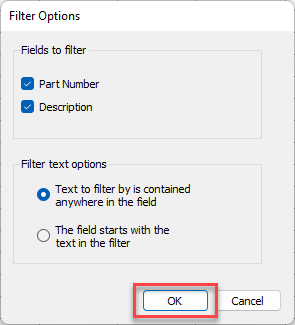
The Product tab returns.
Click in the Filter text field and enter the text you want to filter with.
Quantify filters the items in the tab based you what you enter and the configuration to set in the Filter Options dialog.