Handset Designer requires activation to launch and validate licensing. Handset Designer can be activated as a trial or pay-as-you-go license.
Registration and Activation
To activate Handset Designer:
- Double-click the Handset Designer shortcut on your desktop.
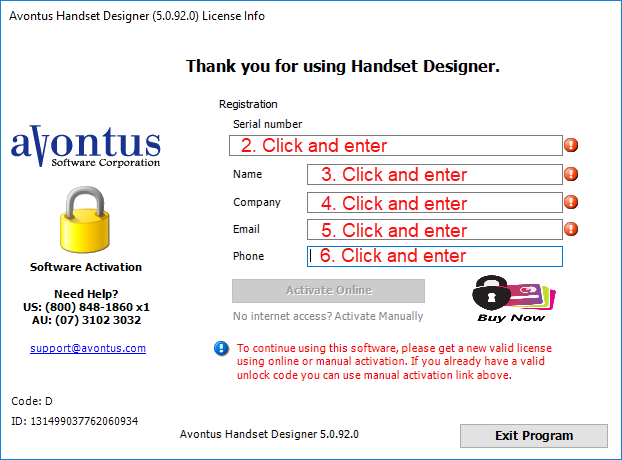
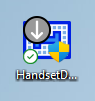 Handset Designer launches and the Handset Designer License Info dialog appears.
 - Click in the Serial Number text field and enter the serial number provided by your Avontus representative.
This information is required. If you do not have a serial number, contact support@avontus.com. - Click in the Name and enter the first and last name of the primary user of Handset Designer on this computer.
This information is required. - Click in the Company text field and enter your full company name as licensed with Avontus Software.
This information is required. - Click in the Email text field and enter a valid email address for the primary user.
This information is required. Periodic emails may be sent to this address to inform users of updates and other product related information. - Click in the Phone text field and enter a valid contact phone number with country code.
After entering your registration information, the Activate Online button becomes active. - Click Activate Online.
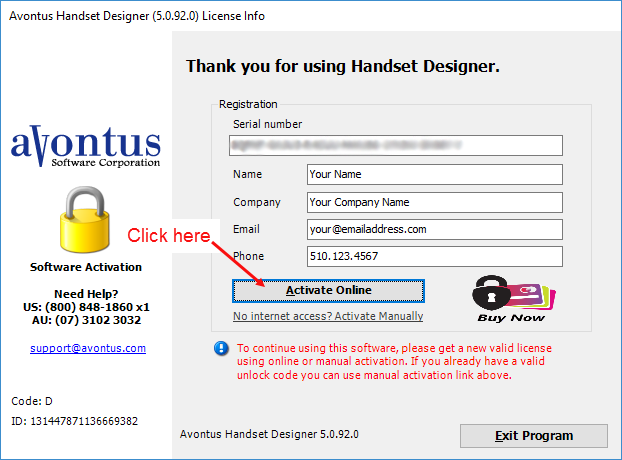
Note: If you are activating a trial license, your trial period begins once you activate the program.
An acknowledgement dialog appears. - Click OK.
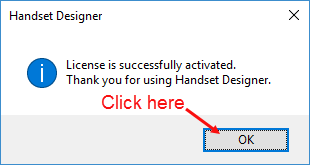
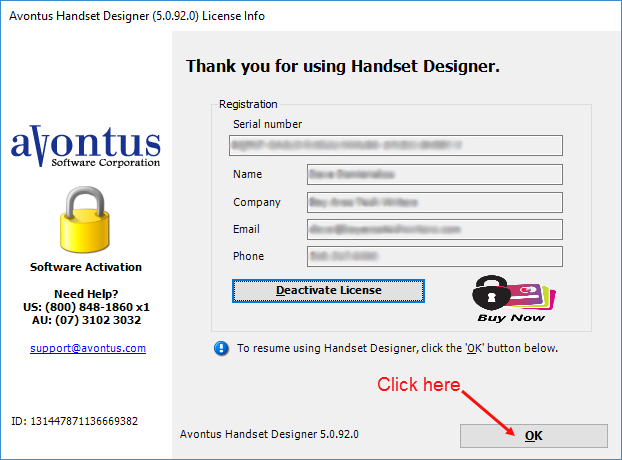
The Handset Designer License Info dialog returns. - Click OK.
Activation Troubleshooting
Having trouble activating? Refer to Activation Troubleshooting in Handset Designer.
Manual Activation
If you do not have an internet connection or are otherwise unable to use the Activate Online feature, you may request a manual activation code. For more information, refer to Manual Activation of Handset Designer.