Installation takes only a few minutes. You can download the Handset Designer software from the Handset Designer Install Files page.
To install Handset Designer:
- Double-click the installer icon.
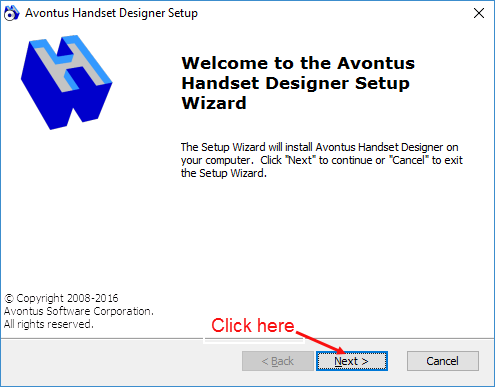
The Avontus Handset Designer Setup Wizard installer launches. - Click Next.
Prerequisites
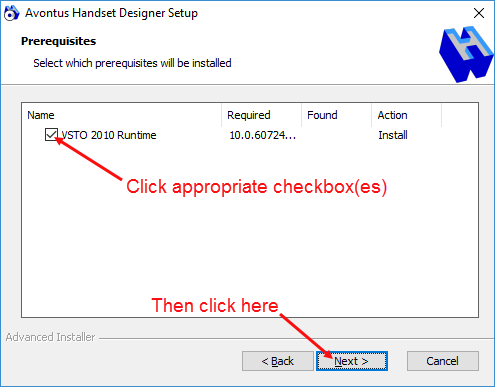
If prerequisite programs or tools are missing on the computer the Prerequisites Setup Wizard will launch and assist you installing them. Common prerequisites include Microsoft Visio, Microsoft Visual Studio Tools, and Microsoft Access Database Engine 2010. Follow the instructions to install each of the required programs.
- Click the checkbox for each prerequisite to install and click Next.
The End User License Agreement interface appears. - Click the I have read and accept the terms of the license agreement checkbox and click Next.
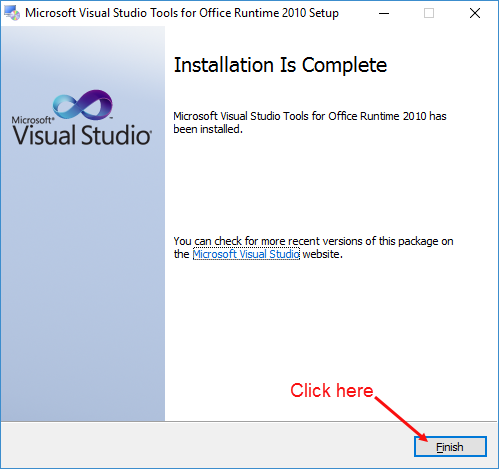
When installation is done, the Prerequisites Setup Wizard informs you as such. - Click Finish.
Handset Designer Setup
After Handset Designer’s installer has confirmed all prerequisites are installed on the computer, the Handset Designer Setup dialog will launch.
- Click Next.
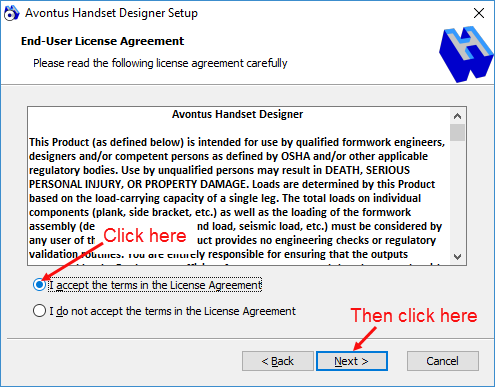
The End-User License Agreement interface appears. - Review the License Agreement carefully and click the I accept the terms in the License Agreement radio button and click Next.
The Ready to Install dialog appears. - Click Install.
The default install location C:\Program Files\Avontus or C:\Program Files (x86)\Avontus.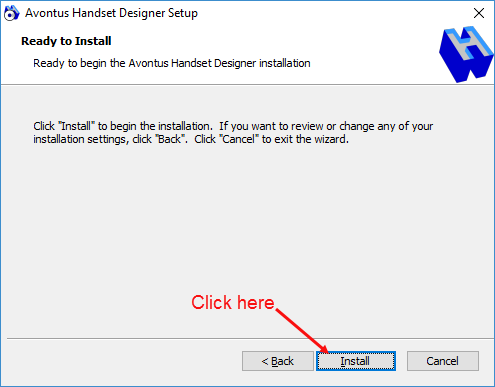
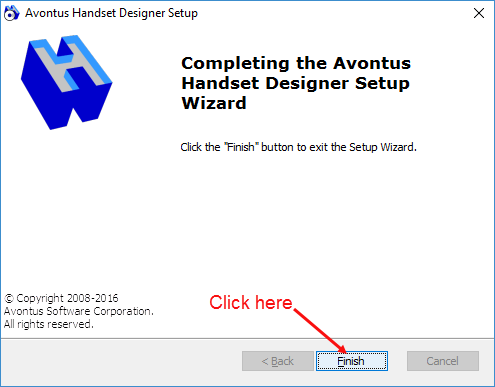
The installation begins and may take a few minutes. When installation completes, the installer informs you. - Click Finish.
Along with installing the program, the installer adds a Desktop shortcut.
To launch Handset Designer, navigate to your Desktop and double-click the shortcut.