If you do not have an internet connection or are otherwise unable to use the Activate Online feature, you may request a manual activation code.
Note: Trial licenses of Handset Designer require online activation and an active internet connection during the trial period.
There are two ways to manually request activation: with an email application/internet connection and without and email application/internet connection. Choose the best option based upon your computer's accessibility.
To manually activate Handset Designer:
- Double-click the Handset Designer icon on your desktop.
Handset Designer launches and the Handset Designer License Info dialog appears. - Click in the Serial Number text field and enter the serial number provided by your Avontus representative.
This information is required. If you do not have a serial number, contact support@avontus.com. - Click in the Name and enter the first and last name of the primary user of Handset Designer on this computer.
This information is required. - Click in the Company text field and enter your full company name as licensed with Avontus Software.
This information is required. - Click in the Email text field and enter a valid email address for the primary user.
This information is required. Periodic emails may be sent to this address to inform users of updates and other product related information. - Click in the Phone text field and enter a valid contact phone number with country code.
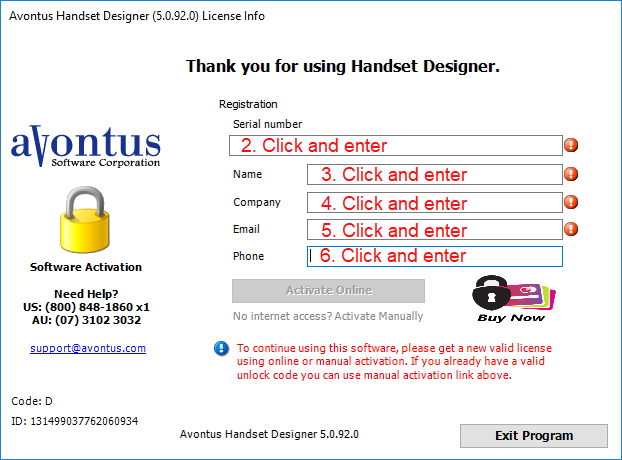
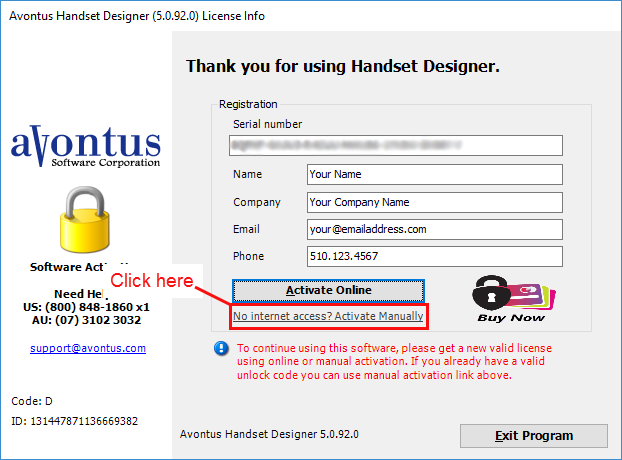
- Click No internet access? Activate Manually.
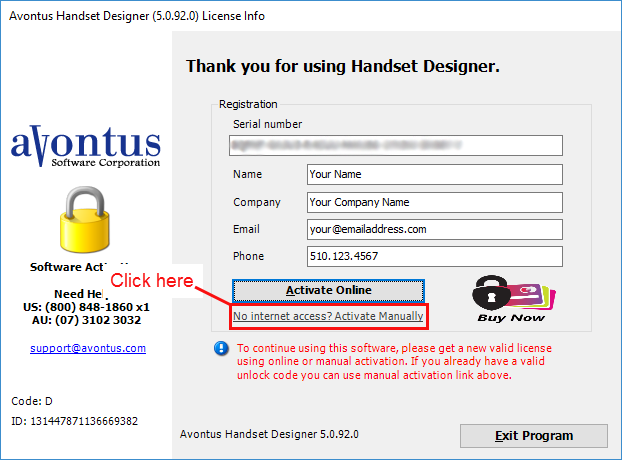
The Manual Activation dialog appears. Use the appropriate procedure below.
Email Client Available (w/ Internet Connection)
If an email client is available:
- Click Email Request.
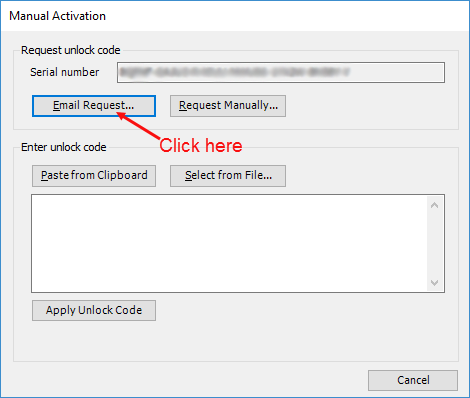
This launches your email client, with a a new email message addressed to Avontus Support and containing the registration information. No additional information is required.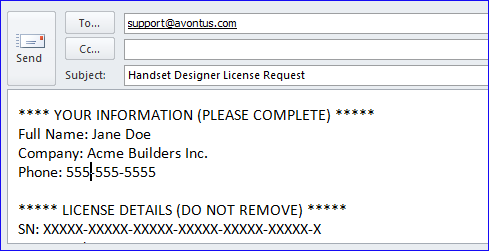
- Click Send to send the message.
Warning: Do not remove or alter the information in the License Details section. This information is required to receive an activation code.
Email Client Not Available (No Internet Connection)
If an email client is not available and/or if the computer does not have an active internet connection:
- Click Request Manually.
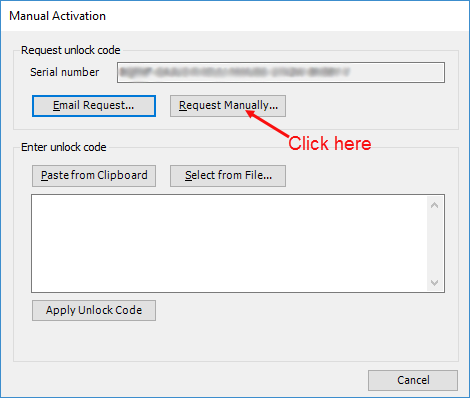
The Handset Designer - Request License User Info dialog appears. - If you have an internet connection and can send the request through an email service,
- Click Copy to Clipboard
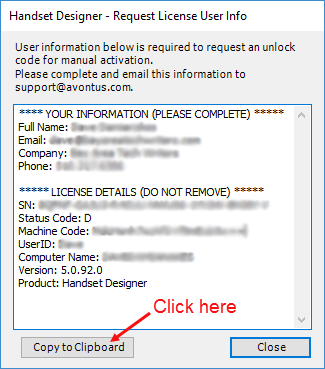
- Paste the copied text into a new email message with a subject Handset Designer License Request.
- Send this request to support@avontus.com.
Warning: Do not remove or alter the information in the License Details section. This information is required to receive an activation code.
- Click Copy to Clipboard
- If you do nothave an internet connection:
- Call Avontus Support at +1 (800) 848-1860 to provide your license and registration information over the phone.
- Alternately, you may copy this information to a portable storage device and attach it to an email sent from another computer.
Entering an Unlock Code
You will receive your unlock code via email from Avontus Support.
Once you do:
- Double-click the Handset Designer icon on your desktop.
Handset Designer launches and the Handset Designer License Info dialog appears. - Click No internet access? Activate Manually.
- Copy the complete code sent from support to your clipboard.
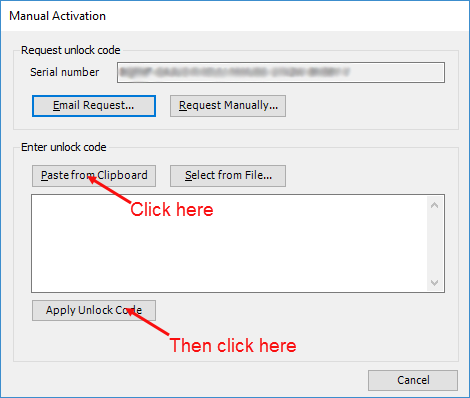
This will be a long character string that includes numbers, letters and symbols. - Click Paste From Clipboard to paste this information into the dialog.
- Click Apply Unlock Code.
A confirmation dialog appears. - Click OK in this dialog and in any other dialogs that appear.
Handset Designer launches.